
Add chat to your website
A visitor is on your website with a question. Instead of a contact form they’ll never hear back from, they get a chat bubble, and your AI teammate drafts each reply for you to approve before it’s sent. That’s Suggest, the default; see Suggest vs. Autonomous. Every conversation lands in your Messaging inbox, so you can step in whenever you want.
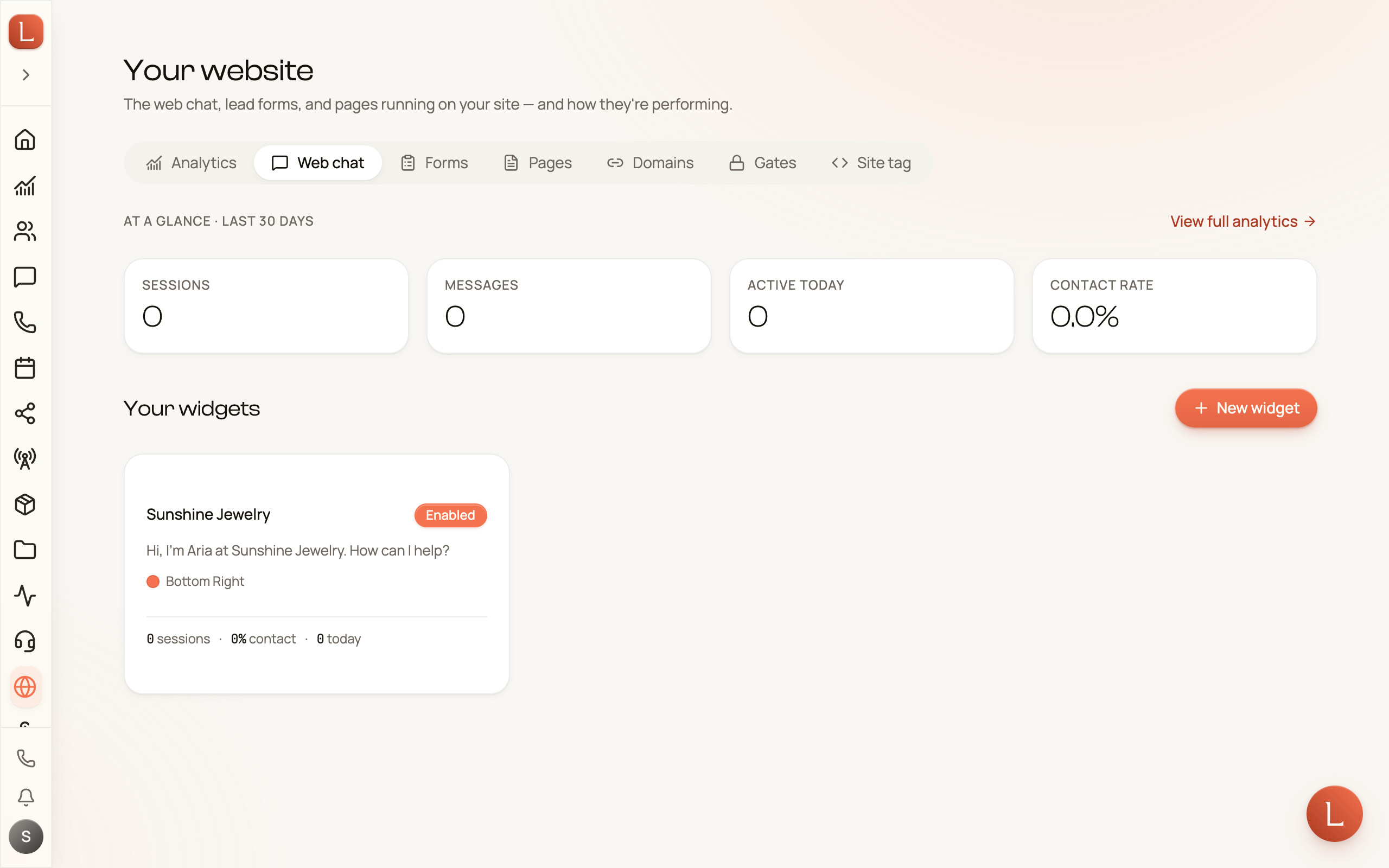
You set this up in Website. Open it from the sidebar and choose the Web chat tab.
Create a widget
Section titled “Create a widget”The Web chat tab lists every widget you’ve made under Your widgets, with a New widget button top-right. If you have none yet, it reads No widgets yet. Add a chat widget to your site so visitors can talk to your AI teammate.
-
Tap New widget. You land on the New Widget page.
-
Under AI teammate, choose who replies. Your team’s default hands the chat to the teammate you set as your default under Teammates → Config; until you set one, nobody replies. Pick a teammate by name to choose one yourself, or No teammate to keep the chat to yourself: nobody replies, even if you set a default later. See Who’s replying to a Contact.
-
Write a Greeting Message, the first line visitors see when they open the chat.
-
Tap Create Widget at the bottom. It opens the new widget’s Widget Details page.
Before your trial starts, you can still build a widget and save it switched off: turn Enabled off before you tap Create Widget. Anything that lets the chat reach visitors, like switching the widget on or turning on Serve webchat in your site tag, asks you to start your trial first. See Start your trial.
Make it look like your site
Section titled “Make it look like your site”Below the basics, the same styling sections appear on the New Widget page and on every widget’s Widget Details page. A Live preview sits beside them and updates as you type, so you see how the chat will look before anything goes live. Switch it between Launcher and Panel to look at the chat button and the open chat. The open chat starts with your greeting, updating as you type it, then a sample conversation. With no greeting, it shows none, as your live chat does. On a phone, the preview sits in a Live preview bar near the bottom of the screen; tap Expand to open it.
- Brand & theme — Primary color and Text on primary, plus a Theme lock. Leave it on Auto and the chat follows each visitor’s own light or dark setting. Choose Light or Dark to pin it, which is what you want if your site is only ever one or the other.
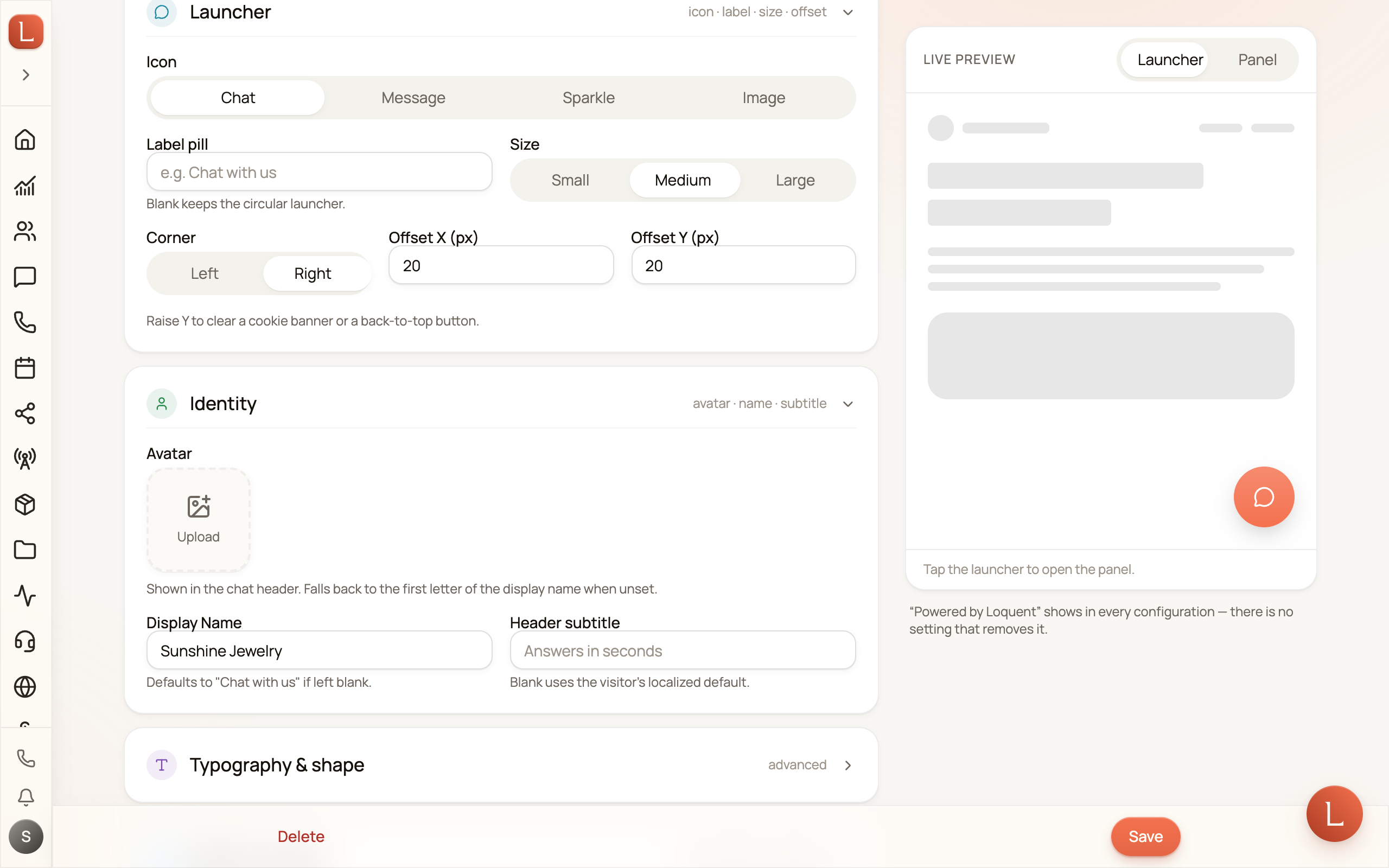
- Launcher — the chat button itself. Pick an Icon, or Image to upload your own; add a Label pill like Chat with us; set the Size and the Corner (Left or Right); and nudge it with Offset X (px) and Offset Y (px) so it clears a cookie banner or a back-to-top button.
- Identity — an Avatar for the chat header (without one, visitors see the first letter of the name), the Display Name (blank shows Chat with us), and a Header subtitle under it, like Answers in seconds.
- Typography & shape — the Font family and the Corner radius.
- Where it shows — Hide on mobile, or Hide on these paths for pages like a checkout you don’t want interrupted.
- Behavior — all off unless you turn them on: Open by itself after (seconds), a Nudge bubble that invites a question, or an Unread badge on the button when a reply arrives while the chat is closed.
-
Open the section you want and make your change. Watch the preview.
-
On the widget’s Widget Details page, tap Save. Your site picks up the new look the next time a visitor loads a page.
A few things worth knowing about uploads. They wait until the widget exists, so add the avatar or launcher image on its Widget Details page. The image saves on its own the moment you pick it, but the choice to use it saves with the rest of the form, so upload, then tap Save. The file must be a PNG, JPG, WebP, or GIF under 512 KB; a square image works best.
Choose where and how it shows up
Section titled “Choose where and how it shows up”- Embed Mode — Bubble (floating) puts a chat button in a page corner; Inline (embedded) places the chat inside a box on a page.
- Contact Info Collection — whether the chat asks a visitor who they are:
- None — just chat, no details asked.
- Optional — the chat asks for their details, and they can skip it.
- Required — the visitor shares details before chatting.
Pick Optional or Required and a Collect fields panel appears with switches for Collect name, Collect email, and Collect phone. Every visitor who writes in becomes a Contact in your CRM, and whatever they share is saved on that Contact, so a chat turns into a real record you can follow up on.
If a visitor types an email or phone number that already belongs to one of your Contacts, the chat starts as a new Contact and the email or phone stays with the existing one. Typing an address doesn’t prove someone owns it, so the widget never shows them that Contact’s conversation. For the same reason, a Contact who comes back on a different browser or device starts as a new Contact too, and so can a returning visitor who shares an email or phone after the chat already knew their browser.
A few more switches
Section titled “A few more switches”- Allowed Origins — the websites that may show this widget, separated by commas. Leave it blank to allow any site; domains already live under Website → Domains work without being listed.
- Suggested replies — after each reply, your teammate offers the visitor up to three quick replies to tap. It starts on.
- Voice dictation — visitors can speak instead of typing; what they say becomes an editable message before it’s sent. It starts on.
- Enabled — leave it on to make the widget live.
Every chat shows a small “Powered by Loquent” line; no setting removes it.
Set daily limits
Section titled “Set daily limits”Every message a visitor sends wakes your teammate, and every reply uses your credits. Two settings keep a busy day, or someone flooding the chat, from running up the bill:
- Daily Message Cap — the most messages one visitor can send in a day, from 1 to 1,000. Leave it blank and each visitor gets 50.
- Daily Total Cap — the most messages all visitors together can send in a day, from 1 to 100,000. Leave it blank and the widget takes 1,000.
Enter a whole number; commas and spaces are fine. Both reset at midnight UTC, and a change applies to chats already open. Filling in the contact form counts as a message too.
When a visitor reaches either limit, the chat shows Daily message limit reached and stops taking their messages until the reset. They can still read the conversation so far. Once the Daily Total Cap is reached, the chat stops taking messages from every visitor until midnight UTC, so if your site is busy, raise it. A visitor who sends many messages in a few seconds sees Sending a bit fast — give it a moment, then retry. and can send again shortly. If a great many visitors open the chat in the same few seconds, some briefly see Reconnecting… and join a moment later; this limit is fixed and does not change with your settings.
To see how close today is, open Website, choose the Analytics tab, pick Web chat, and select the widget. The Daily limits card shows today’s messages against the daily total and how many visitors reached their own limit.
Put it on your site
Section titled “Put it on your site”Your site tag is one snippet for your whole website: it can track visits and capture leads from your own site’s forms, and it can show your chat too.
-
Open Website and choose the Site tag tab. If you don’t have a tag yet, tap New site tag. It starts switched on, with Require consent on: it waits for your cookie banner before it tracks visits, but the chat shows right away.
-
Turn on Serve webchat. With one chat widget, it’s picked for you; with more, pick one from the Choose a chat widget… list.
-
Under Install snippet, tap Copy. It reads Copied.
-
Paste the snippet just before the closing
</body>tag on every page of your website, or send it to whoever builds your site.
To keep the tag to your own site, list your domains under Allowed domains, one per line, and tap Save domains. Leave it empty to allow any site; domains already live under Website → Domains work without being listed.
Or paste the widget’s own snippet
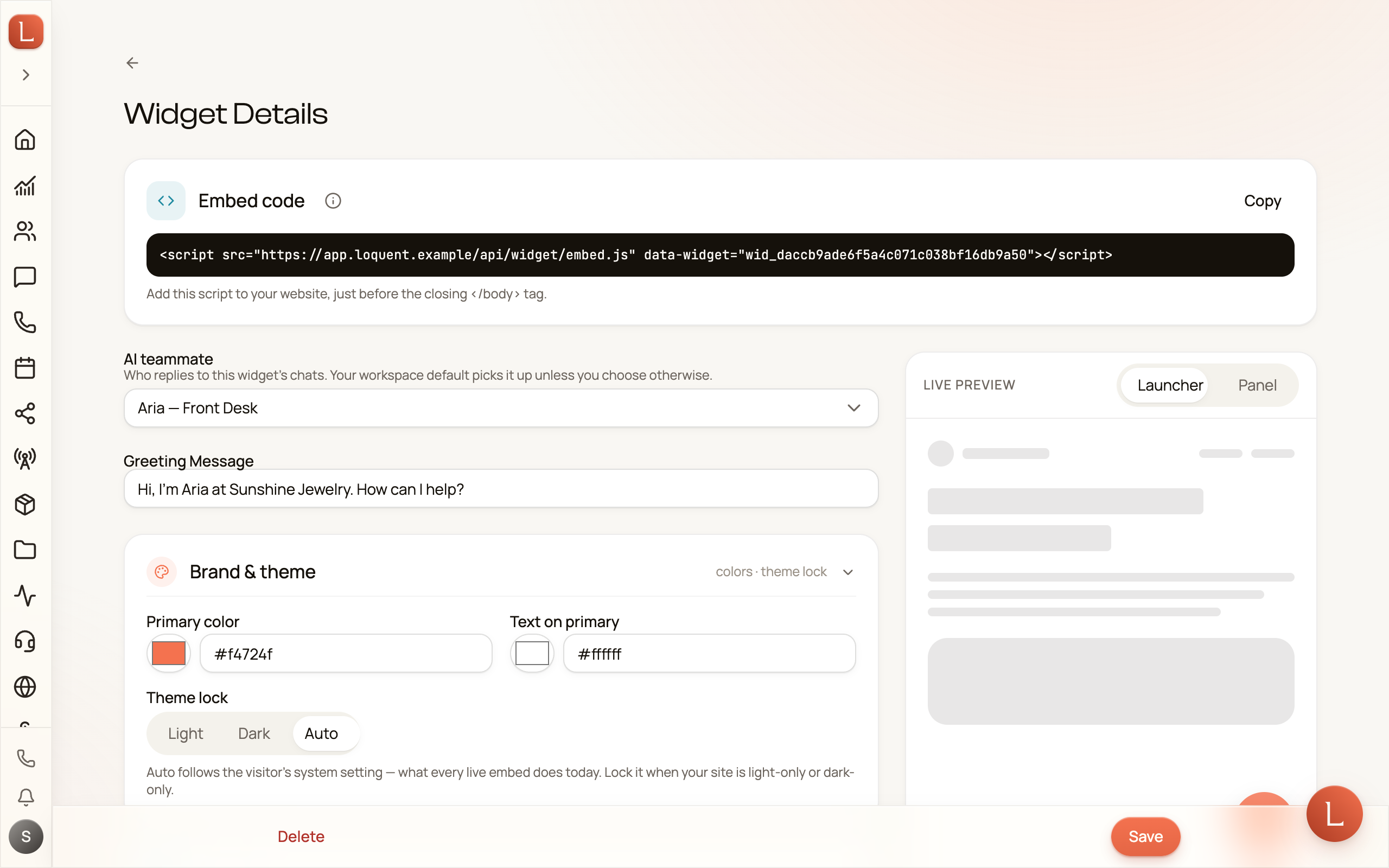
Section titled “Or paste the widget’s own snippet”Each widget’s Widget Details page also shows an Embed code card at the top with the widget’s own snippet. If a page already carries it for the widget your site tag serves, the chat still shows only once.
-
Tap Copy on the Embed code card.
-
Paste the snippet into your website, just before the closing
</body>tag on every page that should show the chat.
If you picked Inline, the snippet also includes a small box to place where you want the chat to sit.
Want the chat to do more?
Section titled “Want the chat to do more?”If whoever builds your website wants to open the chat from your own “Talk to us” button, move the launcher on one page, show the widget in Spanish, or send an event to your analytics when a conversation starts — that’s all possible without changing anything here. See Control the chat from your website.
Every chat that comes in flows into Messaging as a conversation. From there your teammate drafts and you stay in control — see how drafts, approvals, and escalations work. New to the team idea? Start with Meet your AI team.