
Custom fields
Every Contact comes with the basics — name, phone, email. But your business has its own things worth remembering: which company someone’s with, when their plan renews, whether they’ve signed. Custom fields let you add those, and once you do they appear on every Contact profile and your AI teammate can fill them in for you.
You define them once, in one place, and they show up everywhere a Contact does.
Where to set them up
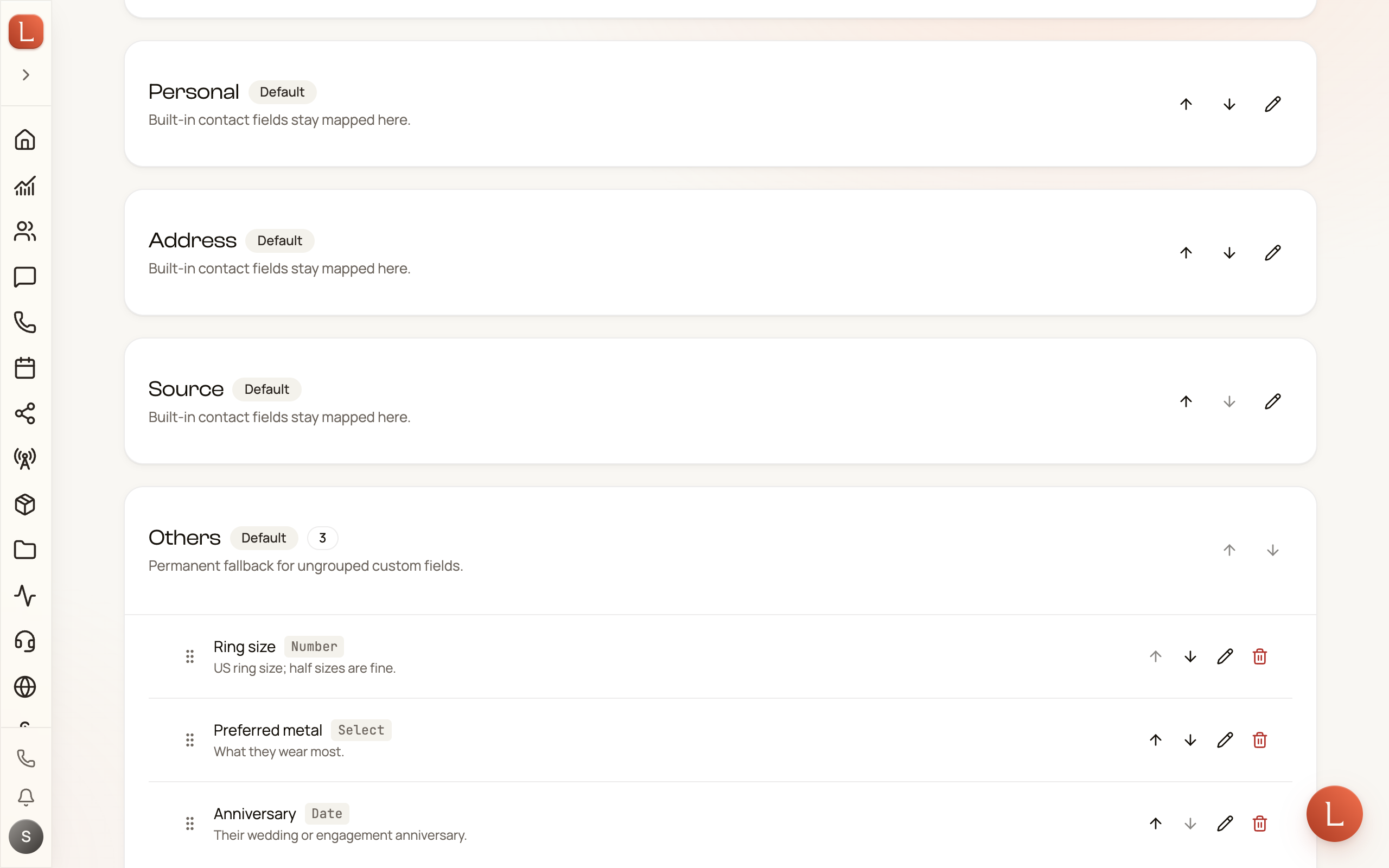
Section titled “Where to set them up”Open Contact Fields from the settings area — its address is /contacts/fields. This is the master list of every extra field your business tracks, laid out as one card per group.
Drag the handle on the left of a row to reorder that field inside its group, or drop it on the card of another group that takes custom fields — one you created, or Others. The four built-in groups (Contact Info, Personal, Address, Source) hold your built-in fields and can’t take custom ones. A field’s group is also a choice on the field itself, in its Group picker, which offers the same list.
Adding a field
Section titled “Adding a field”-
Click Add field in the top-right. A small form opens.
-
Give it a Name — what you’d call it in plain language, like Company or Renewal date.
-
Pick a Type — this decides what kind of value the field holds and how it’s entered (more on the types below).
-
Add an optional Description. It shows on hover, a quiet reminder of what the field is for.
-
Click Create. The field is live immediately, on every Contact.
To change a field later, click the pencil on its row; to remove one, click the trash icon.
Group your fields
Section titled “Group your fields”Fields don’t sit in one long list — each one belongs to a group, and the groups are yours to shape.
Every business starts with five built-in groups: Contact Info, Personal, Address, Source, and Others. Make your own with New group, give it a Group name, and click Create group. Reorder groups with Move group up and Move group down, rename one with Rename group, and remove one with Delete group — which never deletes the fields inside it. They move to Others, exactly as the confirmation says. A field you never assign a group to lands in Others too; the field form spells it out: Ungrouped fields appear in Others. A group you created yourself is marked Custom here.
Here’s the payoff for taking a minute over this. Your grouping shows up in two places a Leader actually works:
- On every Contact profile, the record is split into those same groups, each one you can open and close. See a Contact’s profile.
- In the Contacts filter panel, each group that owns at least one custom field becomes its own collapsible container — in your order, under your name, with a custom chip on the ones you made. A group with no custom fields shows no container at all. See Browse and filter your Contacts.
The field types
Section titled “The field types”The Type you pick shapes how the value is entered and kept tidy:
- Text — a short line, like a company name or a referral source.
- Textarea — a longer, multi-line note.
- Number — anything numeric: deal size, headcount, contract length.
- Date — a calendar date, like a renewal or onboarding day.
- Yes/no — a simple true-or-false toggle. (In the type list it’s labeled Boolean.)
- Email — an email address, checked so it’s well-formed.
- URL — a web link; if you leave off the
https://, it’s added for you. - Select — a fixed set of choices you define. Pick this and an option editor appears so you can list the allowed values, like Bronze / Silver / Gold.
Choose the closest type rather than defaulting everything to Text — a Date field gives you a calendar, a Select keeps everyone picking from the same clean list.
Where they show up
Section titled “Where they show up”Once a field exists, three things happen:
- Every Contact profile grows that field, ready to fill in. Your AI teammate can also set it as it learns things during conversations — so a renewal date mentioned on a call can land in the right field without you typing it. See the Contact profile page for how a single Contact reads.
- Lead forms can collect it. When you build a form for your website, your custom fields are available to add, so a new Contact arrives with those details already filled in. See Lead forms.
- The Contacts filter panel grows a filter for it, inside a container named after its group — so you can pull up everyone on the Gold plan without leaving the list. See Browse and filter your Contacts.
Custom fields are the structured half of what you know about a Contact. For the free-form half — the running history and things your team remembers on its own — see Notes and memory.