
One thread per Contact
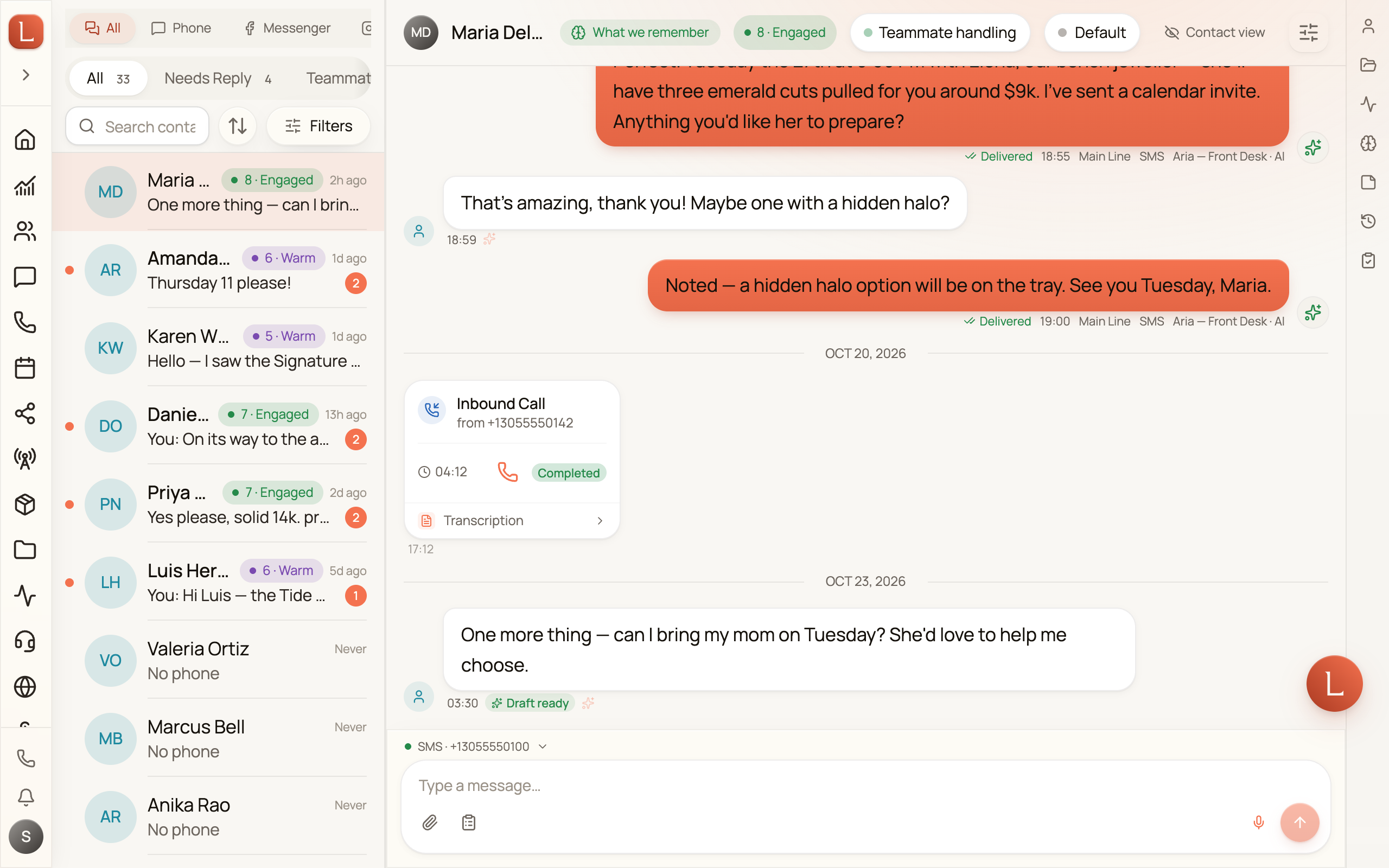
Open any conversation and you get the whole relationship in one place. Every call, text, email, web chat, and social message with that Contact lands in a single timeline — no separate screens for “their calls” and “their emails.” Scroll up to read the history; the newest message sits at the bottom.
Who said what
Section titled “Who said what”The timeline shows exactly where each message came from. Messages from your Contact sit on one side; messages sent from your side sit on the other, with a small status line — Sent, Delivered, Read, or Failed — under the ones you sent. Every message that goes out carries a small tag naming who wrote it — You, a colleague’s name, or the teammate’s name followed by · AI teammate. It’s always visible, on a phone as well as a desktop, so a real person and your team never blur together. Calls appear as their own entries you can open to read the recording and summary.
Not every entry is a two-sided bubble. The timeline can also hold an inset green lane headed Between you and your team — private messages between you and your teammate that the Contact never saw and never will. It deliberately never uses the colour of a sent message, so it can’t be mistaken for something that went out, and it’s attributed differently too: each line carries a name and a time but no delivery status and no channel, because nothing was delivered. See a private word with your teammate.
Scroll to the very top and older messages load in automatically — you’ll see a brief Loading older messages… while they arrive. A brand-new Contact with nothing yet reads No communication history yet.
Filter to one channel
Section titled “Filter to one channel”By default the timeline blends every channel together. The filter control in the header lets you show just one at a time: All, Phone, Calls, SMS, Emails, Web Chat, Messenger, Instagram, or WhatsApp. Phone combines calls and texts; Calls and SMS keep those two parts separate when you need a tighter view. Choosing a single channel never hides the private lane, because a private message isn’t on a channel at all.
When you open a conversation from an inbox channel, the thread starts on that same channel and the compose bar switches there when the Contact can be reached that way. Open a conversation from the Web Chat lens and the compose bar switches to Web Chat, so you can answer the visitor yourself — your reply appears in their live chat window. You can always choose All in the thread without changing the inbox lens you came from.
What did this Contact actually see?
Section titled “What did this Contact actually see?”The header carries a second control, and it answers a different question from the channel filter: Contact view. On desktop it’s a pill in the conversation header beside the filter, with an eye-off icon. On a phone it’s a switch at the top of the Filter sheet, labelled Contact view, with the line Shows only what the contact received. underneath.
It’s off by default — the full record is what you see first. Turn it on and the private lane is withheld, leaving a dashed marker exactly where it sat: 8 messages with Clara hidden · Show, or 3 private messages hidden · Show when only your own notes are in that run. Tapping the marker turns Contact view back off.
It resets to off when you move to a different Contact. And it’s the only control that withholds private messages — they stay visible under every channel filter.
The side panel
Section titled “The side panel”On desktop, a slim strip of icons runs down the right edge — tap one to slide out a panel about this Contact without leaving the conversation:
- Contact Info — names, phone numbers, emails, tags, and the other details on their record. Edit anything right here.
- Memory — what your team remembers about this Contact: the facts your teammate has picked up over time. You can also reach it from the What we remember button in the header.
- Notes — notes your team keeps on this Contact.
- Activity — a timeline of what’s happened on the record.
- Tasks — the follow-ups tied to this Contact.
Tap the same icon again to close the panel and give the conversation full width.
The panel keeps itself current. A note or a follow-up your teammate files while you’re reading the thread appears in the open panel by itself, and so does a change someone on your team makes. The same holds for the Info, Notes, and Tasks tabs on the phone layout below.
On your phone
Section titled “On your phone”The phone layout keeps the timeline front and centre. Tap the Contact’s name in the floating header to open their full info screen, with Info, Memory, Notes, and Tasks as tabs across the top and an Edit button in the corner. The back chevron returns you to the conversation. The filter button opens the Filter sheet, which is also where Contact view lives on a phone.
When you’ve filtered to one line
Section titled “When you’ve filtered to one line”If you opened the thread from a single phone line, a banner reads Showing only that line. Tap View all lines to widen the timeline back to every channel and number.
When a Contact reacts
Section titled “When a Contact reacts”When a Contact reacts to one of your messages — a thumbs-up on a text, a heart on WhatsApp, a reaction on Facebook Messenger or Instagram — a small emoji pill appears tucked under that message, showing what they sent and when. iPhone Tapbacks and Android reactions to your texts land the same way. A reaction never counts as a new message, so it won’t pull the thread into Needs reply. Reactions that arrived before this was added may still sit in the thread as their own row.
Next: review and send your teammate’s drafts right inside this thread, or reply yourself from the compose bar.