
How your posts are doing
Posting is only half the job. Social → Insights shows what those posts earned: how many people they reached, how many of those people did something, how your following is growing, and how quickly comments get answered.
Four numbers, the posts behind them, and one line from your AI teammate. That’s the whole page — there is nothing to set up and nothing to configure.
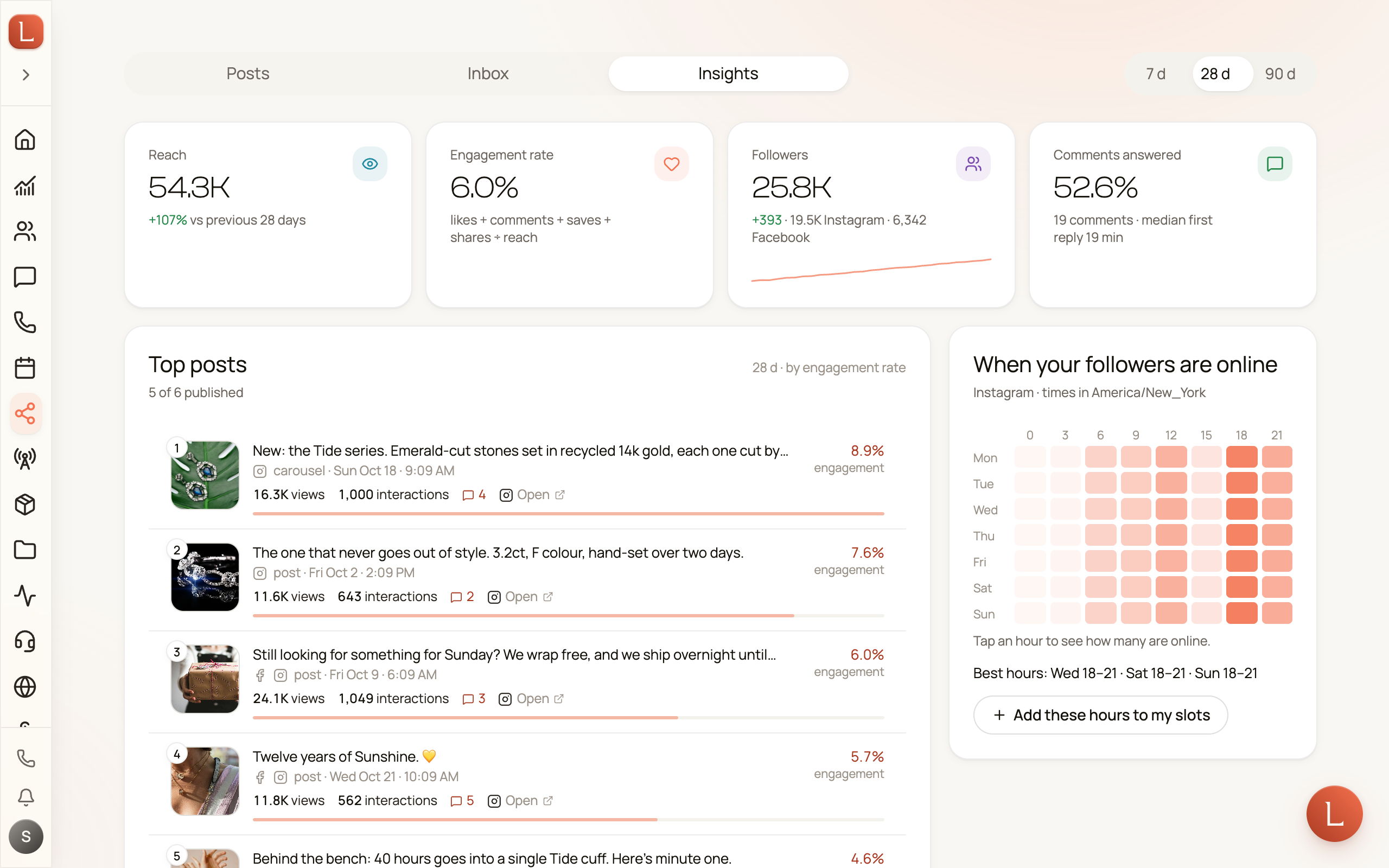
The four numbers
Section titled “The four numbers”Pick 7 days, 28 days, or 90 days at the top right. Everything on the page follows that choice.
| Number | What it means |
|---|---|
| Reach | How many people saw the posts you published in this window. |
| Engagement rate | Of the people who saw a post, how many liked, commented, saved, or shared it. Averaged across your posts. |
| Followers | Your Facebook and Instagram followers added together, and how that changed over the window. |
| Comments answered | The share of other people’s comments that got a reply from you, with your typical time to answer. |
Under each number is one line of context — the change against the window before, or the split between your two accounts.
Top posts
Section titled “Top posts”The five posts that did best in the window, with their views, interactions, and engagement rate. Each row links straight to the live post on Facebook or Instagram, and shows how many comments it drew — tap that to open the comments in your Inbox.
If reach isn’t available for your account yet, the list ranks by interactions instead, so it is still useful.
When your followers are online
Section titled “When your followers are online”Instagram tells us which hours your followers are awake, and this grid shows it across the week. Darker means more people online.
Under the grid are the three best times to post. Tap Add these hours to my slots and they join your weekly posting schedule — we’ll show you exactly which hours are being added before anything changes, and posts you have already scheduled don’t move.
Your teammate’s read
Section titled “Your teammate’s read”Under the top posts, your AI teammate adds one sentence about the pattern it sees — which kind of post is working, and what that suggests you do next. It appears when there is something worth saying and stays quiet when there isn’t.
On your posts
Section titled “On your posts”The Posts tab picks up the same numbers. Every published post now shows what it earned on each network, how many comments it has, and an Open on Facebook / Instagram / LinkedIn link straight to the live post.
A post published in the last hour says so — the first numbers arrive about an hour after it goes out, then again the next day, and a few times over the following month.
If the numbers aren’t there yet
Section titled “If the numbers aren’t there yet”- “Awaiting Meta access” — Facebook hasn’t approved reach and views for your account yet. Likes, comments, followers, and the links all work in the meantime. Nothing for you to do.
- “One permission short” — one Facebook permission grant away. The button takes you to the Posts tab, where Enable insights re-runs the approval.
- “Checking the connection” — Facebook isn’t answering right now. Your saved numbers are still on screen and update as soon as it does.