
Create your account
Getting started takes a couple of minutes. You sign up, and Loquent quietly sets up everything behind you — your business workspace, a Free plan, and a starter AI team ready to work. There is nothing to wire up and nothing to pay yet: payment comes at a single step later, when you decide to put your team live.
Sign up with email
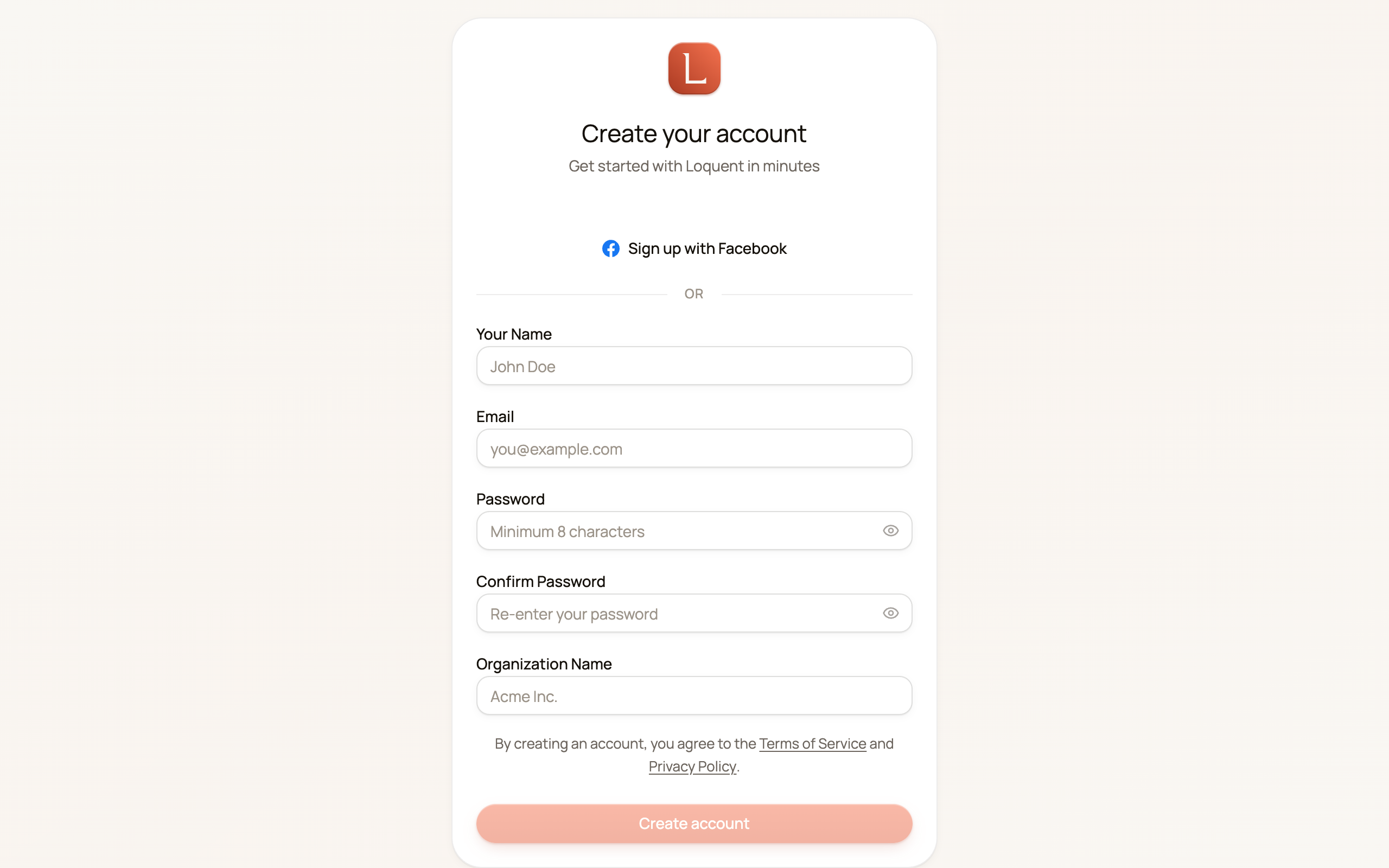
Section titled “Sign up with email”Head to the sign-up page and fill in the short form: your name, your email, a password of at least eight characters, and your business name (this becomes your workspace).
-
Enter your name, email, a password, and your Organization Name.
-
Press Create account.
-
We email you a 6-digit code. Type it into the Verification Code box and press Verify.
That’s it — you land straight in your new workspace.
Closed the page or switched apps to read the email? Open the sign-up page again in the same browser: it comes back to the code screen, and the code you were sent still works. Typed the wrong address? Tap Back and fix it.
If the code screen says your account may already be set up, choose Try signing in and use the email and password you just chose.
Or sign up with Facebook
Section titled “Or sign up with Facebook”Prefer not to manage another password? On the sign-up page, choose Sign up with Facebook. You approve access with your existing account, and you’re in — no email code needed. You’ll use the same button to sign in next time.
What gets set up for you
Section titled “What gets set up for you”The moment you finish, Loquent has already done the setup work in the background:
- Your business workspace — your own private space, named after the business you entered. Everything you do lives here.
- A Free plan — you start on the Free plan, and it costs nothing. The Free plan is for looking around: your team can be built and you can chat with your AI teammate, but nothing reaches a customer until you start your trial, which is where payment comes in. See Start your trial below.
- Your starter AI team — a first AI teammate is created and waiting, so there’s someone to talk to from minute one. Meet them in Meet your AI team.
You don’t set up a phone number or connect anything to try Loquent. That comes later, when you’re ready — see Get your business number.
Start your trial
Section titled “Start your trial”After Loquent has researched your business and built your team, the setup flow reaches one paid step: Start the trial. It is the moment Loquent asks for a card, and the only one.
The step reads the whole deal back to you before you commit — the one-time charge to start, how long the trial runs, the credits it comes with, the date your plan first renews, and the fact that a reminder lands a few days before that date. The same figures appear again on the secure payment page, next to a box you tick, before anything is charged. Have a promo code? Enter it on the step and the totals update before you pay — and if you arrived from a link that already carried one, it is filled in for you, checked only when you get here. A code that no longer works says so and the step still works without it.
-
Read the terms on the step, and enter a promo code if you have one.
-
Press Start the trial to open the secure payment page.
-
Enter your card. You come straight back to Loquent, and your trial is live.
Or not now
Section titled “Or not now”Not now is a real answer. Nothing you built is lost or hidden — your profile, your catalog, your knowledge, your page and your AI teammate are all in your workspace, exactly as the research left them.
What waits is the part your Contacts see. Until the trial starts, chat does not go live on your website and your page stays unpublished — so there is no door for a Contact to knock on yet. Your workspace carries a card, first thing, offering the trial whenever you are ready, and the same offer appears at each of those actions. You can still chat with your teammate to try her out; after a generous number of turns that chat offers the trial too.
Starting the trial from that card works exactly like the step above.
Already have an account?
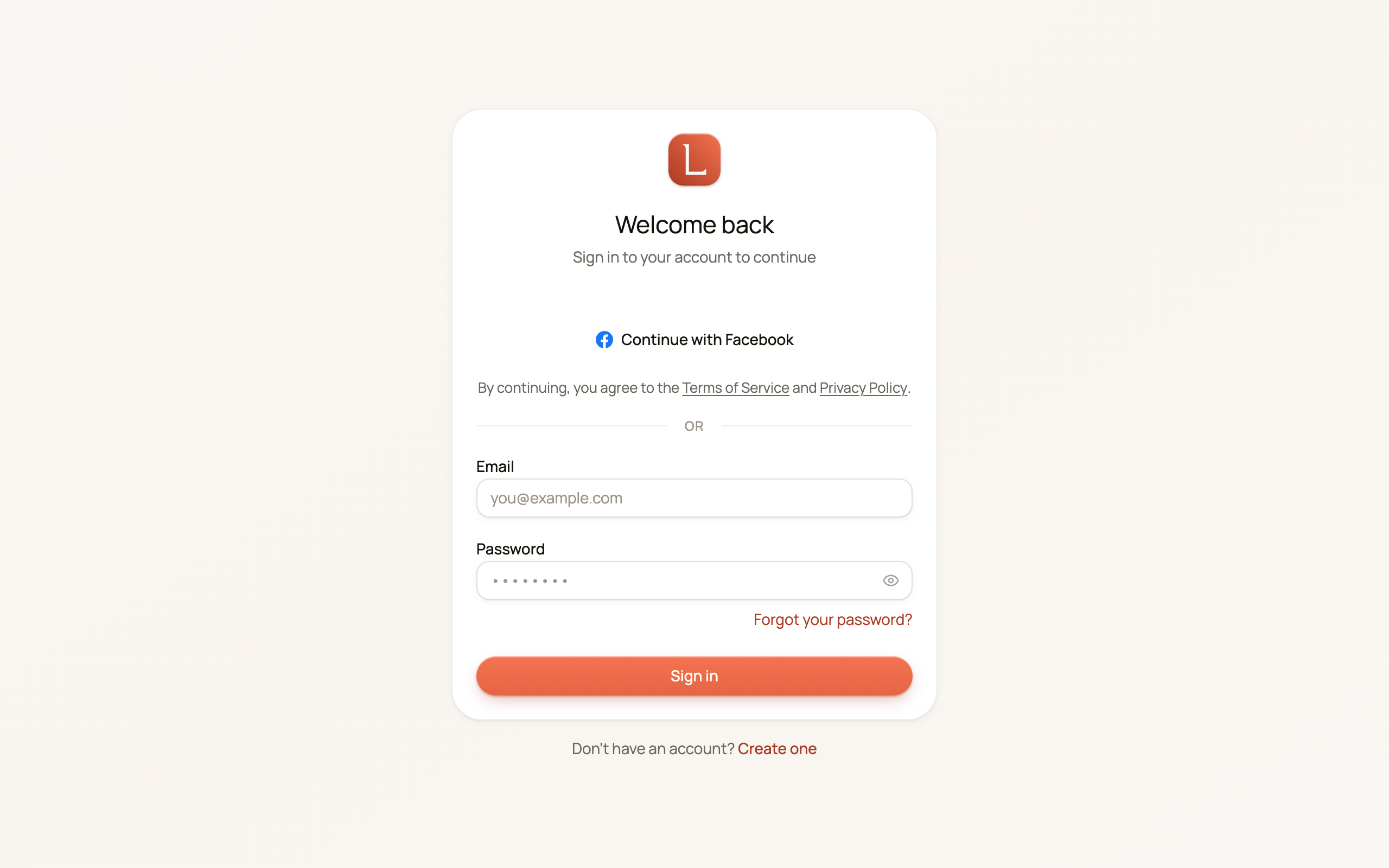
Section titled “Already have an account?”Sign in on the login page with the same email and password — or the same Facebook button you used to sign up.
Forgot your password?
Section titled “Forgot your password?”You can set a new one yourself, from the login page.
-
On the login page, select Forgot your password? under the password field.
-
Enter the email you sign in with and press Send reset link. The page says the same thing whether or not that address has an account.
-
Open the email Reset your Loquent password and press Reset password.
-
Enter a new password of at least eight characters twice, then press Update password.
You land back on the login page. Sign in with your new password.
If sign-up is closed
Section titled “If sign-up is closed”Sometimes public sign-up is paused for a while — you’ll see a “Sign-ups are opening soon” note instead of the form. If that’s you, two paths still work:
- You were invited. Someone already on Loquent can invite you to their workspace. Open the invitation link from your email, set your name and password, and you’re in.
- You already have an account. Just sign in on the login page as usual.
Next, meet your AI team and say hello.