
Teach your team with knowledge bases
Your AI teammate is only as accurate as what it knows. A knowledge base is a small library of your real facts — pricing, policies, opening hours, the answers to the questions Contacts ask most. Attach one to a teammate and it answers from your truth instead of improvising.
Create a knowledge base
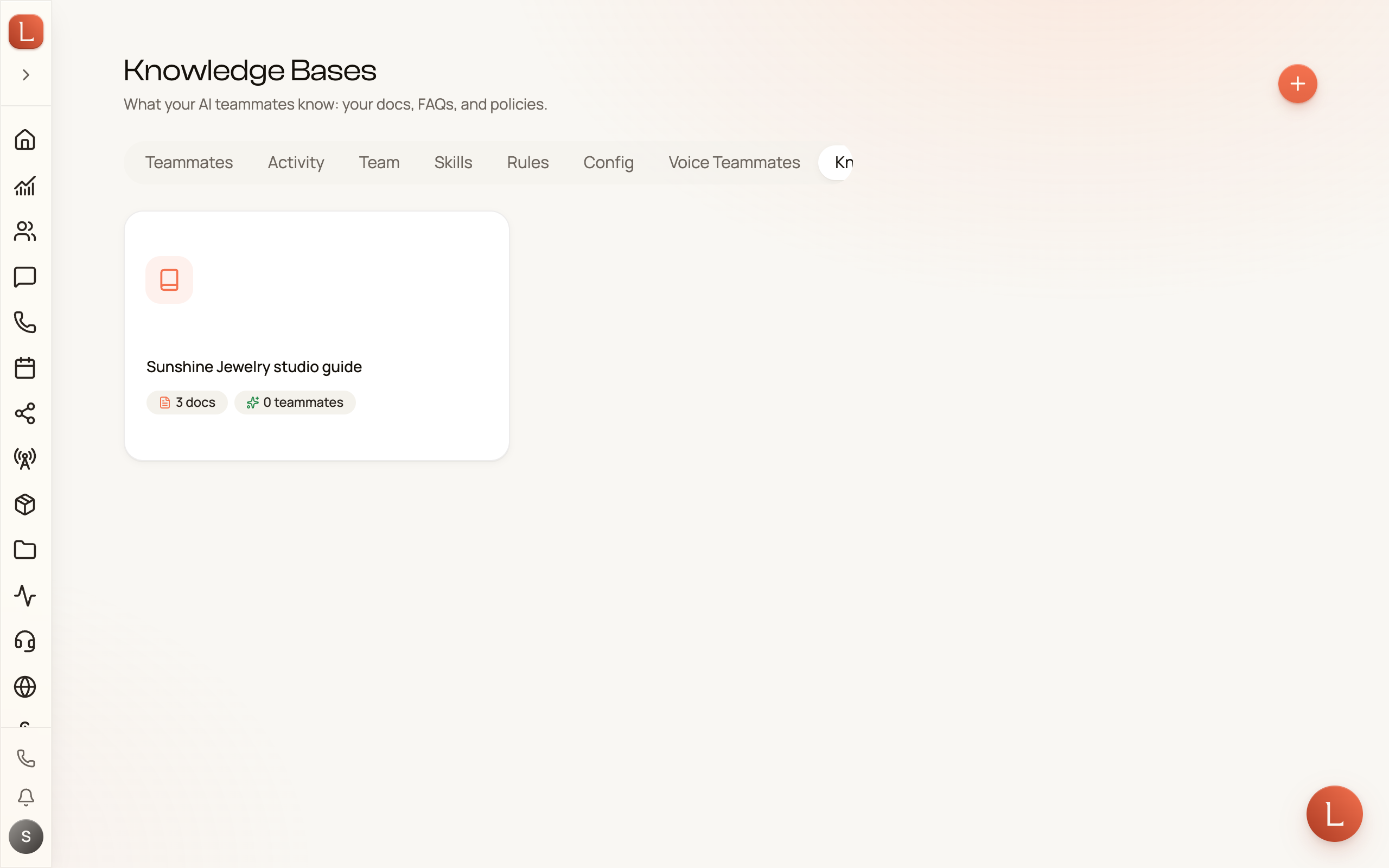
Section titled “Create a knowledge base”Open Teammates from the sidebar and choose Knowledge in the sub-navigation.
-
Select Create (or Create knowledge base if the list is empty).
-
Give it a Title that names the theme — Product FAQ, Pricing, Booking policy.
-
Save. Your new base opens, ready for its first document.
Add documents by typing or pasting
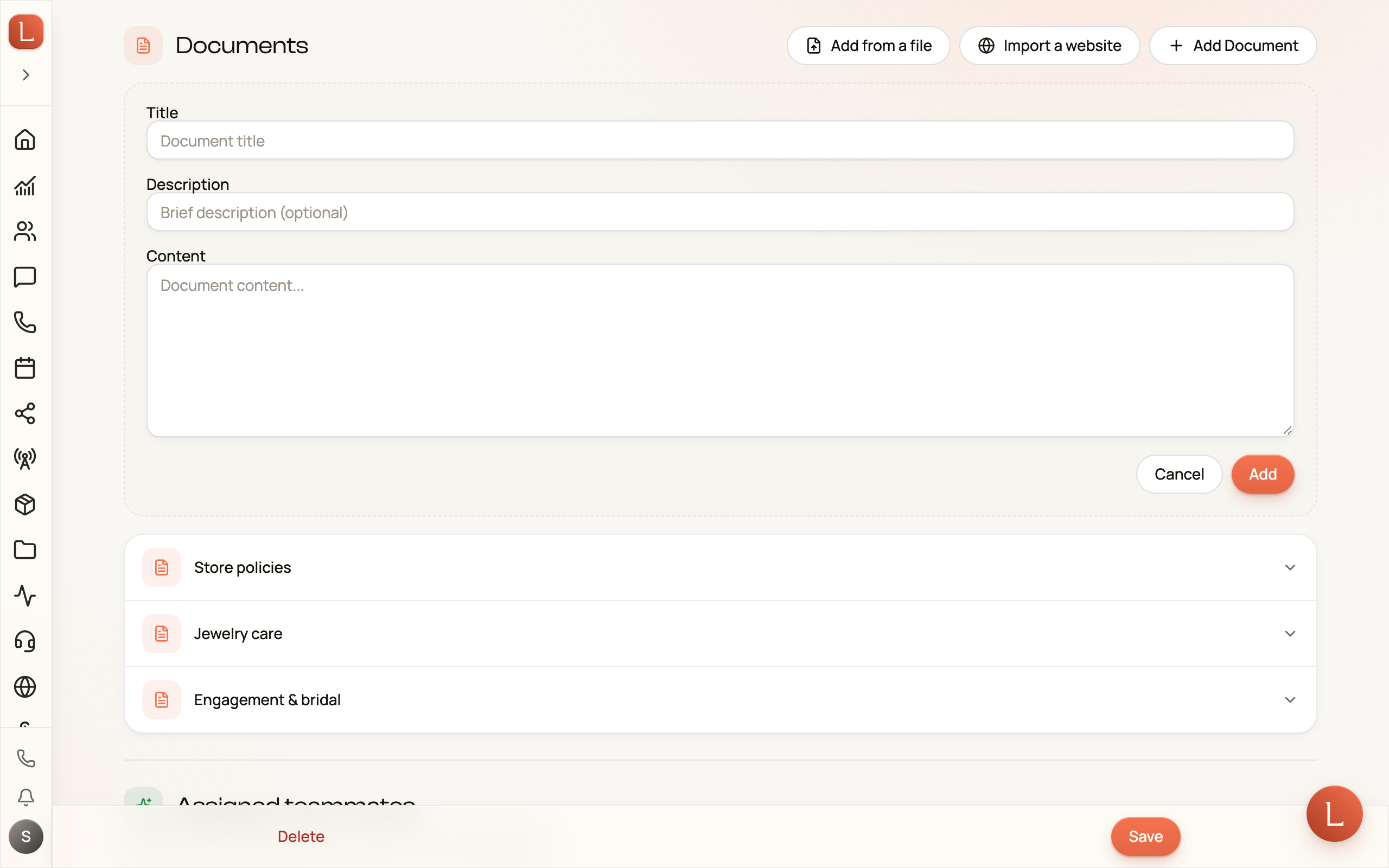
Section titled “Add documents by typing or pasting”A knowledge base holds documents. The quickest way to add one is to write it here. Open a base and, under Documents, select Add Document. (To bring in something you already have, see Add a file or a photo below.)
-
Give the document a Title — Refund policy, Weekend hours.
-
Add a short Description if it helps (optional).
-
Type or paste the facts into Content — a policy, a price list, a set of answers.
-
Select Add. Repeat for each topic you want your team to know.
Keep each document focused on one subject. A tidy base of short, clear documents beats one long wall of text — your teammate finds the right answer faster.
Add a file or a photo
Section titled “Add a file or a photo”You don’t have to retype what you already have. Under Documents, select Add from a file and pick:
- a PDF — a price list, a policy, a brochure;
- a Word document (
.docx), Markdown, a text file or a CSV; - a photo — a picture of a menu, a price board, a flyer or a handwritten note (JPEG, PNG or WebP).
Loquent reads the file in the background. The document appears straight away with a Reading… badge, and its text fills in a moment later — usually a few seconds. You can close the page; it keeps going.
Your teammates never see a document while it is still being read, so a half-read price list can’t produce a half-right answer.
-
Select Add from a file and choose the file.
-
Wait for Reading… to clear. The document’s text appears in the card.
-
Open the card to check what Loquent read, and edit it like any other document.
Import your website
Section titled “Import your website”If your website already says it, you don’t have to write it again. Under Documents, select Import a website and give it your address.
Loquent walks your site and writes each page in as its own document, with a title and a one-line summary. It skips the pages nobody asks a business about — your privacy policy, terms, login and checkout — and leaves out navigation, cookie banners and the copy repeated on every page.
-
Select Import a website and enter your address (
example.comis enough). -
Leave it running. The documents appear when the read is done — you can close the page.
-
Open any of them to check what it captured, and edit it like any other document.
It stays in step with your site
Section titled “It stays in step with your site”An imported page is a copy, and a copy goes stale the day you change your prices. So once a week Loquent re-reads the pages it imported and refreshes the ones that changed.
You do not set it up and there is nothing to switch on. When it has run, the knowledge base page says so — “Synced 2 hours ago · 1 page changed · 1 document updated · 0 left alone”, or simply that it checked and nothing had changed.
When two documents repeat or disagree
Section titled “When two documents repeat or disagree”Loquent reads your documents side by side and flags two cases on the document’s card:
- Similar: most of one document’s wording is also in another. Your teammates read both, so an update to one can leave the other out of date.
- May contradict: two documents say different things about the same subject. For example, one says We don’t take insurance for any procedure and another Insurance may partially cover some procedures, or they give two different prices for one service. The card quotes both sentences; a heading marked with #, a title line in capitals or bold, and a short label are never one of them.
Open the card to see what was found, then choose:
- Open it: opens the other document, so you can fix the wording there.
- Merge into it (similar documents you typed): on the shorter document’s card, adds its text to the end of the longer one under its title, and deletes it, after a confirm.
- Keep both: they’re fine as they are. The note goes away until you edit either document. When the card shows several notes, the button reads Keep them all.
Loquent compares the wording, not the meaning, so now and then it flags two sentences that don’t really clash. Read both before you change anything. Nothing is blocked either way: your teammates keep using both documents until you act.
Scope: what you offer, and what you don’t
Section titled “Scope: what you offer, and what you don’t”At the top of every knowledge base page is a Scope card — what your teammates may offer a contact, and what to say when the answer is no. It’s the first thing a teammate checks, before it reads a single document. A teammate answering your calls always has it in view; one answering chat or text checks it once you’ve linked at least one knowledge base to it (see Attach it to a teammate below).
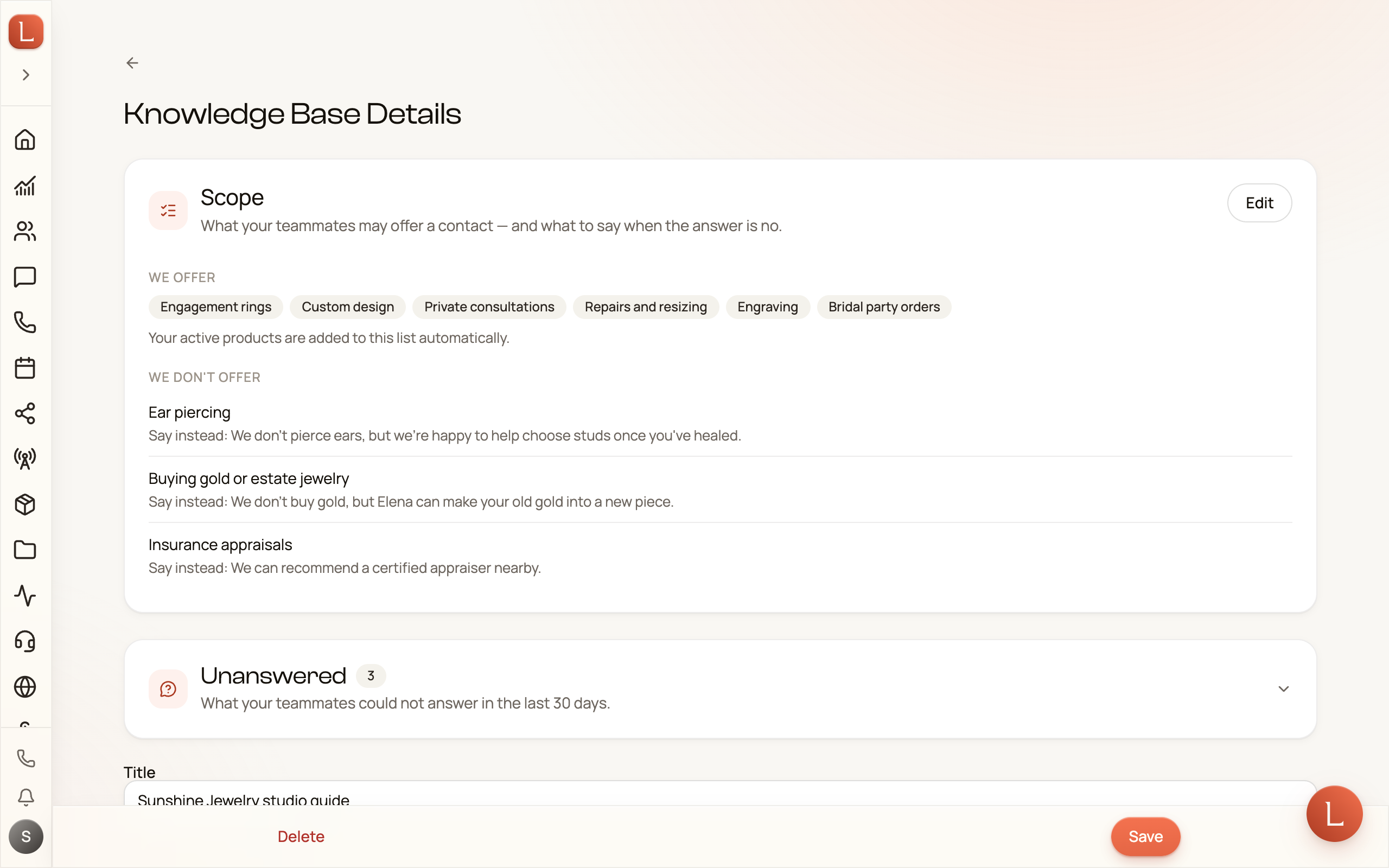
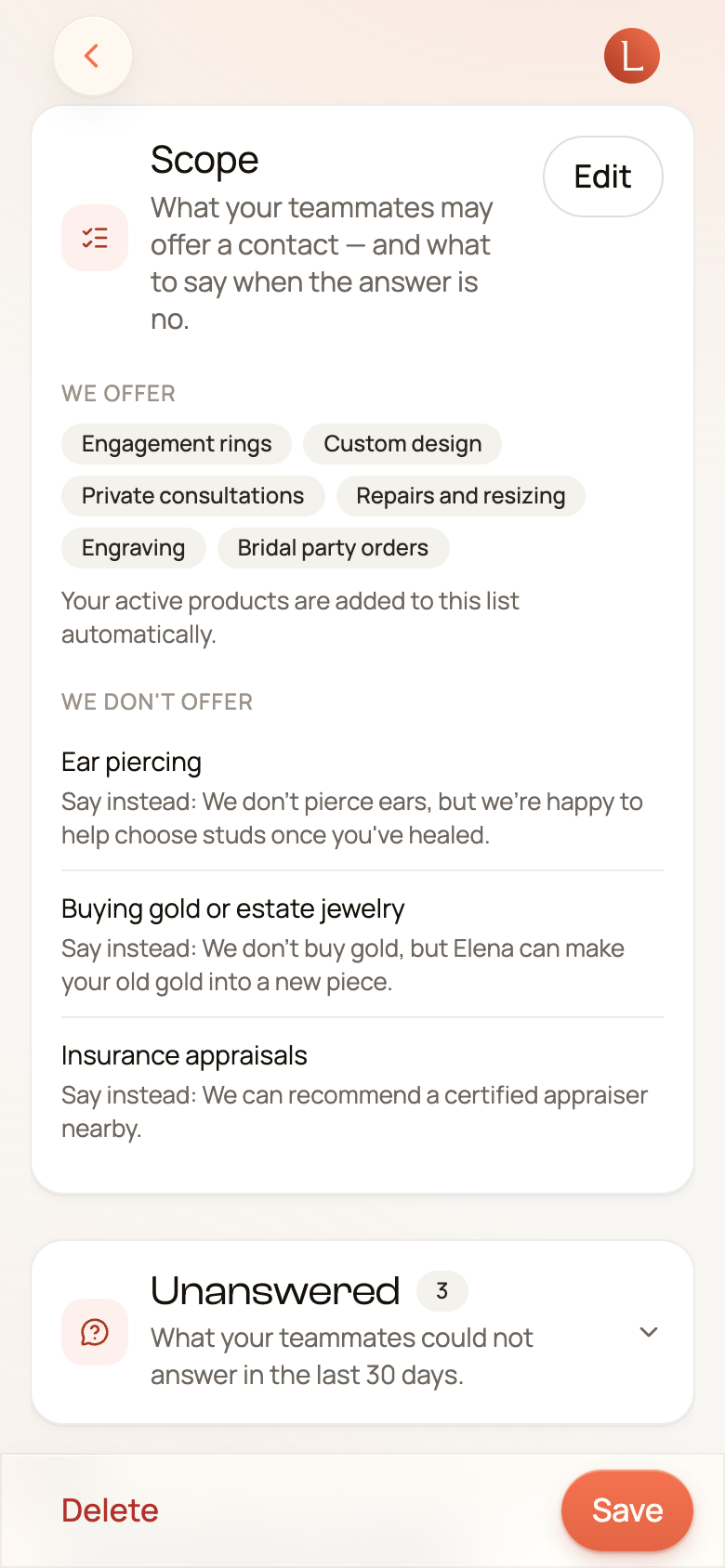
Select Edit to fill it in — or Add scope, if nothing is set yet:
- What you offer — type a service and press Enter to add it. The card lists what you type here; your active products are folded in behind the scenes when a teammate answers, so you only need to name what isn’t already in your catalog.
- What you don’t offer — name the thing you don’t do (watch battery replacement), and optionally what to say instead (the repair shop two doors down does them while you wait). A name on its own is still useful: your teammate declines, it just doesn’t suggest an alternative.
Then select Save scope.
Let Loquent draft the offers list
Section titled “Let Loquent draft the offers list”If your website already lists what you do, you don’t have to retype it. Before you have set up any scope, and with your website address on your Business profile, the card offers Draft from your website: Loquent reads up to ten pages and fills the what you offer list with the services it finds named there.
When the don’t-offer list and your catalog disagree
Section titled “When the don’t-offer list and your catalog disagree”If an entry on the don’t-offer list names a product that is still active in your catalog — BBL on the list while BBL sells for From $6,800 — your teammates hear both “we don’t offer that” and a price. The card flags that entry: “BBL” is still an active product, so your teammates get two answers. Fix it on the spot:
- Remove from this list — you do offer it; the entry goes.
- Stop offering BBL — you no longer do; after a confirm, the product is marked discontinued, so teammates stop quoting it. Turn it back on from the product’s page.
Only an entry that covers a product is flagged: surgery covers Tummy tuck surgery, but Botox for migraines doesn’t cover Botox — declining the narrow case while selling the broad one is no contradiction.
Each button appears only if you’re allowed to make that change: the first edits your Business profile, the second your catalog. You see the warning at all only if you can see the catalog.
This is what lets a teammate say “no” with confidence instead of guessing or going quiet. When a Contact asks for something on the don’t-offer list, the teammate declines and uses your say instead wording. And because the list is authored by you, a teammate never invents a “we don’t do that” — it declines only for the things you actually wrote down.
Prices come from your catalog
Section titled “Prices come from your catalog”Your teammates answer price questions from your product catalog as well as your documents, so you don’t have to keep a price list in both places. Every active product’s name and displayed price is available to the lookup. Keep prices current in Sales and the answers follow; a knowledge base with no documents at all can still answer “how much is it?”.
If something appears in your catalog and on your don’t-offer list, the don’t-offer list wins.
See what your team couldn’t answer
Section titled “See what your team couldn’t answer”Under the Scope card is the Unanswered panel — what your teammates could not answer in the last 30 days. Every time a teammate searched your knowledge and came back with nothing, the Contact’s question is collected here. It’s the most direct list you’ll get of what’s missing from your knowledge base. This list is organization-wide, not tied to the base you’re viewing — the same panel, with every teammate’s misses, appears on every knowledge base’s page.
A question your knowledge base can’t answer is never taken as something you don’t offer. Your teammate tells the Contact that someone from your business will confirm and get back to them — as a draft for you to approve, or on its own for a teammate you’ve set to Autonomous — and asks you once: a card headed “Your AI teammate needs you” in that Contact’s conversation, usually a one-tap yes or no. Your answer resumes the conversation, and the question still lands on this list. See answering your teammate’s questions.
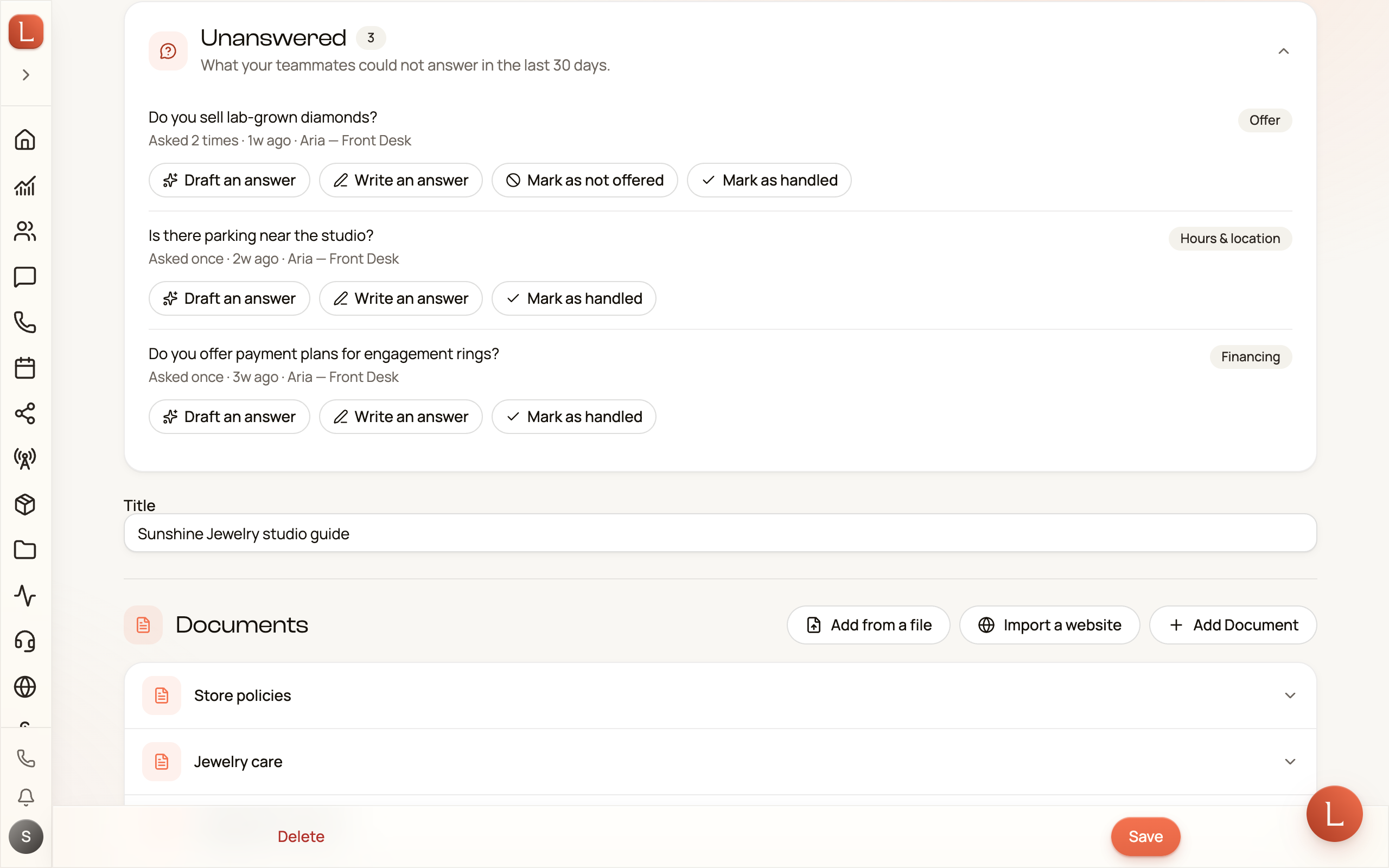
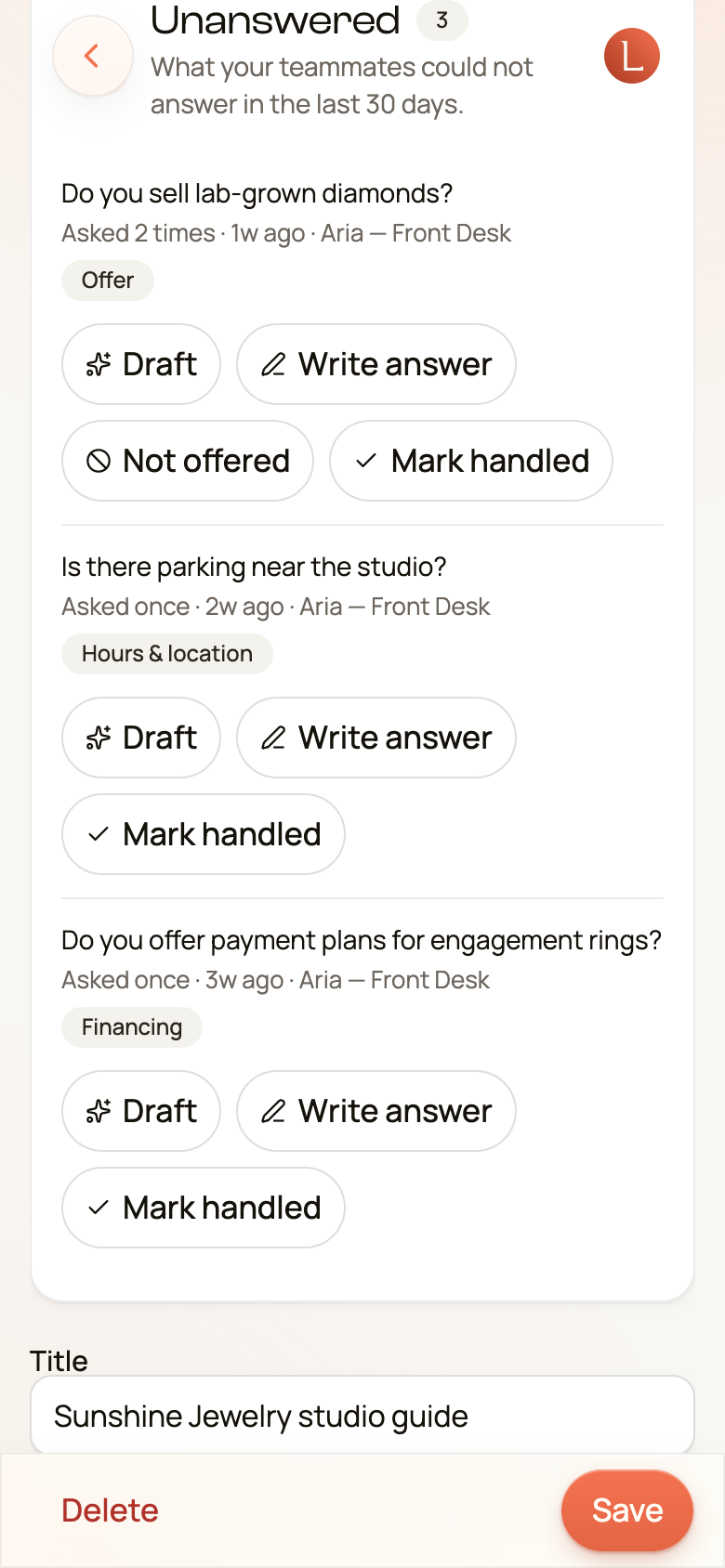
Open the panel and each row shows the question as it was asked, how many times (Asked 3 times), when it last came up, which teammates ran into it, and a label for the kind of question it is — Price, Offer, Hours & location, Financing, Recovery & process, Contact-specific, or Other. Similar wordings are grouped together, so one real gap reads as one row. With more than one teammate hitting misses, a Teammate filter appears so you can look at one teammate at a time.
Each row gives you the ways to close the gap:
- Draft an answer — Loquent writes the answer for you to review. See Let Loquent draft the answer below.
- Write an answer — starts a new document with that question as its title. Write the answer and save: every teammate linked to the base has it, and the question leaves the list, as if you had marked it handled.
- Mark as not offered — on Offer and Price questions, for something you simply don’t do. It opens a short confirm where you can edit the wording, then select Add to scope to join the Scope card’s don’t-offer list. If the name matches a product that is still active, the confirm says so before you add it; you can add it anyway and stop offering the product on the Scope card. From then on, a teammate declines that topic as a draft for you to approve — or on its own only for a teammate you’ve set to Autonomous. The question leaves the list at the same time. Add what to say instead on the Scope card afterwards.
- Mark as handled — for a question you’ve taken care of some other way. The row folds away with an Undo in case you tapped it by mistake.
A handled question stays off the list until a Contact asks it again. If one does, it comes back marked Asked again since it was marked handled — a sign the answer still isn’t reaching your teammates. A question also leaves on its own once the teammate that couldn’t answer it answers the same question later, worded the same way — after you add a document that covers it, for example. An answer to a differently worded version doesn’t count, and the question comes back if that teammate misses it again. Questions nobody deals with leave on their own once they haven’t been asked for 30 days. The count next to Unanswered is the number of questions still waiting; it reads 50+ when there are more than the panel lists.
Let Loquent draft the answer
Section titled “Let Loquent draft the answer”Draft an answer writes the missing document for you, from two places:
- Your own answers. When a teammate escalated a question and you answered it, Loquent looks for the answers that match this question.
- Your website. When your Business profile has a website address, Loquent searches your site for the question. The search uses one page of your monthly website budget.
The draft lands in the knowledge base you’re viewing, at the top of Documents, with a Draft label. Your teammates can’t use a draft until you approve it. Open it and check it: edit anything that is not right, then select Approve. Unsaved edits are saved first, so your teammates get what you see. From then on they answer the question from it, and it leaves the Unanswered list. Discard deletes the draft, and the question goes back on the list.
A question with a draft waiting shows A drafted answer is waiting for your review and a Review draft button that opens it, even when the draft is in another knowledge base.
When nothing you’ve answered before and nothing on your website covers the question, no draft is made: the Write an answer form opens with the question as its title. A draft counts toward the base’s size limit, so a base that is almost full asks you to make room first.
Attach it to a teammate
Section titled “Attach it to a teammate”A knowledge base only helps once a teammate can search it. There are two places to connect them, and each covers a different kind of conversation.
- From the knowledge base. On the base’s page, use the Assigned teammates section and tick each teammate that should be able to use it — this covers a teammate answering phone calls.
- From the teammate. Open a teammate, choose its Knowledge tab, and under Knowledge bases select Add a knowledge base to link one — this covers that teammate’s chat, text, and other conversations.
If one teammate handles both your calls and your chats, link the base from both places so it’s covered everywhere. Link a base to several teammates when the whole team needs the same reference — your pricing, for instance.
Knowledge is one of the three things that shape a teammate. Pair it with how you shape behavior and rules and what a teammate is allowed to do to get replies that are accurate, on-brand, and safely bounded.