
Connect your social accounts
Your Contacts don’t only call and email — plenty of them message your business on Facebook or slide into your Instagram DMs. Connect those accounts here, and every one of those chats lands in the same inbox as your calls and texts, where your AI teammate drafts a reply for you to approve.
Open Channels from the sidebar and pick the Social tab. Four networks connect here: Facebook and Instagram together, then LinkedIn and X on their own cards. Facebook and Instagram bring conversations in; all four let your posts go out — see Write and schedule your posts.
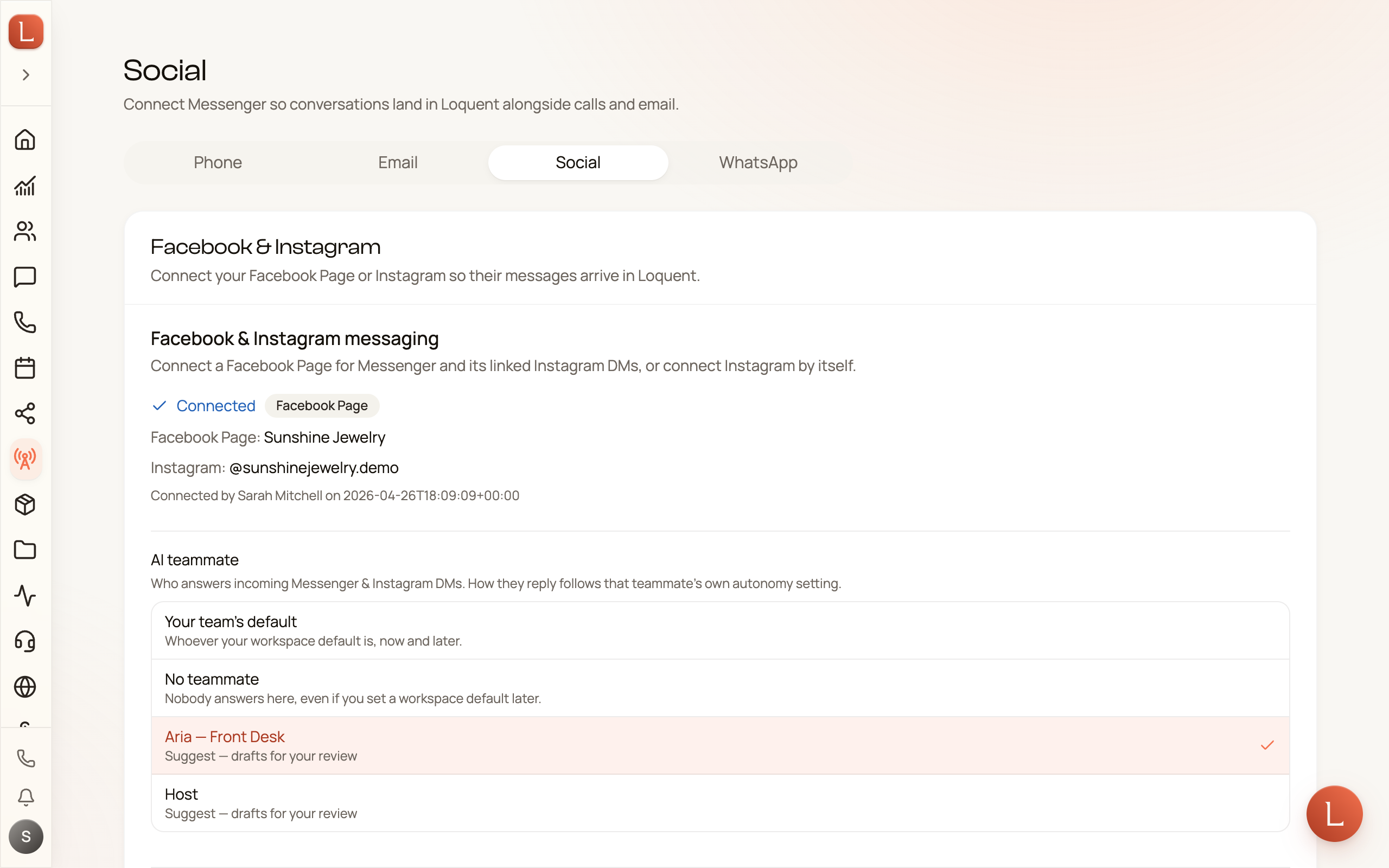
Connect your account
Section titled “Connect your account”Most businesses link their Facebook Page and Instagram together in one step.
-
Tap Connect Facebook & Instagram.
-
You’ll be handed to Facebook to sign in and approve access to the Pages you manage.
-
Back in Loquent, select a Page and press Connect selected Page. Loquent always asks you to confirm, even when Facebook returns only one Page.
-
Messenger threads for that Page now flow into your inbox. If the Page has a linked Instagram account, its DMs are connected automatically too.
Use this option when you need Facebook Messenger. A Page without Instagram is still a valid choice; Loquent labels it Page only · Messenger so you know exactly what will connect.
Instagram not linked to a Page?
Section titled “Instagram not linked to a Page?”If your Instagram is a Business or Creator account that isn’t tied to a Facebook Page, use Connect Instagram only instead. It connects your Instagram DMs directly, without needing a Page.
After you connect
Section titled “After you connect”From here on, a Facebook or Instagram message is just another conversation in the Contact’s unified thread, beside calls, texts, and emails.
The AI teammate you pick in the connection settings answers new Contacts arriving through this connection. Leaving it empty no longer means nobody replies: a Contact who already has a teammate keeps theirs, and your workspace’s default teammate picks up anyone else. See Who’s replying to a Contact.
If someone on your team answers from Facebook’s or Instagram’s own inbox, Loquent notices — the reply is recorded in the thread, and your teammate drops to drafting for that Contact until the conversation is handed back.
To see how those threads come together across every channel, read Contacts, conversations, and channels. Your teammate’s behavior depends on its configured autonomy and approval rules; see Drafts, approvals, and escalations.
Public comments are a separate setting with its own switches — a reply everyone can read is a bigger step than a private message, so it never follows the messaging autonomy. Choose which kinds of comment your teammate answers on its own under Comment replies on this page, or from the pill at the top of the Social Inbox. Complaints always come to you. See Comments and mentions.
Leads from your ads
Section titled “Leads from your ads”If you run Facebook or Instagram ads with a lead form — the kind where someone taps your ad and fills in their name, phone, and email without leaving the app — those leads can come straight into Loquent. No spreadsheet download, no waiting until the evening.
Find Lead ads in the same Social settings, under your connected Page.
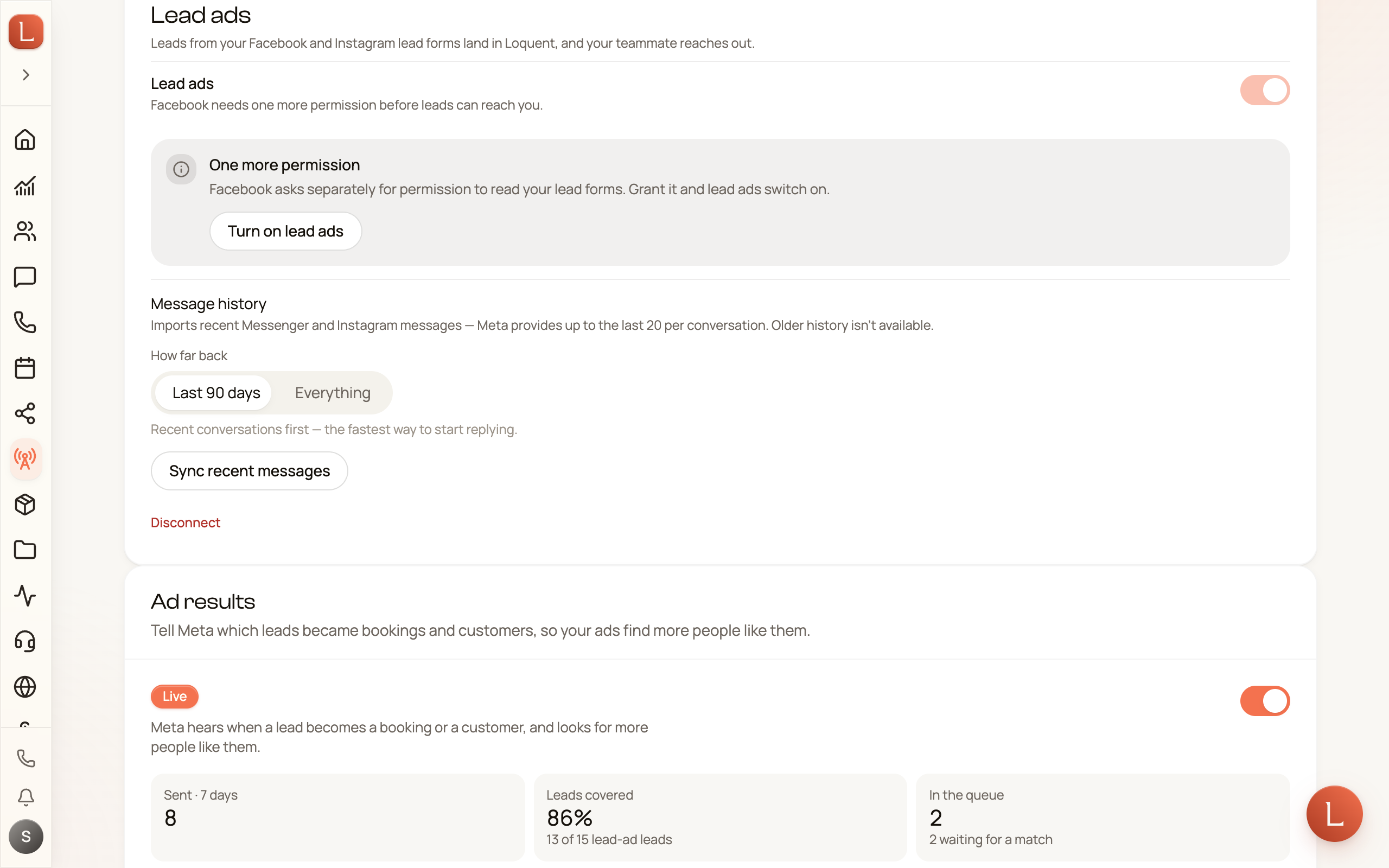
-
Press Turn on lead ads. Facebook asks for one more permission — reading your lead forms — which it deliberately keeps separate from messaging.
-
Pick the same Page again and confirm. Your Messenger threads, your teammate, and your history all stay exactly as they were.
-
Switch Lead ads on.
From then on, every form someone fills in on your ads becomes a Contact in Loquent with their answers attached, and your teammate reaches out.
Who answers, and how
Section titled “Who answers, and how”The teammate answering this Page answers your leads too. Under First touch you choose the channels they open with — a text, an email, or both. It’s the same setting as on that teammate’s own page, so changing it in one place changes it everywhere.
A teammate on Suggest writes the message and waits for you. A teammate on Autonomous sends it themselves, whatever the hour — a form submitted at 3am gets an answer at 3am, which is usually the whole point. If that isn’t what you want, keep the teammate on Suggest.
WhatsApp is listed but switched off. WhatsApp only lets a business message someone who messaged them first, and a lead who filled in a form never did. It becomes available when WhatsApp message templates arrive.
If leads aren’t arriving
Section titled “If leads aren’t arriving”Facebook guards lead data separately from your connection, which is why everything can look healthy and nothing shows up. Loquent tells you which of these it is, right in the panel:
- “Facebook hasn’t given Loquent your lead data.” Your business portfolio has to name Loquent as a CRM. In Facebook Business Settings open Integrations → Leads Access and add Loquent. Only someone with full control of the portfolio can do it — if that isn’t you, forward them that line.
- “One more permission.” The lead-forms permission was never granted, or the connection predates it. Press the button and re-approve on Facebook.
- “Reconnection needed.” The Page connection itself expired. Reconnect it above and leads resume.
Nothing is lost while you sort this out. Leads that arrive during any of these keep waiting, and start moving the moment access is fixed.
When someone messages you from an ad
Section titled “When someone messages you from an ad”An ad that opens a Messenger or Instagram chat usually asks the person to fill in a short form first, and their answers arrive as the very first message of the chat. Loquent used to have no way to tell that this person was already in your list, so you got a second, empty Contact — no calls, no earlier texts — and your teammate replied as if it had never met them.
Now Loquent reads the email address and phone number out of that opening message and matches them to the Contact you already have. The whole conversation joins that existing record — one Contact, one thread — so every earlier call, text, and email is right there, and your teammate answers with the full picture. If a bare social-only Contact had already been created for that person, it is folded into the real one and disappears. Nothing is lost.
This is deliberately narrow, and the limits are what make it safe:
- It only happens on the first message of a brand-new Facebook or Instagram chat that Facebook itself confirms began from one of your ads.
- The message has to look like a filled-in form — several labelled lines, not ordinary prose.
- A Contact who has already given you an email address or phone number is never re-identified from message text, and a later message in an open chat never re-labels anybody.
There is no new screen for this and no per-ad report. Someone genuinely new to you is added with their source shown as Meta ad, which is also how they are grouped on Insights. Approvals are unchanged: your teammate still drafts and waits for you.
LinkedIn connects so your team can publish to your Company Page. It is a posting channel only — LinkedIn messages don’t come into your inbox.
-
In the LinkedIn card, press Connect LinkedIn. You must be an admin of the Page on LinkedIn itself.
-
Sign in and approve. Loquent asks for permission to post and comment as the Page — nothing is posted until you say so.
-
If you administer more than one Page, pick the right one under Which Page should Loquent post to? and press Use this Page.
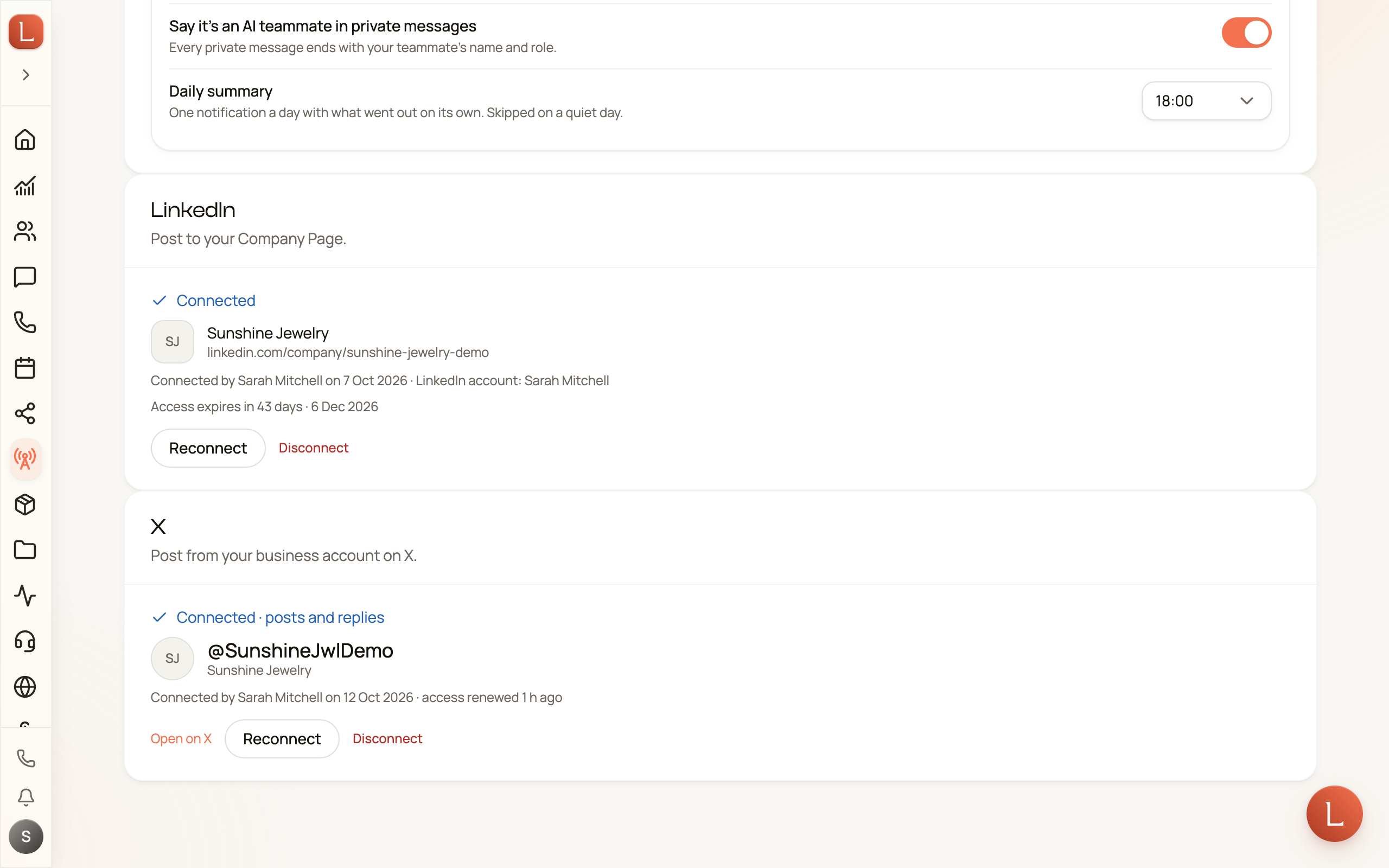
LinkedIn access lasts 60 days. The card shows a reminder well before it runs out — Connected · expiring soon, then Reconnect needed. Reconnecting is one tap and nothing you’ve scheduled is lost. The post composer warns you too.
X connects so your team can post there.
-
In the X card, press Connect X.
-
Sign in as your business account. X has no business Pages — whoever is signed in on x.com becomes the author, so check which account you’re in before approving.
-
Approve. The card shows Connected · posts and replies.
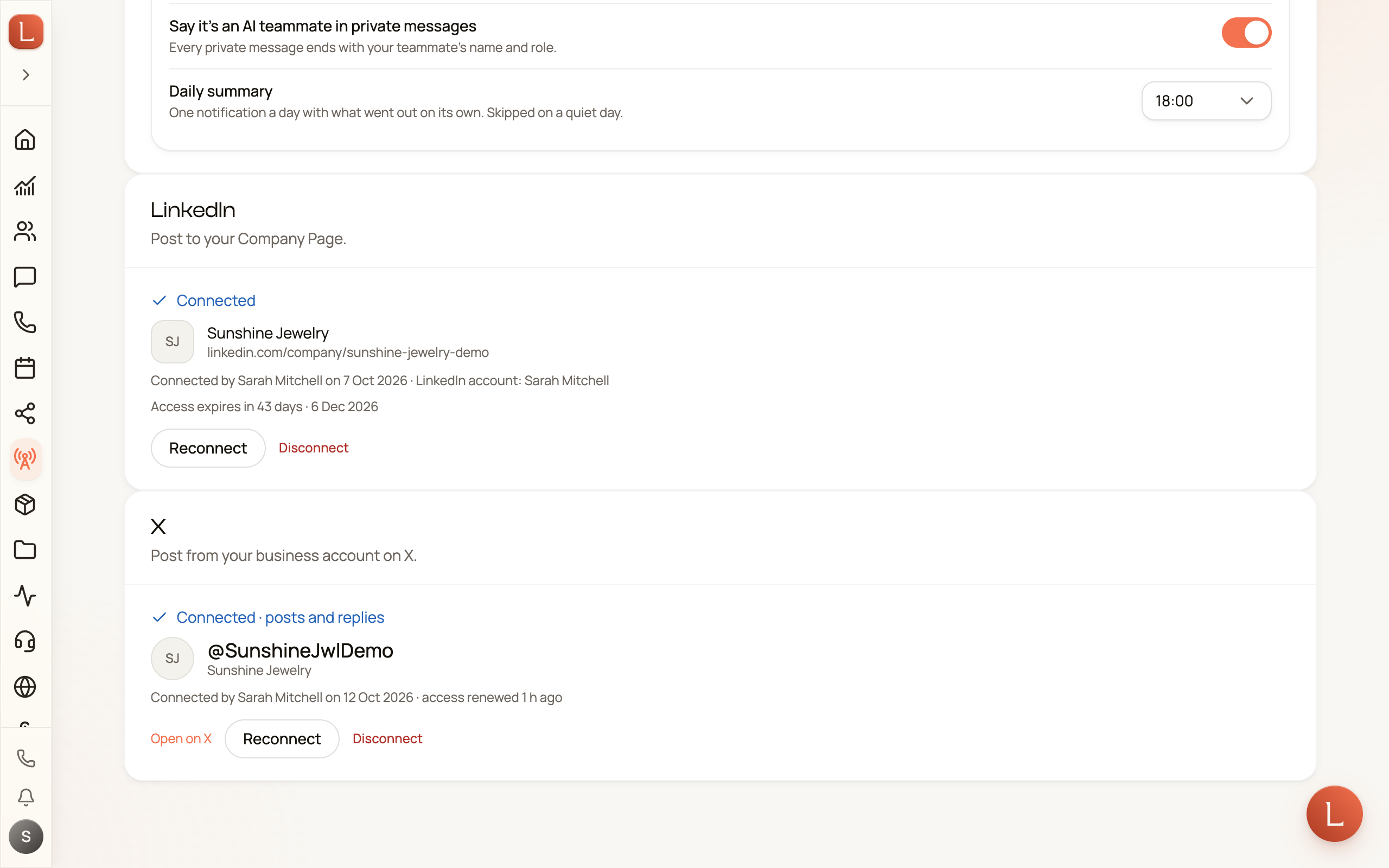
If you sign in with a personal account by mistake, the card says This looks like a personal account and offers Reconnect as the business. If X stops accepting the connection, it says X ended our access — reconnect and posting resumes.
Occasionally the card reads X posting is paused on our side. That is Loquent’s own pause, not anything about your account, and Loquent’s team is already alerted. Posts you schedule to other networks still go out; the X side sends when the pause lifts.