
Import your customer list
Your customer book probably already exists — in a spreadsheet, in the CRM you’re leaving, or in your phone. You don’t have to retype it. Drop the file into Loquent and it reads the columns, works out what each one holds, and shows you exactly what it’s about to do before a single Contact is written.
The whole thing is four steps, and Loquent does the work in two of them.
What you can bring
Section titled “What you can bring”| From | Bring |
|---|---|
| Excel, Numbers, Google Sheets | The exported .xlsx, .xls, .ods, or .csv file |
| Another CRM | Whatever it exports — nearly all of them export CSV |
| Your phone | The contacts card file (.vcf) your phone shares |
| A spreadsheet you have open | Copy the rows and paste them straight in |
One import takes up to 50,000 rows and 25 MB. If your file is bigger, split it and import each piece — people who appear in more than one file are matched, not duplicated.
Loquent decides what a file is by reading it, not by its name. A .txt that’s really a spreadsheet export works fine.
Start the import
Section titled “Start the import”-
Open Contacts in the sidebar.
-
Tap Import contacts — the upload icon at the top right. (If your book is still empty, the page offers Import your customer list in the middle instead.)
-
Drop your file on Drop your customer list here, or tap it to pick one. To paste instead, switch to Paste rows and paste with your header row first.
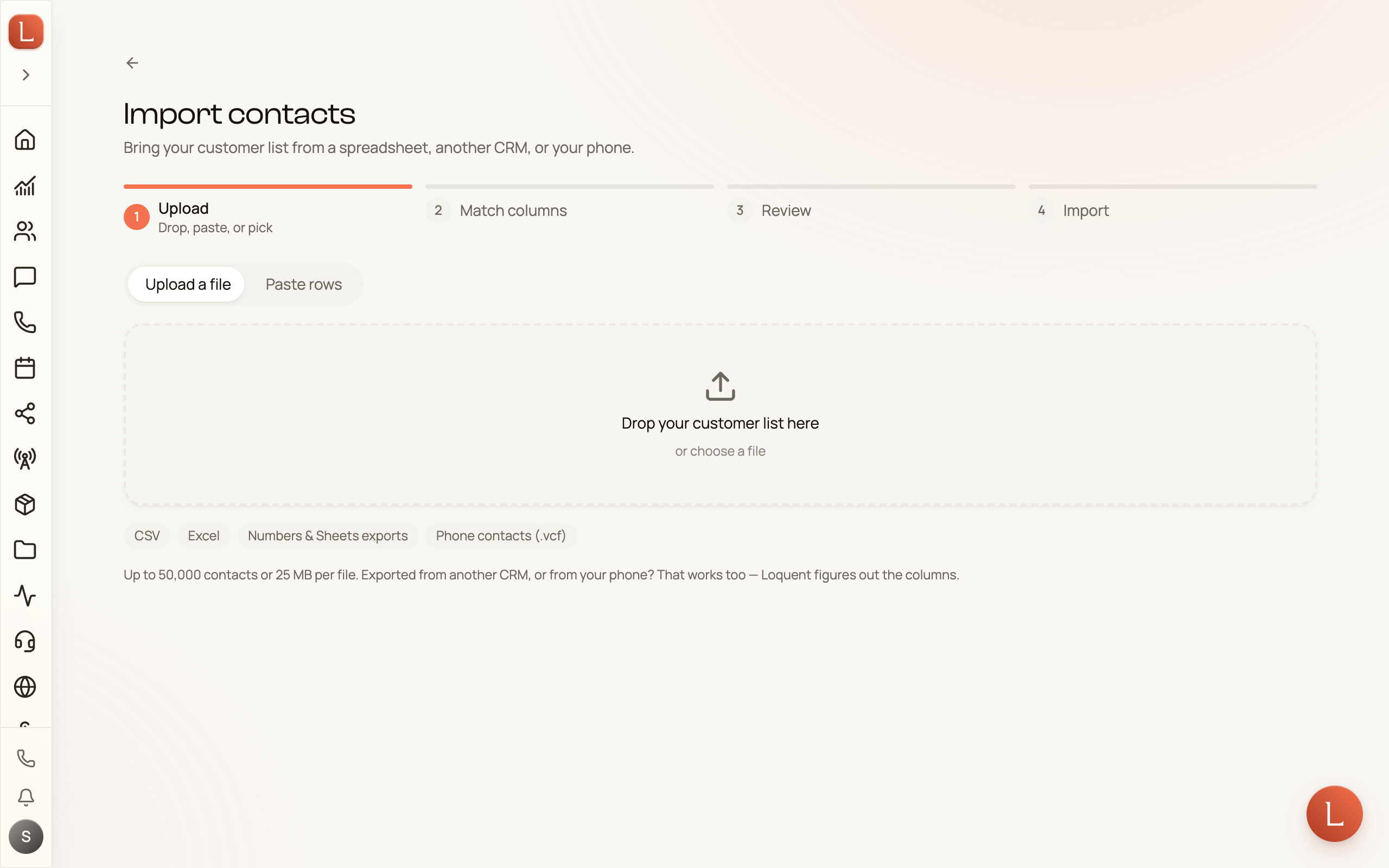
Loquent reads the file straight away. A big workbook takes a few seconds; you’ll see Reading your file… while it works.
Under the drop zone, Recent imports lists the last few your workspace ran, so you can pick an unfinished one back up or check how one went.
Step 2 — check the columns
Section titled “Step 2 — check the columns”This is the step that would normally take you an afternoon. Your AI teammate reads the column names and the values underneath them, and fills in where every column should go. Your job is to check it, not to build it.
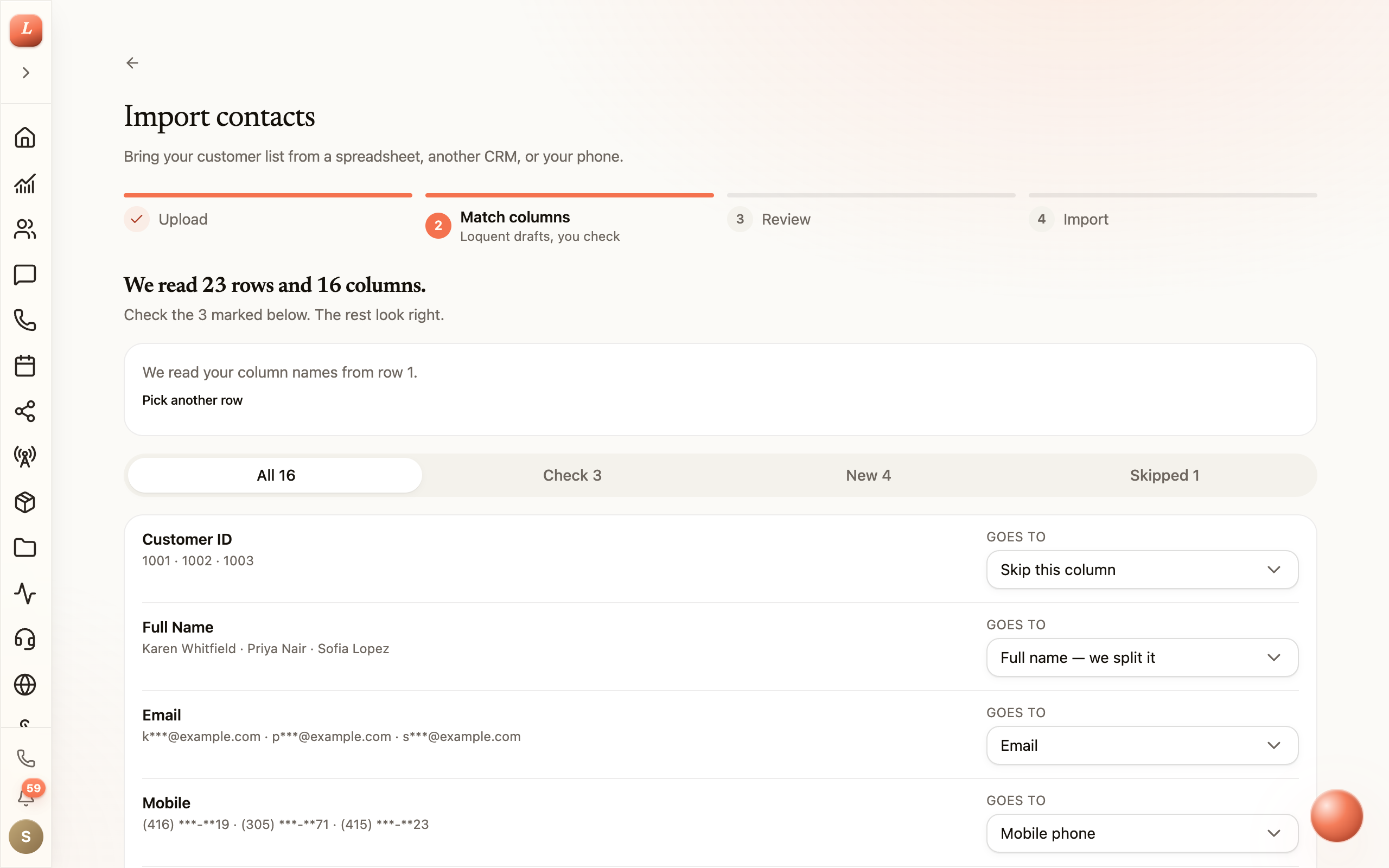
The heading tells you what was read — We read 23 rows and 16 columns. — and how many of them want your eye. The four filters above the list narrow it:
- All — every column in the file.
- Check — the ones Loquent flagged. Start here.
- New — columns that will create a new field on every Contact.
- Skipped — columns nothing will be read from.
Each row shows the column’s name, three real values from your file, and a Goes to menu. Open the menu to send that column anywhere:
- Contact details — first name, last name, email, phone (plain, mobile, work, home, or other), company, job title, the five address parts, birthday, language, stage, status, timezone, gender.
- Full name — we split it — for a single “Name” column. If your file also has separate first- and last-name columns, those win.
- Your own fields — anything you’ve already set up under Custom fields, marked your field.
- Create a new field… — name it, pick a type, and it’s created when the import runs. Columns doing this carry a New field badge so a new field never appears by surprise.
- Tags — several to a cell is fine; Loquent splits them.
- Note on the contact — the text lands as a note on the record.
- Doesn’t want texts / Doesn’t want emails — a yes in that column opts the Contact out of the channel. It never opts anyone in.
- Skip this column — leave it behind.
When a column is flagged
Section titled “When a column is flagged”A Needs a look badge always comes with the reason, in plain words:
| What it says | What it means |
|---|---|
| Loquent could not tell what this column is | Nothing in the name or the values settled it. Pick a destination. |
| Only 40% of the values fit this field | Most of the column doesn’t look like what it’s aimed at. |
| Too many different values to be a choice field | It won’t work as a pick-list; text is the safe home. |
| Column 3 already fills this, so this one is skipped | Two columns aimed at a field that holds one value. |
| Looks like an id from your other system | Row numbers or record ids — nothing a Contact needs. |
| Pick how to read these dates | See below. |
Dates that read both ways
Section titled “Dates that read both ways”03/04/2025 is March 4th in the United States and April 3rd nearly everywhere else, and no amount of reading the file settles it. When your dates are ambiguous, Loquent asks once per column: Month first — Mar 4 or Day first — 3 Apr.
If the file has several sheets
Section titled “If the file has several sheets”A workbook with more than one sheet shows them as chips — with their row counts, and a looks like totals hint on the small summary tabs — so you can point Loquent at the right one. Loquent also tells you which row it took the column names from (We read your column names from row 3); if your file has a title or two above the real header, tap Pick another row and give it the right one.
On a phone the same step stacks: each column’s samples sit above its destination menu, and the four filters scroll sideways.
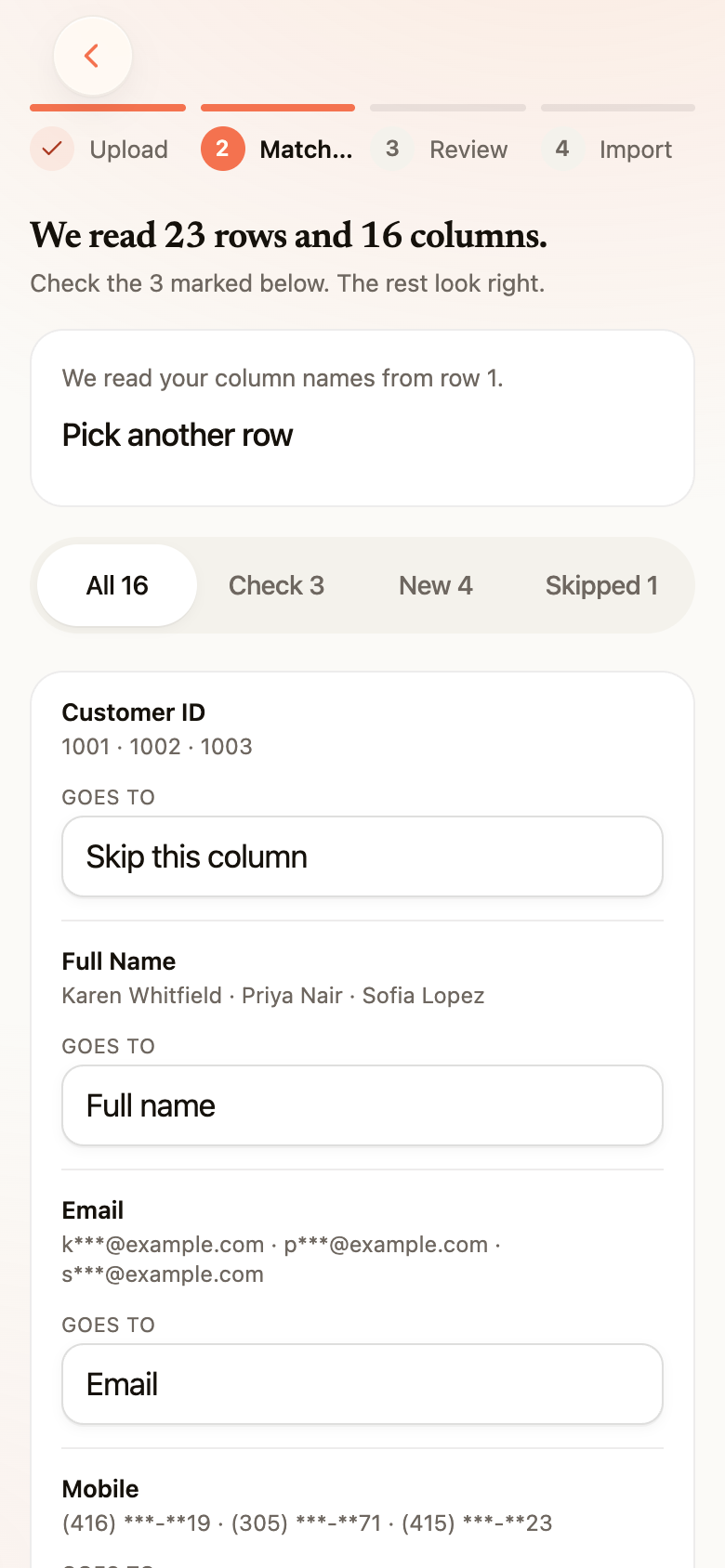
When the list looks right, tap Continue.
Step 3 — read the numbers before you commit
Section titled “Step 3 — read the numbers before you commit”Nothing has been written yet. Loquent has run your whole file against the Contacts you already have and can tell you exactly what will happen.
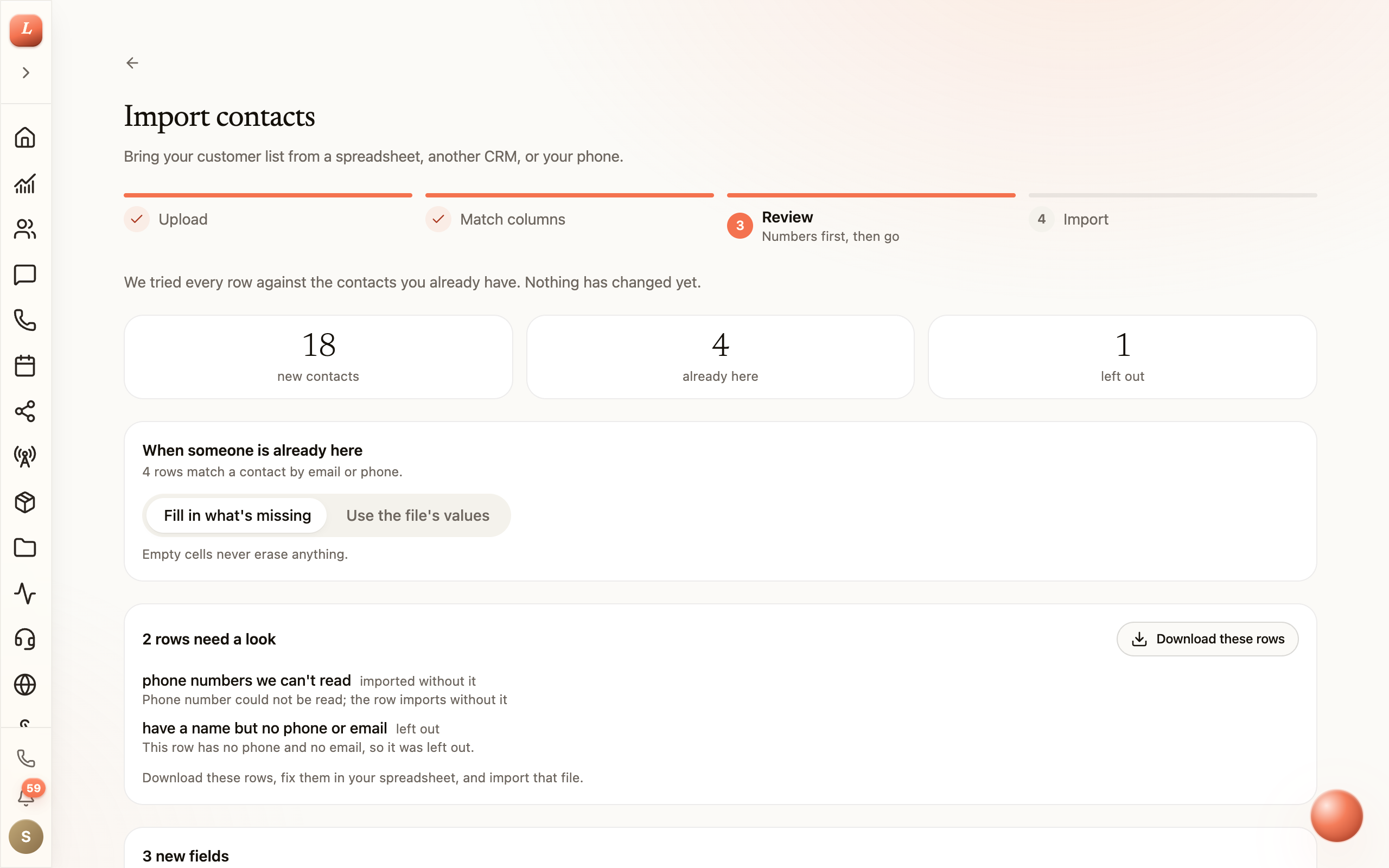
The three numbers are new Contacts, people already in your book, and rows left out.
When someone is already here. Rows are matched to existing Contacts by email or phone — never by name alone. You choose what happens to them:
- Fill in what’s missing (the default) — only empty fields are filled. Nothing you already have is touched.
- Use the file’s values — the file wins where the two disagree.
Either way, an empty cell never erases anything.
Rows that need a look. Loquent lists what’s wrong and offers Download these rows — the problem rows as a spreadsheet, with the reason on each. Fix them there and import that file; the people who imported cleanly aren’t affected.
Tag everyone. Every import creates its own tag — Imported · 2026-09-20 — so you can find the whole batch later by filtering Contacts on it. Add any of your own tags alongside it.
Assign to. Hand the whole batch to one of your people, or leave it as Nobody — keep as is.
The permission box. Before Loquent will start, you confirm: These people agreed to hear from us. I have their permission to call, text or email them, and the right to upload their details. Loquent records who confirmed it and when. This is what keeps your phone number in good standing with the carriers — a list of people who never asked to hear from you is how a business gets its texting shut off.
Then tap Import 22 contacts — the button counts what will actually be written.
Step 4 — it runs in the background
Section titled “Step 4 — it runs in the background”The bar moves as rows land, and the counters below it climb. You can leave the page — go do something else, and Loquent notifies you when it’s finished. While an import is running, the Contacts list carries a thin line at the top showing how far along it is.
Stop the import halts it after the rows it’s part-way through. The Contacts written before you stopped stay, carrying the batch tag, and the run can’t be resumed — so if you stop one, the tag is how you find and clean up what came in.
If the connection drops or the browser closes, the import keeps going on its own and picks up where it left off. Nobody is added twice.
When it’s done
Section titled “When it’s done”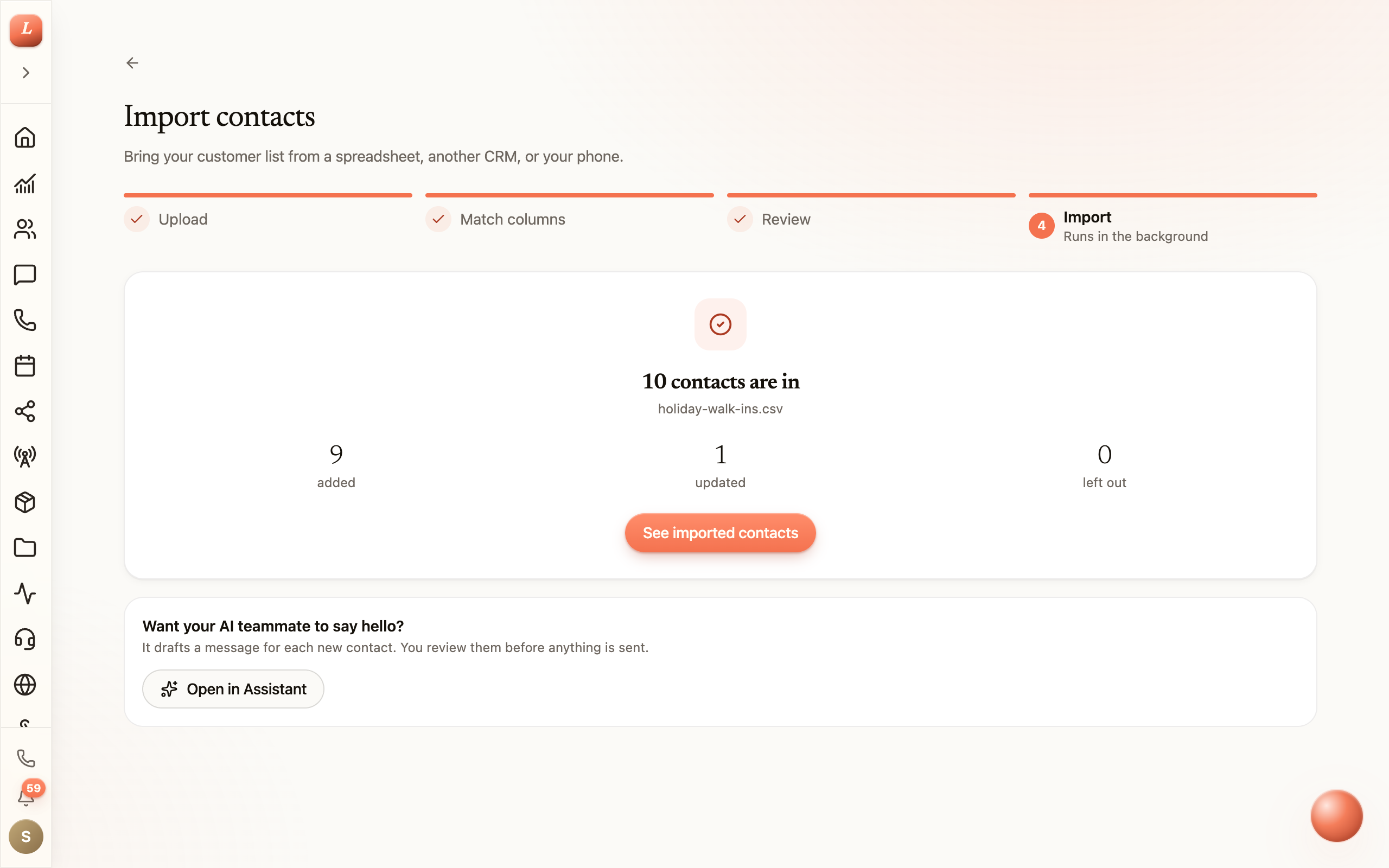
You get the final tallies — added, updated, left out — and two ways onward:
- See imported contacts opens your Contacts list filtered to this import’s tag.
- N rows to fix downloads the rows that didn’t make it, with the reason on each.
If new Contacts came in, Loquent offers to hand the batch to your teammate: Open in Assistant starts a chat already asking for a welcome message for the group. As always, it writes the drafts and you approve and send them — see Autonomy: Suggest vs. Autonomous.
Loquent keeps the file you uploaded for 30 days after the import finishes — long enough to come back for the rows to fix — and then deletes it. Your Contacts stay, and so do the counts.
Rows Loquent leaves out, and why
Section titled “Rows Loquent leaves out, and why”| What happened | Does the Contact come in? |
|---|---|
| The row’s email and phone belong to two different people already in your book | No — Loquent won’t guess which one, and it won’t merge them |
| The row has no name, phone, or email | No |
| The row has a name but no phone and no email | No — nothing could ever be matched to it later |
| A phone number couldn’t be read | Yes, without that number |
| An email address couldn’t be read | Yes, without that address |
| A date couldn’t be read | Yes, without that date |
| A field refused a value | Yes, without that value |
Every one of these lands in the download, with its row number as your spreadsheet counts it.
If the file can’t be read
Section titled “If the file can’t be read”Loquent always names the problem and the next step rather than showing you an error. The usual ones:
- This workbook has a password — open it, remove the password, save, and drop it again.
- We can’t read this file — export it as CSV from your spreadsheet app and try that.
- This file has no rows — there’s nothing below the column names.
- This file has 62,000 rows (or too many columns, or is too big) — split it and import each piece.
Who can import
Section titled “Who can import”Importing writes to Contacts in bulk, so it needs permission: whoever imports must be able to create Contacts and edit any Contact — not only the ones assigned to them. Owners always can. If you see Contact import access required, ask your organization owner to grant you the Contact Import permission.
Next: browse and filter what you just brought in, or set up the custom fields your business tracks before your next import.