
Put your teammate on the line
You have a number. Now make it your front door. In this step you hand the line to an AI teammate so it picks up calls and answers texts, and you check what gets recorded.
If you haven’t claimed a number yet, do that first in Get your business number.
Set up the teammate that picks up the phone
Section titled “Set up the teammate that picks up the phone”The teammate that answers your phone is set up under Teammates in the sidebar. Open the tab labeled “Voice Teammates” — that is where your phone-answering teammates live.
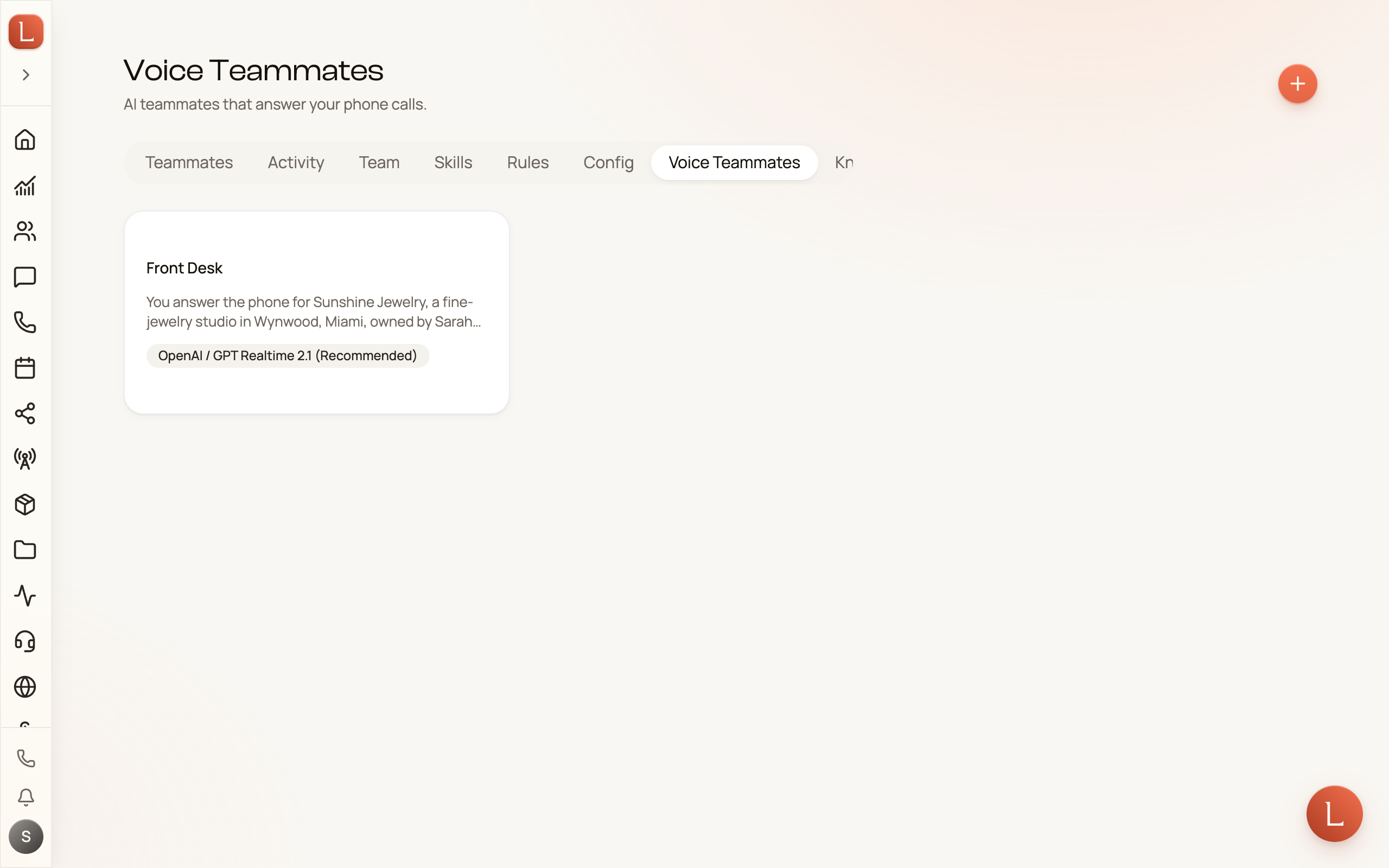
Select Create to make one. You’ll give it three things:
-
A name — in the “Teammate Name” field, something you’ll recognize, like Front Desk.
-
Instructions — under “Teammate Instructions”, tell the teammate how to greet callers and what to help with, in plain sentences. Write it the way you’d brief a new receptionist: “Greet callers warmly, answer questions about our hours and services, and take a message if someone wants a callback.”
-
A voice — open the “Voice & Model” section and pick how it sounds. The other choices in that section are covered below.
Save, and you have a teammate ready to answer the phone.
Your Voice Teammates list keeps itself current. If your assistant creates or renames a phone-answering teammate for you, it shows up there without a reload.
It works the other way too. If the teammate you have open changes while you’re editing it — because you asked your assistant to change it, or because you edited it on another device — a warning appears reading “This teammate changed while you were editing”, with “Reload to pick up the newer version before saving.” underneath, and Save switches off. That’s there so your save can’t quietly overwrite the newer version.
The warning carries a Reload button. Reloading throws away what you typed, so Loquent asks first: “Load the newer version?” — “Your unsaved edits on this form are discarded.” Choose Load newer version to bring in the newer copy. Dismiss it and your text stays, but Save is still off until you reload.
Choose how your teammate talks
Section titled “Choose how your teammate talks”Open the “Voice & Model” section on the teammate. Two choices matter:
- Voice — how it sounds. Pick one, make a test call, and change it any time.
- “Model” — how it holds a conversation. “GPT Realtime 2.1 (Recommended)” is the default and suits most businesses.
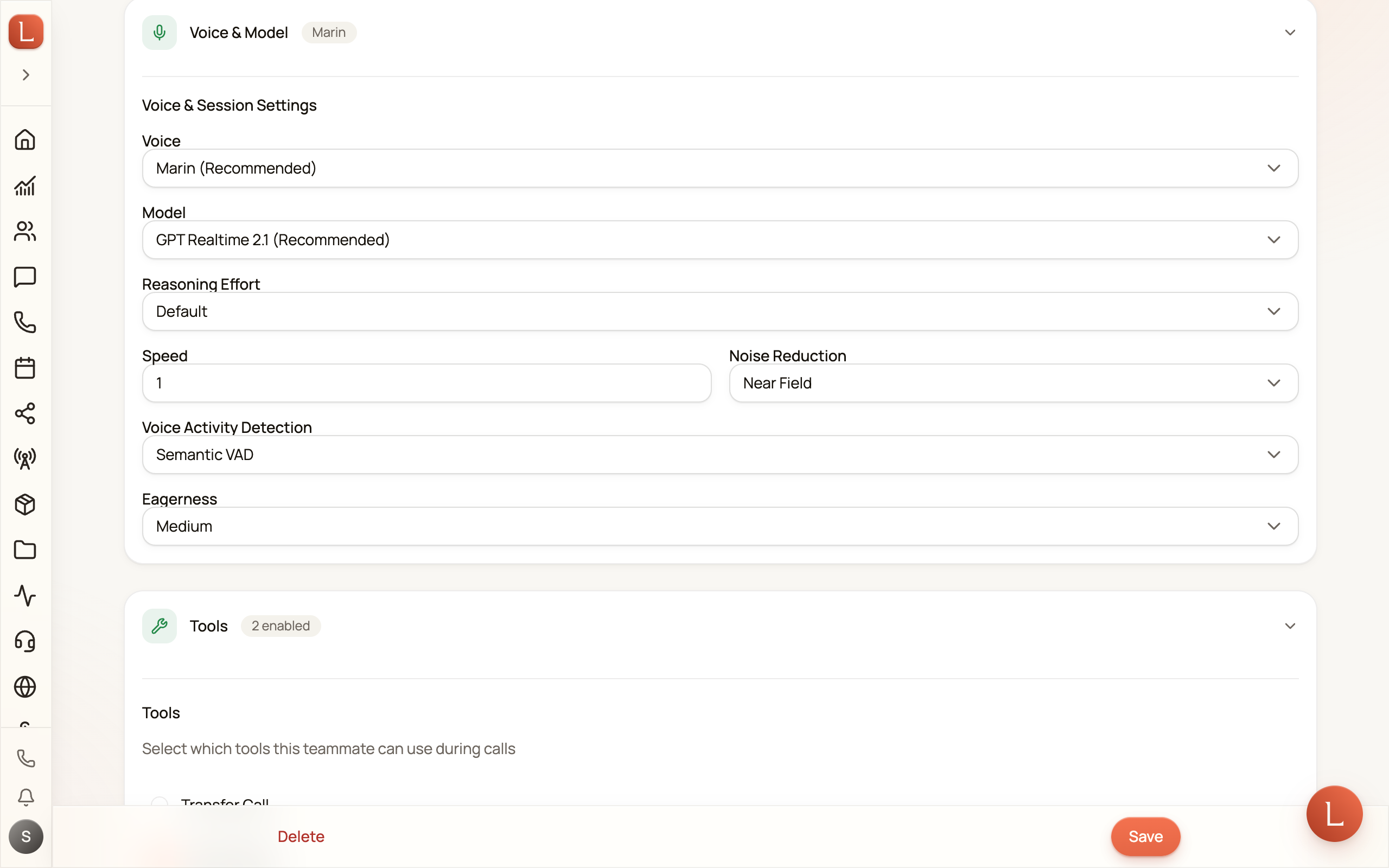
“GPT-Live 1” is the newest option, marked New. It listens while it speaks, so a caller can interrupt it the way they would interrupt a person, and it keeps the conversation going while a separate helper — the “Brain (backend model)” — looks things up and takes actions for the caller. Pick it when callers tend to talk over your teammate or want a quick back-and-forth.
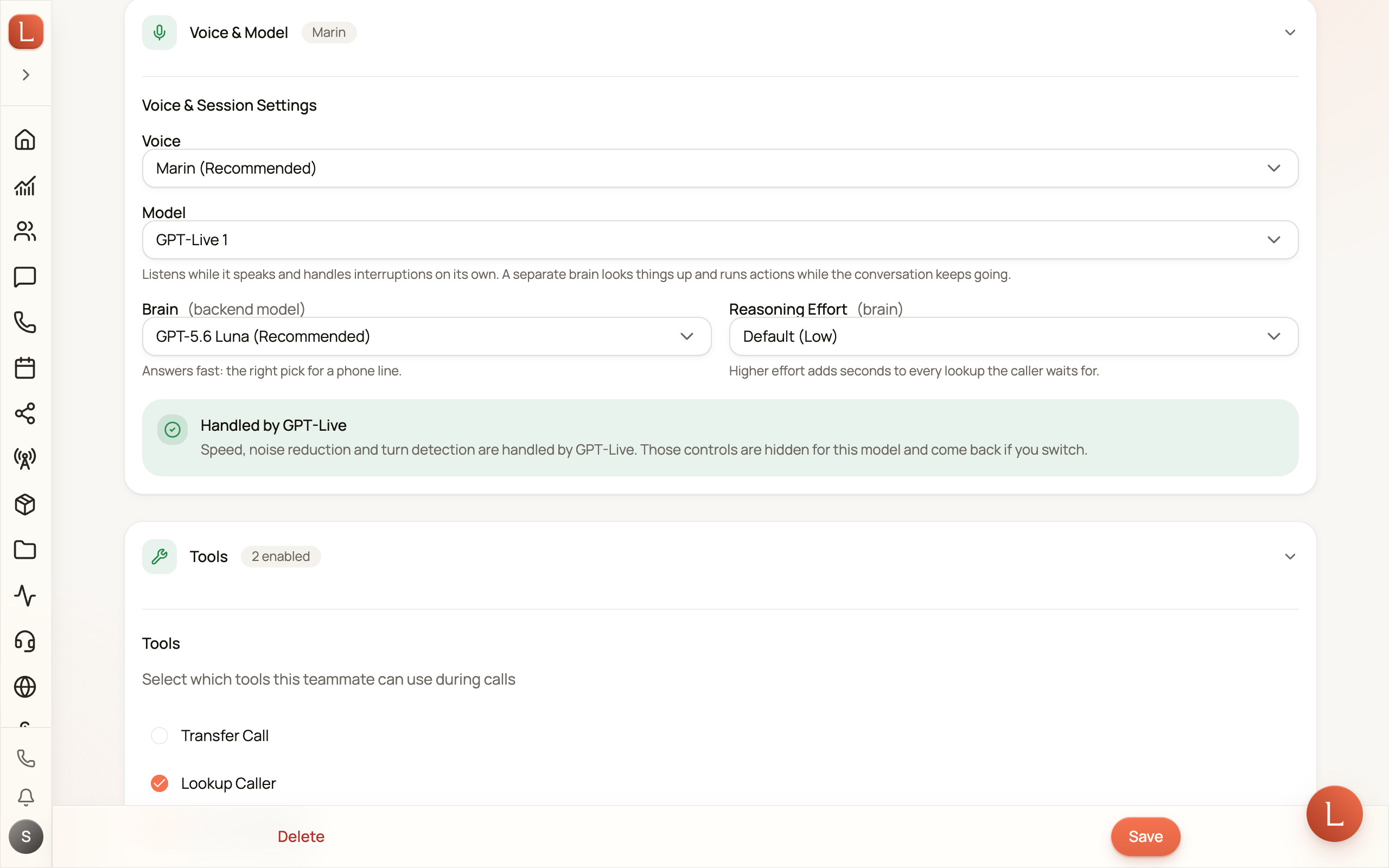
When “GPT-Live 1” is selected, the section changes shape:
- Twelve extra voices appear under “GPT-Live voices”. They work only with this option; if you switch back, your teammate returns to the standard voice and a “Voice changed” note tells you so.
- “Brain (backend model)” picks the helper. “GPT-5.6 Luna (Recommended)” answers fast and is the right pick for a phone line. “GPT-5.6 Terra” thinks harder, takes longer, and costs about ten times more for each thing it looks up.
- “Reasoning Effort (brain)” sets how long the helper thinks before answering. Leave it on “Default (Low)” — every step up adds seconds the caller waits through.
- Speed, noise reduction and turn detection disappear, because this option handles them itself. A note headed “Handled by GPT-Live” says so. They come back, with your old settings, if you switch away.
Hand the line to your teammate
Section titled “Hand the line to your teammate”A teammate only answers a number once you assign it. Go to Channels in the sidebar and open the Phone tab, then switch to Phone numbers.
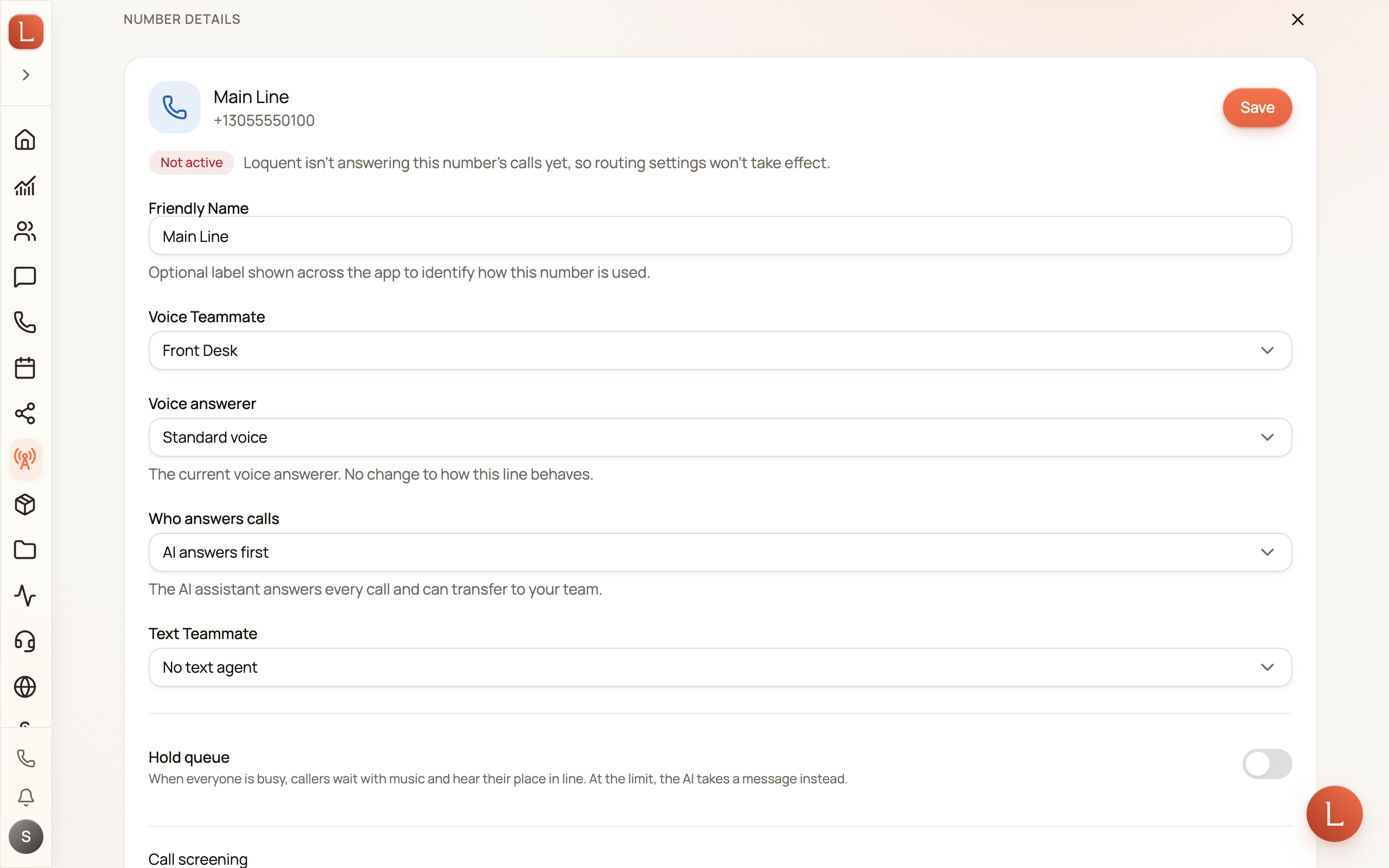
Pick your number and set two things:
- Voice Teammate — the teammate that answers calls on this number. Choose the one you just made.
- Text Teammate — the teammate that replies to texts. Choose one here and texts to this number land with your team too. It answers new Contacts arriving on this number; a Contact who already has a teammate keeps theirs.
You can also set Who answers calls to decide whether the teammate picks up first or your own phone rings first. Save, and the line is live.
Check your recording settings
Section titled “Check your recording settings”Back on the Phone tab, the Configuration view holds your recording controls.
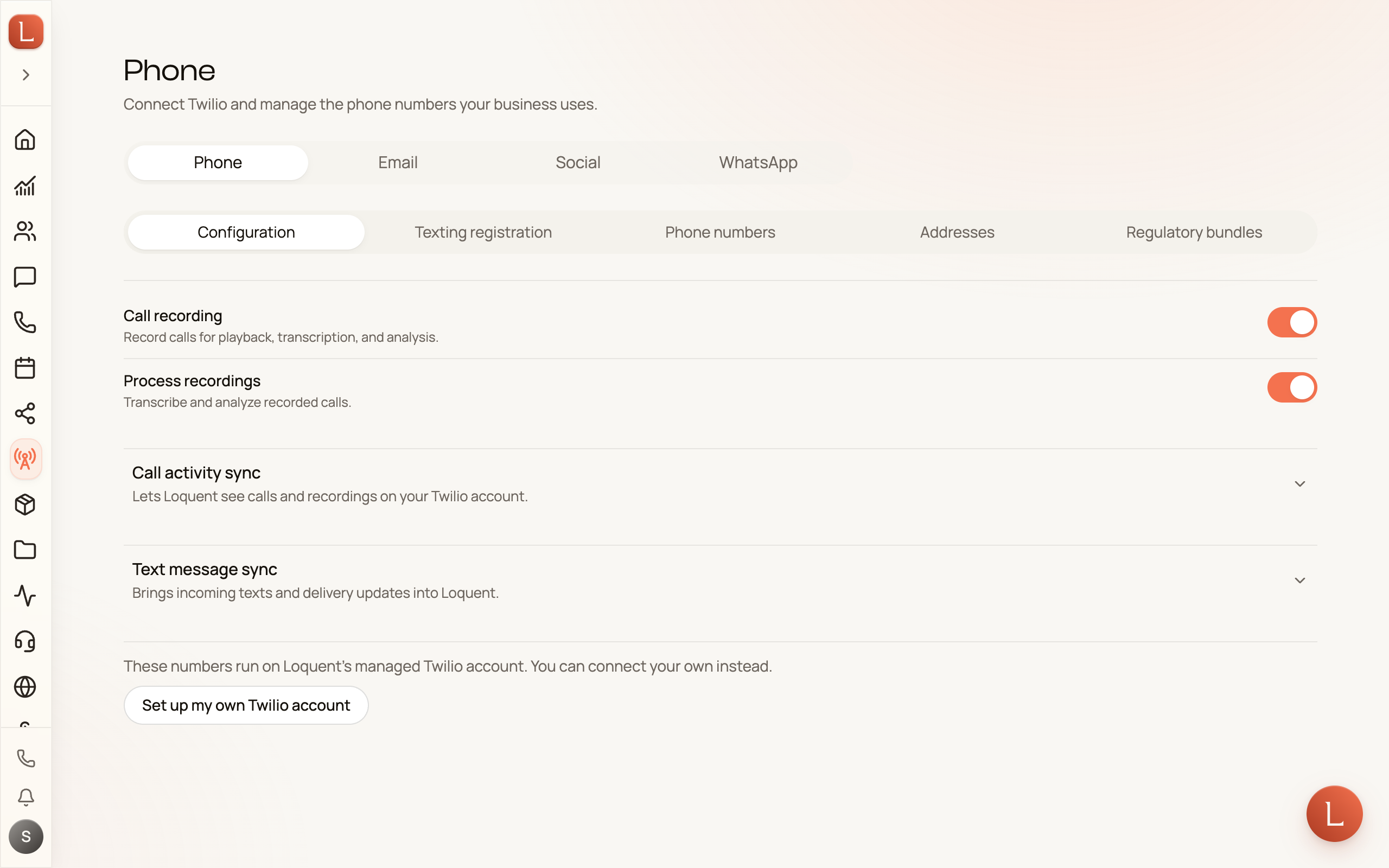
Call recording starts off for a new business. While it’s off, the calls your teammate or your team answer aren’t recorded: each call still lands in your call list, but without audio, a transcript or a summary.
Switching Call recording on asks you to confirm first: callers aren’t told yet that the call is being recorded, so telling them is up to you. Turn call recording on or off has the details, including the message a caller can leave after the beep, which is kept even while recording is off.
Once recording is on, two switches matter:
- Call recording — records calls so you can play them back later.
- Process recordings — turns those recordings into written transcripts and short summaries, so you can read a call instead of listening to the whole thing. It appears once Call recording is on.
What’s next
Section titled “What’s next”Your number now answers itself. Make a test call or send a text and watch it land — that’s Your first conversation.