
Triggers and schedules
Work reaches your AI team in two ways. Something happens — a Contact texts, a call ends, a lead form comes in — and a teammate picks it up. Or the clock reaches a time you chose, and a teammate wakes up on its own to do a recurring job. You decide both on a teammate’s own page: the Triggers tab and the Schedules tab, side by side.
Open Teammates from the sidebar, pick a teammate, and choose the Triggers tab — that’s what wakes this teammate. The Schedules tab next to it is when it runs on a timer.
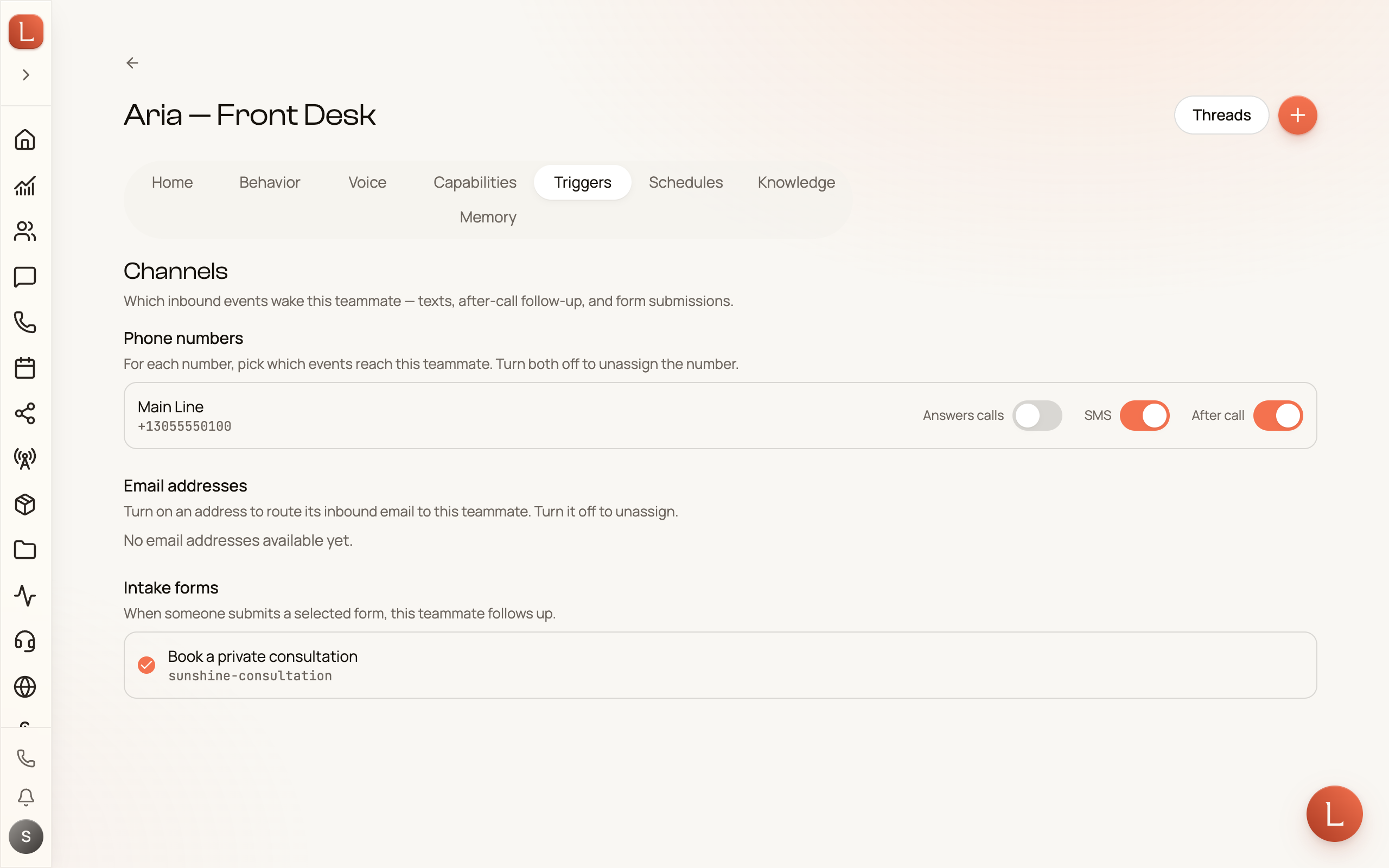
Triggers — what wakes a teammate
Section titled “Triggers — what wakes a teammate”The Triggers tab is where you route incoming work to this teammate. Each of your surfaces has its own row:
- Phone numbers — for each number, pick which events reach this teammate. Turn everything off to unassign the number. (To buy or manage the numbers themselves, see Manage your phone numbers.)
- Email addresses — turn on an address to route its incoming email to this teammate; turn it off to unassign it.
- Intake forms — when a Contact submits a form you’ve selected, this teammate follows up.
A quiet rule worth knowing: the teammate you pick here answers new Contacts arriving on this channel — it’s stamped onto the Contact the first time they reach you, shown later as From the channel it arrived on. After that the Contact owns its teammate, so changing this screen doesn’t move Contacts you already have.
For those, use the Responding teammate control on the Contact. See Who’s replying to a Contact.
Schedules — work on a timer
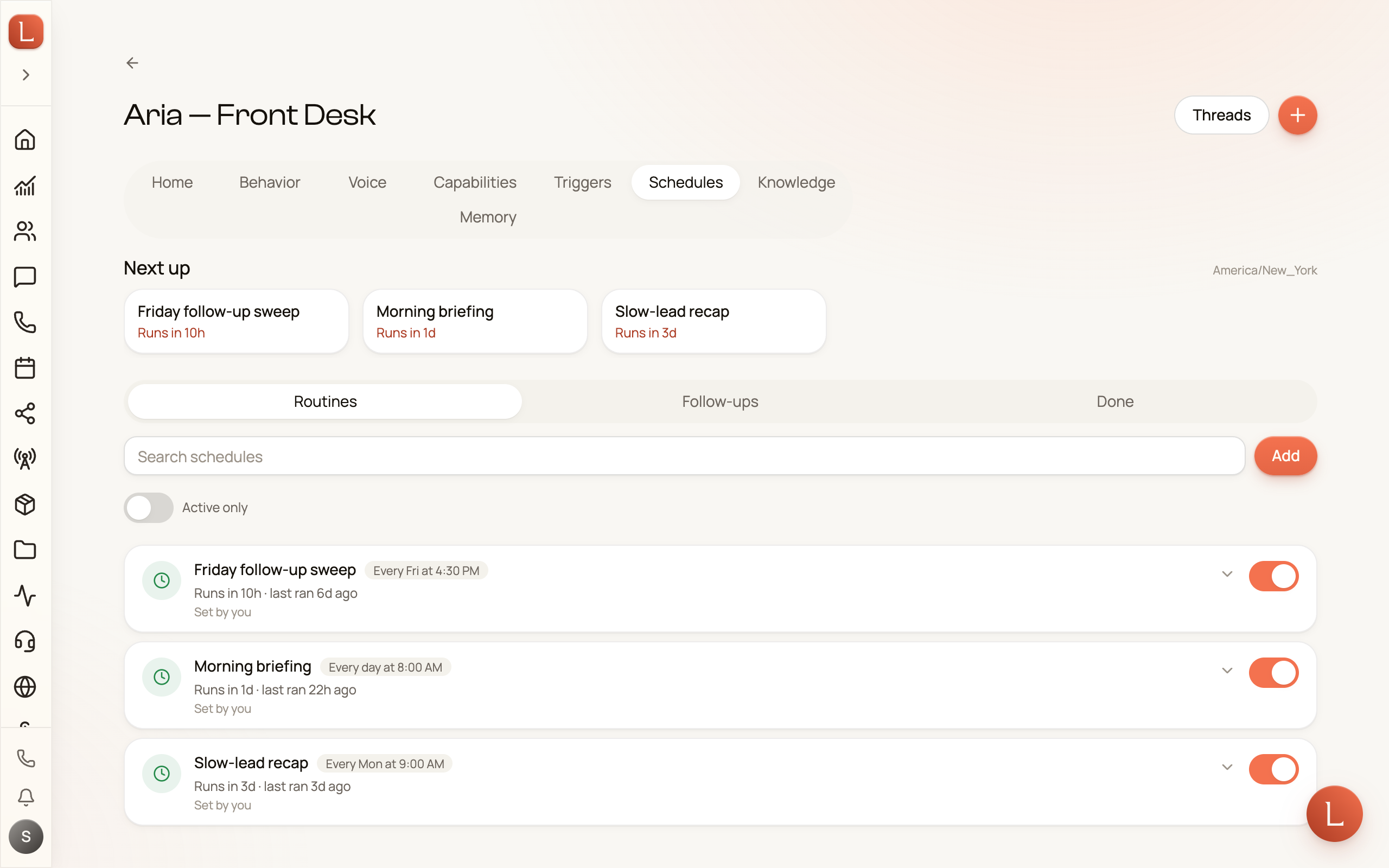
Section titled “Schedules — work on a timer”The Schedules tab lets a teammate wake up on its own and follow an instruction each time — a morning specials text, a weekly check-in, a one-time reminder for a launch day. No technical setup, just plain choices.
-
Press Add schedule.
-
Give it a name and write the instruction as if you’re telling the teammate what to do — “text this week’s open-house times to everyone who asked.”
-
Pick how often it runs: Hourly, Daily, Weekdays, Weekly (choose the days), or a one-time run on a date you pick.
-
Press Save. The teammate now runs that instruction every time the schedule fires.
Each schedule shows a plain-language preview of when it runs, and you can edit or delete any of them later. Deleting one stops that recurring job for good.
Draft first, as always
Section titled “Draft first, as always”A schedule doesn’t change how your team handles what it produces. If a teammate is set to Suggest — the default — a scheduled run still writes a draft for you to approve rather than sending on its own. The schedule decides when the teammate acts; your autonomy setting still decides whether it sends without you.
Between the two tabs you have the whole question of how a teammate gets its work: what comes to it, and what it starts on its own.