
Browse and filter your Contacts
Every person your business talks to is a Contact, and the Contacts page in the sidebar is where they all live. It’s your customer book: one row per person, sorted so the people you should reach are near the top.
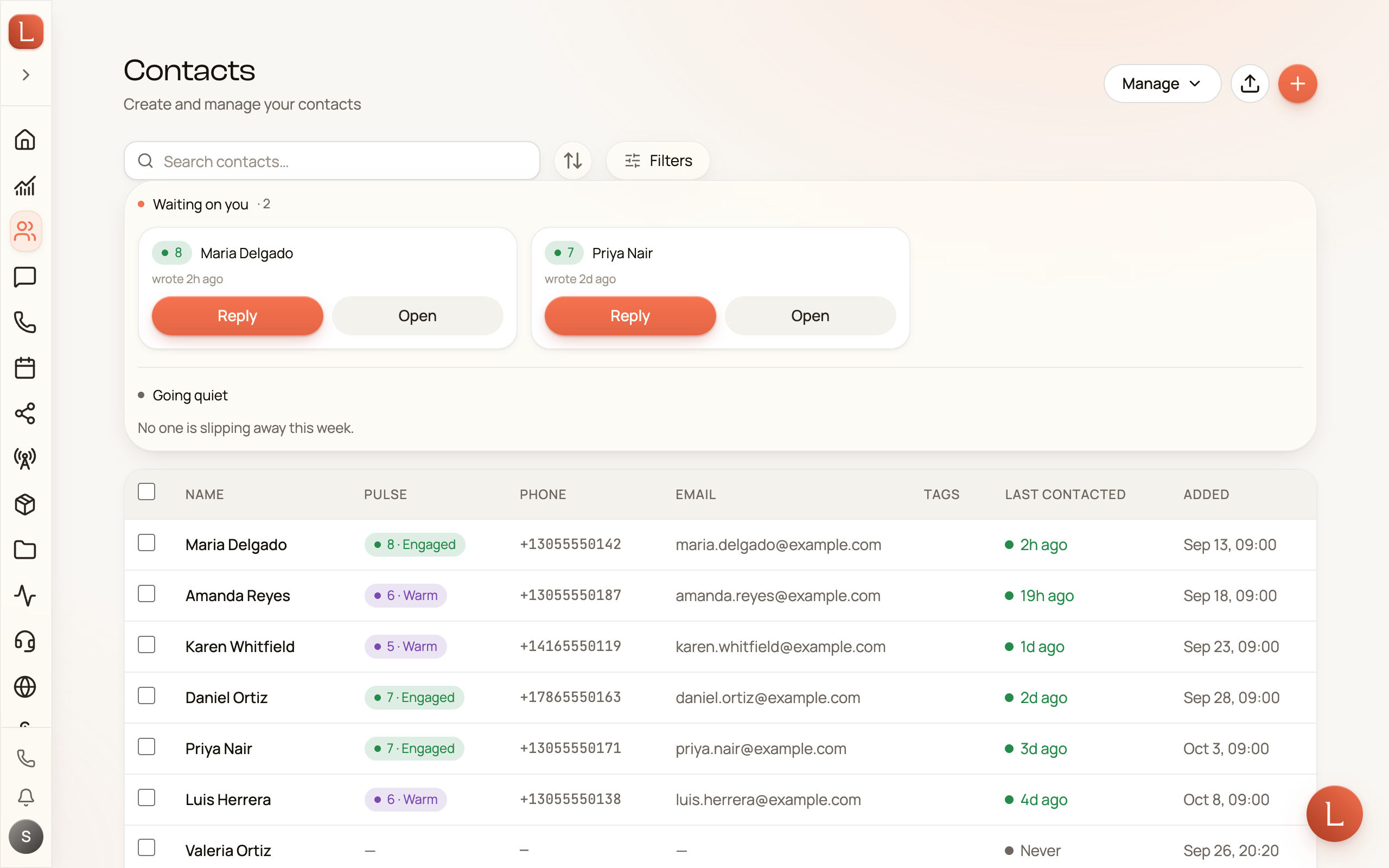
What each row tells you
Section titled “What each row tells you”The list shows seven columns, so you can scan without opening anyone:
- Name — the person, with their preferred phone and email alongside.
- Pulse — how warm the relationship is right now, as a coloured score. When someone has been silent more than two weeks the score goes hollow and a quiet 34d chip appears beside it, so a warm score nobody has spoken to in months never reads as urgent.
- Phone and Email — the ones marked preferred, or the first on file.
- Tags — the colored labels you use to group people (a lead, a regular, a VIP).
- Last Contacted — a colored dot warms or cools with how long it’s been, so a Contact going quiet is easy to spot.
- Added — when they first landed in your book.
Tap any row to open that person’s full profile.
Start here — your two lanes
Section titled “Start here — your two lanes”Above the list sits Start here, the short list your AI teammate keeps for you. It has two lanes, and both mean this week:
- Waiting on you — people who wrote in the last two weeks and are still waiting for a reply. Each card shows how long it’s been (“wrote 2d ago”) and opens straight into the conversation with Reply.
- Going quiet — people who were warm and have now been silent between three days and two weeks. This is the window where a nudge still works. Chase opens a draft with the next step your teammate suggested — nothing sends until you send it — and Close out marks them inactive so they stop coming back.
Nobody appears in both lanes, and nobody older than two weeks appears in either. When a lane is empty it says so: “Nothing needs you right now” or “No one is slipping away this week.” The same two lanes are on your dashboard and in your morning briefing, so all three always agree.
Search and sort
Section titled “Search and sort”The search box up top matches names, numbers, and email as you type. Next to it, a sort pill flips the order between Recently Added, Last Contacted, Name A–Z, and Hottest First — pick whichever way of scanning fits what you’re doing. Hottest First is offered wherever the Pulse score is shown, and puts your warmest relationships at the top.
Filter down to who you need
Section titled “Filter down to who you need”The Filters button opens a panel for narrowing the list — no longer one long list, but a stack of containers you can open and close.
The first is always General, holding the built-in filters: Status, Tags, Pulse, and Last Contacted, plus Assigned to and Phone line when your permissions and your connected lines make them available. Under Pulse there is also a Went quiet switch, which narrows the list to people whose score dropped from silence in the last 30 days.
Below it sits one container per field group you have set up on Contact Fields — in your own order, under your own name, holding that group’s custom fields. A group you made yourself carries a small custom chip; a group with no custom fields in it does not appear at all. See Custom fields for how the groups are created and ordered.
Watch the number badge on each container header, because it changes meaning. While nothing is filtered it stays muted and counts the filters that container offers. The moment one is applied it turns coral and counts the ones applied — so a coral badge tells you where your active filters live without opening every container.
General starts open, along with any container that already holds an applied filter; the rest start closed. Open or close one and Loquent remembers your choice for next time, even after a reload — kept separately from how you open and close the same groups on a Contact’s profile.
On a computer each change narrows the list straight away. On a phone the panel is a sheet: stage your changes, then tap Apply. Opening or closing a container is never a change, so it never enables Apply. Reset all clears the filters and leaves your open-and-closed choices alone.
Each filter you apply shows as a small chip below the bar — tap the chip’s × to drop it.
Add a Contact by hand
Section titled “Add a Contact by hand”Most Contacts arrive on their own — a caller, a texter, someone who fills in a form. But you can always add one yourself.
Bringing a whole list across from a spreadsheet, another CRM, or your phone? That’s Import your customer list.
-
Tap Create Contact (the + at the top right of the list).
-
Fill in a name, and a phone or email if you have one.
-
Save. You land on the new Contact’s profile, ready to call or message.
Fill in gaps from past messages
Section titled “Fill in gaps from past messages”If you’ve been texting people for a while, your team already knows things about them that aren’t written into their records yet — a company name mentioned in passing, an address, what they were after.
Select a few Contacts using the checkboxes, and a bar appears at the bottom with Enrich from SMS. Your AI teammate reads back through each one’s message history and fills in the details it finds — turning months of scattered texts into a tidy record. It’s a batch job: pick the people, tap once, and let your team catch the records up.
Next: open anyone to see a Contact’s profile, or read how a Contact ties together every call and message in Contacts, conversations, and channels.