
Business email addresses
Email is a channel just like the phone. When a Contact writes to a business address you set up here, the message lands in your team’s inbox, and your AI teammate drafts a reply for you to approve — the same rhythm as texts and calls.
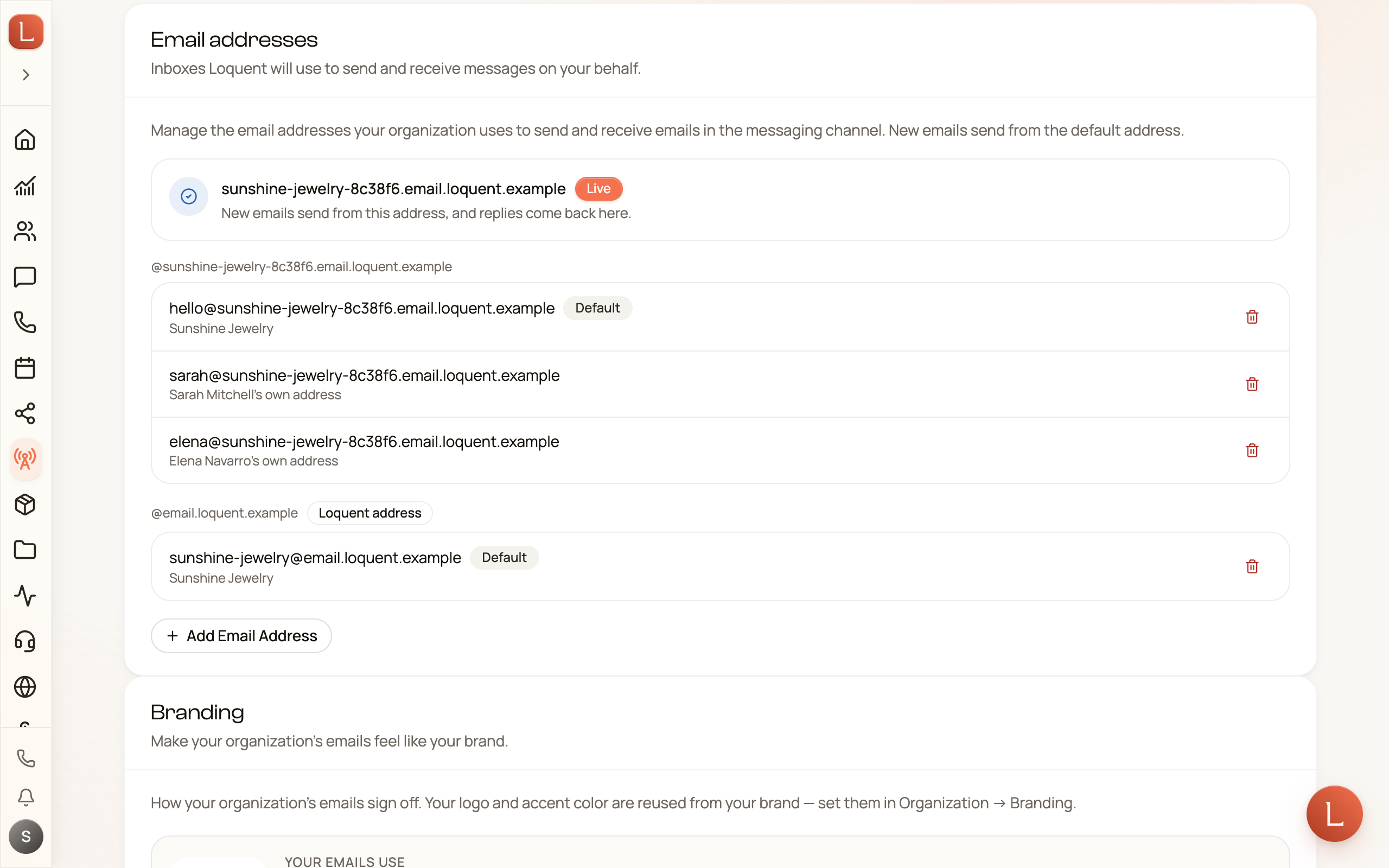
Open Channels from the sidebar and pick the Email tab. There’s no DNS to configure and no mail server to wire up. You create an address, and it works.
Create an address
Section titled “Create an address”Your addresses live on a Loquent domain, so setup is a single form.
-
Tap Add Email Address.
-
Type a Username — the part before the @, like sales, hello, or info. This becomes the local part of the address (for example
sales@email.example.com). -
Add a Display Name if you like — Sales Team, say — so replies feel personal. This is optional.
-
Tap Create. The address is live immediately, ready to send and receive.
Make as many as you need — a friendly hello for general enquiries, an orders address for purchases, whatever matches how your business is organised.
Your own email address, set up for you
Section titled “Your own email address, set up for you”Your addresses start on the shared Loquent domain. Loquent can also give your organization an email domain of its own — a name that reads as your business rather than a shared Loquent one. It isn’t automatic: ask Loquent support, and once the team turns it on, it sets itself up in the background with nothing to configure on your side.
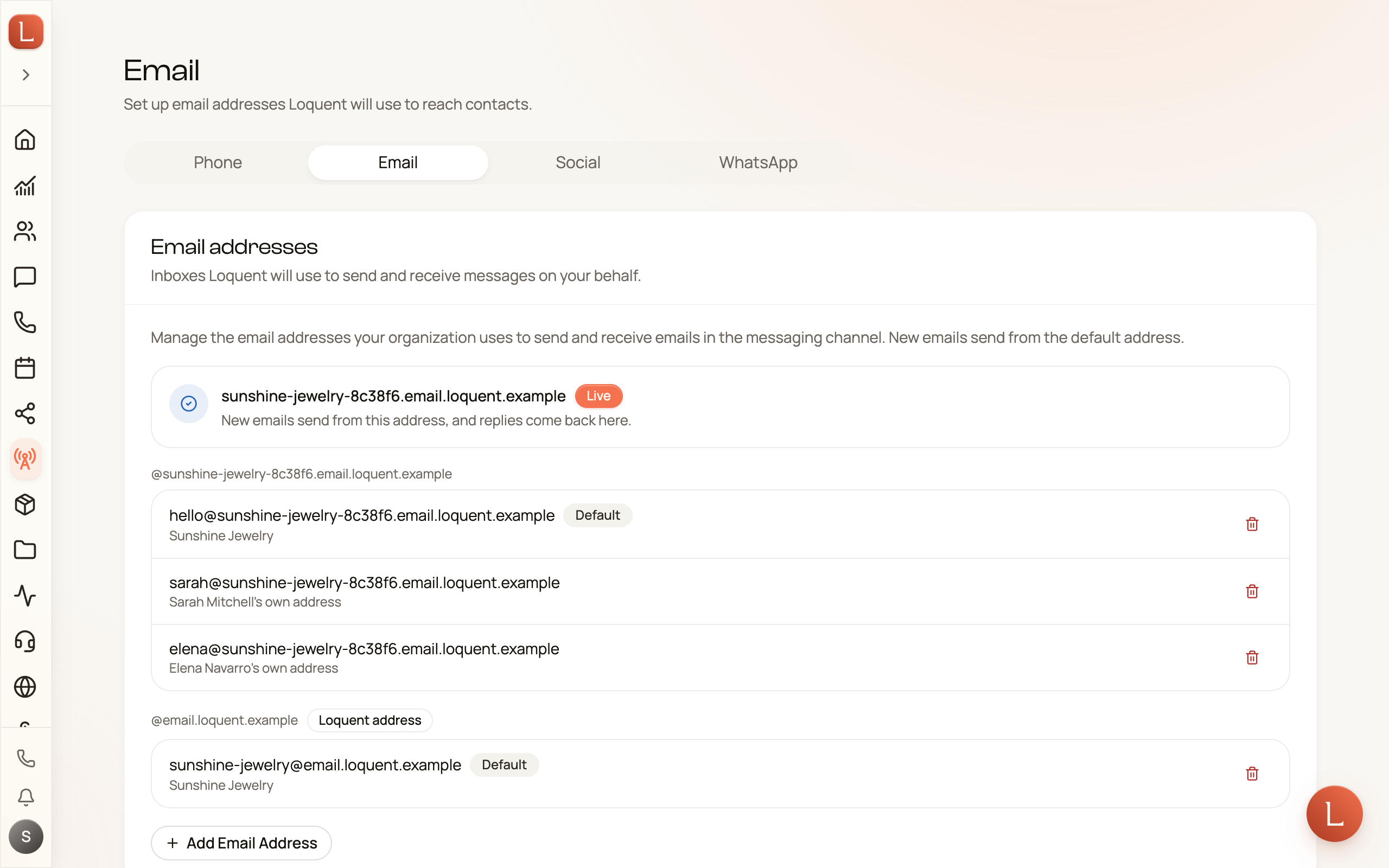
From then on, a card at the top of the Email tab shows where it’s up to:
| The card says | What it means |
|---|---|
| Setting up your-name-a1b2c3.email.loquent.io | In progress — usually a few minutes. |
| This is taking longer than usual | Something needs another try. Select Check now to push it along. Email keeps sending from your Loquent address throughout. |
| your-name-a1b2c3.email.loquent.io with a Live badge | Done. New emails send from this address, and replies come back here. |
Nothing breaks while you wait, and nothing breaks afterwards: your Loquent address keeps receiving, so replies to mail you already sent still land in the right conversation. Your existing addresses are copied onto the new domain automatically when it goes live, and sending and receiving both start working at the same moment.
Which address a message goes out from
Section titled “Which address a message goes out from”Once you have more than one address, the list groups them by domain and marks one in each group as the Default. Select Make default on another address to move it.
When Loquent sends without you picking — a teammate’s reply, or a bulk send — it chooses in this order:
- Your own domain before the shared Loquent one.
- Within that domain, the address marked Default.
- Failing both, the oldest address you have.
So in short: set the default on your own domain, and that becomes your business’s voice for everything the team sends.
Give each person their own address
Section titled “Give each person their own address”An address can belong to the organization or to one person on your team. Open Settings → Team → Members, select Manage beside a person, and their Email addresses section lists what they can send from.
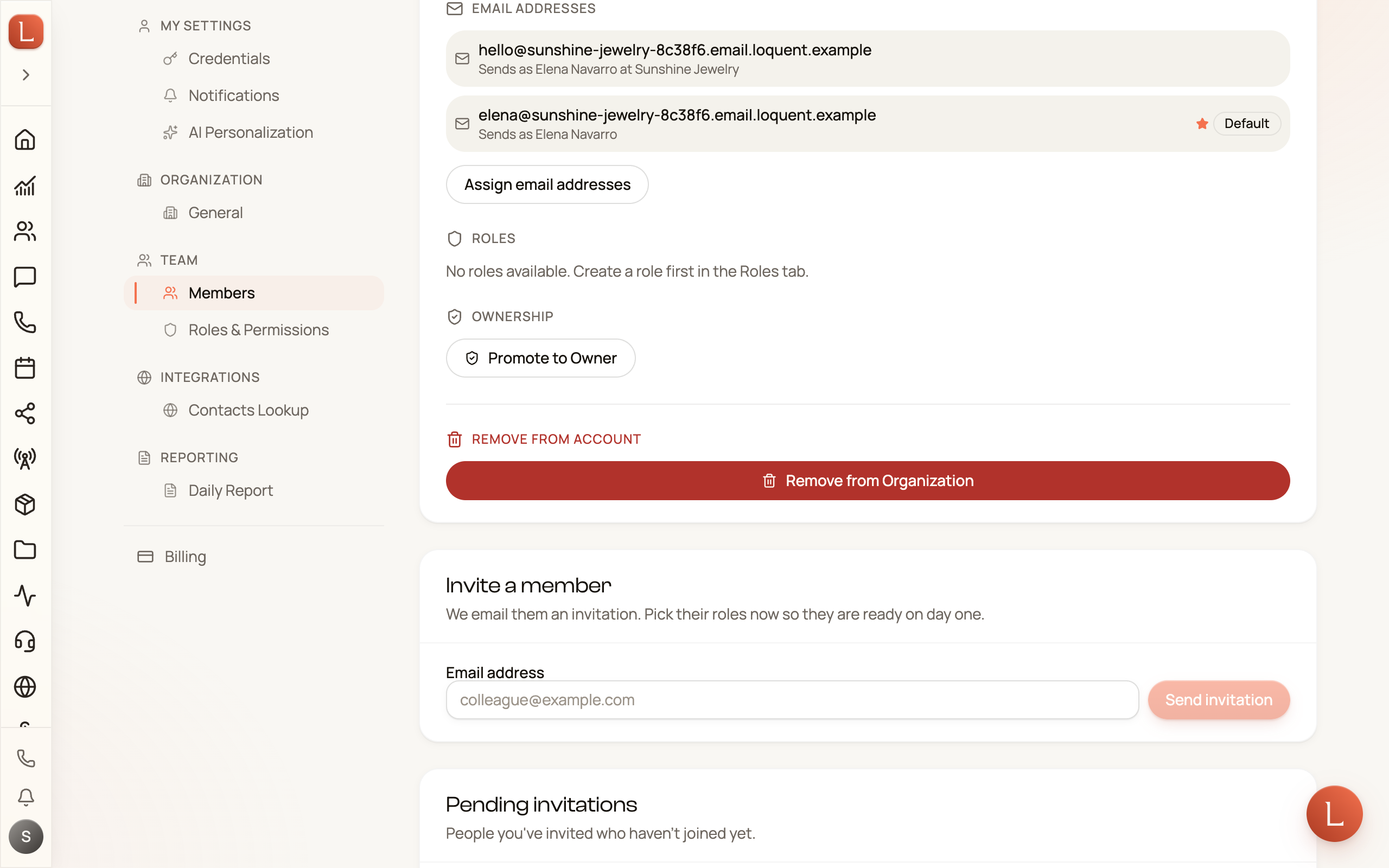
- Assign email addresses — tick the organization addresses this person may send from, and star one as their default. In the composer’s From list a member sees only what’s assigned to them; an Owner sees every address.
- Give name an address of their own — an Owner can create a personal address on your own domain, like
elena@your-name-a1b2c3.email.loquent.io. Your own domain has to be Live first.
What the Contact sees depends on which one they write from:
- Their own address — Elena Navarro.
- An organization address — Elena Navarro at Sunshine Jewelry, so a message from the shop still reads as coming from a person.
Point an address at a teammate
Section titled “Point an address at a teammate”Once an address exists, messages to it flow into your shared inbox, where the teammate on that conversation drafts replies for your approval. Suggest is the default everywhere — nothing goes out until you send it. To see how those drafts reach you and how you approve them, read Drafts, approvals, and escalations.
Brand your outgoing email
Section titled “Brand your outgoing email”Below the address list is a Branding section — the finishing touches that make an email feel like your business, not a generic system message.
- From name — the sender name recipients see. Leave it blank to send as Loquent.
- Reply-to address — where replies should land, if that’s different from the sending address.
- Signature — the sign-off shown above the footer.
- Footer line — an address or legal line at the very bottom.
- Show logo in emails — display your logo, with your business name as a text fallback for apps that block images.
Your logo and accent colour come from your organisation’s brand settings, so a single look carries across everything your team sends. Fill in what you want and tap Save branding.
With email set up alongside your phone lines, every channel a Contact uses gathers into one conversation — see how that works in Contacts, conversations, and channels.