
Publish your own pages
Sometimes you need a page of your own: a landing page for a promotion, a proposal for one client, a short guide. Pages puts a self-contained HTML page online at a public link, with nothing else in the way. Your AI teammate can draft one for you, and you can create and edit pages yourself whenever you like.
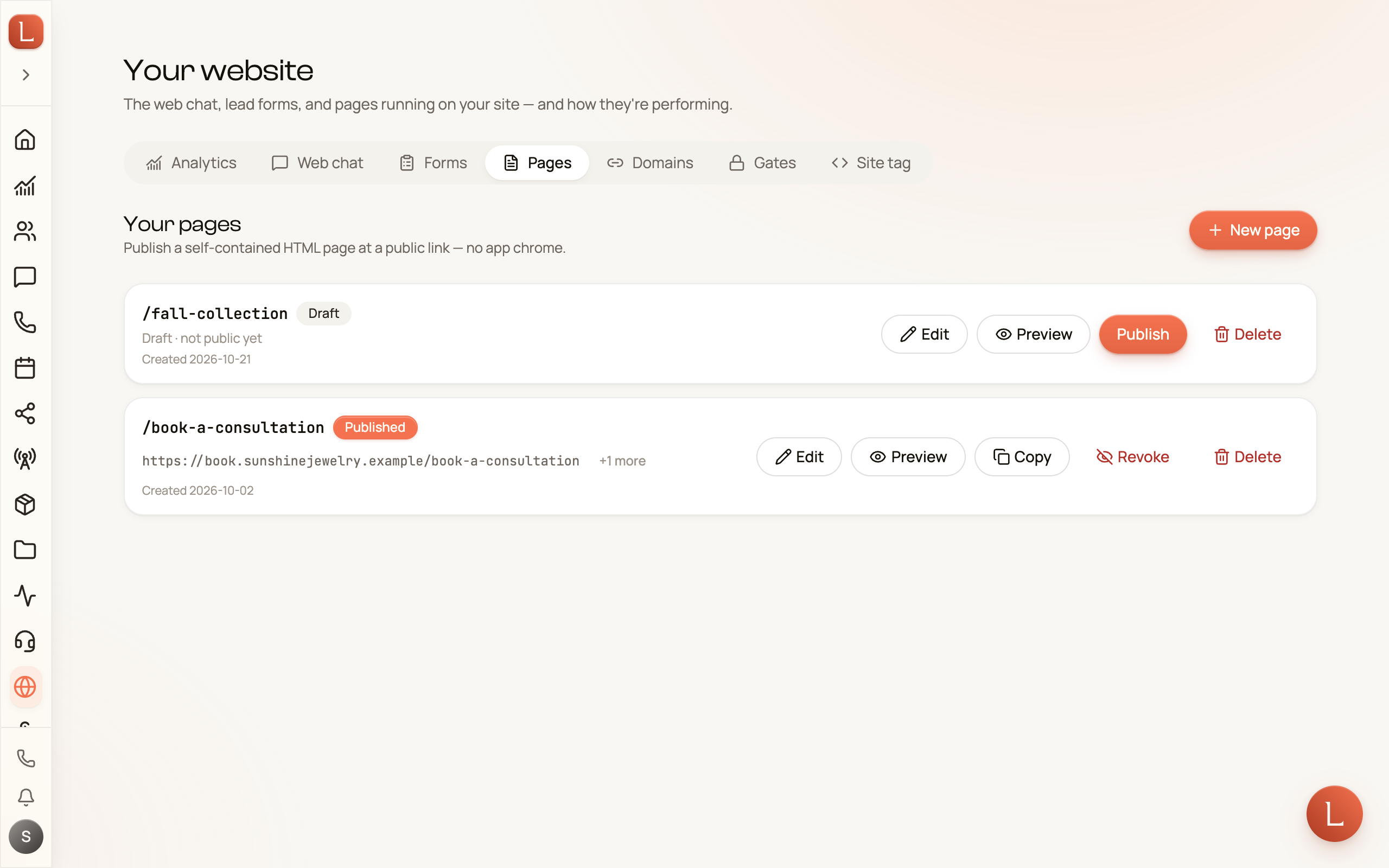
Open Website from the sidebar and choose the Pages tab.
When a published page needs an address on your own website, follow Connect your domain.
Create a page
Section titled “Create a page”-
Tap New page.
-
Under Page path, type the last part of the link, like
spring-sale. Lowercase letters, numbers and hyphens only. -
Under HTML, paste your page’s HTML, or tap Upload .html and pick a file.
-
Tap Create draft. The page appears in your list marked Draft. Nothing is public yet.
A page is a complete HTML document on its own. It brings its own styling and scripts; Loquent adds nothing around it.
Preview and publish
Section titled “Preview and publish”Tap Preview on a page’s row to open it in a new tab at an unlisted link. That is the place to check it before anyone else sees it.
When it looks right, tap Publish, then Publish now. From that moment, anyone with the link can view the page. The row now shows the public link with a Copy button next to it.
If you’ve filled in Allowed Origins on your web chat, your own pages count without being listed. Change your workspace handle and the chat follows your pages to the new address; the old address stops showing it.
Edit a page
Section titled “Edit a page”-
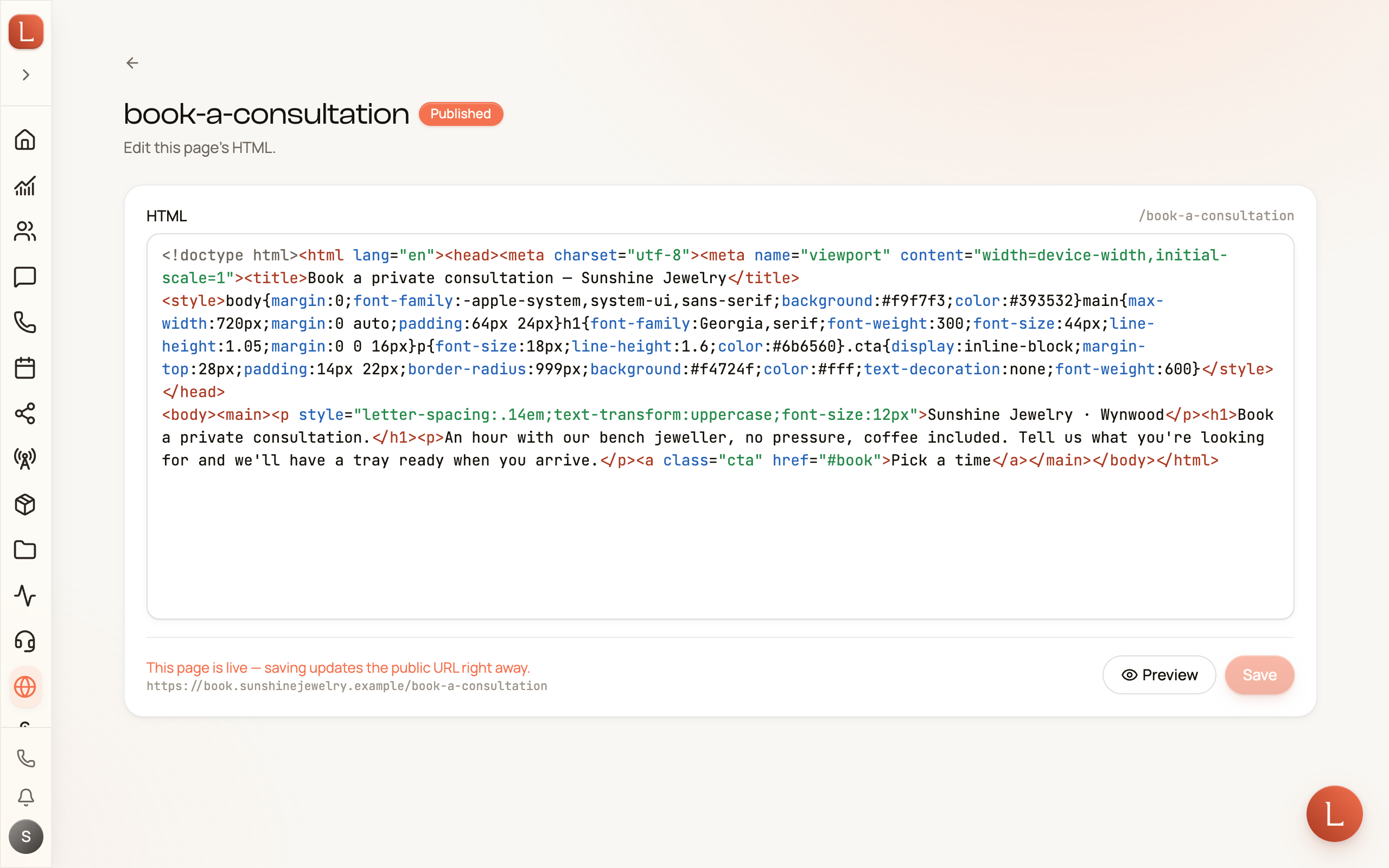
Tap Edit on the page’s row.
-
Change the HTML in the editor. The code is colour-coded as you type, so tags and text are easy to tell apart.
-
Tap Save. The button stays greyed out until you change something, then shows Saving and Saved as it goes.
A few things to know while editing:
- Editing a draft keeps it a draft. Publishing is a separate step.
- Preview shows the last saved version, not what you are still typing.
- A page cannot be empty, and it has to stay under 2 MB. The editor tells you below the field if either rule is broken.
- If two people edit the same page, or you and your teammate do, the last save wins.
Take a page offline
Section titled “Take a page offline”You have two ways to do that, and they are different:
- Revoke takes the link down at once. Anyone who opens it gets a “not found” page. The page and its HTML stay in your list marked Revoked, and you can publish it again later.
- Delete removes the page and its content for good. It cannot be undone, so revoke instead if you only want the page offline for a while.
Both ask you to confirm before anything happens.
Who can do this
Section titled “Who can do this”Viewing, creating, editing, publishing, revoking and deleting pages are each their own permission, so you can let a colleague edit copy without letting them publish or delete. Anyone who can publish pages can also open and edit them. Shape that under Settings → Team, in the roles and permissions area. See Invite your team for how roles work.