
Connect your domain
Give a published page a web address your Contacts
already recognise, such as book.example.com. Your main website keeps
working where it is. Loquent uses the subdomain for the page you choose.
You need a published page, a subdomain you control, and access to the place where you manage its DNS records. Open Website from the sidebar, then choose Domains.
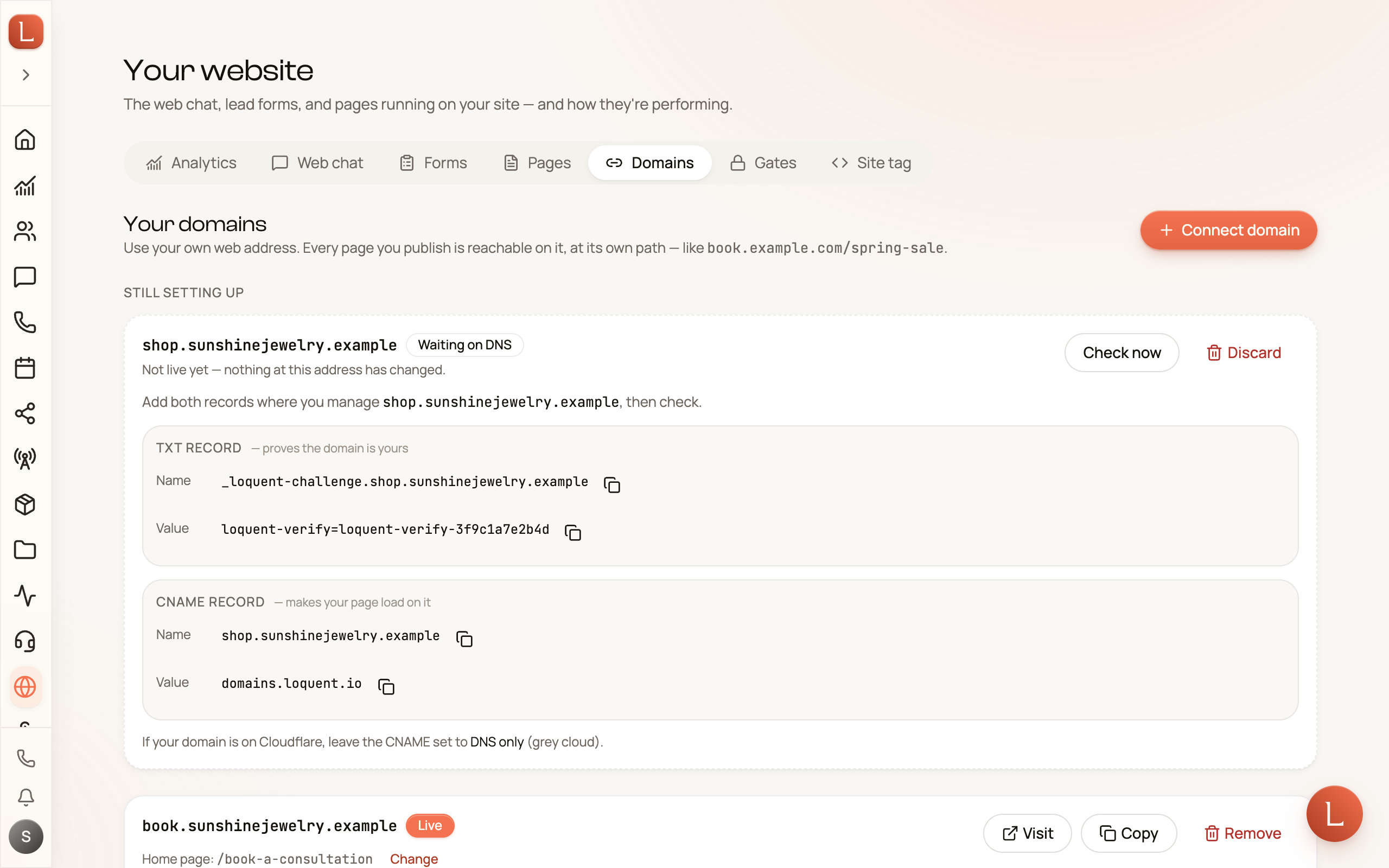
Add a domain
Section titled “Add a domain”-
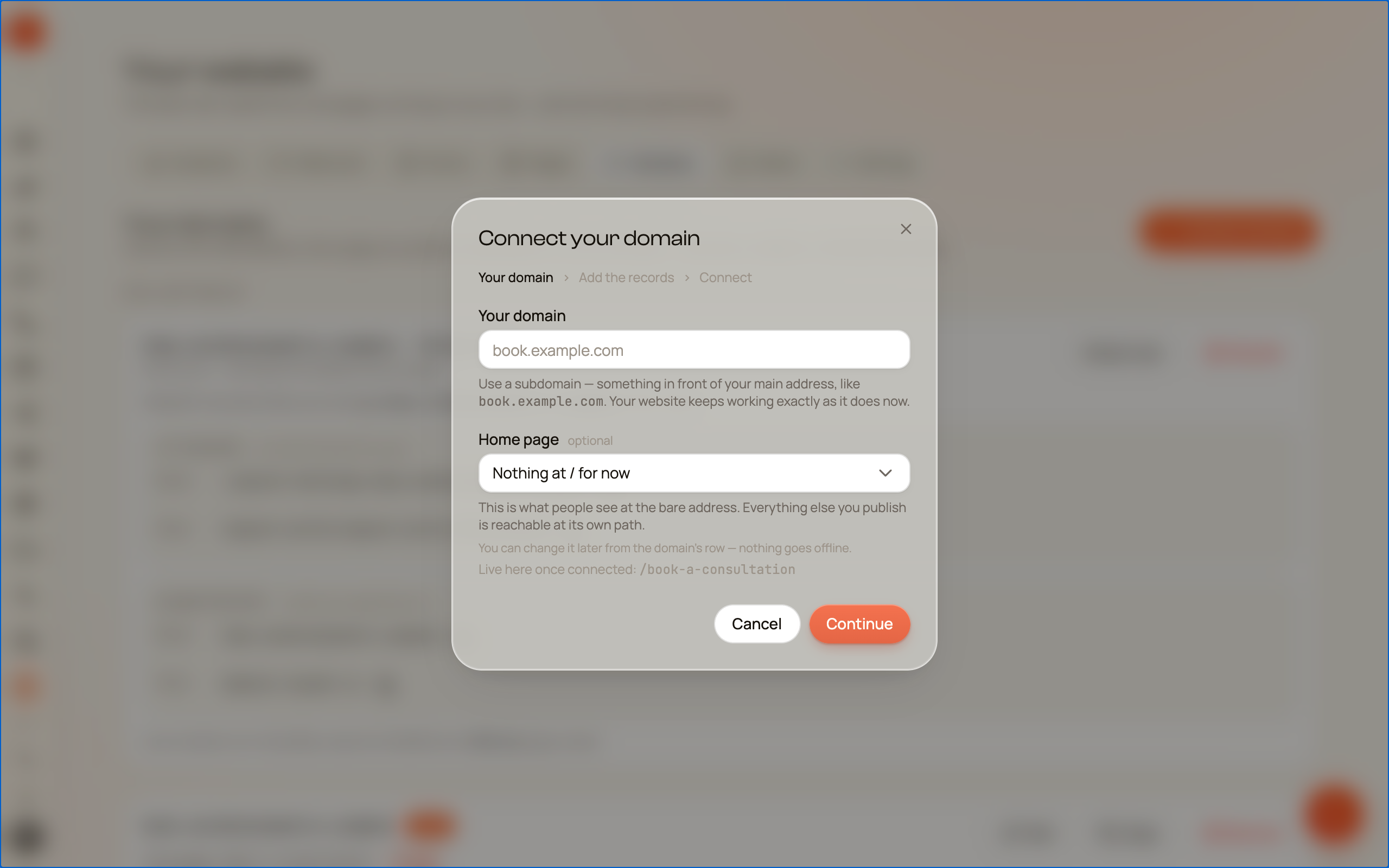
Tap Connect domain. Enter a subdomain, for example
book.example.com, and choose the published page it should show. -
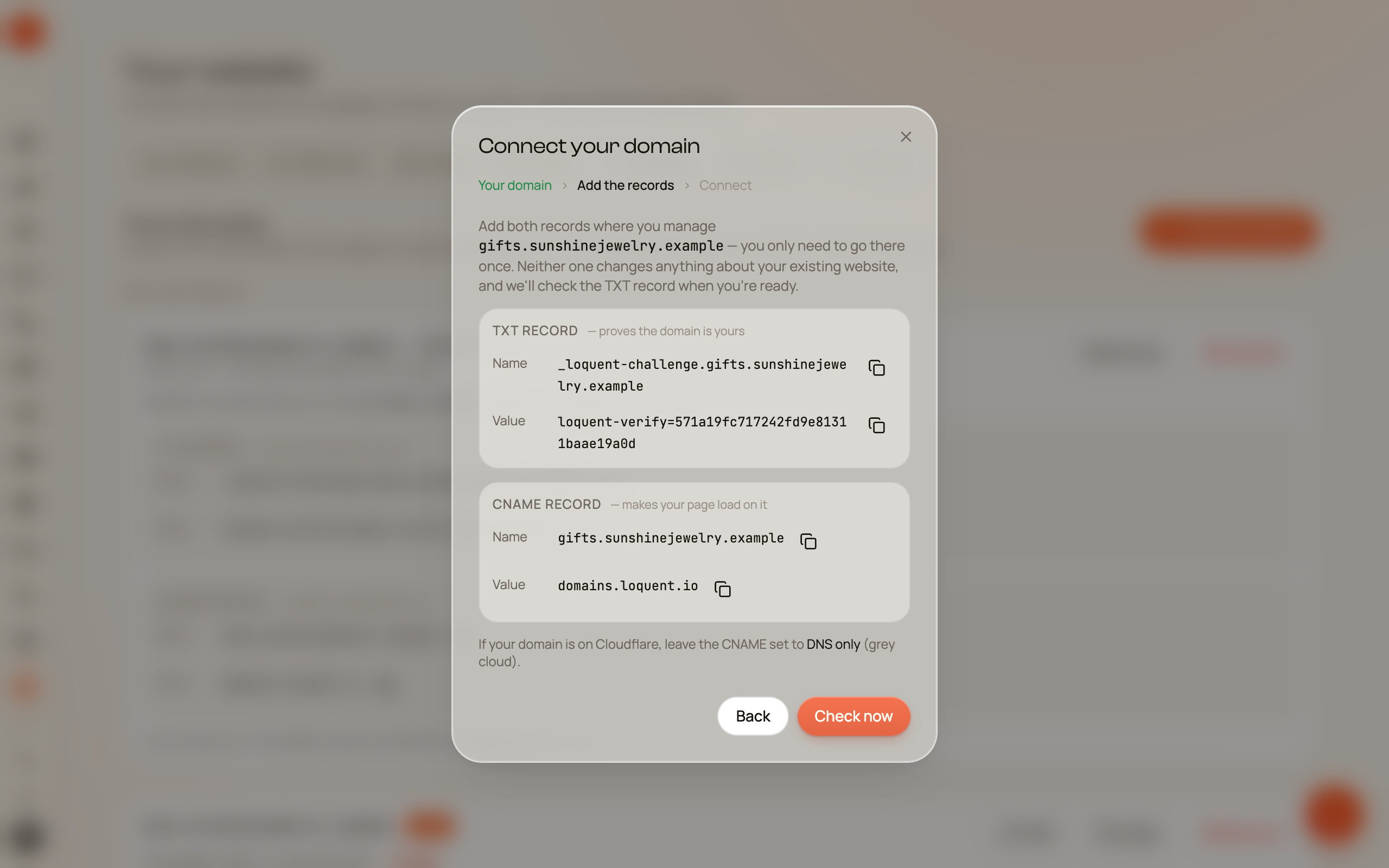
Tap Continue. Loquent shows two records to add where you manage your domain: a TXT record that proves you control the name, and a CNAME record that sends the subdomain to
domains.loquent.io. Use the copy buttons beside each value so you do not have to type them. -
Add both records, then return to Loquent and tap Check now. When the ownership check succeeds, tap Connect domain. The page is now queued for its security certificate.
Read the status
Section titled “Read the status”The Domains tab keeps the next action beside each hostname:
- Waiting for DNS means Loquent has not seen the CNAME yet. DNS changes often appear within a few minutes. Leave the records in place and tap Check now again.
- Securing means the CNAME is visible and Loquent is preparing the security certificate. There is nothing else for you to do.
- Live means the page is available at
https://your-subdomain.your-domain. Use Visit to open it or Copy to share the address. - Needs attention means setup did not complete. Read the message on the row, correct the record if it asks you to, then tap Check now. If it still does not clear, remove the domain and connect it again.
An ownership check that says the record is not there yet usually means DNS is
still catching up. A mismatch means a TXT record exists at that name but its
value is different; copy Loquent’s value exactly, including loquent-verify=.
Finish a setup you started
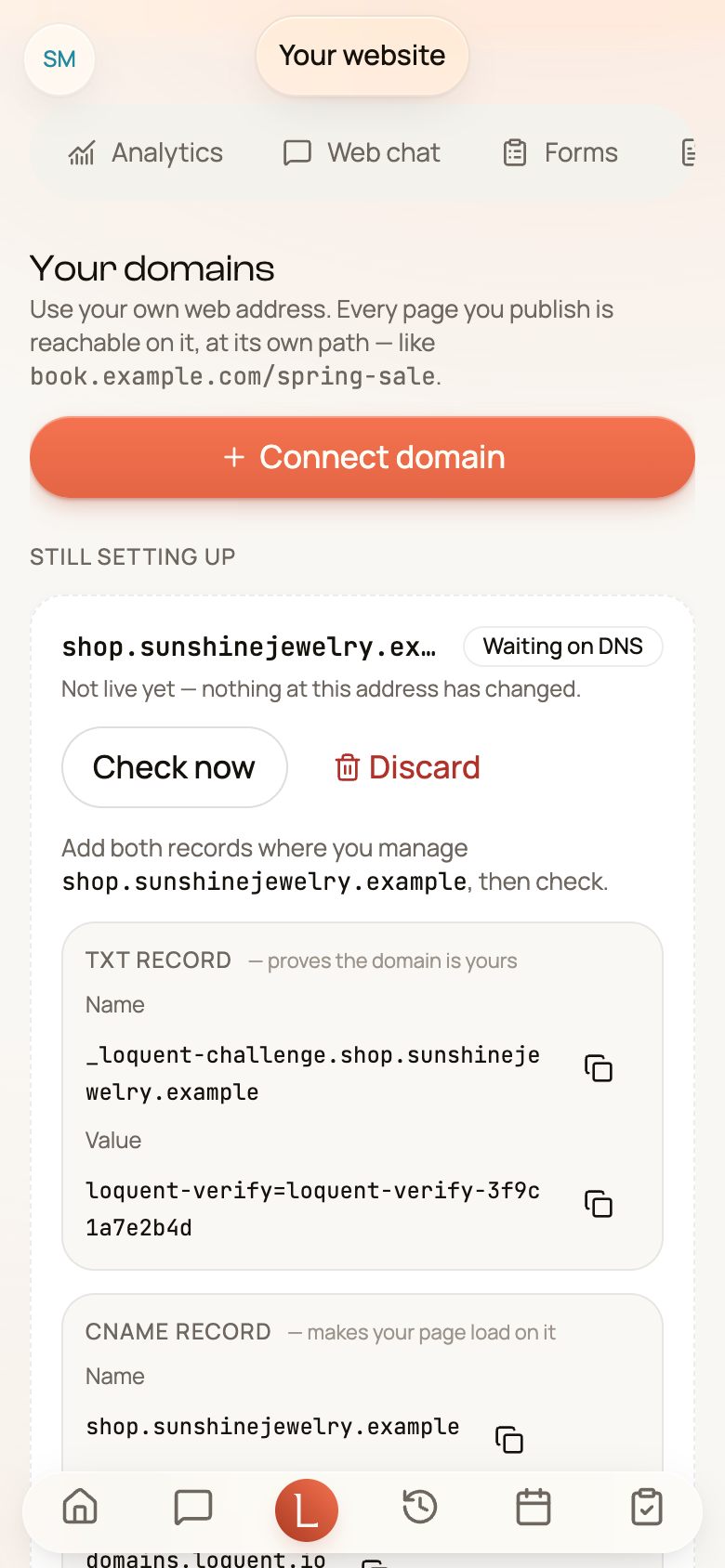
Section titled “Finish a setup you started”If you closed the dialog before connecting, the domain is not lost. It waits under Still setting up, above your connected domains, with the same two records to copy.
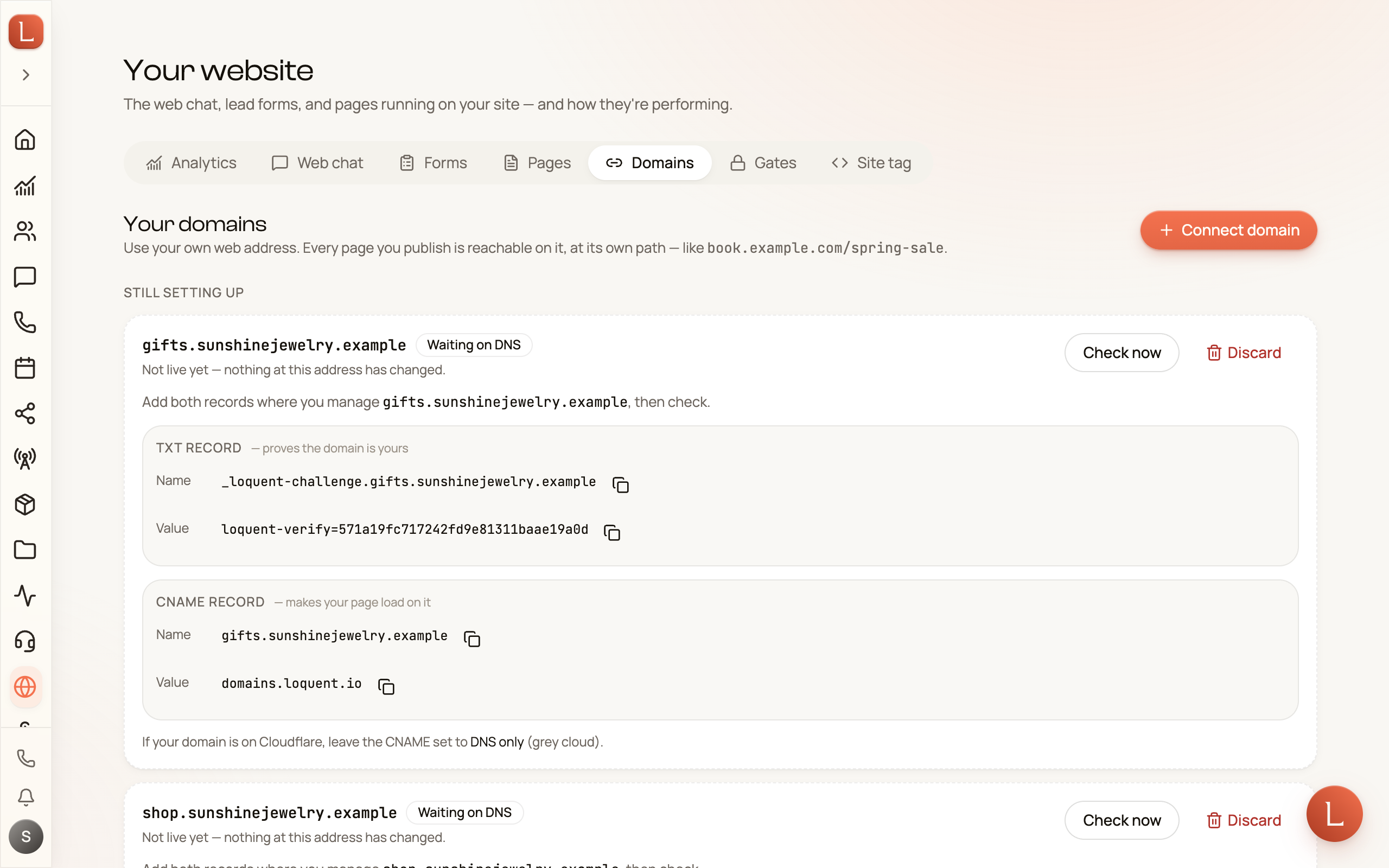
Tap Check now once the records are in place. When the ownership check succeeds, the row offers Finish setup — that reopens the dialog so you can pick the page and connect. Discard clears the unfinished item; it never takes a live page offline.
Remove a domain
Section titled “Remove a domain”Tap Remove on a domain row and confirm. Its page stops loading at that address right away, and its security certificate is removed. The DNS records at your provider stay in place, so reconnecting the same subdomain later is quick.
A few boundaries
Section titled “A few boundaries”Leave both records in place. Loquent checks the TXT record again at the moment you tap Connect domain, and the CNAME is what keeps the page loading, so removing either one interrupts the setup.
Use a subdomain only. Do not move your nameservers or change the apex domain. The CNAME should be DNS only (the grey cloud) when your provider is Cloudflare. Loquent hosts pages on the connected domain; your existing site, email, and other subdomains are unchanged.