
Who's replying to a Contact
Two different questions decide what a Contact hears back, and it helps to keep them apart:
- Which teammate is theirs? A durable answer that follows the Contact across every channel.
- Who’s holding the conversation right now? A temporary answer that changes the moment you reach that Contact yourself.
Which teammate answers a Contact
Section titled “Which teammate answers a Contact”The Contact owns their teammate. Whoever answers them the first time stays their teammate afterwards — whatever they text, email, or message next. Someone who first reached you through your website chat keeps that teammate when they later text your main number.
Loquent picks that teammate once, when the Contact first appears, in this order:
-
The teammate on the channel they arrived through — the phone number, email address, website chat, social account, or form they used.
-
Your workspace’s default teammate, if that channel has nobody on it. Set it under Teammates → Config.
-
Nobody, if neither is set. That Contact gets no reply until you give them a teammate.
Where it says how the teammate was chosen
Section titled “Where it says how the teammate was chosen”Open a Contact and you’ll see the teammate’s name with a short caption underneath saying how they got it:
| Caption | Means |
|---|---|
| From the channel it arrived on | The number, address, or page they first used |
| Your team’s default | The workspace default filled in |
| Set by hand | You chose it — Loquent never overwrites this |
| Matched from earlier messages | Worked out from their history, for Contacts who predate this |
Changing it
Section titled “Changing it”Use the Responding teammate control on the Contact. That’s the only place that moves an existing Contact.
Changing the teammate on a channel screen affects new Contacts arriving there from then on. It does not move Contacts you already have — they keep theirs.
Who’s driving right now
Section titled “Who’s driving right now”Your teammate handles a conversation until a person steps in. The moment you send that Contact a message yourself, your teammate stops sending to them on its own and only drafts — even if that Contact is set to reply on their own. It counts whether you typed the reply or asked your assistant to send it; what matters is that a person asked for it.
This is on for every workspace, and nobody has to switch it on. It exists so your teammate never talks over you mid-conversation.
The pill in the conversation header
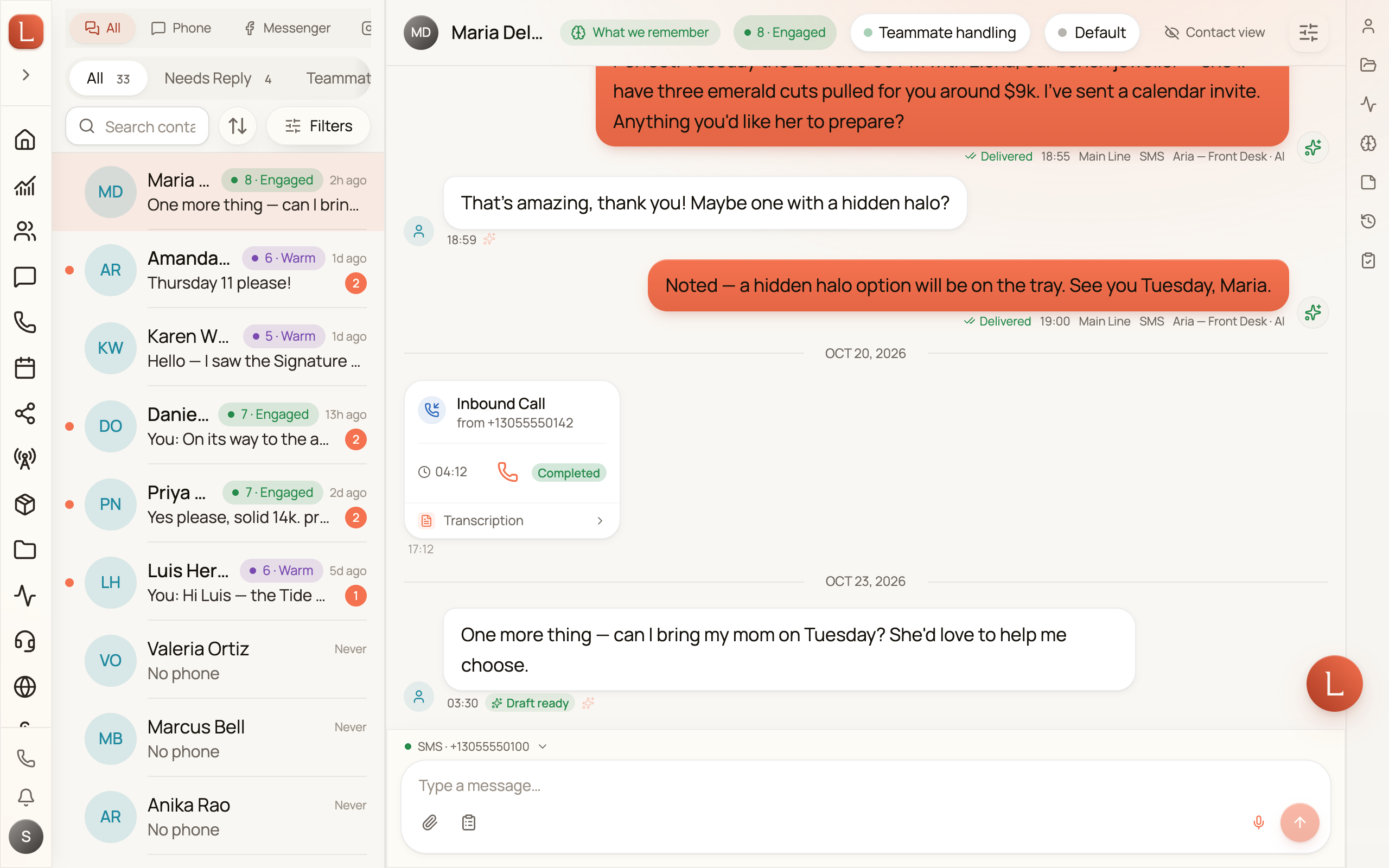
Section titled “The pill in the conversation header”Every conversation shows who’s holding it:
| It says | Means |
|---|---|
| Teammate handling / Teammate replying / Teammate drafting | Your teammate has it |
| Teammate paused | You’ve paused your teammate for this Contact |
| You’re replying | You took the wheel — by replying, or by confirming a send you asked your assistant for |
| A colleague’s first name | They took the wheel, the same two ways |
| Handled outside | Someone replied from outside Loquent — there’s no name to show |
Tap it to Take over or Hand back. Handing back asks you to confirm, and tells you exactly what your teammate regains.
Five ways Loquent notices
Section titled “Five ways Loquent notices”You never have to announce it:
- You tap Take over in the conversation.
- You write and send a reply yourself.
- You ask your assistant to text or email that Contact and tap the confirm card.
- Someone answers from Facebook’s or Instagram’s own inbox.
- Someone texts the Contact from another texting tool on the same number.
The first three happen inside Loquent, so the pill names the person. The two outside it have nobody to name, which is why the pill reads Handled outside.
A private word to your teammate doesn’t count either
Section titled “A private word to your teammate doesn’t count either”You can point the compose box at your teammate instead of the Contact and send a short message only your team can see. That never takes the wheel — the five above are the whole list.
While the box is pointed at your teammate, a line above it says what it will do with what you’re about to write. It reads the real situation, not just the dial: while you hold the conversation it says “You’re driving, so it will draft a reply for you rather than send.” — even for a Contact set to reply on their own — and a paused teammate says “It’s paused for this contact — it won’t act on this.” whatever else is set.
More on the side channel in A private word with your teammate.
Getting it back
Section titled “Getting it back”Four ways:
- Hand it back from the header pill, any time.
- Tell your teammate. Say so in a private message to them, in your own words
— “take the wheel”, “you can take over now”, “all yours”. Your teammate reads
what you meant rather than matching a phrase, so there is no wording to get
right, and addressing them by name or with an
@makes no difference. A line saying your teammate is driving again appears in the private lane, so the change is on the record. - Leave it alone. If you go quiet for about twelve hours and the Contact isn’t mid-conversation, Loquent hands it back on its own.
- Walk away entirely. Even a Contact who keeps writing can only delay that — after about a day and a half of silence from you, your teammate picks it back up regardless. Otherwise one reply would mute your teammate for that Contact forever.
It outranks everything else
Section titled “It outranks everything else”A Contact you’ve set to Autonomous still drops to drafting while you hold the conversation. Taking the wheel is the most recent thing a person decided, and handing it back is one tap.
Your teammate keeps reading and drafting the whole time. While you hold the conversation it won’t send to that Contact on its own — you haven’t lost the draft, you’ve only added a review step. Holding a conversation outranks the dial for everything your teammate decides by itself. It never blocks something you asked for by name.
Asking your assistant to message a Contact
Section titled “Asking your assistant to message a Contact”Taking the wheel stops your teammate from deciding to message that Contact. It doesn’t stop you.
Open your assistant with Ask Loquent and ask it to text or email a Contact, and it will — because you asked, not because it decided. That holds whether or not you were already handling the conversation. What you see:
- Your assistant answers with a confirm card showing who it’s going to and the message as written, marked Waiting on you.
- If a person is already handling that Contact’s conversation, its reply says so. That note lives in what it says back, not on the card — the card shows the recipient, the sender line, and the message.
- Tap the confirm button — Send text, Send 3 texts, Send email — and it goes out. Tap Cancel and nothing happens.
- Once it goes out, the pill flips to You’re replying and your teammate drops to drafting for everyone it reached. Your assistant tells you so in its reply. You asked for that message, so the conversation is yours until you hand it back.
A send that doesn’t land doesn’t take anything over. If someone opted out, has no number on file, or the message fails, that Contact’s conversation is untouched — and on a card going to several people, only the ones it actually reached change hands.
This is your assistant panel. Ask the same thing inside a teammate’s own Threads tab, under Teammates, and you’re back to that teammate’s own rules: a Contact someone is handling is left out of the send, and a teammate in Suggest mode drafts rather than sends. Nothing there changes hands. See Your assistant.
Who wrote each message
Section titled “Who wrote each message”Every outgoing message carries a small tag naming its author — You, a colleague’s name, or the teammate’s name followed by · AI teammate. It’s always visible, on a phone as well as a desktop, so a real person and a teammate never blur together.
The inbox has a Teammate replied tab for exactly this: conversations your teammate answered that nobody on your team has looked at yet.