
Insights: how's business?
Open Insights from the sidebar and you get a chief-of-staff read on your business — not a wall of charts to decode. Your AI teammate distills the numbers into a headline, four plain signals, and the one thing worth a second look. The full charts are still there, one tap away, for the days you want them.
The header carries a couple of controls: a time-range picker (it opens on the last 30 days, because “how’s business” reads best over a month) and, if you can see both org-wide and personal work, an Everyone / Mine toggle that narrows everything on the page to just your slice.
The headline: “How’s business?”
Section titled “The headline: “How’s business?””At the top sits a card headed How’s business? Your teammate doesn’t run this on its own — reading the numbers costs a little work, so it waits for you. Tap Read the business and it reads the numbers and tells you how things are going, in plain language: what’s up, what’s down, what to feel good about.
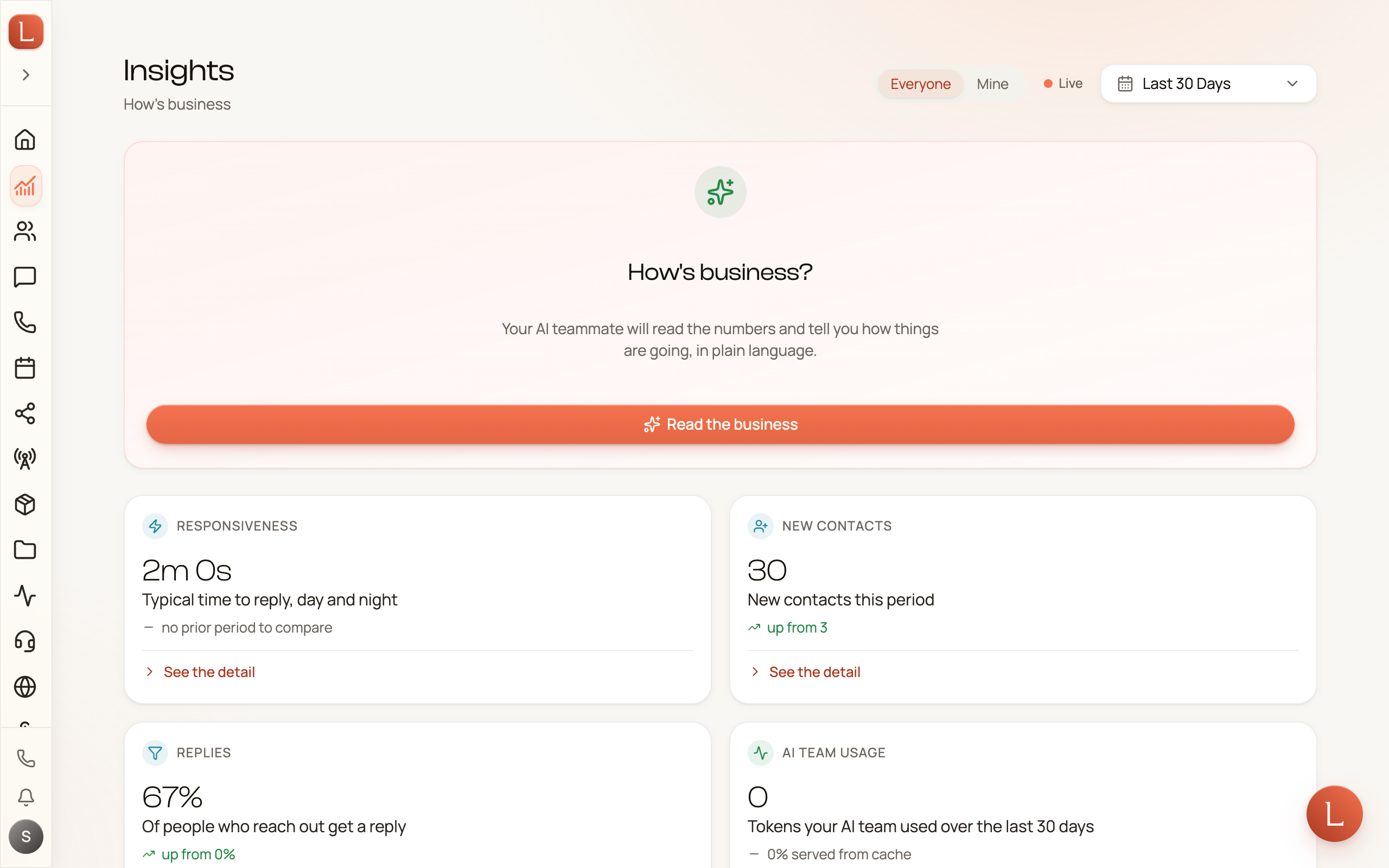
The small circular arrow re-runs the read whenever you want a fresh one. Change the time range or switch between Everyone and Mine, and the old read clears so a stale headline never lingers over the wrong window.
Four signals, at a glance
Section titled “Four signals, at a glance”Below the headline are four cards that distill the period into one sentence each:
- Responsiveness — how quickly your team is getting back to people.
- New contacts — how many new Contacts arrived, and whether that’s up or down.
- Replies — how often reaching out actually earns a reply.
- AI team usage — the effort your team put in behind the scenes.
Each card carries a tiny trend line — up, down, or steady versus the last period — and its own small chart, so you can glance or go deeper without leaving the card.
Where your new Contacts come from
Section titled “Where your new Contacts come from”Under the signals, the card titled Where your new contacts found you breaks down where new Contacts came from over the period — which channels and sources are actually bringing people in. It only appears when there’s something to show, so an empty week stays quiet. Anything Loquent can’t place folds into Other, which always sits at the bottom.
A Contact whose very first touch was a Facebook or Instagram ad now lands in its own Meta ad row, rather than under Messenger or Instagram. Two things to know before you read too much into it. First, older Contacts aren’t relabelled — the change starts the day it goes live, so you’ll see Messenger and Instagram counts step down and a Meta ad bar appear on that date. A time range that straddles the change-over isn’t comparable with one that doesn’t. Second, the row tells you that an ad brought this person in, not which ad; there is no per-campaign breakdown in Loquent today.
One thing to watch
Section titled “One thing to watch”When something in the numbers stands out — a dip or a spike that deserves your eye — a single note surfaces it, headed One thing to watch. One anomaly, not a dashboard of red. If nothing’s off, the note simply doesn’t appear.
Full charts, on demand
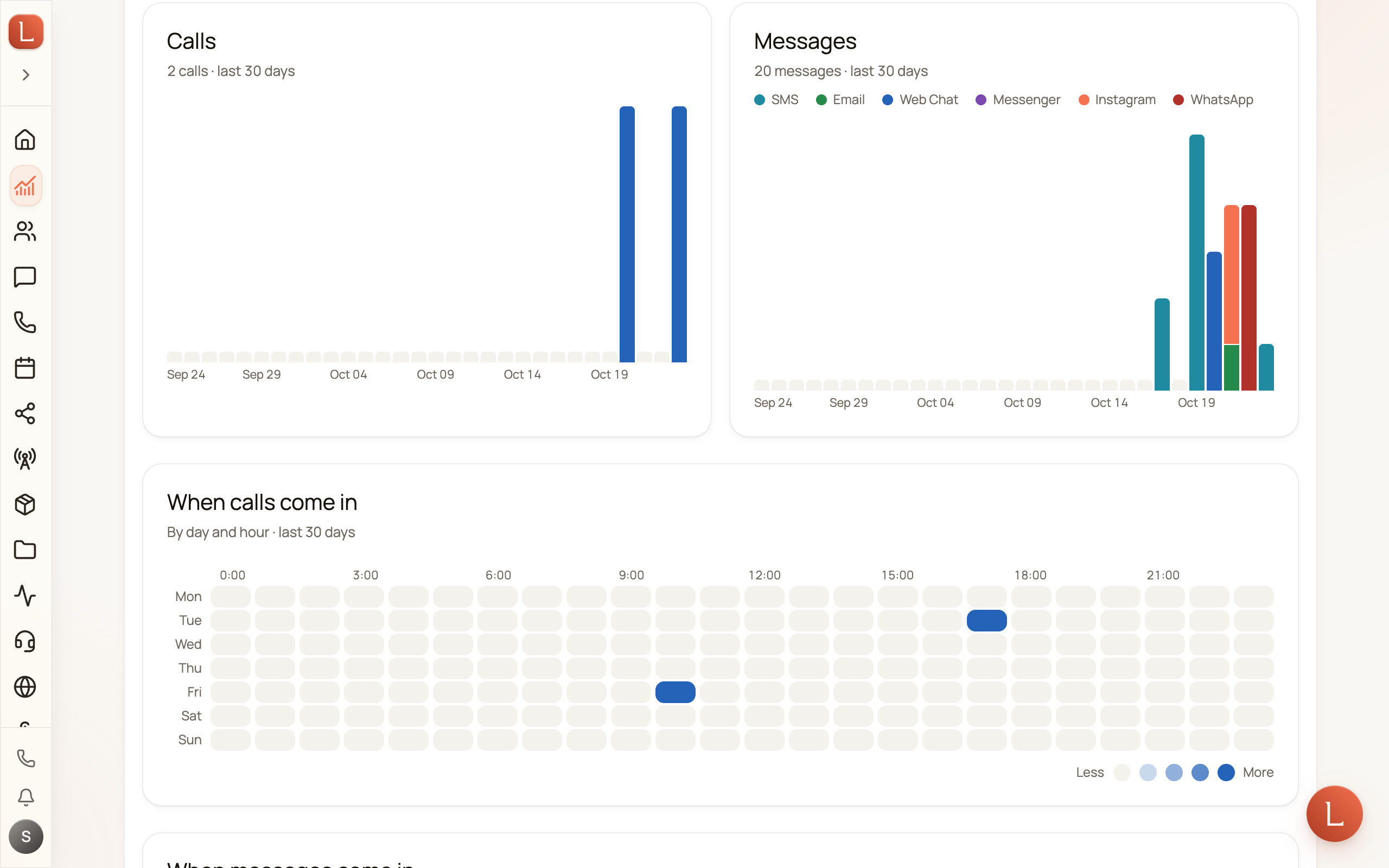
Section titled “Full charts, on demand”Everything above is the brief. When you want the raw detail, expand Detailed analytics at the bottom — the full console of calls, messages, day-and-hour heatmaps, plans, and AI usage. These charts only load when you open the section, and they always show your whole organization (the Everyone / Mine toggle drives the brief above, not these).
Insights answers “how are we doing?” at a glance. For “what happened today and what needs me,” start on your Home page and daily brief, and see how drafts, approvals, and escalations reach you.