
Your calendar
Your calendar is where the dated things live — appointments, payment-due dates, contract milestones, deadlines, and reminders. Each one can be tied to a Contact, so the meeting you booked and the person you booked it with stay connected.
Open Calendar in the sidebar to see it.
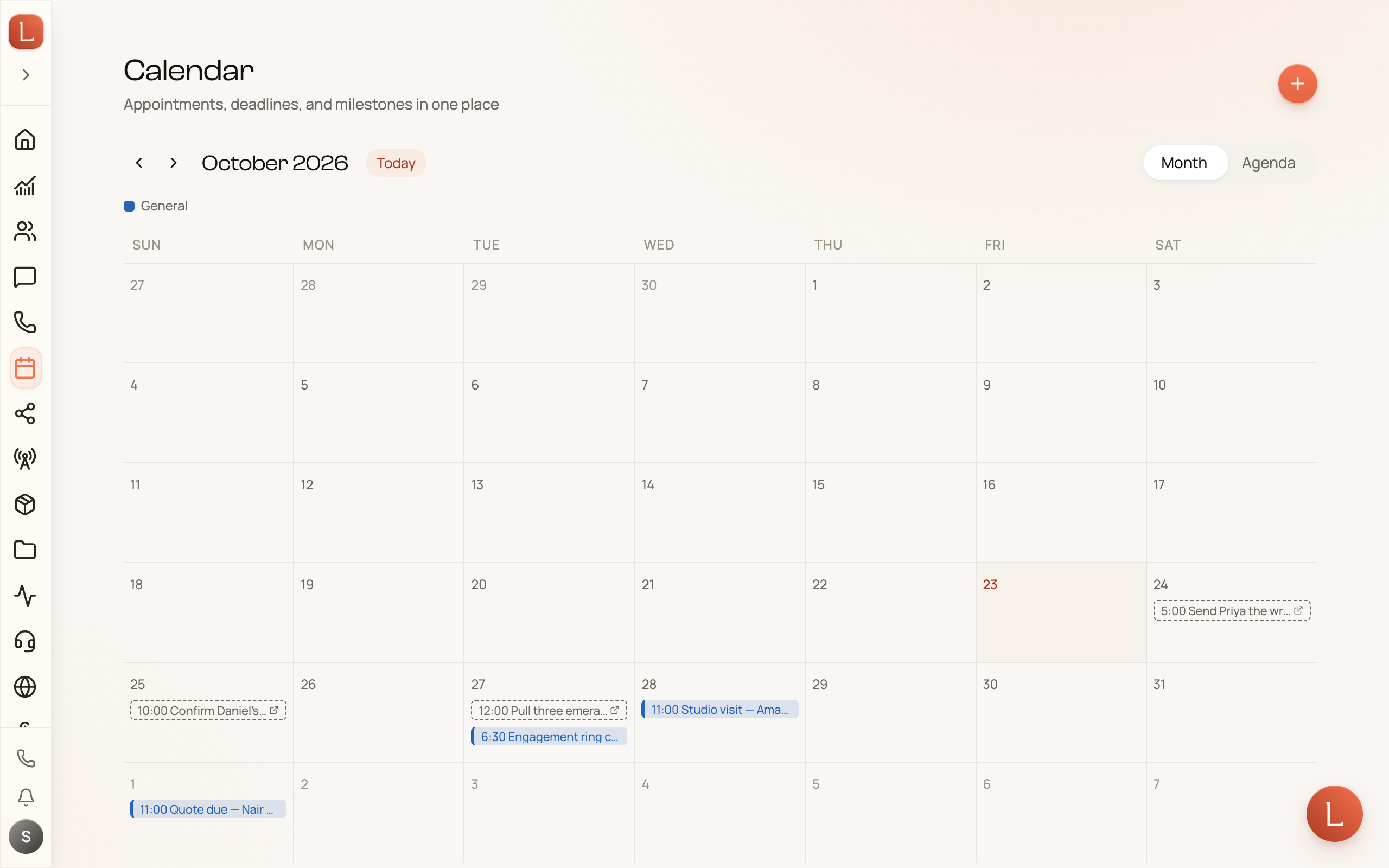
Month or agenda
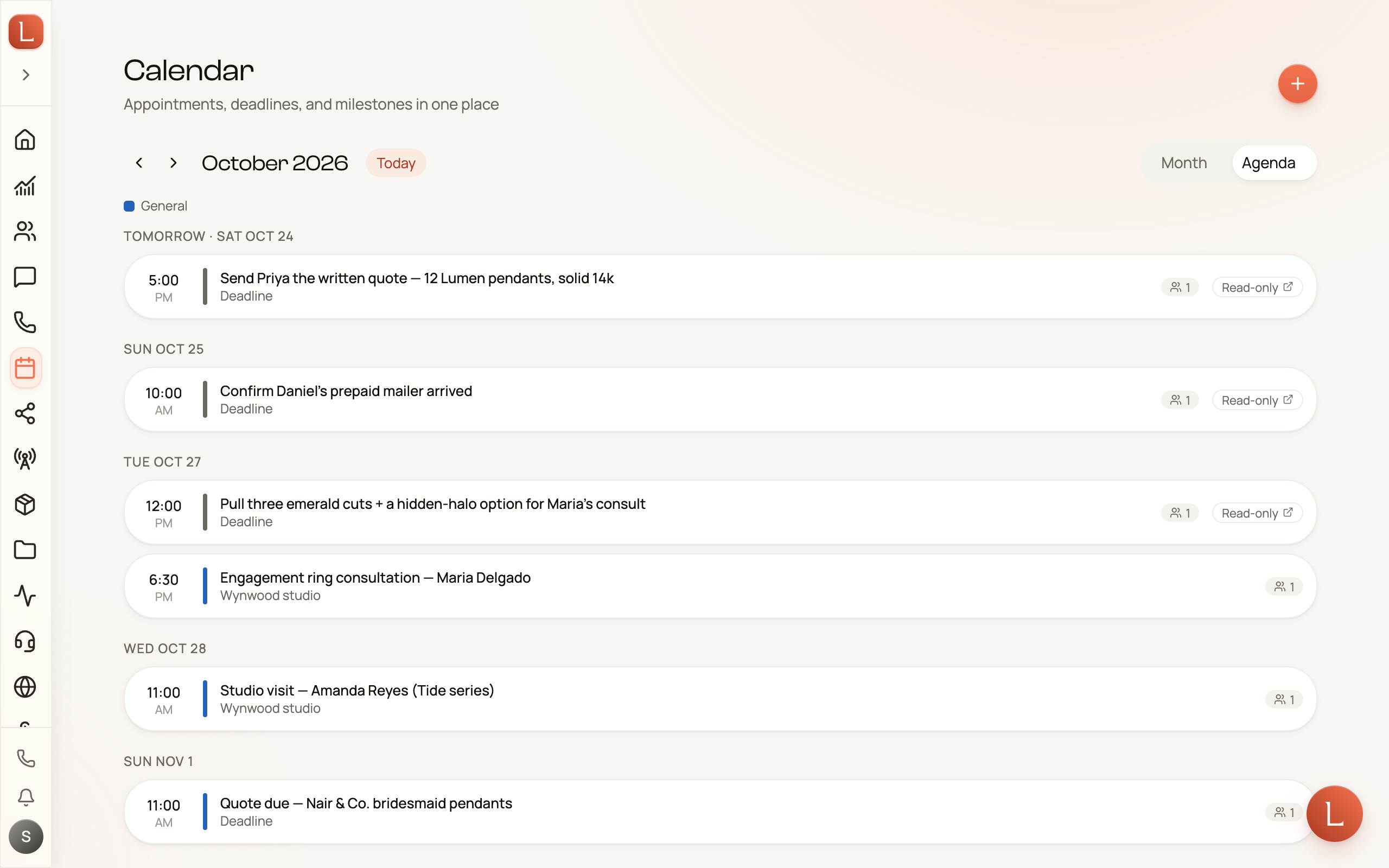
Section titled “Month or agenda”A toggle at the top switches between two ways to look at the same events. Month shows the familiar grid — the whole month at once. Agenda lays the same events out as a day-by-day list, which is easier to skim on a phone or when a day is busy.
Use the arrows to step to the previous or next month, and Today to jump straight back to where you are.
Add an event
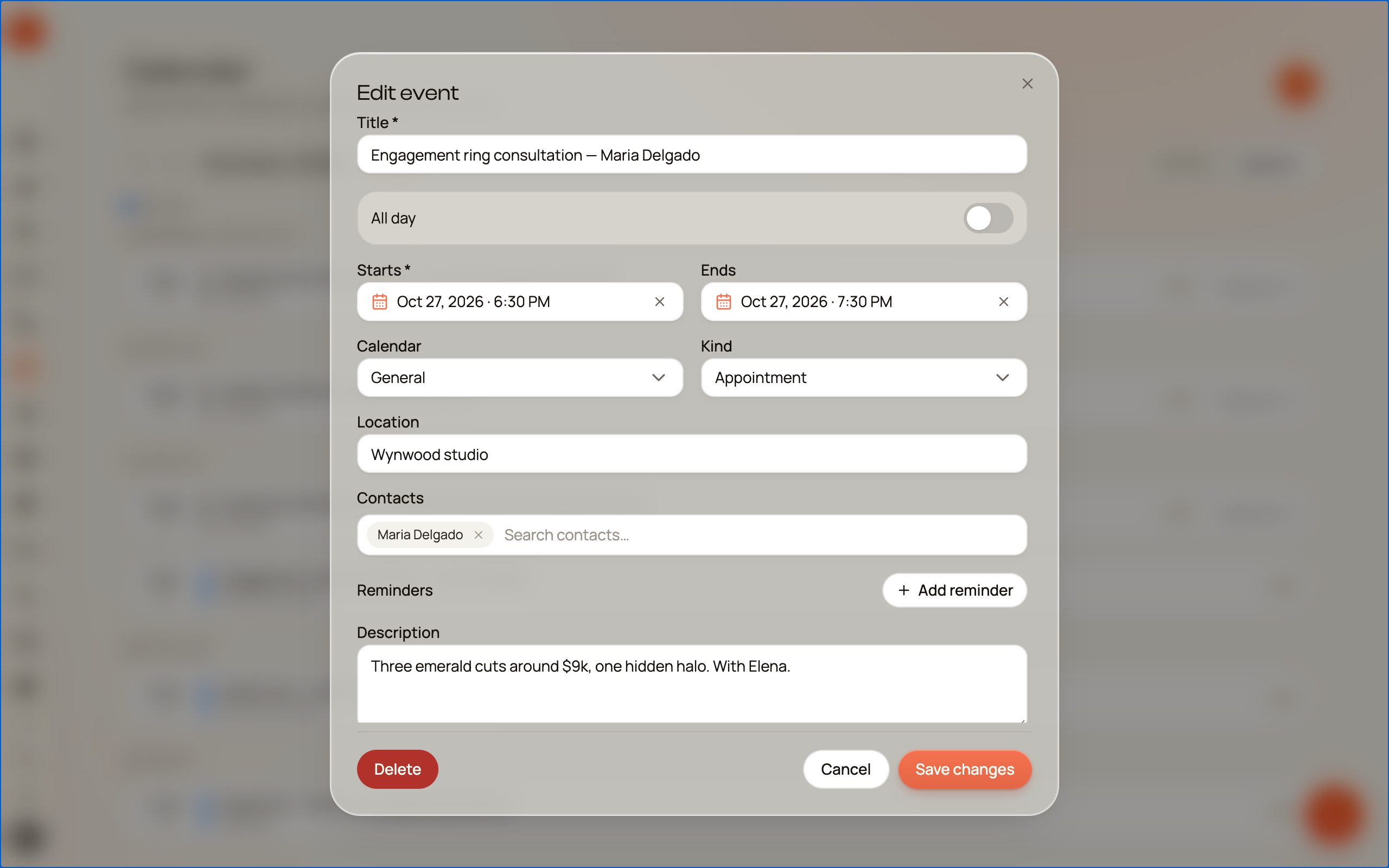
Section titled “Add an event”Tap New event in the top corner, or tap a day to start one there. Give it a title and a date and time — or flip All day on for something that isn’t tied to a clock.
Then pick what kind of thing it is: Appointment, Payment Due, Contract Milestone, Deadline, Reminder, or your own custom label. Link one or more Contacts so it shows up on their profile too, and add reminders — anything from “At time of event” up to “1 week before”.
Reminders reach you
Section titled “Reminders reach you”When a reminder comes due, it arrives as a notification at the time you chose — “1 hour before”, “1 day before”, whatever you set. You don’t have to keep the calendar open for it to reach you. See Notifications for where those land.
On a Contact’s profile
Section titled “On a Contact’s profile”Any event you link to a Contact shows up on their profile in an Upcoming block, soonest first. Once an event has passed, it folds into that Contact’s activity timeline, so their history stays complete. More on that in The Contact profile.
Task due dates show up here too
Section titled “Task due dates show up here too”The deadlines of your open tasks appear on the calendar automatically, as read-only entries — so a follow-up that’s due doesn’t quietly collide with a meeting. You can’t edit those from the calendar; they live with the task, and tapping one takes you there. See Tasks and follow-ups.
Let your team schedule for you
Section titled “Let your team schedule for you”You don’t have to open a dialog every time. Ask your AI teammate in plain language — “book a walkthrough with Dana next Tuesday at 3” or “move the Ruiz payment reminder to Friday” — and it handles the scheduling. It shows you exactly what it will add or change first, so you approve before anything lands on the calendar.