
Notifications
Notifications are the nudges that keep you in the loop — a call came in, a task is due, a report is ready. The bell in the top bar shows what’s new at a glance; the full inbox lets you work through everything in one place and decide, per type, exactly how you want to be told.
The bell and the inbox
Section titled “The bell and the inbox”Tap the bell in the top bar for a quick panel of recent notifications. For the full view, open Activity → Notifications in the sidebar.
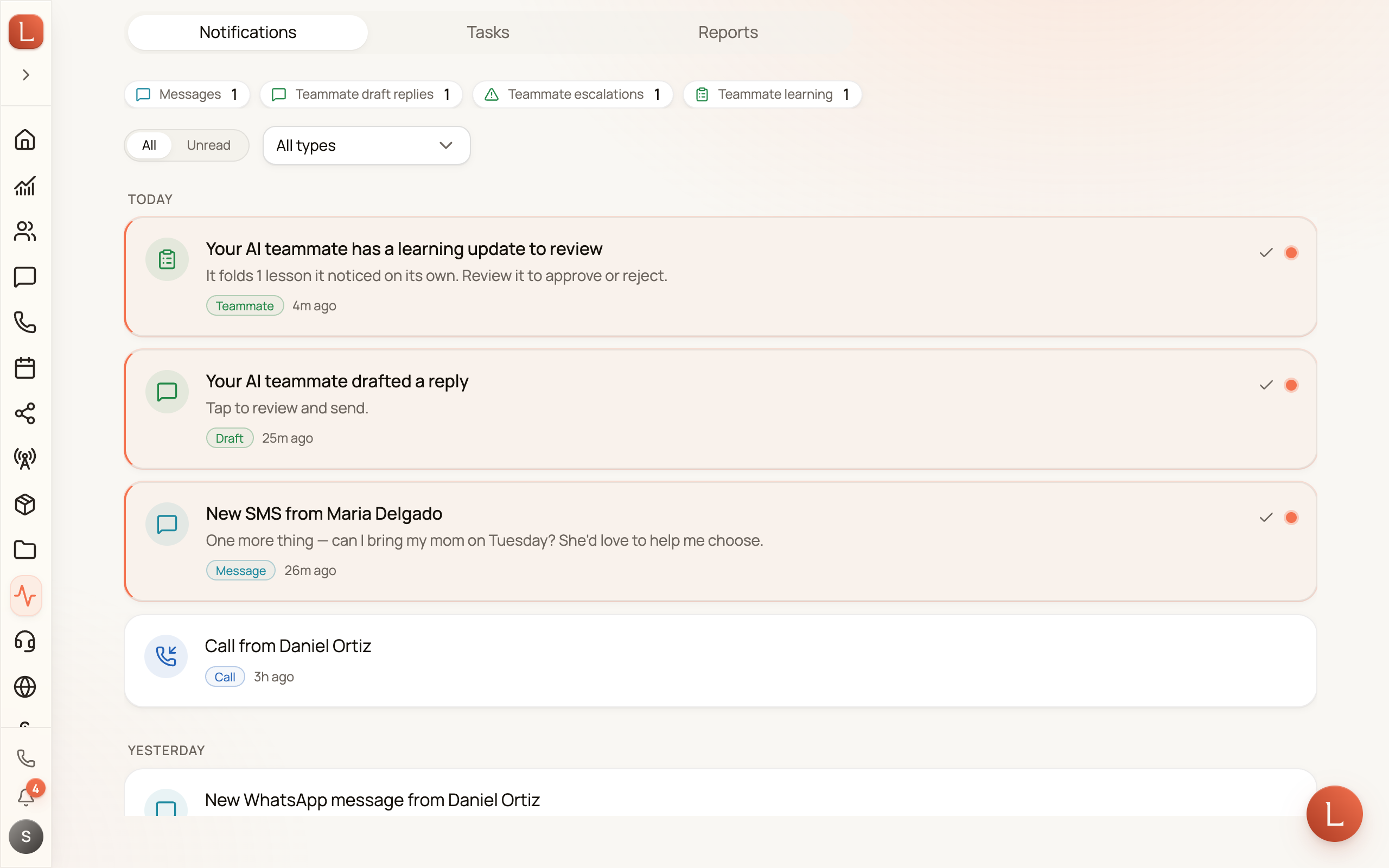
The inbox keeps things calm and scannable:
- Grouped by day. Notifications stack under Today, Yesterday, and dated headings below, so recent activity is always on top.
- Category chips. A row of chips summarizes unread counts by type — tap one to jump to just those.
- All / Unread and a type filter. Toggle between All and Unread, and use the Notification type picker to narrow to Calls, Tasks, Reports, and more.
- Mark all as read. Clears the whole inbox in one tap from the header.
You don’t have to reload or switch away and back. A new notification drops into the list on its own — in the full inbox and in the bell panel alike. If you’ve scrolled back through older days, your place and the days you already loaded stay put, so nothing jumps under you while you read.
Choose how each type reaches you
Section titled “Choose how each type reaches you”Not every alert deserves the same interruption. You decide, per category, which channels carry it — so a new call can buzz your phone while a quiet system note just waits in the app.
Open My Settings → Notifications. Under Preferences, each row is a category (Calls, Messages, Tasks, Reports, and the rest) with a checkbox for each delivery channel:
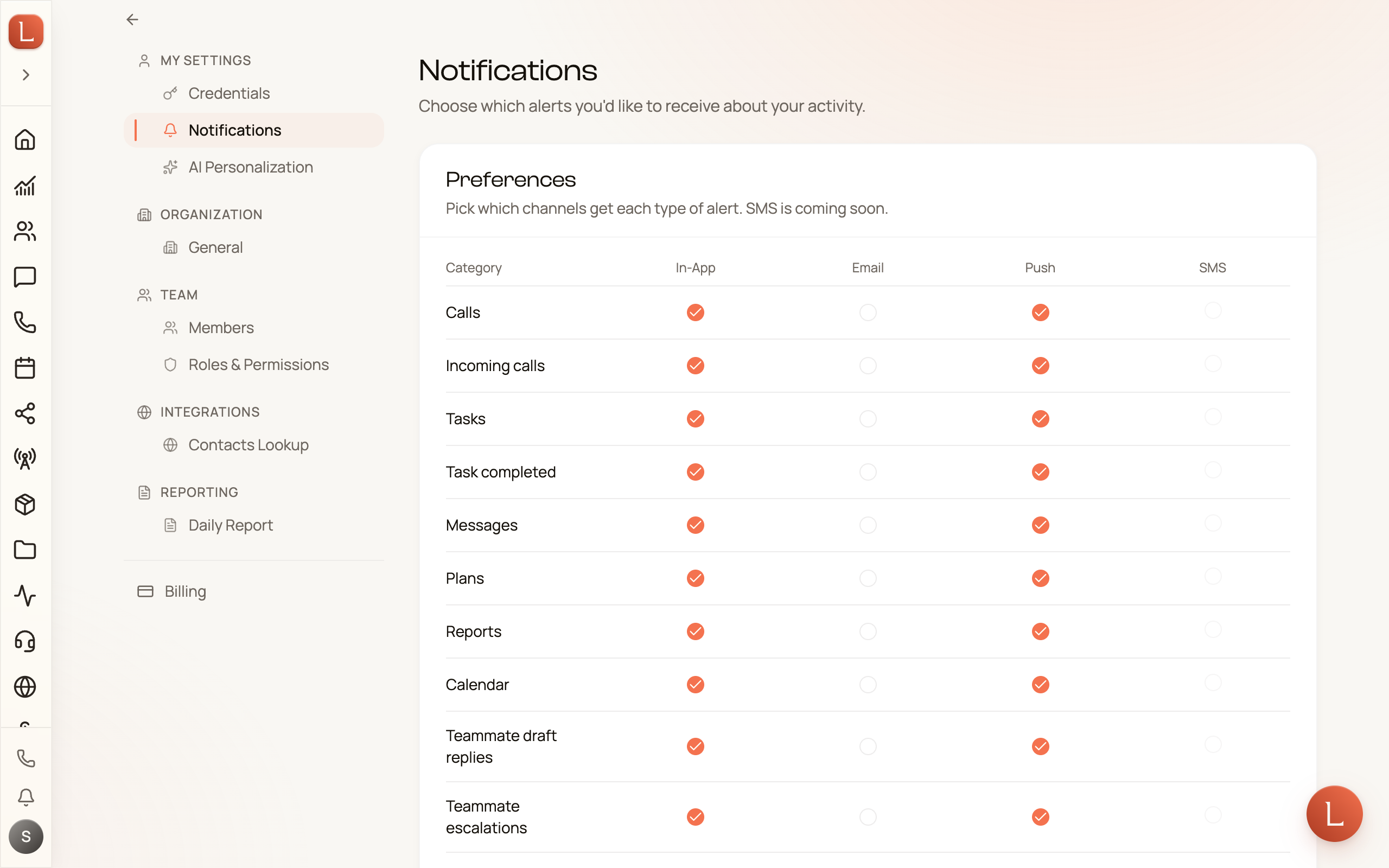
- In-App — it appears in the bell and the inbox.
- Email — it lands in your inbox.
- Push — it pops on your phone through the mobile app.
Tick the channels you want for each category, then tap Save preferences.
Many of these alerts are your AI teammate reaching out — a draft waiting for your approval, or a question only you can answer. Both also gather on your Home page; read how they work in drafts, approvals, and escalations.