
Reply yourself
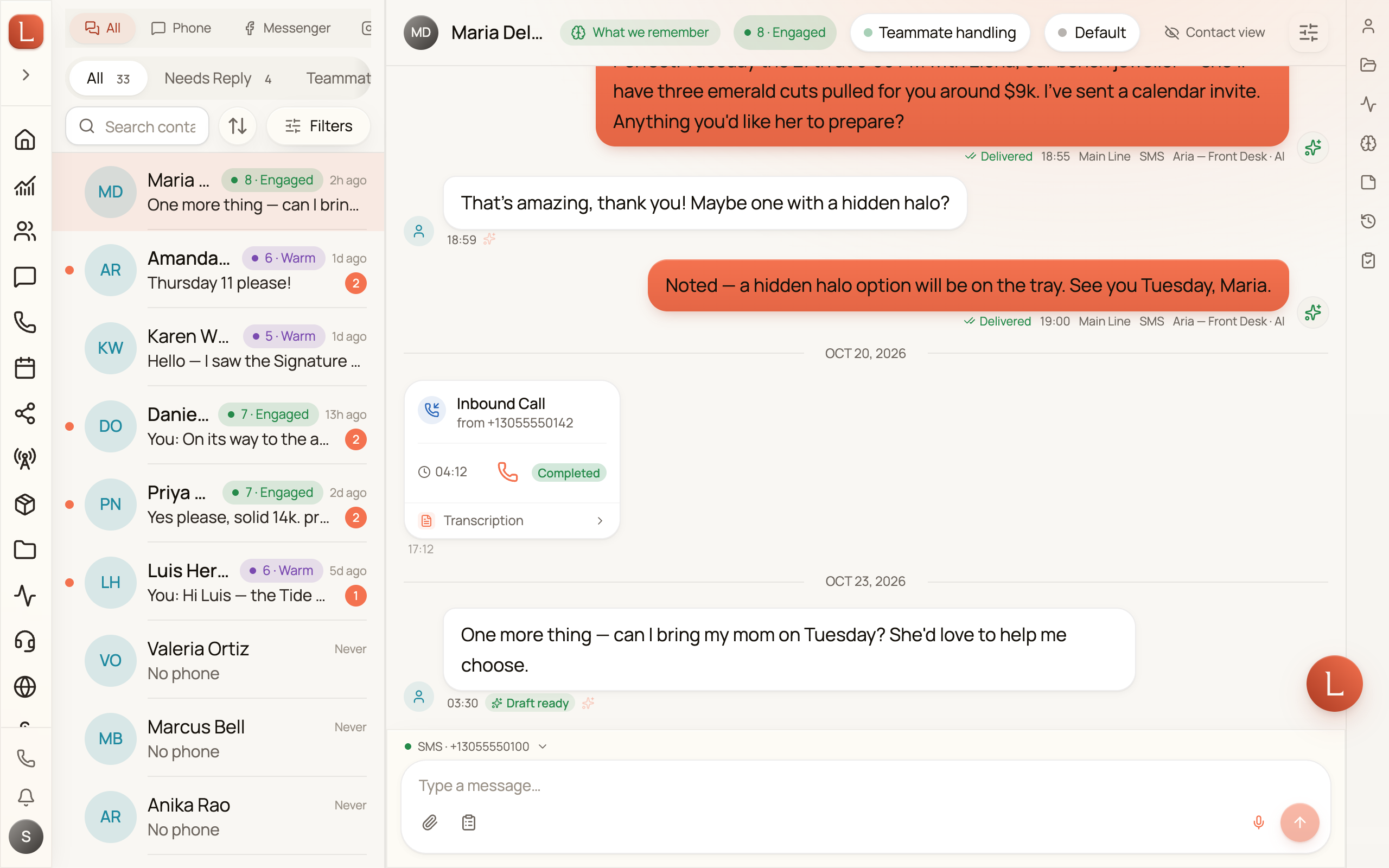
Your AI teammate drafts most replies for you, but you can always take the keyboard yourself. The compose bar at the bottom of every conversation is where you write and send a message in your own words — a text, an email, or a message on a connected social channel.
The compose bar has two destinations
Section titled “The compose bar has two destinations”A chip beside the message box shows where your words are going. By default it reads To Ana Ruiz · SMS — the Contact, on the channel you’re using. Tap it and it flips to To Clara: the card turns green, the placeholder becomes Message Clara…, and the send button reads Ask Clara. Typing @ at the very start of the message does the same thing faster — as long as what you type matches your teammate’s name. A leading @ that matches nobody is just text, and goes to the Contact like anything else.
That second destination is private. Nothing is delivered, and the Contact never sees it. The full story — the picker, what your teammate will do with what you tell it, and the lane it appears in — is on a private word with your teammate.
If your teammate spoke to you privately last and you reply without switching the chip, Loquent stops the send once and reads it back: who it’s going to, on which channel, and your message in quotes. You can send it to the Contact anyway, send it to your teammate instead, or cancel.
Reaching a Contact yourself takes the wheel
Section titled “Reaching a Contact yourself takes the wheel”The moment you send in your own words, your teammate stops sending to that Contact on its own and only drafts. It stays that way until you hand the conversation back — from the header pill, or by telling your teammate to take over in a private message, in your own words — or until both sides go quiet for about twelve hours.
Messaging your teammate privately doesn’t take the wheel. That destination reaches no channel, so it isn’t a reply to the Contact.
Asking your assistant to text or email that Contact counts too. The words may be your assistant’s, but the send was yours — so the moment you tap the confirm card, the conversation is yours the same way a typed reply makes it yours.
Sending one of your teammate’s drafts doesn’t count — you picked a message your teammate decided to write, so it keeps driving. The line is who asked for the send, not who chose the words.
Your teammate keeps reading and drafting the whole time; you’ve added a review step, not silenced it. You can also still ask your assistant to text or email that Contact, and it will — you’ll get a confirm card to tap first, and it will tell you that a person is handling that conversation. See Who’s replying to a Contact.
Choose the channel
Section titled “Choose the channel”The compose bar can send on more than one channel: SMS, Email, and — when you’ve connected them — Messenger and Instagram. Pick the one you want with the toggle in the routing area. The bar adapts to your choice: an email gains a subject field, while a Messenger or Instagram message routes automatically through your connected account.
From and To
Section titled “From and To”Right above the message box, a compact chip shows how your message is routed — for example SMS · +1 (555) 012‑3456 or Email · hello@example.com. Open it and you’ll find two rows:
- From — which of your business numbers or email addresses the message goes out from. If you only have one, it’s chosen for you.
- To — which of the Contact’s numbers or emails it reaches, when they’ve given you more than one.
This matters when you run several lines or the Contact has both a mobile and an office number — a quick glance confirms you’re reaching the right place from the right identity before you send.
The chip and its two rows disappear while the destination is your teammate. A private message reaches none of those numbers or addresses, so there is nothing to choose.
Subjects, attachments, and replies
Section titled “Subjects, attachments, and replies”On the email channel you get a Subject line and can attach files. On SMS you can attach images and files too. To answer a specific email in the thread, use its reply action — the compose bar shows a Replying to strip with the original subject and prefills a Re: subject, so your answer stays threaded to the right message. Clear the strip to write a fresh message instead.
If a Contact has opted out of a channel, the compose bar tells you and blocks the send until you re-enable that route in the Channels section of their profile — so you never accidentally message someone who asked you not to.
All of that channel chrome steps aside on the teammate destination: the Subject field, the attach button, the Replying to strip, the WhatsApp window notice, the web-chat Also send by copies, and the opted-out notice are all out of the way, because a private message answers none of those questions. Out of the way, not cleared — flip back to the Contact and a typed subject or a staged attachment is still there. Enter also sends on the email channel while the destination is your teammate, since a private message is a chat line rather than long-form.
A long text goes out as several texts
Section titled “A long text goes out as several texts”A phone network doesn’t carry a long text in one piece — it carries it in segments, and carriers stop reassembling them reliably past about ten. So when your text is longer than that, Loquent sends it as several texts, cut at a sensible place: a blank line, a line break, or the end of a sentence, in that order of preference. Your Contact reads them in order.
The compose bar tells you before you send. Under the message box you’ll see the length in characters and segments, and once the text will arrive in more than one piece, how many texts that is:
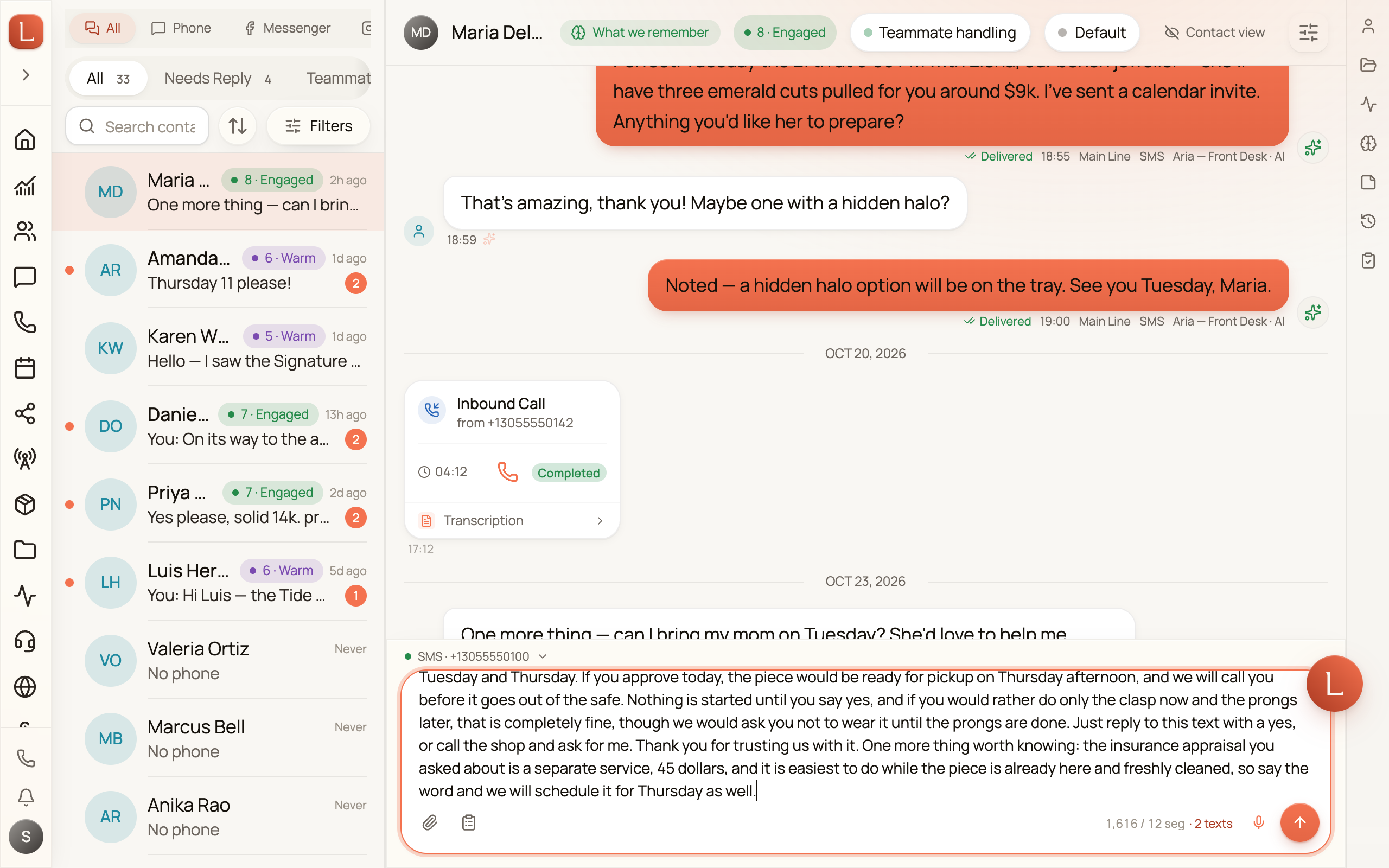
On a phone there’s no room for the whole line, so it shows the count alone — 2 texts.
Loquent counts a little more cautiously than the carrier does when it decides where to split, so a text can show more than ten segments and still go out as two — the split is sized to be safe on every carrier, not to hit an exact number.
In the conversation afterwards each piece is its own message, captioned Text 1 of 2, so anyone reading later sees how it arrived.
Four texts is the ceiling. Past that the readout reads too long, and a send is refused with the reason: This text is too long to send: it would go out as 5 separate texts, and the limit is 4. Shorten it or send it as an email. For a message that long, email is the right channel — switch the toggle and send it there instead.
Prefer to speak it?
Section titled “Prefer to speak it?”The message box has a microphone for dictation. Speak your reply, watch it appear as text, then read it over and send — your words never go out until you tap send.
Everyone can see who wrote what
Section titled “Everyone can see who wrote what”Once you send, your message joins the timeline like any other, with a Sending…, Sent, Delivered, or Read status underneath — or Failed if the carrier refused it, in which case send it again or try another channel. Because the thread tags every message by its source — your reply, or one your teammate sent — anyone on your team reading later can tell at a glance whether a person or your AI team handled it. Nothing about who did the talking to your Contact is hidden. The one deliberate exception is Contact view, which withholds the private messages between you and your teammate behind a count you can tap to bring back — and those were never part of what the Contact saw.
Want to let your team do more of the writing? Start by reviewing its drafts, then read how the autonomy dial lets a trusted teammate send on its own.