
Calling and answering in Loquent
You don’t need a separate phone. You can place and take calls right inside Loquent — from your computer or the app on your phone — using your business numbers, with your AI teammate ready to back you up.
Place a call
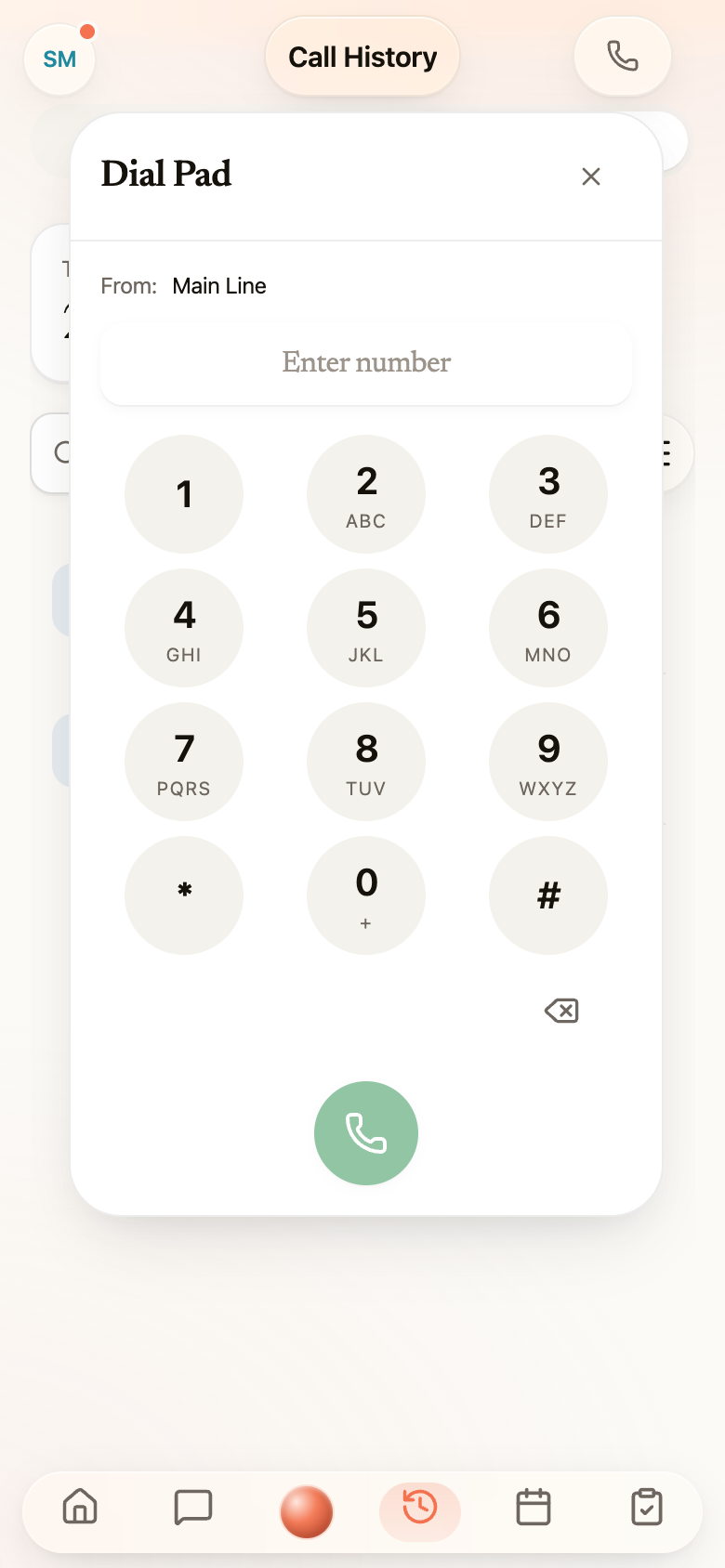
Section titled “Place a call”Open the dial pad from the phone button in the app. On your phone, you’ll find it at the top of the Calls screen.
-
Pick who you’re calling from. If you have more than one business number, a From: line lets you choose which one shows on the other person’s phone.
-
Enter the number on the keypad, or start typing a name — matching Contacts appear as you go, so you can tap the right person instead of keying digits.
-
Press the green call button to connect.
While you’re on a call, the panel becomes your controls: mute yourself, open the keypad to press a number (for menus and extensions), and hang up with the red button. Minimize the panel and the call keeps running as a small pill you can tap back into any time.
Answer an incoming call
Section titled “Answer an incoming call”When a call comes in for you, a full-screen answer screen slides up — the caller’s name or number, the line they reached, and two clear choices: Answer or Decline. It’s the phone-call screen you already know.
If your microphone isn’t allowed yet, the screen walks you through turning it on, or lets you pick up on your phone instead — you’re never left with dead air.
Hand a live call to a teammate
Section titled “Hand a live call to a teammate”Mid-call and need someone else? Tap the transfer button (the person-plus icon) to open Transfer call. Choose how to hand it over:
- Transfer now — send the caller straight through to the person you pick.
- Talk first — call your colleague privately while the caller waits on hold music, explain the situation, then complete the transfer. This is the warm handoff: no one gets dropped into a call cold.
Pick a teammate from the list — each shows whether they’re Available, Away, or On a call — or choose External number to send the call to any phone. You can add a short note so they know why the call is coming. When your colleague picks up, they see a caller-context card: who’s calling, why, and a link to the Contact — so they’re up to speed before they say hello.
Whether your colleague’s status routes the call or sends it to a queue is covered in your presence and personal queue.