
A Contact's profile
Open any Contact from your list and you land on their profile — the full record of one person, and the fastest place to reach them. It gathers who they are, how to contact them, and the whole conversation — both what actually reached them and the private word you and your AI team had about them along the way — in one screen.
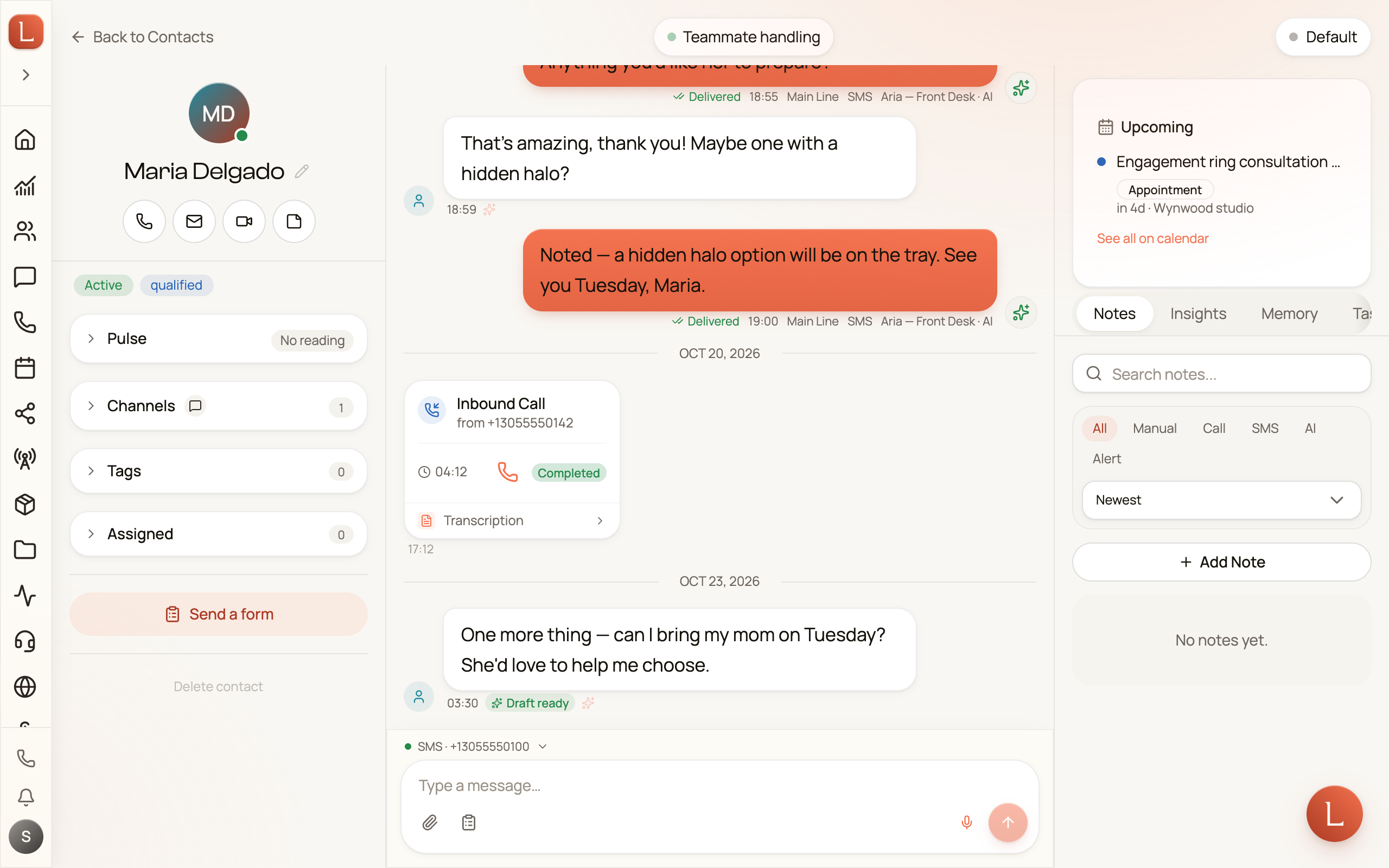
Reach them in one tap
Section titled “Reach them in one tap”At the top of every profile sits the person’s name and a row of quick actions: Call, Message, and Email. One tap starts the call, opens the conversation, or drops into an email — no copying a number, no leaving the record.
A chip is only active when it can work: Call appears when you have a phone line and the Contact has a number; Email when both sides have an address on file. If one’s greyed out, that channel just isn’t set up yet.
Everything you keep on them
Section titled “Everything you keep on them”Below the name is the record itself:
- Pulse — the latest relationship score and its coloured band; open it for the trend, context, and suggested next step. Two facts sit above it: how long ago your teammate read the relationship, and how long the person has been silent (“read 12d ago · quiet 34d”). When silence is what moved the score last, one line under the next step says since when — “Silent since Aug 3. Chase, or close them out.” Those quiet readings show up muted in the history, labelled Went quiet, so you can tell at a glance which drops came from a conversation and which from the clock.
- Phone and Email — as many as you like, one marked preferred.
- Address and Company — where they are and where they work.
- Tags — the labels you group people by.
- Assigned — the person on your team who owns this Contact.
The record is split into the same field groups you set up on Contact Fields — Contact Info, Personal, Address, Source, and Others to begin with, plus any group you created yourself, which carries a small custom chip — and it follows your own order. Your custom fields sit inside whichever group you filed them under. See Custom fields.
Each data block rests as a compact heading. Tap one to open its details, or close it again to keep the record easy to scan. To change the Contact’s basics, tap Edit. On desktop the record sits in a panel you edit in place; on a phone it opens as a sheet.
Set the AI teammate for this Contact
Section titled “Set the AI teammate for this Contact”Some people you want your team to handle end to end. Others you’d rather answer yourself. At the top of the profile — next to Edit on a phone, beside the back link on desktop — sits a small pill showing how your team treats this one person. It reads Default until you change it, which means the Contact simply inherits your team’s usual behaviour.
Tap the pill and you get two settings, for this Contact only:
- Autonomy for this contact — Off, Suggest, or Autonomous.
- Off pauses your team for this person: no drafts, no replies, and an inbound call isn’t answered by a teammate — it follows the line’s normal fallback, like voicemail or a forward. You still see the call and the message on the record.
- Suggest means a teammate drafts a reply and waits for you.
- Autonomous means a teammate replies to this person on its own, without your review. Because that sends for real, Loquent asks you to confirm — the same check you get on the teammate’s own dial. See Suggest vs. Autonomous for what each mode means.
- Responding agent — leave it on Default (channel agent) and whichever teammate normally covers that channel keeps answering. Pick a teammate from the list and that teammate handles this Contact everywhere, on every channel.
Whatever you choose here wins over the teammate’s own dial and over the channel’s usual teammate — but only for this person. When you want the Contact back to normal, tap Reset to team default and the override disappears.
Channels and opt-outs
Section titled “Channels and opt-outs”Open Channels to see every route that is actually available for this Contact, such as text or email. Each available route has its permission beside it. Turn one off to mark the Contact as do not contact there; Loquent blocks messages on that channel until you turn it back on. This is how you honour a “please stop texting me” without losing the person’s record.
This is a different question from the pill above. Channels decides which of the Contact’s available routes Loquent may use. The pill decides only whether, and how, your team responds to them.
The whole conversation, in one place
Section titled “The whole conversation, in one place”The middle of the profile is the conversation feed: every call, text, and email with this person, oldest to newest, no matter which channel it came in on. Calls show their recording and summary; messages read like a thread. It’s the same unified conversation you’d see in Messaging — see Contacts, conversations, and channels for how that stitches together.
Not everything in the feed was sent to the Contact. A private word between you and your team about this person sits in the same place, set apart from the messages they received. On a Contact who has any, a Contact view control pins itself to the top of the feed — switch it on and the feed shows only what the Contact actually got. See a private word with your teammate.
When your team drafts a reply here, it waits for your approval before anything sends — that’s the default. See drafts, approvals, and escalations.
Send them a form
Section titled “Send them a form”Need a Contact to fill in details themselves — an intake, a booking, a quick set of questions? Tap Send a form.
-
Tap Send a form on the profile.
-
Pick the form and how to deliver it — by text or email.
-
Loquent generates a single-use link, already filled in with what you know, and sends it.
Because the link is prefilled and tied to this one person, whatever they add flows straight back onto their record.
Next: see the notes you write and what your team remembers about a Contact.