
Write and schedule your posts
Social → Posts is where what you publish gets written, scheduled, and sent. One post, one screen — and Loquent handles the four networks’ different rules so you don’t have to remember them.
Open Social from the sidebar. The Posts tab lists everything in three groups: Up next (scheduled and waiting), Drafts (written, no time set), and History (published, partly published, or failed).
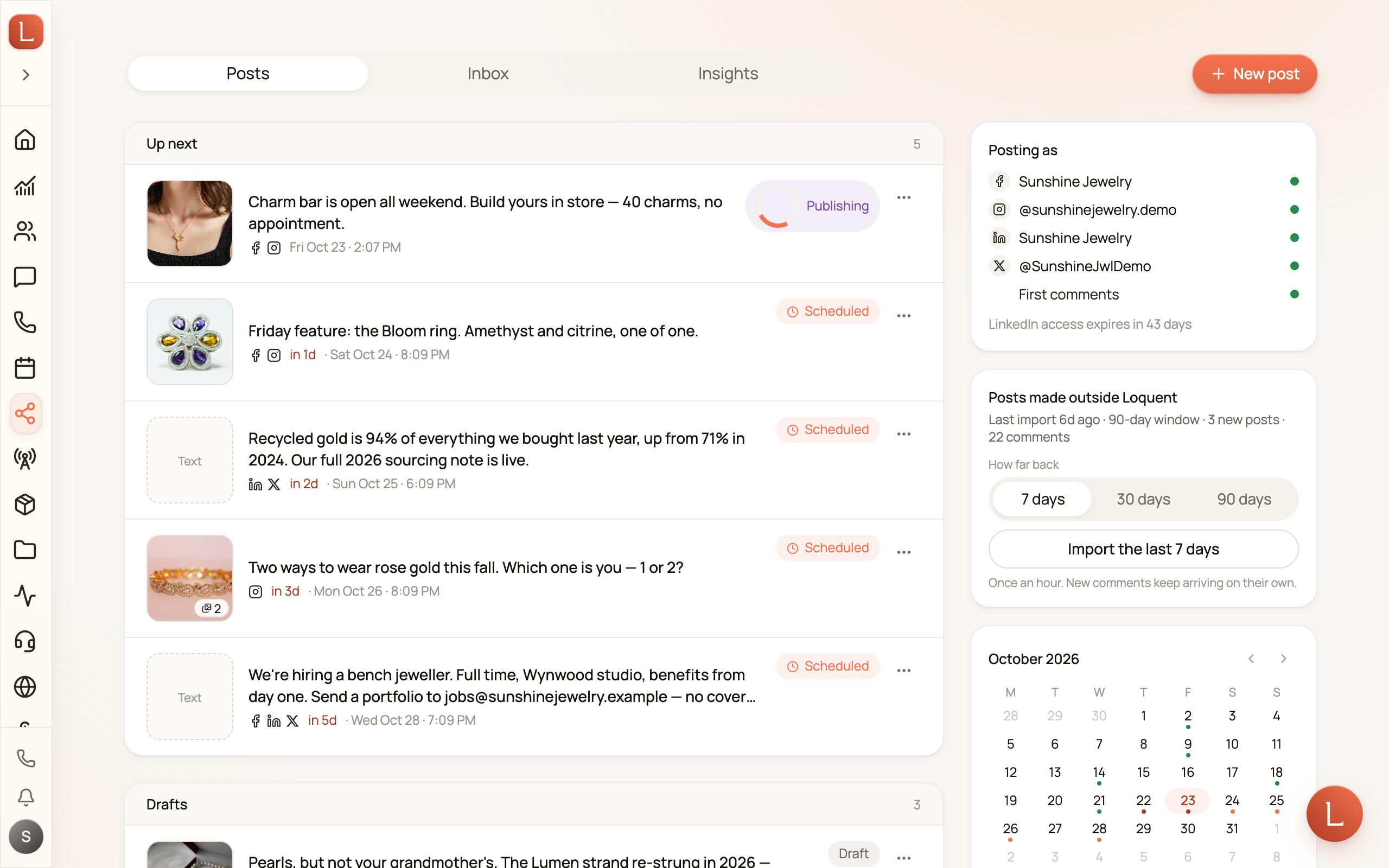
Write a post
Section titled “Write a post”Tap New post. The composer opens with the channel row at the top, one writing box in the middle, and a live preview beside it.
-
Pick your channels. Tick Facebook, Instagram, LinkedIn, X — or any combination. A channel you haven’t connected shows why instead of a checkbox, with a link straight to Channels.
-
Write it once. Type into What do you want to share?. Everything you type goes to every ticked channel unless you give one its own version.
-
Add photos or a video. Drop in up to twenty images, or one video. Two or more images become a carousel; one video becomes a reel.
-
Pick a time, or let Loquent pick. Schedule · next slot uses the next open slot in your weekly schedule. Pick date & time sets an exact moment. Save draft keeps it without a time.
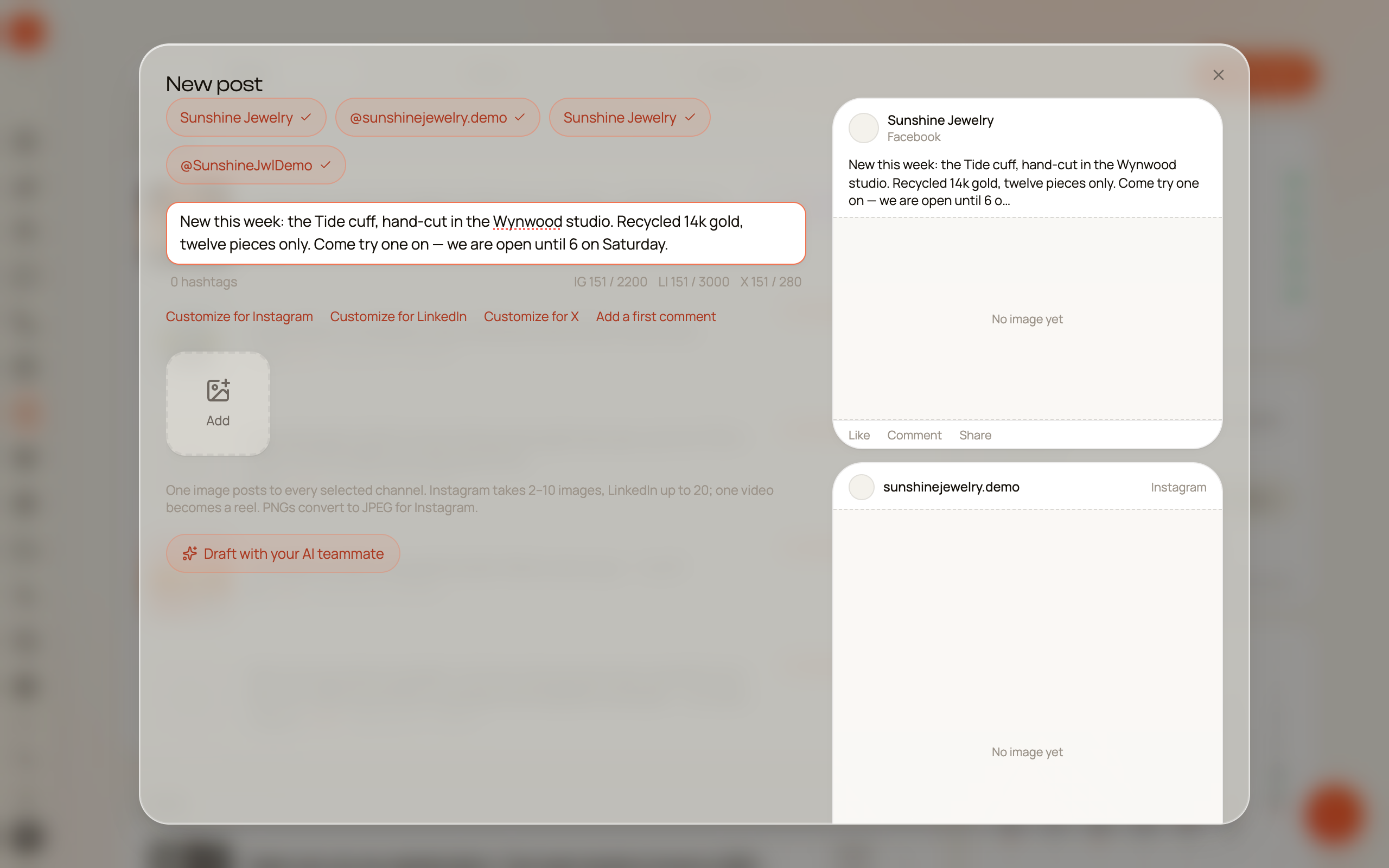
Let your AI teammate write it
Section titled “Let your AI teammate write it”You don’t have to start from a blank box. Tap Draft with your AI teammate, say what the post is about in a sentence, and tap Draft. Your teammate writes the caption using what it knows about your business — your products, your offers, the way you talk to Contacts.
What comes back is a draft. Read it, edit it, or nudge it with one tap: Shorter, Warmer, Add CTA, or En español. Nothing publishes until you schedule it yourself.
If a network needs its own version, Draft for network instead writes one sized for that network’s limits.
One post, four sets of rules
Section titled “One post, four sets of rules”Each network counts differently, and the composer counts along with you as you type:
| Network | The limit that bites |
|---|---|
| 2,200 characters, 30 hashtags, and photos must sit between 4:5 and 1.91:1. Needs at least one photo or video. | |
3,000 characters — but brackets, @, and _ each count twice on LinkedIn’s side, so the counter can run ahead of what you typed. |
|
| X | 280 characters, where an emoji counts two and every link counts 23 whatever its length. Up to four images. |
| The most forgiving — text alone is a valid post. |
When something blocks the post, the composer says so in one sentence right above the buttons, and the Schedule button waits until it’s fixed. It shows one reason at a time — the first thing standing in the way — so you’re never reading a list.
Give one network its own words
Section titled “Give one network its own words”Tap Customize for Instagram, Customize for LinkedIn, or Customize for X and that network gets its own text box. Leave it empty and it reuses what you wrote at the top; Use the same text puts it back.
This is the way out of the 280-character wall: write long for LinkedIn and Facebook, then customize a short version for X.
Move the hashtags out of the caption
Section titled “Move the hashtags out of the caption”Hashtags read badly in a caption and count against Instagram’s limit. Tap Move hashtags and Loquent lifts them out of your text into a first comment — posted as your own reply the moment the post goes live.
You can also write a first comment yourself with Add a first comment.
Crop a photo that doesn’t fit
Section titled “Crop a photo that doesn’t fit”Instagram refuses photos outside its shape range. A photo that’s too tall or too wide is flagged in the media strip with a Crop button — drag to reframe, tap Use this crop, and the post is publishable. Your original photo is kept.
See it before you send it
Section titled “See it before you send it”The preview panel shows the post as each network will render it — the Facebook card with Like / Comment / Share, the Instagram frame, the LinkedIn Company Page post, the X post. Tap through the channels to compare. On a carousel you can swipe every slide: what you see is what ships.
Your weekly posting schedule
Section titled “Your weekly posting schedule”Rather than picking a time for every post, set the hours you want to publish once and let Loquent slot posts into them. The side rail lists your weekly slots; Schedule · next slot in the composer drops the post into the next free one.
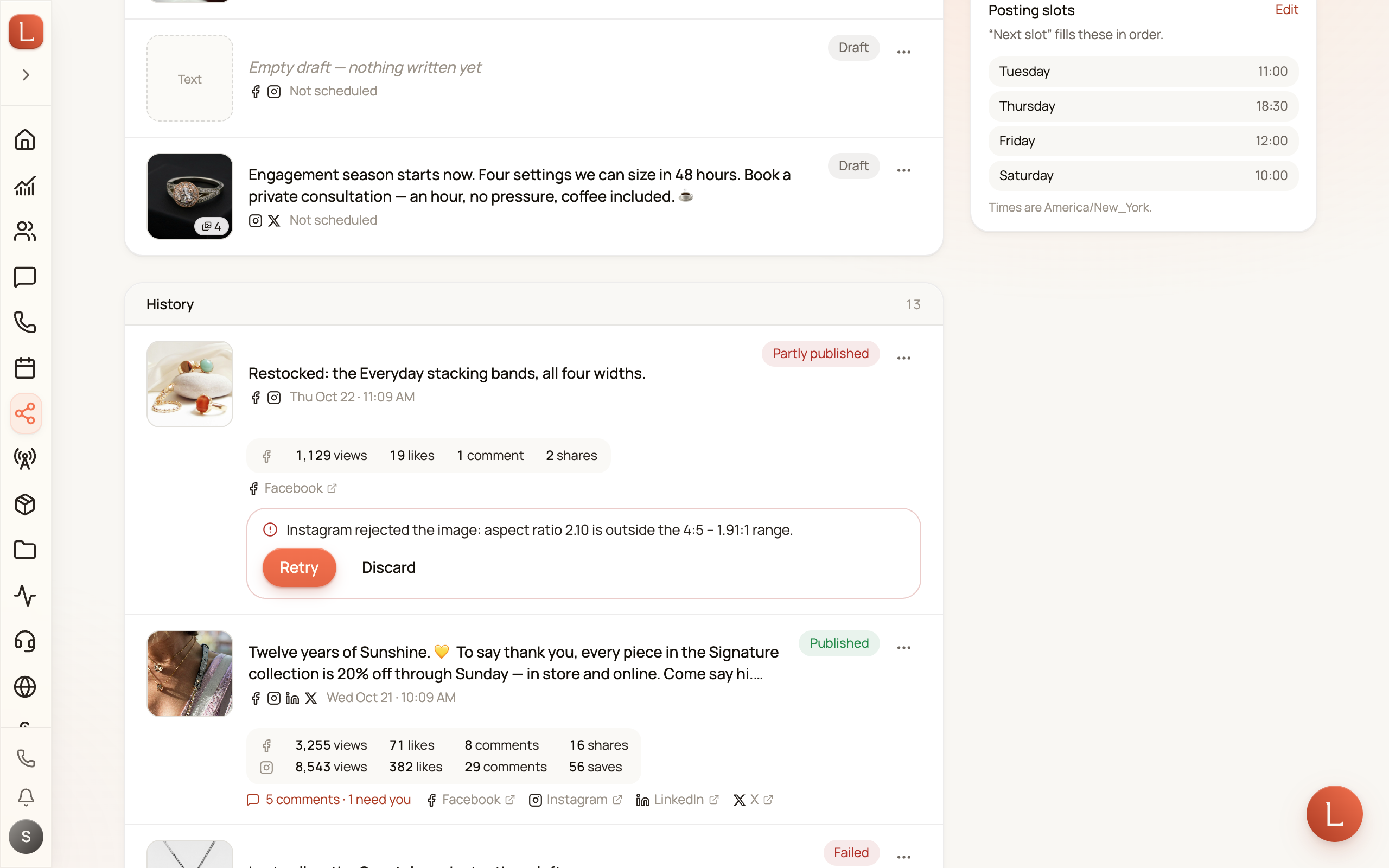
If your Instagram has at least 100 followers, When your followers are online shows the hours they’re actually awake, in your timezone, with a Best hours line. Tap Add these hours to my slots and they join your weekly schedule. Posts already scheduled don’t move.
After it publishes
Section titled “After it publishes”A published row links straight to the live post on each network, and carries its own numbers as they come in — views, interactions, comments. Tap the row to open the post: the media, the text that went out, the first comment, and every comment other people left, with a link into your Social Inbox to answer them.
Duplicate reuses a post that worked — same text, same media, new time.
When one channel fails
Section titled “When one channel fails”Publishing to three networks means one can fail while the others succeed. That post is marked Partly published, and the row names the channel that failed and why. Retry sends only the failed side — it never double-posts the ones that already went out.
If the post went live but the first comment didn’t, the post stays published and only the comment retries.
Posts you didn’t write here
Section titled “Posts you didn’t write here”Loquent also imports what you published directly on Facebook or Instagram, so your History is complete. Imported posts are marked Imported and are read-only — there’s nothing to reschedule or retry, but their comments still come into your Inbox and their numbers still count in Insights.
Keeping access alive
Section titled “Keeping access alive”Networks expire the permission you granted them. When LinkedIn is within a few days of expiring, the composer warns you (LinkedIn access expires in 3 days) with a Reconnect LinkedIn button; X does the same. Reconnecting takes one tap and nothing in your queue is lost.
Occasionally Loquent pauses X posting on its own side — the composer says X is paused on our side and your post goes to the other channels. Nothing is lost; the X side sends when the pause lifts.
Next: answer the comments your posts draw, or see how they performed.