
Comments on your posts
When someone comments on one of your posts, that comment sits in public where every other customer can read it — including the one you never answered. The Social → Inbox tab puts all of them in one list so none goes unnoticed.
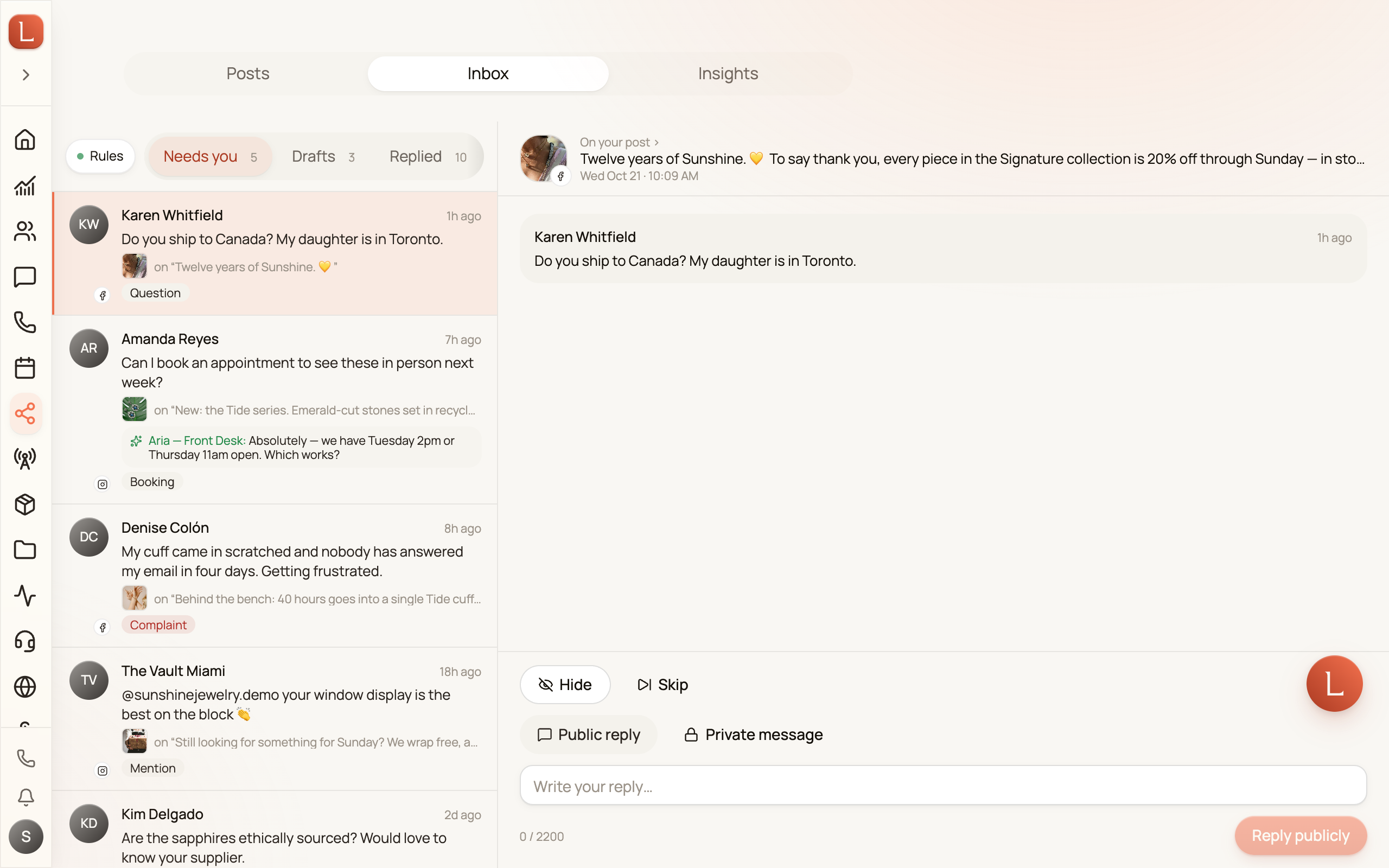
Open Social from the sidebar and pick the Inbox tab. Comments appear within seconds of being posted; you don’t refresh anything.
What lands here
Section titled “What lands here”- Comments on your Facebook Page posts and your Instagram posts.
- Replies people leave under each other’s comments.
- Instagram mentions — someone tagging your account on their own post.
Comments on posts you published somewhere other than Loquent land here too. You get the comment, the person, and the time; the post itself shows as “outside Loquent” until we can pull it in.
Your own comments and replies are kept as part of the conversation, but they never show up as something waiting on you.
Read the filters
Section titled “Read the filters”Five chips sit above the list, each with its own count:
| Chip | Shows |
|---|---|
| Needs you | Comments nobody has answered. Start here. |
| Drafts | Replies your AI teammate has ready for you to send. |
| Replied | Comments you’ve answered publicly. |
| Hidden | Comments hidden from your page. |
| All | Everything, including the ones you skipped. |
Answer a comment
Section titled “Answer a comment”-
Tap a comment to open it. You’ll see the post it’s under, the comment itself, and any replies.
-
Choose Public reply to answer under the comment where everyone can read it, or Private message to write to the person directly.
-
Type your reply and press send. Loquent reads back exactly where it’s going — which network, and to whom — before anything leaves.
A private message is Facebook and Instagram’s own feature, and it comes with two rules we can’t change: one message per comment, and only within 7 days of the comment. After that, the private option is unavailable and Loquent tells you why.
Once the person replies to your private message, the conversation continues in your normal Messaging inbox like any other chat.
Your teammate’s draft
Section titled “Your teammate’s draft”When a teammate is assigned to your Facebook Page or Instagram account, it reads every new comment and drafts the answer for you. Open the comment and the draft sits right above the reply box:
- Public reply — short, warm, written to be read by everyone.
- Private message — added when the person asked for a price or wants to book, so the numbers never sit in public. It always says it comes from your AI teammate.
- Why this draft — one line on where the answer came from.
Then it is your call:
- Send both (or Reply publicly / Send privately) — Loquent reads back exactly where each part is going before anything leaves.
- Edit — puts the text in the reply box so you can change it. What you change teaches your teammate for next time.
- Skip — sets the comment aside. Nothing is sent.
Nothing goes out until you send it. A complaint is different: your teammate writes the apology and asks you what to do, right away, on your phone — send it, change it, or skip it. Spam never gets a draft; you just see the label and a Hide button.
When a comment is a reply to something you wrote, your teammate leaves it to you — it shows as Reply to you.
Let your teammate answer on its own
Section titled “Let your teammate answer on its own”Approving every “thanks!” gets old fast. You can let your teammate answer some kinds of comment without you — one kind at a time, and you can take any of them back with a single tap.
Open Comment replies from the pill at the top of the Inbox (it is also under Channels → Social). Each kind has its own switch:
- Thanks & emoji — “Love this!”
- Questions — only when the answer is in your knowledge base. Anything your teammate can’t find there still waits for you.
- Pricing and Booking — a public thank-you, and the numbers or the booking details in one private message.
- Anything else — comments that are none of the above.
- Spam — hidden on sight. You can unhide any comment.
Two rows have no switch, on purpose:
- Complaints always come to you. Your teammate writes the apology and asks what to do; it never goes out on its own.
- Mentions are answered by you for now.
Turning a kind on shows you exactly what will happen and asks you to confirm. Turning one off is one tap, with no confirmation — and it also stops anything that was about to go out.
You get two minutes to change your mind
Section titled “You get two minutes to change your mind”A reply your teammate is allowed to send waits about two minutes first. During that window the comment shows Going out with a Hold button. Hold turns it straight back into a normal draft you can send, edit, or skip.
Once it has gone out you’ll see {your teammate} replied on the row, with the wording it used. A comment it hid on its own says Hidden by {your teammate}, and Unhide is right there.
If Facebook or Instagram is rate-limiting your account, the row says Delayed by Meta limits — nothing is lost, the reply goes out as soon as Meta accepts it.
One line a day
Section titled “One line a day”Once a day, at the hour you pick, Loquent tells you what happened without you: “Sofía answered 11 comments and hid 3 on their own today · 2 comments are waiting for you.” On a day when nothing went out on its own, you hear nothing.
Hide or skip
Section titled “Hide or skip”Hide removes the comment from public view on Facebook or Instagram. The person who wrote it still sees it; nobody else does. You can unhide it at any time. If someone on your team hides a comment directly on Facebook, the Inbox picks that up too.
Skip just takes the comment off your list. Nothing is sent, nothing is hidden, and the comment stays exactly where it was — use it for the “🔥” and the tagged friend that need no answer.
If the Inbox is empty
Section titled “If the Inbox is empty”- “No account connected” — connect your Facebook Page or Instagram account under Channels → Social first.
- “Awaiting Meta access” — the connection exists, but Facebook hasn’t granted permission to read and answer comments yet. Open the Posts tab and use the grant button there.
- “Nothing here” — you’re up to date. New comments arrive on their own.