
Your call history
Every call your business makes or takes lands in one place. Open Calls from the sidebar and you’re on Call Activity — the running list of every call, whether your AI teammate answered it or one of your people picked up.
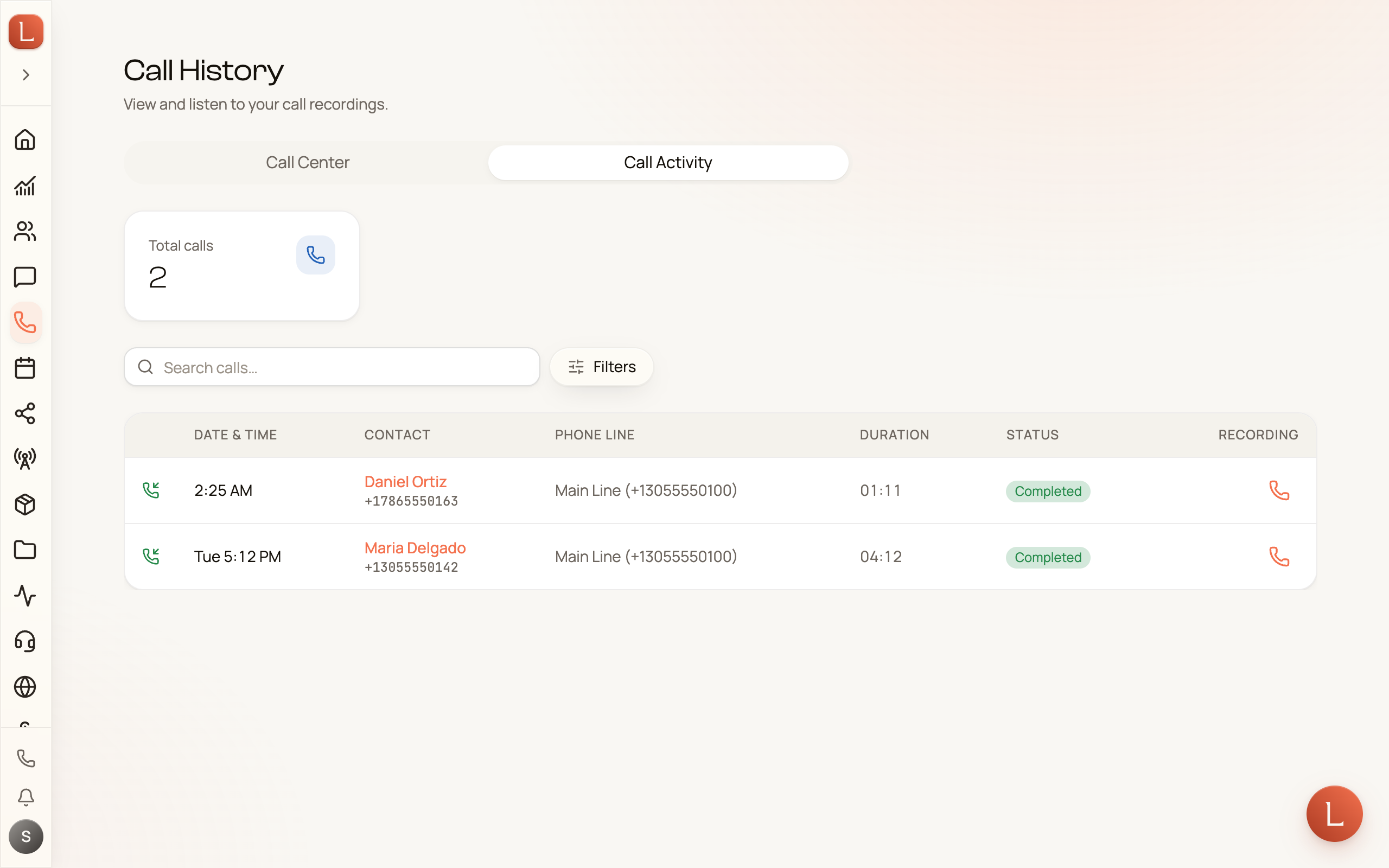
What each row tells you
Section titled “What each row tells you”Each row is one call, read left to right:
- Direction — a small arrow shows whether the call was Inbound (someone called you) or Outbound (you called them).
- Date & Time — when it happened.
- Contact — the caller’s name if they’re one of your Contacts, with their number beneath. No name yet? You’ll see the raw number.
- Phone Line — which of your business numbers the call came in on or went out from.
- Duration — how long the call lasted.
- Status — how it ended. A call still on the line shows a live, ticking timer instead.
- Recording — a small chip with the recording length. Tap it to play the call right there in the row, without leaving the list.
Tapping anywhere else on a row opens the full call — recording, transcript, and everything your team understood. See recordings, transcripts, and call insights.
The count at the top
Section titled “The count at the top”Above the list, a Total calls card gives you the running count for whatever you’re currently looking at. If a call is happening right now, a Live now card appears beside it. Both follow your search and filters, so the number always matches the list below.
Search and filter
Section titled “Search and filter”Use the Search calls… box to find a call by caller name or number. For anything more specific, tap Filters (a bottom sheet on your phone) and narrow by:
- Tags — the labels on the Contact.
- Direction — All, Inbound, or Outbound.
- Phone Line — a single business number.
- Time Range — today, this week, a custom span.
- Has Recording — Any, Yes, or No.
- Min Duration — hide the quick ones; show only calls over 30 seconds, 1 minute, 5 minutes, or 10 minutes.
A small badge on the Filters button counts how many you’ve set. Reset all clears them in one tap and brings back the full list.
When it’s empty
Section titled “When it’s empty”A brand-new number with no calls yet shows a calm No calls yet card and a Make a call button to place your first one. If a filter is hiding everything, you’ll see No calls match your filters with a one-tap Clear filters.
Want the wider, real-time picture of who’s on the phone right now — including callers waiting? That’s the Call Center tab, covered in your presence and personal queue.