
Drafts, approvals, and escalations
Your AI teammate does the work, but you stay in charge. It pulls you in two ways: with a draft — a reply it wrote, waiting for your approval — and with an escalation — a plain question it asks when a decision is yours to make. Both come to you. You never go hunting for them. And there’s a third outcome worth knowing about: sometimes it decides a message needs no reply at all, and says nothing.
Drafts: pick, edit, send
Section titled “Drafts: pick, edit, send”When a Contact texts, emails, or messages your business, your teammate writes back a reply and holds it for you. This is the default everywhere: the teammate drafts, you approve and send. Nothing reaches your Contact until you say so.
Open Messaging from the sidebar and choose a conversation. When your teammate has drafted a reply, the Contact’s message carries a Draft ready tag. Tap the message and the reply options open under it, headed “Your AI teammate drafted a reply.”
Each option is a full reply you can send with one tap. To send:
-
Read the options. Your teammate may offer more than one. The strongest is marked with a quiet “High confidence” hint.
-
Tap the one you like. It drops into the message box, ready to go.
-
Edit anything you want, then send. The line above the box shows exactly which number or address you’re sending from.
Not quite right? Use Regenerate for a fresh set, or Dismiss to close the drafts and write your own.
Here’s the part that pays off over time: your edits teach the teammate. Every time you tweak a draft before sending, it learns your wording and your judgment — so the next draft needs less from you. Approve enough replies unchanged and you may decide to let it send on its own. That’s the autonomy dial, and it’s always your choice.
Escalations: one question, one answer
Section titled “Escalations: one question, one answer”Sometimes your teammate hits a decision that isn’t its to make — a discount to approve, a Contact asking for something outside its instructions. Instead of guessing, it pauses the conversation and asks you. That’s an escalation.
An escalation shows up right where it happened, as a card headed “Your AI teammate needs you,” and it pings your phone at the same time. Tap it and answer in plain language — a quick yes or no, a short choice, or a sentence.
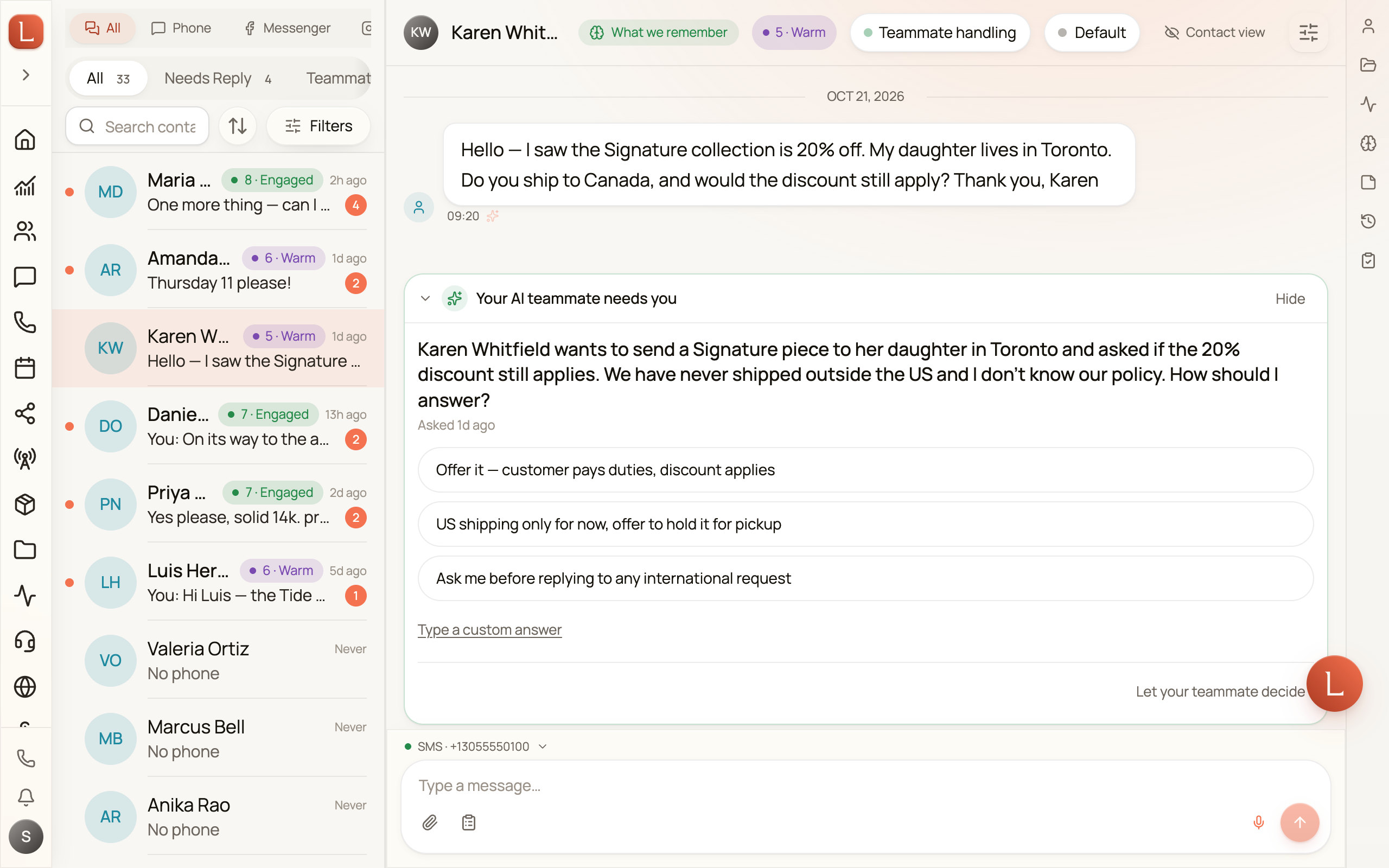
The moment you answer, the conversation resumes with your call folded in. If more than one question is waiting, they stack into a simple stepper — answer them one at a time, then send them all together. And if a question doesn’t need you, “Let your teammate decide” hands it back.
An escalation can also come from your teammate noticing something about the conversation itself rather than about one message. When a long back-and-forth starts running unusually fast — several replies in a row coming back within half a minute of each other, which usually means the other end is an auto-responder rather than a person — or when one conversation passes forty replies in an hour, your teammate stops sending on its own, leaves drafts instead, and asks you once to take a look. It resumes as soon as you step in: answer the card, reply to the Contact yourself, or take the conversation over. This applies only to teammates you’ve set to Autonomous; a teammate on Suggest was already only drafting.
Two limits are worth knowing. A teammate waits about six hours for your answer; past that it stops holding the conversation open and wraps up as best it can, so a Contact is never left in silence. And it will never stack more than five open questions on one Contact at a time — past that it stops asking rather than piling a sixth on you.
Sometimes it says nothing at all
Section titled “Sometimes it says nothing at all”Not every message deserves an answer. When a Contact writes “thanks!”, “ok”, a goodbye, or a lone emoji, a reply adds noise rather than help — so your teammate can simply let it pass, sending nothing and drafting nothing.
Nothing is sent, nothing is drafted, and nothing waits for you — the conversation simply rests. On the teammate’s own activity timeline you’ll see a muted line rather than a message: No reply needed · acknowledgement only, sometimes with a short note on why. Its Memory tab counts them up too — Left 3 messages alone that needed no reply — so you can see how often it’s choosing silence.
Silence here is a decision, not a miss. If you’d rather your teammate had answered, reply yourself and it learns from that.
It all lands on Home
Section titled “It all lands on Home”You don’t have to open Messaging to find what’s waiting. Your Home page gathers every draft and escalation into one band, What needs you, below your daily brief. When something is waiting, Show me on the brief jumps straight to it.
That’s the whole rhythm: your team handles the conversation, and brings you only the moments that need a human. Next, see how much you hand off with the autonomy dial, or read how conversations flow across channels in Contacts, conversations, and channels.