
Gate a page behind a form
Some pages earn their keep: a pricing guide, a case study, a proposal. A gate locks a page like that behind a short form. The moment a visitor fills it in, they stop being a stranger — they become a Contact in your CRM, their earlier visits attach to their name, and they never see the gate again. Your AI teammate can follow up the moment they unlock.
You set gates up in Website. Open it from the sidebar and choose the Gates tab.
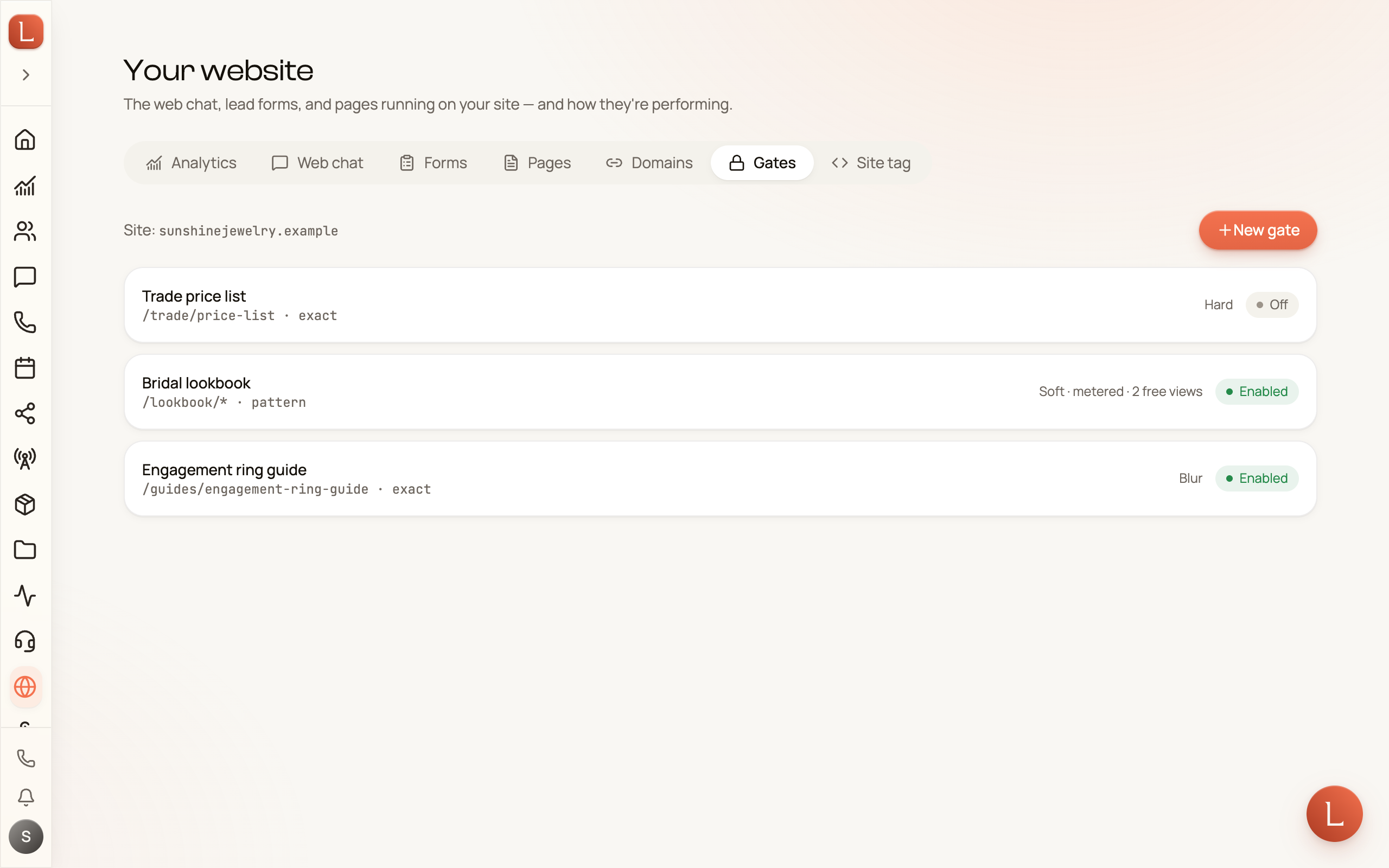
Create a gate
Section titled “Create a gate”-
Tap New gate and give it a name only your team sees.
-
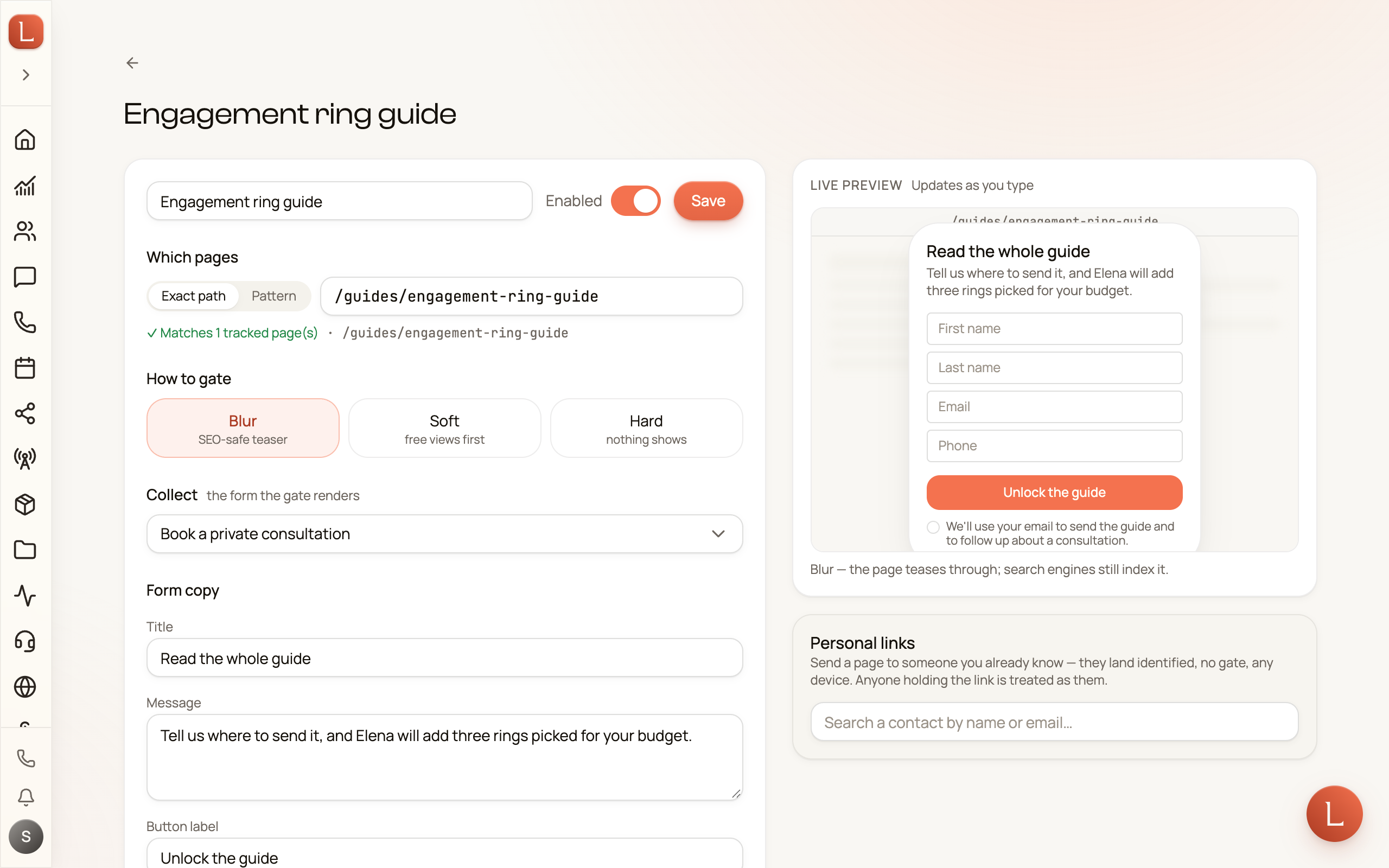
Under Which pages, choose Exact path for one page (like
/pricing) or Pattern to cover several at once (like/guides/*). A hint below tells you how many of your tracked pages the match covers. -
Under How to gate, pick a style:
- Blur — the page shows through a soft blur, so visitors can see there’s something worth unlocking. The friendliest choice, and search engines can still find the page.
- Soft — the page is free for the first few visits, then the gate appears. You choose how many free views. Good for guides people come back to.
- Hard — nothing shows until the form is filled. Maximum capture; best for pages you share directly rather than ones people find in search.
-
Under Collect, pick which of your published lead forms the gate shows. If you don’t have one yet, build it in the Forms tab first — see Lead-capture forms.
-
Adjust the Form copy — title, message, button label — and watch the live preview update as you type. Leave Ask for consent on to add a required checkbox with your own wording.
-
Flip Enabled on and tap Create gate. It’s live on your site right away.
Skip the gate for people you already know
Section titled “Skip the gate for people you already know”If you’re sending a page to someone who’s already a Contact — a proposal, a price sheet — there’s no reason to make them fill in a form. On the gate’s edit page, the Personal links panel builds a special link for one Contact: search their name, paste the page’s address, and tap Copy personal link.
When they open that link, the page recognizes them instantly — no gate, no form, on any device — and their visit is recorded under their name.
See who’s on your gated pages
Section titled “See who’s on your gated pages”Open any gate and scroll to Audience. The tiles across the top show how the gate is doing — page views, how many visitors saw the gate, how many unlocked it, and the conversion rate. Below, the Visitors list shows everyone who touched the covered pages: Contacts by name, with a link to their record, and anonymous visitors by location and browser, so you can see the interest that hasn’t introduced itself yet.
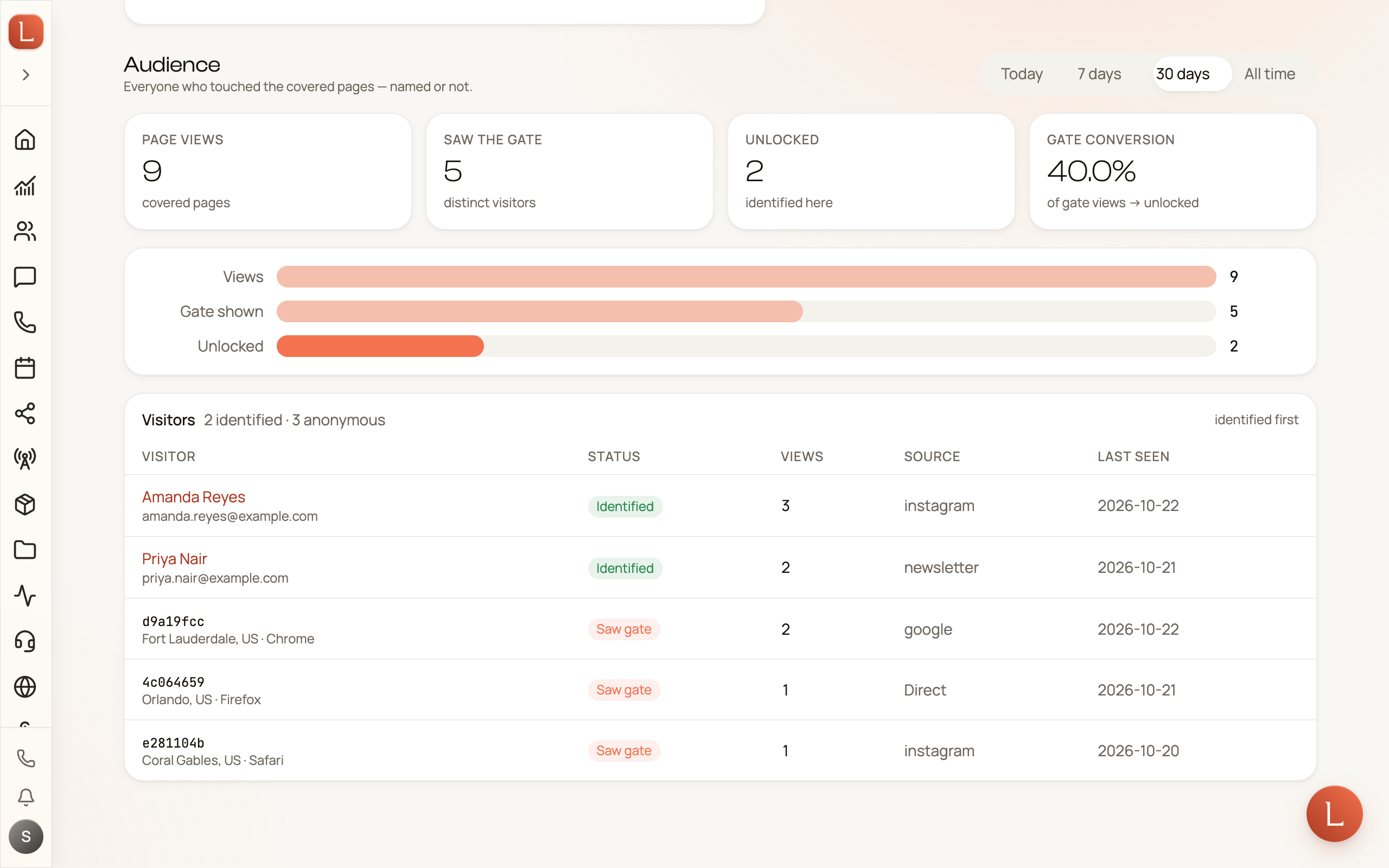
Once someone unlocks, everything they do on your site — and every chat with your AI teammate — is tied to their name, so the follow-up starts warm.