
Ask for anything, anywhere
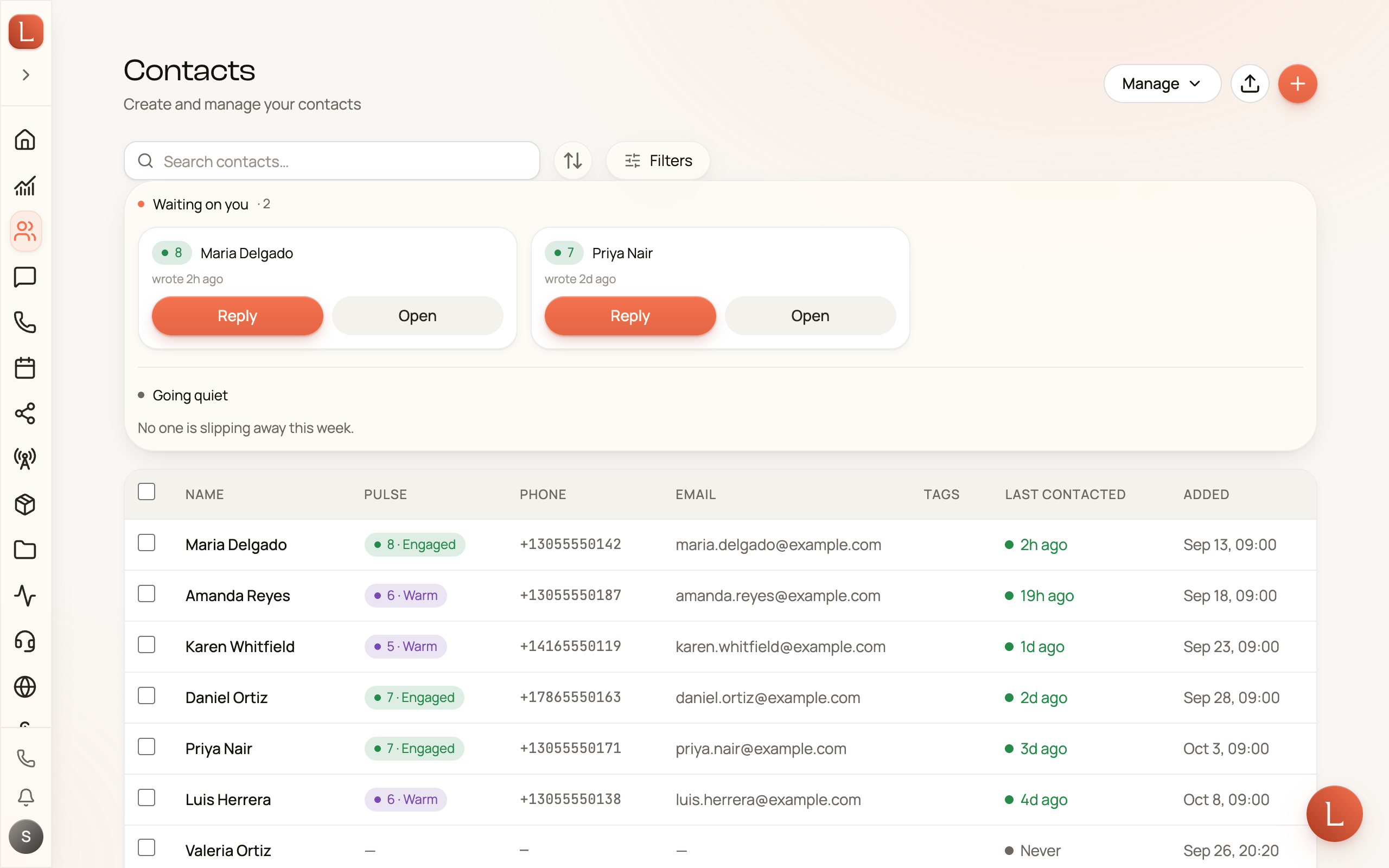
On a computer, an Ask Loquent button sits in the bottom-right corner of every screen: the Loquent mark on a warm disc, which widens to read Ask Loquent when you point at it. Click it, or press ⌘J (Ctrl+J on Windows), and a panel slides in: your assistant — a personal AI teammate that belongs to you, ready wherever you happen to be. You don’t navigate to it; you call it up, say what you want, and it gets to work without you leaving the page you were on. Press ⌘J again to close it.
On Home, the Ask Loquent… box under the greeting stands in for the button: type your request there and the assistant opens with it. On your phone, the same mark sits in the bottom tab bar, between Messages and Calls, and on a detail screen it rides at the end of the floating row along the top. Tap it and your assistant opens in a sheet that fills the screen.
Your own teammate, not the customer-facing ones
Section titled “Your own teammate, not the customer-facing ones”This is the one distinction worth holding onto. The teammates on your Teammates roster — your front-desk teammate, your sales teammate — face your Contacts and handle conversations. Your assistant faces you. It’s private to you, it works on your side of the desk, and every human on your team gets their own. Ask it to pull up a Contact, summarize the week, draft a note, or line up work — it’s the fastest way to do rather than to hunt through screens.
Under the hood it reuses the very same tools your team uses, so anything your team can touch, your assistant can help you with too.
Type it or say it
Section titled “Type it or say it”At the bottom of the panel is a message box. Type what you want in plain words, or tap the microphone and speak — dictation turns your voice into text you can read over and edit before you send. Nothing fires straight from your voice; you always get the last look.
-
Open the assistant with Ask Loquent: the corner button, the box on Home, or ⌘J. On your phone, tap the mark in the bottom tab bar.
-
Say what you want — “Find everyone I talked to about the spring package” or “Draft a thank-you to Marcus.”
-
Read what it comes back with. Keep the conversation going — ask a follow-up, or tell it to try again a different way.
-
Confirm the change. Your assistant proposes; you commit. Nothing it changes, sends, or buys happens on its own — see below.
Nothing happens until you say so
Section titled “Nothing happens until you say so”When your assistant is about to change something — text or email a Contact, buy a phone number, remove a tag, save a Contact, add a note, line up a task — it doesn’t just go ahead. It stops and shows you a card with the specifics read back: who it’s going to, the message exactly as it’s written, how many Contacts are in the list, the exact thing being removed. The card sits there marked Waiting on you.
Nothing happens until you tap the confirm button, which spells out what it’s committing to — Send text, Send 3 texts, Send email, Buy number, Remove, or simply Confirm for an everyday change. On a message to a Contact, that tap commits to one more thing: the conversation becomes yours to handle. Tap Cancel and it doesn’t happen; the card goes quiet and your assistant carries on from there. (On a removal that button reads Keep it instead.) Once you confirm, the card collapses into a receipt marked Done, so you can always look back and see what actually happened.
The card isn’t an editing box — it’s the last gate. If the wording isn’t right, cancel and tell your assistant what to change; it’ll come back with a fresh card to confirm.
Sending from here makes the conversation yours
Section titled “Sending from here makes the conversation yours”Ask your assistant to text or email a Contact, and once that message goes out you’re the one handling the conversation — their teammate reads and drafts, but stops replying on its own until you hand it back. The words were your assistant’s; the decision to send was yours, and that’s what the rule follows.
It only covers who the message actually reached. Someone who opted out, has no number on file, or whose send failed is left exactly as they were, and on a card going to several people only the ones it reached change hands.
The other direction is worth knowing before you meet it. Ask your assistant to text someone whose conversation a person is already handling, and it includes them — their name sits on the card like anyone else’s, rather than quietly dropping off the list. Its reply tells you a person is handling that conversation and that they were included because you asked. The card itself doesn’t mark them apart from the others, so read what your assistant says before you tap the confirm button; tapping it sends to them.
Both are the same rule. A teammate standing back while a person holds a conversation covers what the teammate decides on its own — asking your assistant directly isn’t that, in either direction. It also belongs to this panel specifically: a thread you start on a teammate’s own page (Teammates in the sidebar, then New Thread) still leaves that Contact out of the send and takes nothing over, and a teammate in Suggest mode drafts there rather than sending. More on who holds a conversation in Who’s replying to a Contact.
Some things never stop asking, however much you come to trust your assistant: a message to a Contact, a purchase, and anything that deletes always come back to this card first.
Run bigger jobs across your business
Section titled “Run bigger jobs across your business”Your assistant isn’t only for one-off questions. Hand it work that spans many Contacts — “Text everyone tagged VIP about Friday’s opening” — and it drafts the whole thing as a single operation, with a small strip at the top of the panel to track it. A big send doesn’t fire on its own either: the operation waits on Review & release until you’ve looked it over and approved it, and only then do the messages start going out, with the strip counting them off as they go. When it needs a decision that’s yours to make, it pauses and asks right there in the panel, the same way a teammate raises a question.
Once you release it, the operation sends to the Contacts it lists — including anyone whose conversation someone on your team is handling — because you reviewed and released that list yourself. Unlike a single confirm card, releasing a big send doesn’t make you the one handling all of those conversations; each Contact’s teammate carries on as before. The review sheet is where you take someone out: each row carries an Exclude button, and Include puts them back.
Keep your sessions
Section titled “Keep your sessions”Every conversation with your assistant is saved. The panel opens on a fresh, empty conversation each time you load Loquent — a clean canvas rather than yesterday’s thread. Your most recent session is one tap away: a Continue chip sits under the greeting, showing that session’s title and when you last used it.
In the panel header, the Past sessions button (the clock icon) opens your full history, and the New conversation button starts a clean one at any time. Want more room? The expand button (or ⇧⌘J, Ctrl+Shift+J on Windows) opens the assistant full-screen; the same conversation, just roomier.
A conversation in progress survives closing and reopening the panel, and moving around Loquent — only a full page load starts you fresh.
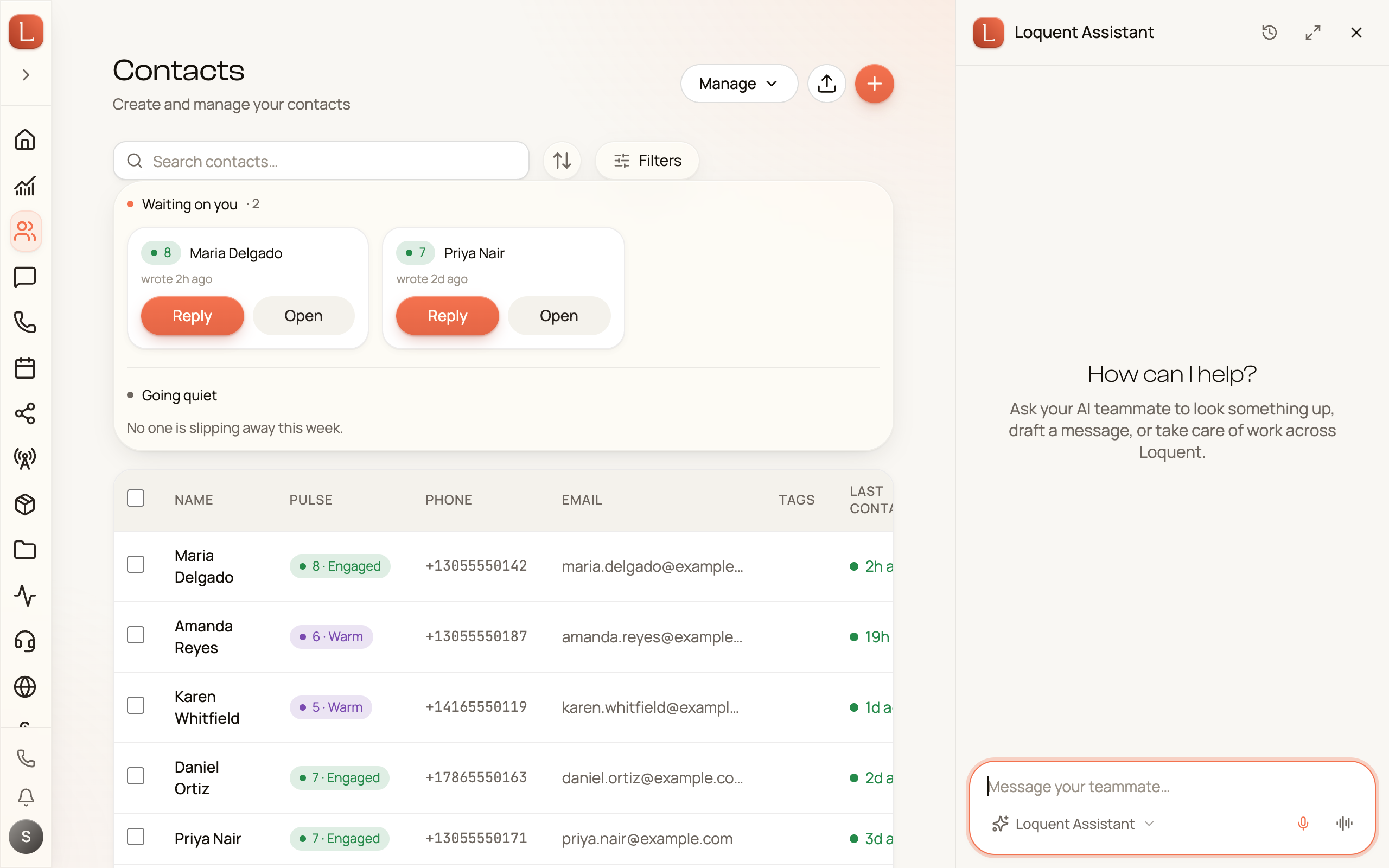
A chip in the bottom-left corner lets you point the assistant at any one of your teammates, so a session can draw on that teammate’s particular knowledge and voice.
Your assistant is the “just ask” front door. To hand ongoing work to a named, customer-facing teammate instead, chat with a teammate.