
Invite your people
Loquent isn’t only for you. Bring in the people you work with — a partner, a front-desk colleague, a bookkeeper — and each one gets their own login, their own view of your Contacts, and their own AI teammate to help them. You invite by email; they click a link and they’re in.
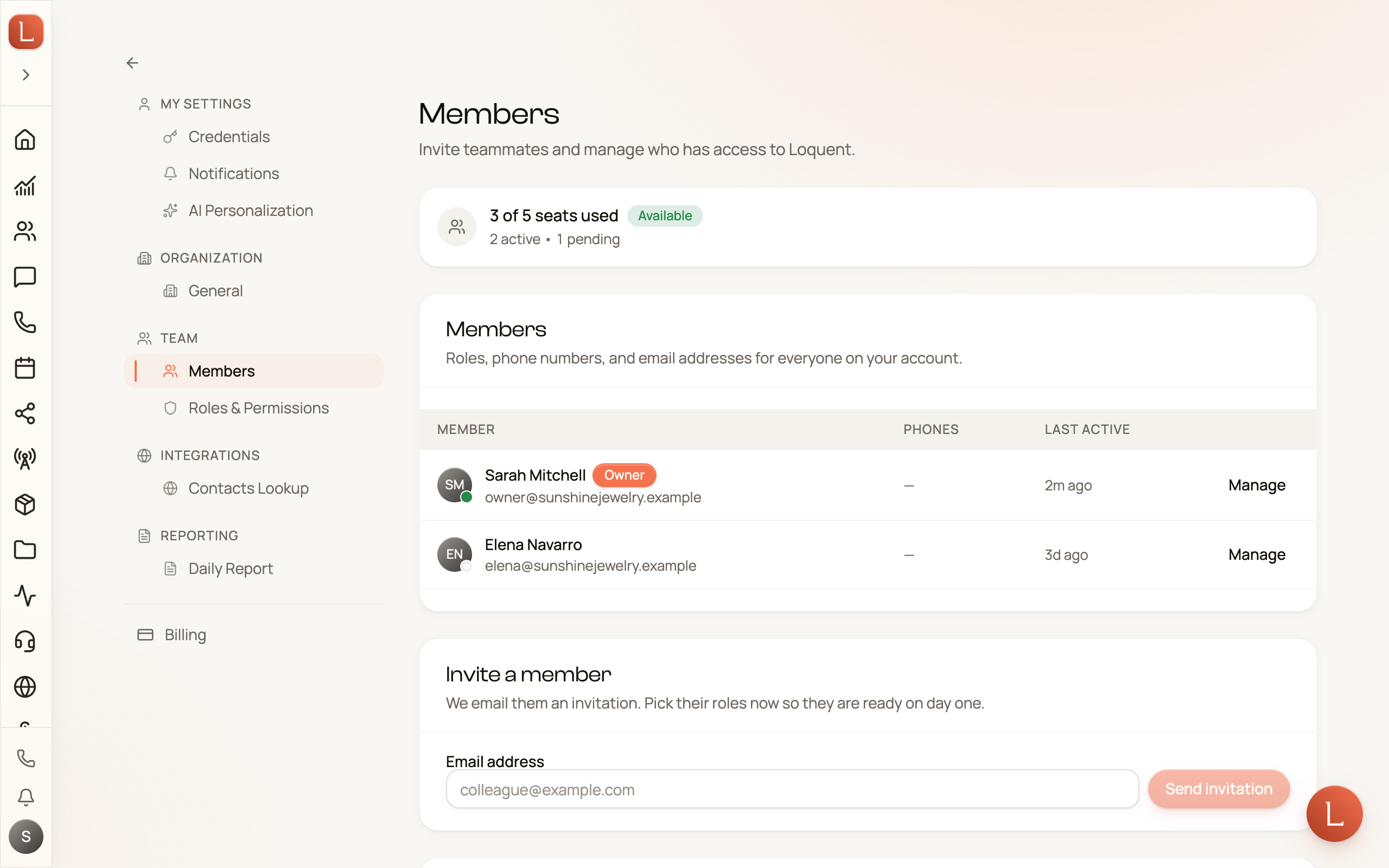
You’ll find this under Settings → Team → Members.
Send an invitation
Section titled “Send an invitation”Only the Owner can invite people. In the card labeled Invite a member, type a colleague’s email address and choose whether to pre-assign any roles.
-
Enter their email in the Email address field.
-
Optionally assign roles. Open Assign roles (optional) to tick the roles they should start with — this controls what they can see and do. You can change it later.
-
Tap Send invitation. You’ll see Invitation sent to their address, and they’ll get an email with a join link. The email says who invited them, to which business, with which roles, and that the link works for 7 days.
Invitations you’ve sent but that haven’t been accepted yet sit in the Pending invitations card, each with the date you invited them and the date its link expires.
- An invitation link works for 7 days. After that the invitation is marked Expired, and anyone opening the old link is told to ask you for a new one.
- Resend emails a fresh link that works for another 7 days. The old link stops working right away. Use it when an invitation expired or got lost in someone’s inbox.
- Change your mind? The trash icon revokes an invitation before it’s used.
An invitation holds its seat until it’s accepted or revoked, even after it expires.
What happens when they accept
Section titled “What happens when they accept”Your colleague opens the link and lands on a Join card for your business. If they’re new to Loquent, they create an account — a name and password, or one tap with Facebook. If they already have a Loquent login, they just confirm. Either way, they’re signed in and on your team the moment they finish.
Here’s the part that matters: every new person automatically gets their own personal AI teammates. They don’t start from an empty screen — their team is provisioned for them, ready to draft replies and answer questions from day one, the same way yours works. Nothing goes out to a Contact without approval; Suggest is the default for everyone. See Drafts, approvals, and escalations for how that rhythm works.
How seats work
Section titled “How seats work”Each person on your team takes one seat. The banner at the top of the Members page shows how many you’re using — “3 of 5 seats used” — with a chip that reads Available when you have room or At capacity when you don’t. A pending invitation counts against your seats too, so it’s held for the person you invited.
When you’re out of seats, the invite box is replaced by a short notice and an Add seats link. That takes you to Billing, where the Owner can add seats or move to a plan with more room. Revoking a pending invitation also frees a seat right away.
Some plans include a fixed number of seats. When yours is full, the notice says how many seats your plan includes and offers See plans instead, because the next seat comes with a plan upgrade.
Next, set up the details your team speaks from in Your business profile, or review what each plan unlocks in Plans, credits, and billing.