
Plans, credits, and billing
Loquent starts on the Free plan, free to use while you build your team and try it out. Your trial is what puts that team in front of your Contacts, and Billing is where you start it, pick a plan afterwards, add seats, and keep an eye on what your team is using. Only the Owner can see and change it.
You’ll find it under Settings → Billing.
Your trial
Section titled “Your trial”New workspaces meet Billing for the first time near the end of setup, on the Start the trial step — see Create your account. Starting it takes one small charge today, then runs your plan free for the trial period with a batch of credits to spend. A reminder lands a few days before your plan first renews — in the app and by email, naming the day and the charge that follows it.
While the trial runs, your plan panel on this page carries a Trial row with that same day and that same charge, and a Cancel trial button beside it. Cancelling opens Manage billing, Loquent’s secure billing portal, and you can do it at any point before that day: it stops the plan before its first charge and returns you to the Free plan, with everything you built kept.
With a promo code on your plan, neither the reminder nor the Trial row names an amount — your code decides the figure, so the totals to trust are the ones you saw at checkout and the ones on your invoice.
One trial per workspace, and it is what switches your team on: until it starts, chat does not go live on your website and your page stays unpublished. While it runs there is no overdraft — your team stops at zero credits rather than running up a balance you have not agreed to. When it converts, your plan’s normal credits and seats take over.
Pick a plan
Section titled “Pick a plan”The Available plans grid lays out the plans you can choose online side by side, plus the plan we arrange with you directly, which carries a Talk to us button instead of a price. A toggle above the cards switches every price between monthly and annual billing, so you compare like for like. Your current plan wears a Current badge; if there’s a natural next step for you, it’s marked Recommended.
Every card spells out whether that plan includes knowledge bases and custom analyzers. A checkmark means it’s in; a struck-through line means it isn’t. To move up, the Owner taps Select plan (first time) or Switch to that plan, and confirms the change. Talk to us opens a new email to Loquent.
Seats and your plan
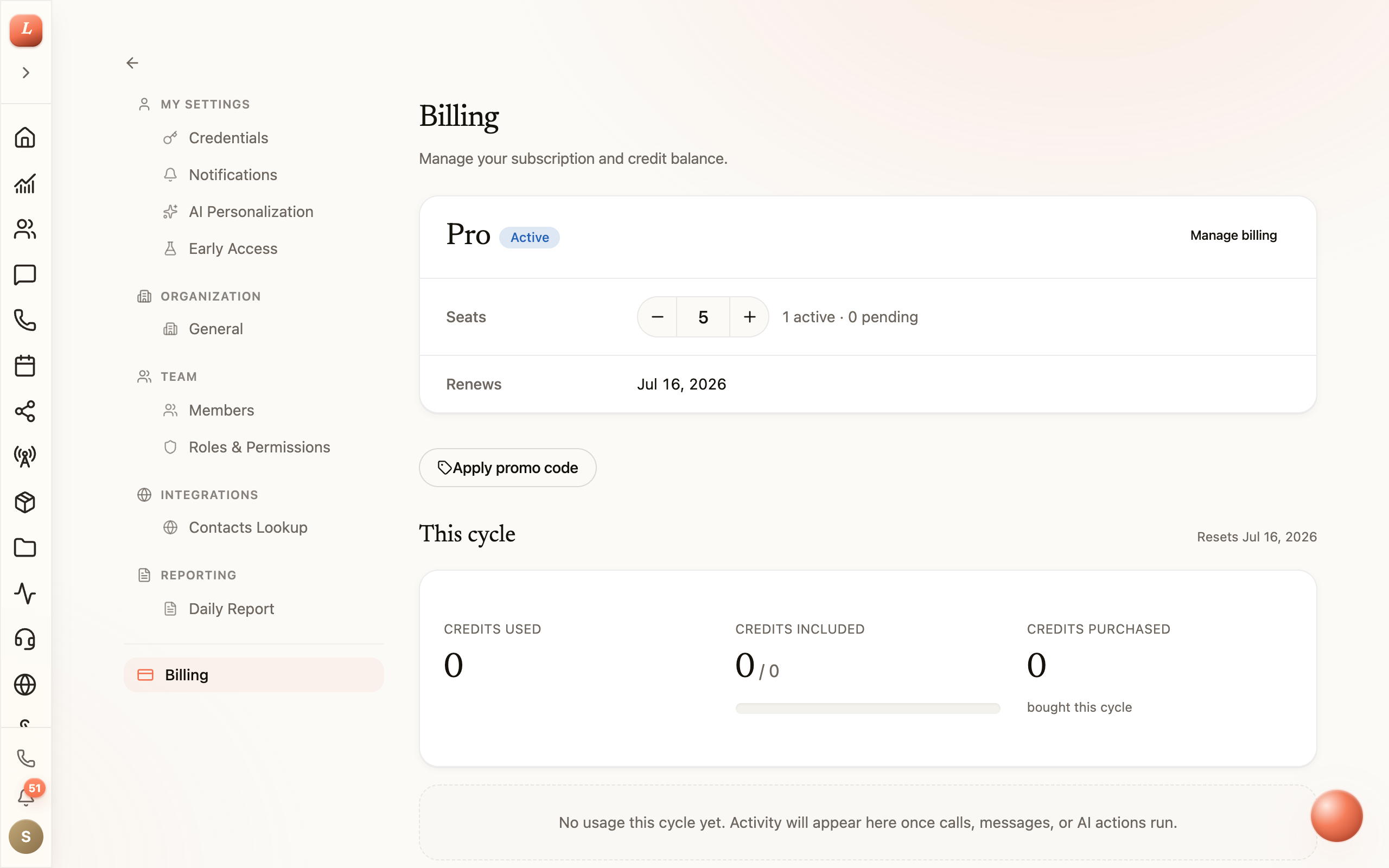
Section titled “Seats and your plan”Once you’re on a paid plan, your current plan sits at the top with its status and renewal date. The Seats row has a simple stepper — add or remove seats and the total updates live before you confirm. Adding a seat charges a prorated amount today; removing one takes effect at the end of your cycle. Loquent won’t let you drop below the seats you’re actually using.
Watch your credits
Section titled “Watch your credits”Your team’s work — calls, messages, AI replies — draws on credits. The This cycle section shows, at a glance, credits used, credits included in your plan, and any you’ve bought on top. A breakdown underneath groups spending by activity so you can see where it goes.
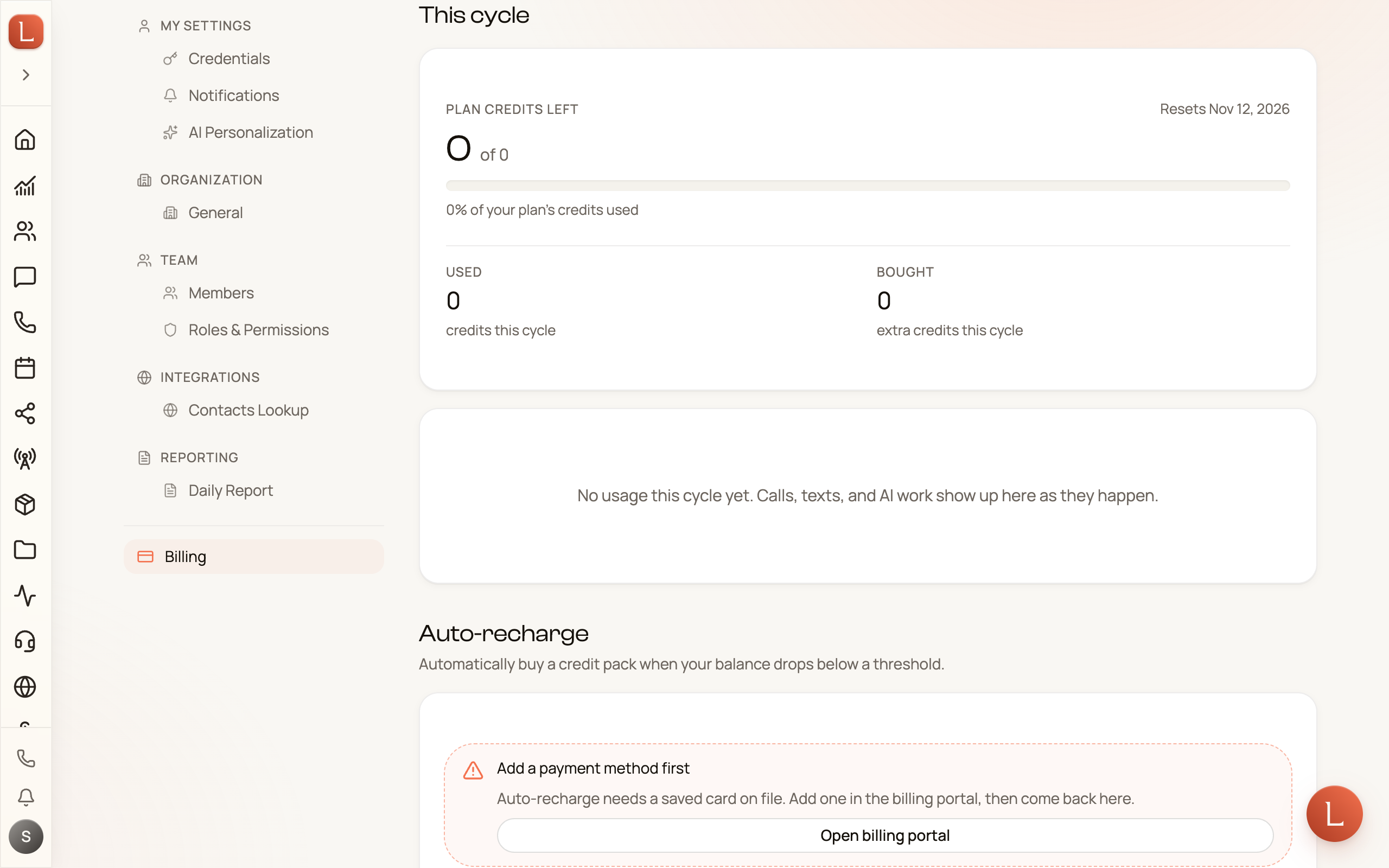
Running low, or want to plan ahead? Two options sit just below:
- Credit packs — buy a one-time top-up that stacks on this cycle’s allowance. Tap Buy credits on any pack.
- Auto-recharge — turn on a threshold so Loquent quietly buys a pack when your balance dips, using your saved card. It’s off by default; you set the threshold and the pack, then Save settings.
Promo codes and payment
Section titled “Promo codes and payment”Have a promo code? Apply promo code on a paid plan opens a box to enter it, and any active discount shows as a banner. For everything to do with your card, invoices, and receipts, Manage billing opens Loquent’s secure billing portal.
If you arrived from a link that already carried a code — one ending in
?promo=YOURCODE — it comes with you through signing up and is waiting, filled
in, on the Start the trial step. Nothing is checked until you get there, so
a code that has expired or was mistyped simply shows what is wrong and leaves
the rest of the step working: you can start the trial without it.
-
Open Settings → Billing as the Owner.
-
Choose the tier that unlocks what you need, monthly or annual.
-
Set your seats and confirm — that’s your subscription live.
Next, add the people who’ll use those seats in Invite your people, or set what your team says in Your business profile.