
Lead-capture forms
A lead form is the fastest way to turn interest into a real Contact. You build it once, share a link, and every submission lands in your CRM — with your team notified the moment it arrives.
You build forms in Website. Open it from the sidebar and choose the Forms tab.
Build a form
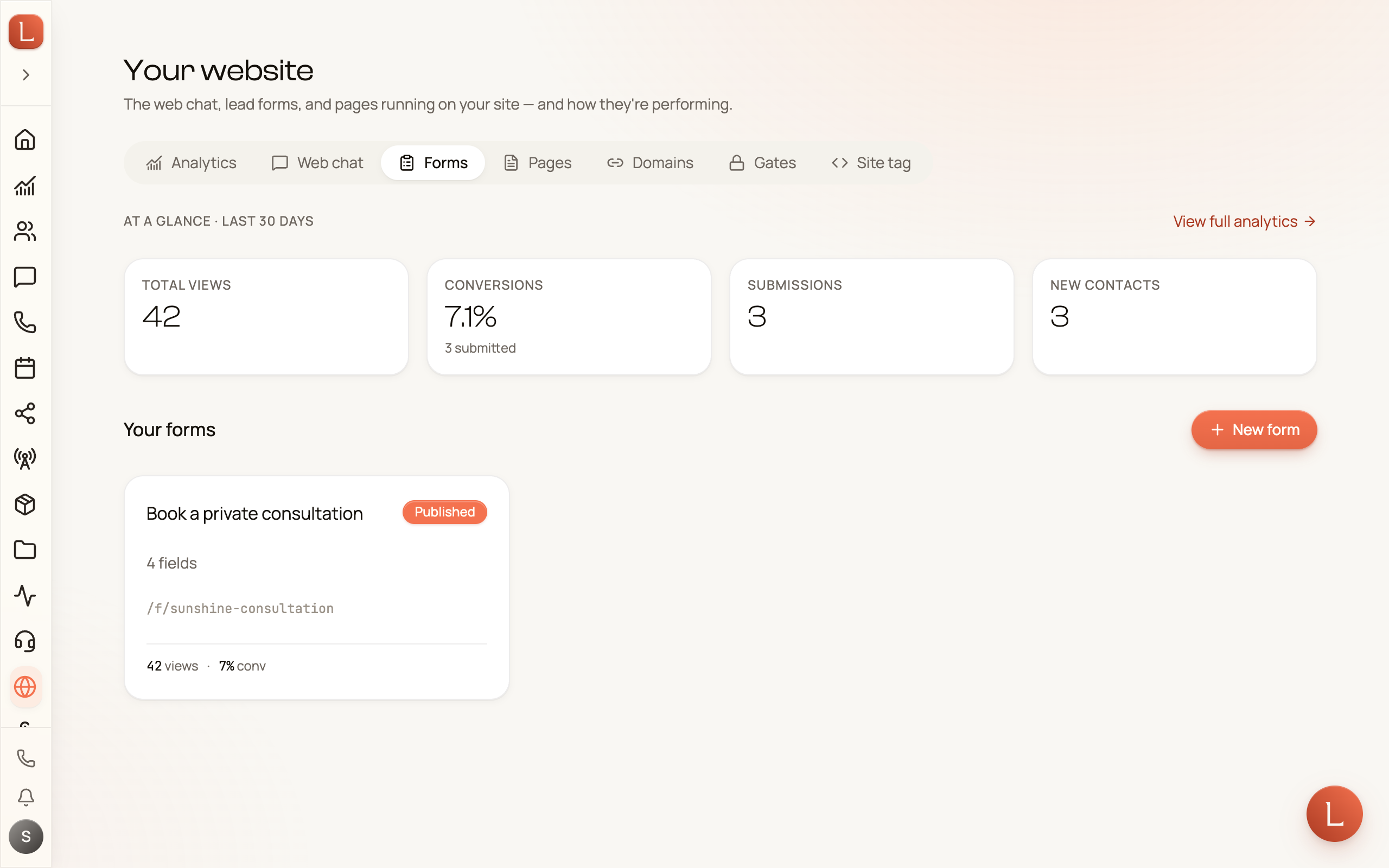
Section titled “Build a form”The Forms tab lists your forms under Your forms, with a New form button top-right.
-
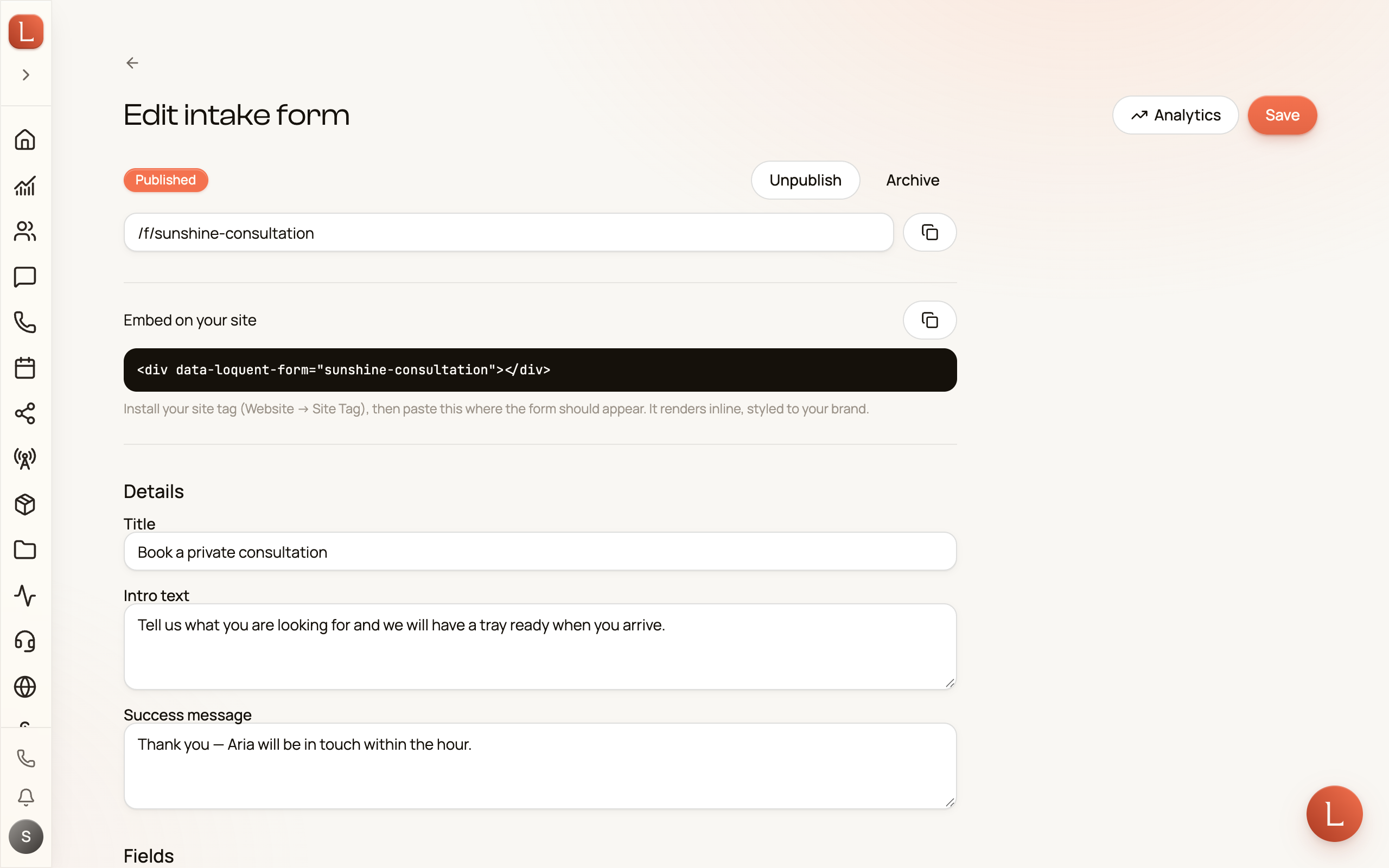
Tap New form. A blank form opens in the builder titled Edit intake form.
-
Fill in the Details — a Title, an Intro text shown at the top of the form, and a Success message shown after someone submits.
-
Under Fields, tap the chips to add what you want to collect. Standard fields cover the essentials like name, email, and phone; Custom fields are your own. Use File uploads when you need documents, photos, audio, or video. For each file field, choose Any files, Media, or Documents, set the maximum number of files (1–10; 3 by default), and flip Required on when an attachment is mandatory. Use the arrows to reorder any field.
-
Save your changes with the Save button top-right.
Two more sections shape the form:
- Branding — set an Accent color override to match your brand for this form. Tap Reset to fall back to your organization’s color.
- Notify on submission — tick the team members who should hear about every submission, so a new lead never sits unseen.
Collect files
Section titled “Collect files”File-upload fields work on your shared form link and on personal Contact invites. A visitor can choose several files, watch each upload finish, remove one before submitting, and attach files up to 10 MB each. After they submit, the files appear in that Contact’s Files tab with a link back to the form they came from.
Publish and share it
Section titled “Publish and share it”A new form starts as a Draft. Nothing is live until you publish it.
-
Tap Publish at the top of the builder. The status badge flips to Published and the share link goes live.
-
Copy the share link — the
/f/…address next to the copy button — and share it anywhere: an email, a social bio, a text.
Want it inside your own website instead of a standalone page? The Embed on your site box gives you a snippet that renders the form inline, styled to your brand. Paste it where the form should appear after you’ve installed your site tag.
Send a prefilled invite to a Contact
Section titled “Send a prefilled invite to a Contact”For someone already in your CRM, you don’t need them to type their details again. Open the Contact’s profile and choose Send a form to pick a published form and generate a personal link. You can copy it or send it over text or email right there — the message comes prefilled, ready to go. The link is single-use, so it stops working once that Contact submits.
Your AI teammate can send the same personal link itself, in the middle of a conversation — handy when a Contact needs to send photos or a document that a chat can’t carry. See Let a teammate ask for photos and files.
Watch views turn into submissions
Section titled “Watch views turn into submissions”Back on the Forms tab, the glance strip across the top tracks the funnel over the last 30 days:
- Total views — how many people opened a form.
- Submissions — how many completed one.
- Conversions — the share of views that turned into a submission.
- New contacts — brand-new Contacts created from those submissions.
For the full picture, tap View full analytics to open the Analytics tab, where a By form table breaks down views, submissions, and conversion rate for each form.
Every submission becomes a Contact your team can pick up. See how conversations flow once they’re in — Contacts, conversations, and channels — or how your team brings the right moments to you in drafts, approvals, and escalations.