
Your products and services
Your catalog is the list of everything you sell — each product or service with its name, price, and description. It’s the single place your AI teammate reads from when a Contact asks “what does this cost?” or “what’s included?” Keep it accurate and every conversation gets sharper, because your team is quoting from the same page you would.
Open it from Sales in the sidebar, then the Products tab.
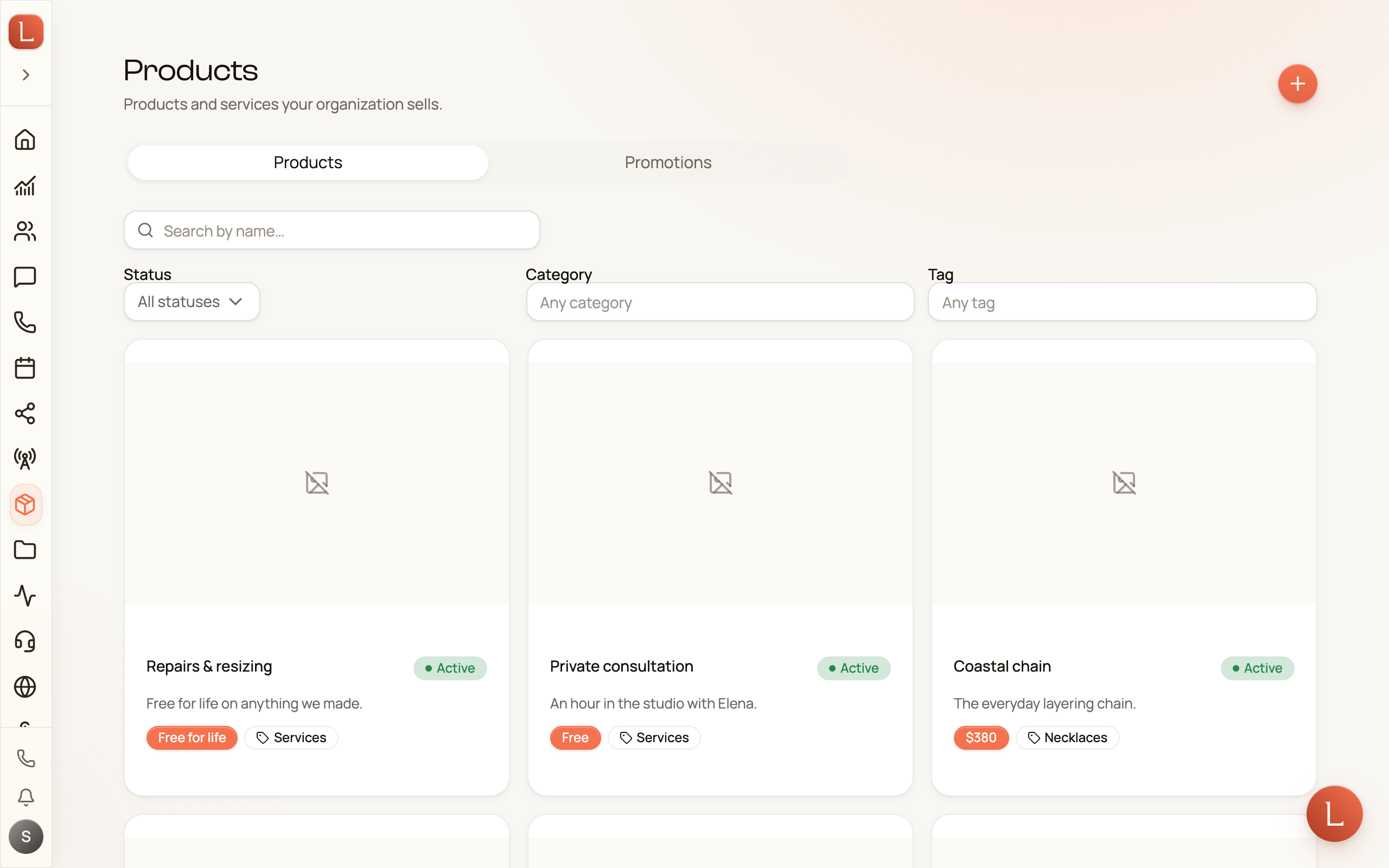
What a product holds
Section titled “What a product holds”Each entry carries a few plain fields. You don’t need every one — a name, a short summary, and a price are enough to be useful on day one.
- Name and a Short summary — the one line your team leans on when it mentions the product.
- Full description — what it is, what’s included, and who it’s for.
- Price — written exactly as a Contact should hear it (“$499”, “$49/mo”, “Starting at $99”), plus optional structured Amount, Currency, and Billing (One-time, Monthly, Annual, Per user, or Custom).
- Images, Features, Tags, and an optional SKU or External URL — extra detail your team can reference.
- Internal notes — kept for your team’s eyes only, never shared with a Contact and never read by your teammates. Pricing rationale, supplier info, anything you want off the customer-facing surface.
Add a product
Section titled “Add a product”-
On the Products tab, tap New product.
-
Fill in the Name, Short summary, and Full description under Product details.
-
Set the Price the way you’d say it out loud under Pricing. The structured Amount and Currency are optional.
-
Add anything else that helps, such as features and tags, then tap Create product. Images come once the product is saved.
Editing works the same way: tap any card to open it, change what you need, and Save. That’s also where you add images. When you’re sure something’s gone for good, use Delete product under Danger zone.
Keep the Price and the Amount in step
Section titled “Keep the Price and the Amount in step”Your teammates quote the Price exactly as you wrote it. When the Price holds one number and it matches the Amount — “$99 /mo” with an Amount of 99 — changing the Amount rewrites that number as you type, so the Price becomes “$119 /mo”.
Write the Amount as digits, with a dot and up to two decimals: 1199 or 119.50. Anything else, such as “$119”, “1,199” or “119.505”, shows a note under the Amount, and the Price stays as it was.
If the Price never mentions the Amount, a warning appears in the Pricing section before you save: The shown price doesn’t match Amount. When the Price holds a single number, tap Use “…” to put the Amount into your own wording, and the section confirms the change, for example Price set to “$119 /mo”. Or keep your text as it is, a promo price for example: the warning is a heads-up, and saving still works.
Draft, Active, and Discontinued
Section titled “Draft, Active, and Discontinued”Each product has a Status that decides whether your team can see it:
- Draft — you’re still working on it. Draft products stay hidden from your team, so nothing half-finished gets quoted.
- Active — live. Your teammates reference active products when they draft replies and answer questions.
- Discontinued — no longer sold, but kept in the catalog for your own reference.
Why accuracy here pays off everywhere
Section titled “Why accuracy here pays off everywhere”Your teammate drafts replies for you to approve — it doesn’t invent prices or make promises on its own. When a Contact asks about pricing, the draft it hands you is only as good as the catalog behind it. A tidy, current product list means the reply is right the first time, and you approve it with a glance instead of a rewrite.
When you’re ready to run a time-boxed deal on top of your catalog — a seasonal discount or a bundle — that lives on the Promotions and offers tab. And to see how a draft reply reaches you for approval, read Drafts, approvals, and escalations.