
Home: your daily brief and Needs you
Home is the first screen you land on when you open Loquent. Think of it as your team’s morning stand-up: your AI teammate tells you what happened, what’s coming, and what still needs a human — you — in a single, calm read. No hunting through screens.
Ask for anything, right from Home
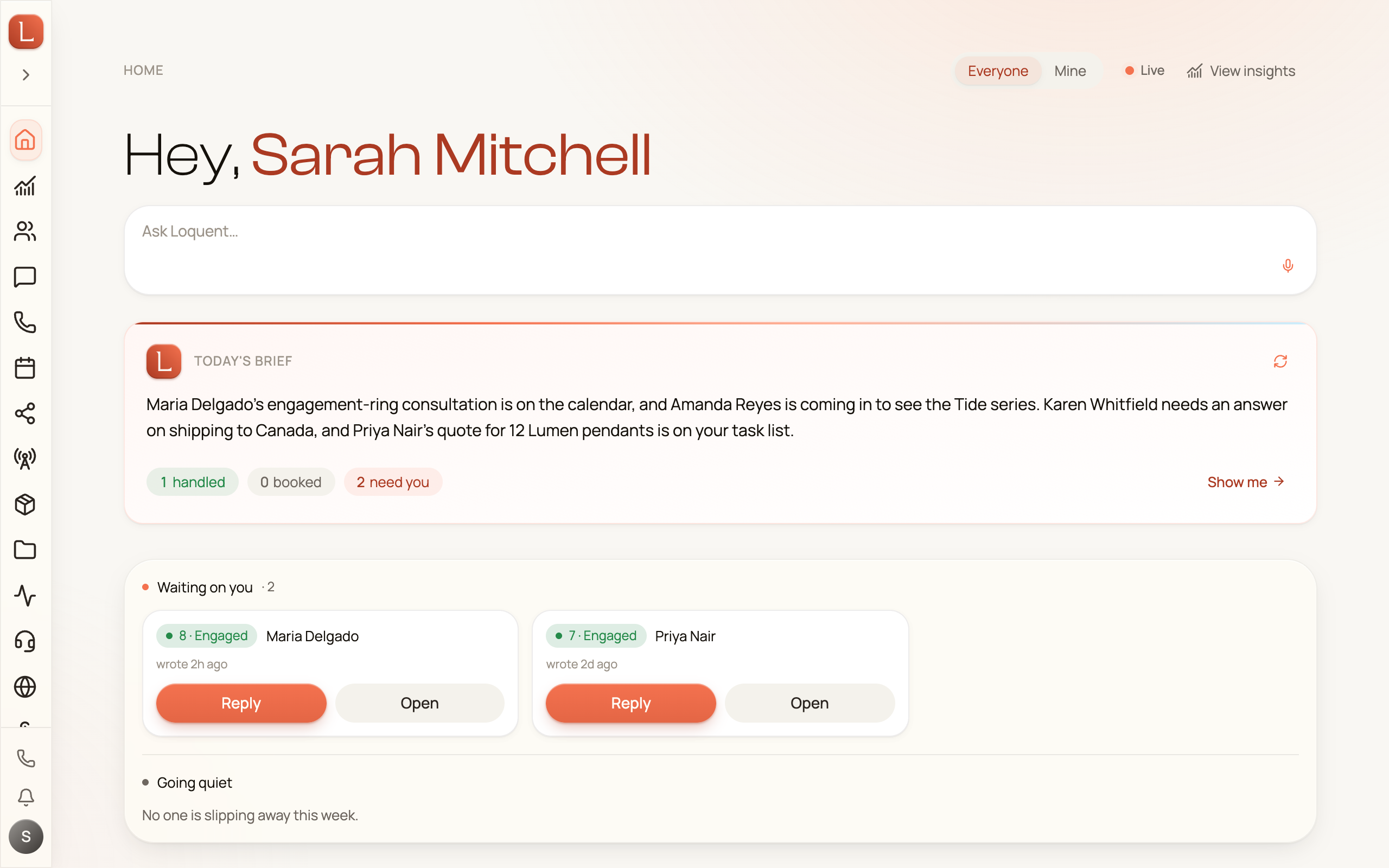
Section titled “Ask for anything, right from Home”Right under the greeting is a box that reads Ask Loquent…. Type what you want in plain words, or tap the microphone and say it, then send. Your assistant opens on a fresh conversation with your request and gets to work, the same assistant you can open from any screen: see Ask for anything, anywhere.
The brief at the top
Section titled “The brief at the top”Below that box sits a short paragraph your teammate writes for you, headed Today’s brief — plain language, no jargon: what your team handled, what’s booked, and what needs your attention. It’s written once early each morning, in your business’s own timezone; the small circular arrow on the right re-writes it whenever you want a fresher read.
The counts below it are different — they’re recalculated every time Home loads, as are the bands further down. So a new draft can push need you up while the paragraph above still reads the way it did at breakfast. That’s expected, not a fault.
Below the paragraph are three count chips that distill the day at a glance:
- handled — the work your team took care of on its own in the last 24 hours.
- booked — the follow-ups and tasks your team set up, same 24 hours.
- need you — the number of items waiting on your approval or answer.
Those first two cover only a day, so they can read lower than the longer feed further down.
When something needs you, a Show me link appears on the brief and jumps you straight down to the band below.
If Home can’t refresh for a moment, it keeps the last good read on screen and prints Couldn’t refresh — showing the last update. above the bands instead of going blank; if it can’t load at all, you get a retry.
The “What needs you” band
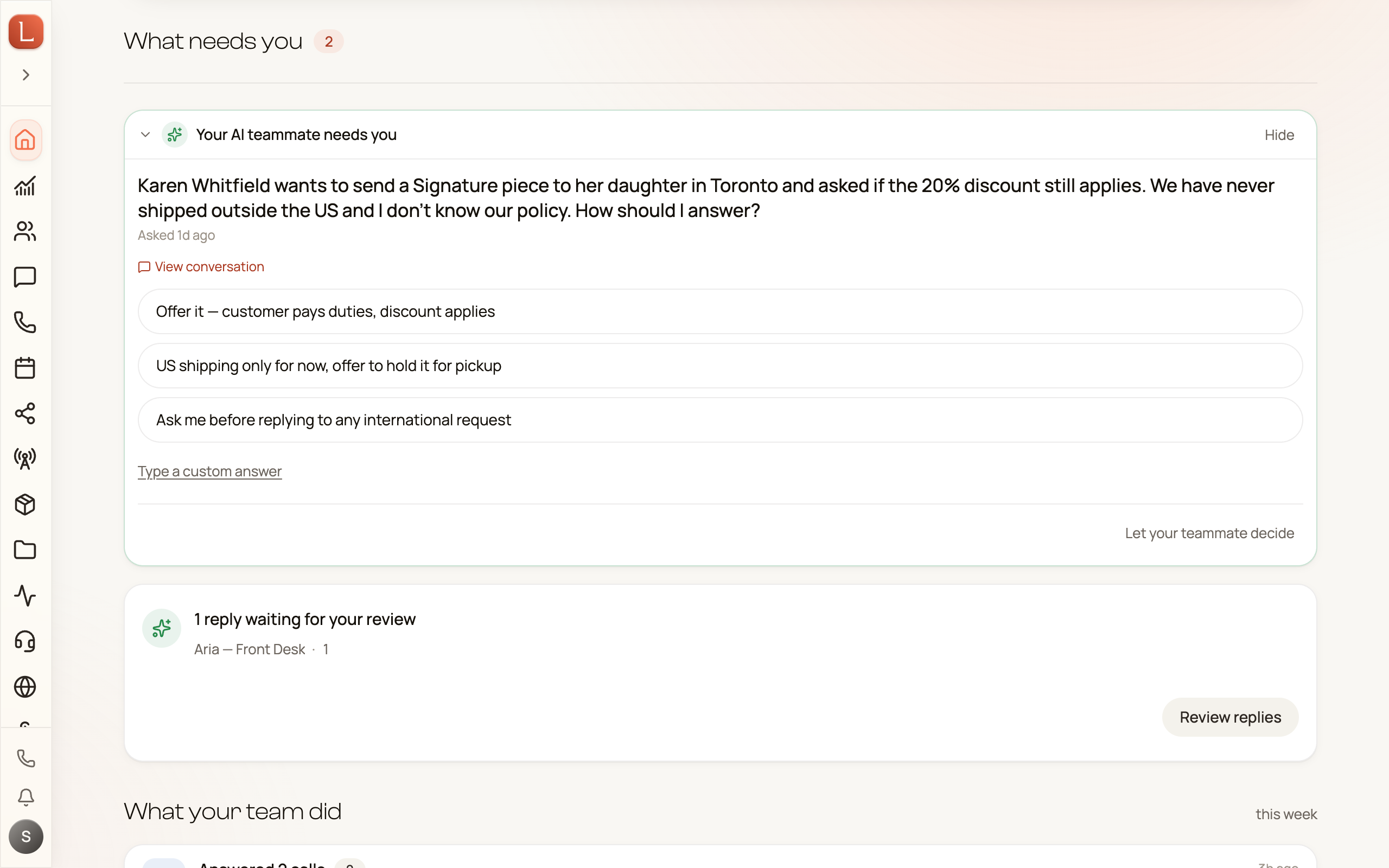
Section titled “The “What needs you” band”This is the heart of Home — the one place that answers “what needs me right now.” When your role includes access to your team, a small count next to the heading tells you how many items are waiting.
Two kinds of things surface here:
- Questions from your team. When a teammate isn’t sure how to proceed, it asks — and you answer right there in the band, without leaving Home. This half needs a role with access to your team.
- Replies waiting for your review. A card sums up the drafts your team has written but not sent (Suggest is the default — nothing goes out until you approve it). Review replies takes you to your conversations to read, edit, and send. Everyone who can open Home sees this card.
When there’s nothing outstanding, the band simply reads Nothing needs you right now.
If your role doesn’t include access to your team, the band says so — Escalations are hidden for your role — ask your organization owner for access to your AI teammates. — and shows only the replies card, with no count beside the heading. It never claims nothing needs you when it can’t see half the picture. The need you chip up top still counts everything, so it can read higher than this band shows.
What your team already handled
Section titled “What your team already handled”The next section — labeled What your team did in the app — is a plain-language feed of the work your team took care of: calls answered, messages replied to, follow-ups made. It’s your record of everything that happened without needing you. Small grey text to the right of the heading names the stretch you’re looking at, usually this week. Before your team has done anything, it reads Nothing yet. Work your team finishes shows up here.
If you’re technically curious, a Technical logs (for developers) row at the bottom expands into the raw detail. It stays closed until you open it, so Home loads quickly. Most days you’ll never open it.
What’s scheduled next
Section titled “What’s scheduled next”The What’s next band lists the next ten upcoming actions your team has scheduled — a follow-up planned for tomorrow, a check-in later this week. Each row has an Adjust link that opens that teammate so you can change the timing or the instruction. A row whose exact time isn’t worked out yet simply reads Scheduled. With nothing on the books it reads Nothing scheduled. Scheduled work for your team shows up here. This is scheduled work only; it never means an appointment with a Contact.
Everyone vs. Mine
Section titled “Everyone vs. Mine”At the very top of Home is a small toggle: Everyone and Mine. It changes whose work you’re looking at.
-
Everyone shows the whole business — the work your team handled, and every reply waiting on anyone.
-
Mine narrows those two to your own slice: the work that is yours, and the replies waiting on you.
The toggle doesn’t move everything. Questions from your team and the What’s next schedule are always whole-business, whichever side you pick — so a question can stay on screen under Mine.
New to all this? Start with Meet your AI team, or read how drafts, approvals, and escalations work.