
A teammate's home page
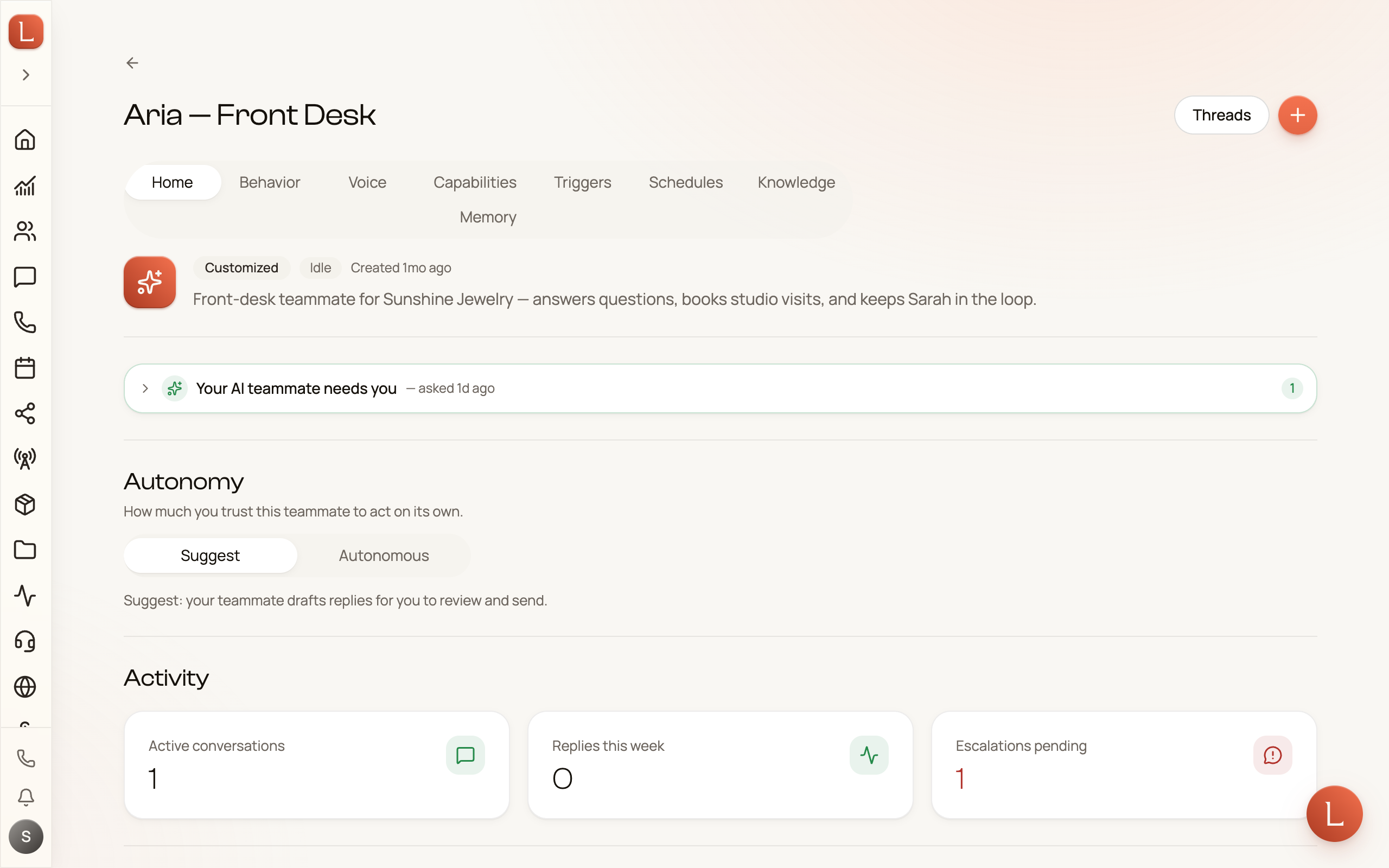
Open any teammate from Teammates in the sidebar and you land on its Home tab — the control room for that one AI teammate. It answers three questions at a glance: is anything waiting on me, how’s this teammate doing, and how much do I trust it to act on its own.
The top: who this is, and what it’s doing
Section titled “The top: who this is, and what it’s doing”At the top sits the teammate’s name and a live status pill — a coral Running while it’s working on something, a calm Idle when it’s not. It’s the same signal you’d get glancing at a colleague’s desk.
Questions waiting for you
Section titled “Questions waiting for you”If the teammate has questions waiting for you, they come first, right under the top, in one calm card headed “Your AI teammate needs you” — answer them without opening a single conversation. (How to work that queue is covered in answering your teammate’s questions.) With nothing to answer, the card isn’t there.
The autonomy dial
Section titled “The autonomy dial”Next is the most important control on the page: Autonomy, described as how much you trust this teammate to act on its own. It’s a two-way switch.
- Suggest — the default. The teammate writes drafts for you to review and send. Nothing reaches a Contact without your approval.
- Autonomous — the teammate sends replies as real messages to Contacts, without your review.
Switching to Autonomous is deliberate: you’ll get a confirmation first, spelling out that the teammate will start sending real messages on its own. You can dial it back to Suggest any time: one tap, with nothing to confirm. This is the trust dial in full — read Suggest vs. Autonomous, where a short video shows the switch and the way back, before you turn it up.
Activity
Section titled “Activity”Under Activity, three cards give you the pulse of this teammate: Active conversations, Replies this week, and Escalations pending. When there are questions waiting, that last number is tinted to catch your eye.
The setup checklist
Section titled “The setup checklist”Setup health is a short checklist — what’s left to get this teammate fully set up. Each row is either done (a coral check, struck through) or still open, and tapping an open row jumps you straight to where you fix it:
-
Persona written and Goals set — the character and objectives that shape how the teammate works. Tap through to the Behavior tab.
-
Answers a channel and Schedules configured — where the teammate’s work comes from. Tap through to Triggers.
-
Knowledge connected — the facts it can draw on, on the Knowledge tab.
-
Reply mode chosen — whether it’s on Suggest or Autonomous, set right here on Home.
Work down the list and the teammate is ready for real work.
The rest of the room
Section titled “The rest of the room”Further down, a few more controls live on Home:
- Escalations — a switch, Notify me when this teammate needs a decision. On, its questions ping you in-app and on your phone; off, it still records them quietly on the conversation.
- New leads — toggles to have the teammate reach out first, by text or email, when a new Contact submits one of your forms.
- Model and thinking — fine-tuning for how this teammate reasons, including Thinking, covered below.
- A Delete this teammate action at the very bottom, in its own marked-off danger zone.
Thinking
Section titled “Thinking”Near the bottom of Home, under Model and thinking, sits Thinking — how carefully this teammate weighs an answer before sending it. Change it and it applies from the teammate’s very next reply:
- Auto — leaves the choice to the teammate itself.
- Off — answers right away, with no pause to weigh it over. The fastest, cheapest choice.
- Light — takes one quick beat before answering. Barely any wait.
- Balanced — weighs things a little more before answering. A solid everyday choice once a reply takes a few steps to get right.
- Deep — really thinks it through before answering. Slower, but worth it for a quote or a tricky objection.
Not every teammate can be dialed the same way — some always think things through, some can’t at all — so Thinking only ever offers the choices that one can actually do.
Adjust per trigger
Section titled “Adjust per trigger”Open Adjust per trigger to set Thinking differently for three different moments, instead of one setting for everything:
- Your console — you’re reading the reply live, so this is where Deep pays off most.
- Inbound messages — a Contact is waiting on the other end.
- Scheduled runs — nobody’s waiting, so this is a good place to let the teammate take its time.
Leave a row on Default and it just follows the main Thinking setting above. Voice calls don’t think yet — Thinking only shapes replies your teammate writes.
To give this teammate a job or tune how it behaves, chat with it in a thread.