
Autonomy: Suggest vs. Autonomous
Every AI teammate has a trust dial. It decides one thing: when your teammate has a reply ready, does it wait for you, or does it send on its own? You set that level, you can see it at a glance, and you can change it any time.
The dial has two settings — Suggest and Autonomous — and Suggest is where every teammate starts.
Suggest — the safe default
Section titled “Suggest — the safe default”On Suggest, your teammate does all the thinking and none of the sending. It reads the conversation, writes a reply, and hands it to you as a draft. Nothing reaches your Contact until you approve it.
This is the default for a reason. You get the speed of a teammate that never sleeps, without ever wondering what went out in your name. You read the draft, tweak a word if you like, and send — or you skip it. Your edits also teach the teammate what you sound like over time.
Suggest doesn’t stop you from sending, though. Ask your assistant — Ask Loquent — to text or email a Contact whose teammate is on Suggest, and it hands you a confirm card with the message as written; tap the button and it goes out. That request used to go nowhere, so if you remember your assistant saying it couldn’t send, try it again. The guarantee is untouched: on Suggest the message only leaves when you tap the button. Your teammate cannot skip the card.
See Drafts, approvals, and escalations for how drafts reach you and how you send them.
Autonomous — when you’re ready to hand over
Section titled “Autonomous — when you’re ready to hand over”When a teammate has earned your trust, you can move the dial to Autonomous. Now, when it’s confident, it replies to your Contacts directly.
Sending is the default — but not the only outcome. Your teammate is told to bring you the replies that carry real weight: one about a price or a quote, a commitment or a booking, a refund or a complaint, or one it isn’t sure of, should come to you as a draft first. That’s guidance it weighs reply by reply, not a hard rule — one more reason to watch its drafts before you turn Autonomous on. A conversation that has started running unusually fast — a rapid back-and-forth, or more than forty replies in an hour — is different: Loquent pauses sending there, leaves drafts, and asks you to look, which is how it stops a teammate trading messages with someone else’s auto-responder — see Drafts, approvals, and escalations.
This is a deliberate choice, so Loquent asks you to confirm it. The moment you tap Autonomous, it asks Enable autonomous replies? and spells out exactly what changes: the teammate will send real messages to your Contacts automatically, without you reviewing them first. Tap Enable autonomous and it’s on, or Cancel to stay on Suggest.
And it’s never a one-way door. One tap on Suggest moves the dial back, and it saves right away, with nothing to confirm. Your teammate returns to drafting for your approval.
How to change the dial
Section titled “How to change the dial”-
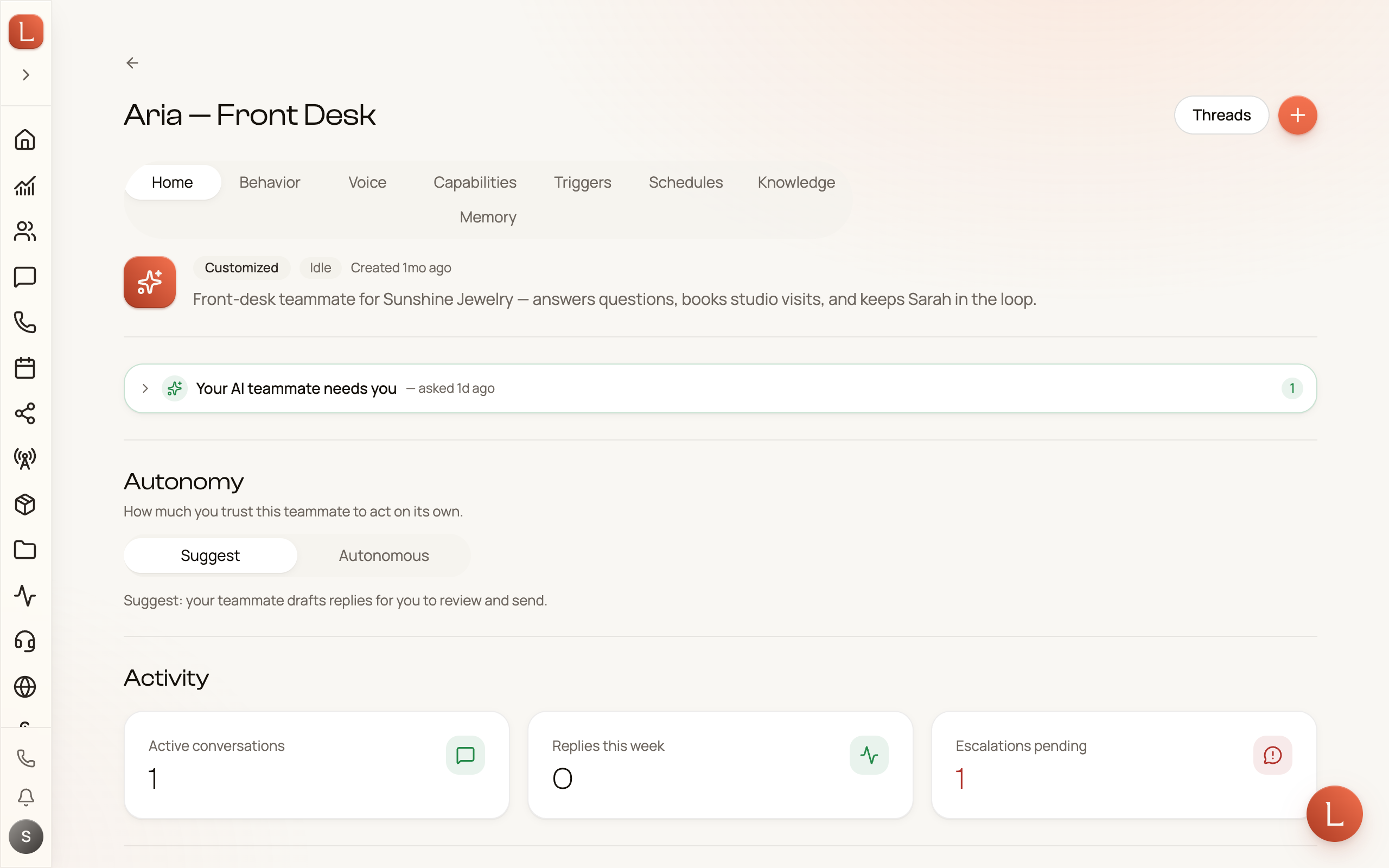
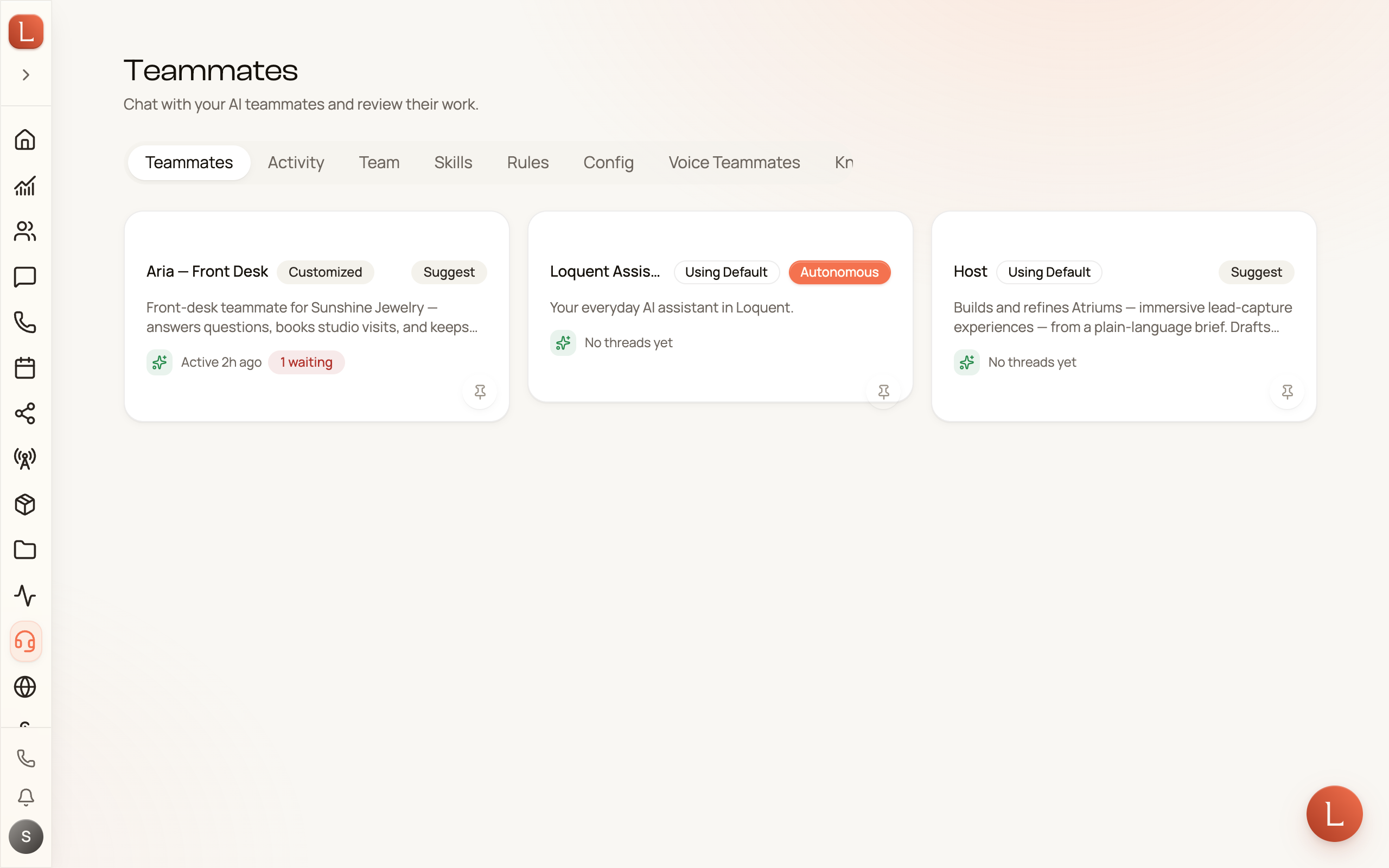
In the sidebar, open Teammates. Each teammate’s card shows whether it’s on Suggest or Autonomous.
-
Open the teammate you want to adjust. Its Home tab shows the Autonomy control near the top.
-
Tap Suggest or Autonomous. Switching to Autonomous asks you to confirm first; switching back to Suggest takes effect right away.
Overriding autonomy for one Contact
Section titled “Overriding autonomy for one Contact”The dial you just set applies to every conversation that teammate handles. But some people are different — the client you always answer personally, or the regular you’d happily let your team handle alone. So you can override autonomy for a single Contact.
Look for the pill in the header of the Contact’s profile — open it from Contacts — or in the header of their conversation, which saves you a trip. It reads Default until you change it, meaning that Contact simply follows your team’s dial. Tap it and you get three choices, for that one person only:
- Off — your team is paused for this Contact. No replies, no drafts, nothing raised for you. Their messages and calls still reach you in Loquent; your team just stays out of the way.
- Suggest — drafts only for this Contact, even if the teammate’s own dial is set to Autonomous.
- Autonomous — replies go out on their own for this Contact, even if the teammate is otherwise on Suggest. One thing still outranks it: if you (or anyone on your team) reply to this Contact by hand, your teammate drops to drafting for them until you hand the conversation back or about twelve quiet hours pass. That governs what your teammate decides on its own — a message you ask your assistant for by name still goes out, once you confirm the card. See Who’s replying to a Contact.
Whatever you pick here wins over the teammate-wide dial — for this Contact, and nobody else. So you can pause your team for one high-touch client while it keeps working for everyone else, or let it answer one long-time regular directly while the rest of your Contacts stay on Suggest.
Once set, the pill shows where that Contact stands at a glance — Paused, Suggest, or Autonomous. Off and Suggest take effect the moment you tap them. Switching a Contact to Autonomous asks first, exactly like the teammate-wide dial: Switch to autonomous for this contact? spells out that replies to that Contact will go out automatically, without your review, and Enable autonomous turns it on. And Reset to team default puts them back on whatever your teammate is set to.
The same panel also has a control labeled Responding teammate — pick a specific teammate to handle this Contact instead of the one that normally covers the channel they write in.
See A Contact’s profile for the rest of what lives on that page.
Autonomy vs. capabilities — not the same thing
Section titled “Autonomy vs. capabilities — not the same thing”It’s easy to mix these two up, so here’s the difference in one line.
- Capabilities are what a teammate is allowed to do — answer texts, read your product catalog, look up a Contact.
- Autonomy is how far it can go without you — draft only, or send on its own.
A teammate can have every capability in the world and still be on Suggest, so nothing leaves without your nod. Capabilities decide the toolbox; autonomy decides whether it acts alone.
Why the safe default wins
Section titled “Why the safe default wins”New teammate, Suggest mode — always. You see its work before your Contacts do, you shape its voice by editing a few drafts, and only when you’re comfortable do you hand it the keys. Trust is something you grant on purpose, and take back just as easily.
Next, learn how drafts, approvals, and escalations reach you in Drafts, approvals, and escalations, or step back to the big picture in Meet your AI team.