
Review and send your teammate's drafts
When a Contact texts, emails, or messages your business, your AI teammate writes a reply and holds it for you. This is the default everywhere in Loquent — the teammate drafts, you approve and send. Nothing reaches your Contact until you say so. This page is where that approval happens: right inside the conversation, under the message it answers.
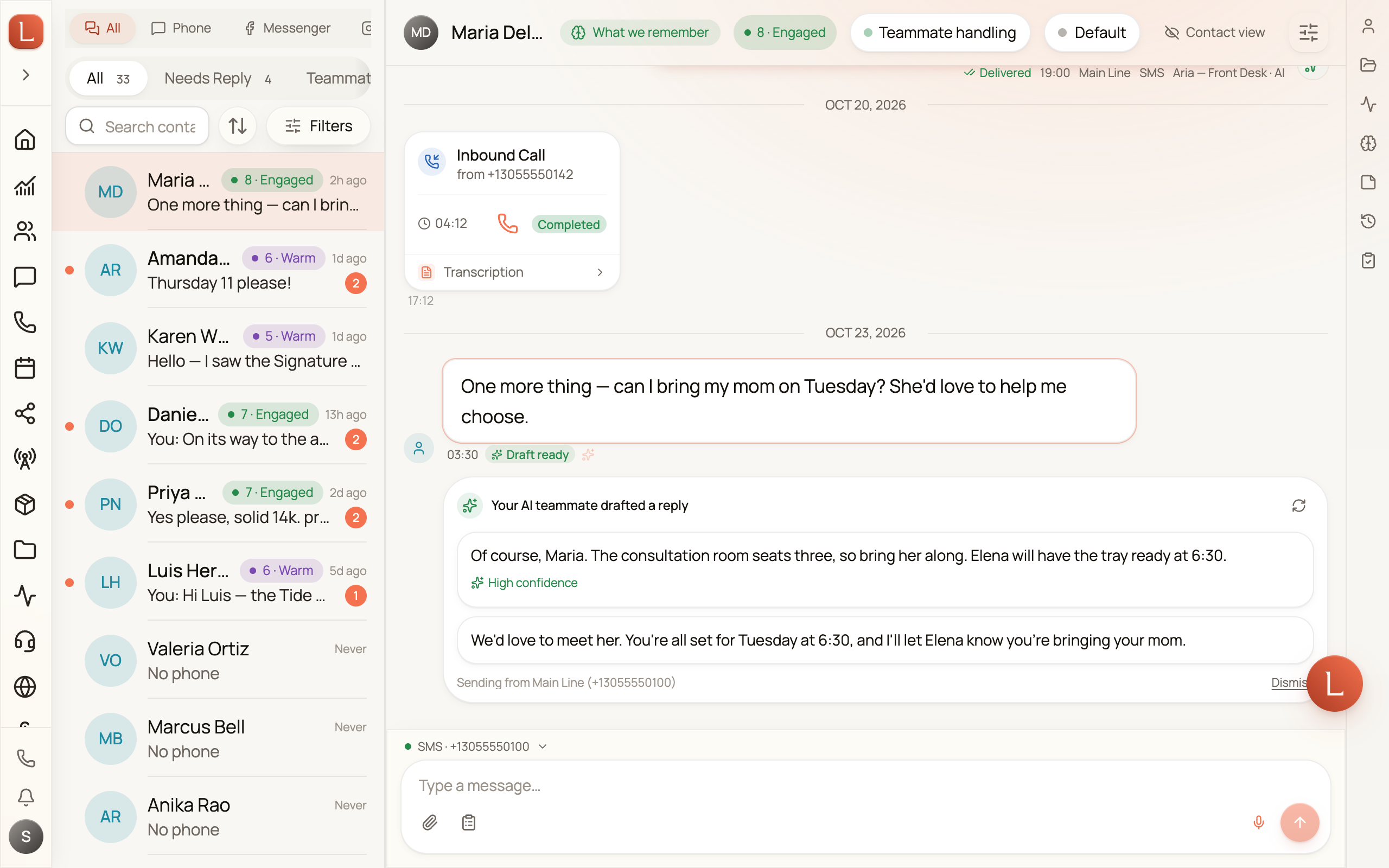
Where drafts appear
Section titled “Where drafts appear”Open a conversation that has a new message from a Contact. Just below it you’ll see a small card headed Your AI teammate drafted a reply — one or more full replies your teammate has prepared. Each is a complete answer you could send as-is.
If the teammate is especially sure of one, it carries a quiet High confidence hint. It’s a nudge, not a rule — read them all and pick the one that fits.
Pick, edit, send
Section titled “Pick, edit, send”-
Read the options. Your teammate may offer more than one. They’re stacked so you can compare at a glance.
-
Tap the one you like. It drops straight into the compose bar below, ready to go.
-
Edit anything you want, then send. The compose bar shows exactly which number or address you’re sending from.
Not quite right? Tap the circular Regenerate arrow for a fresh set, or Dismiss to close the drafts and write your own from scratch. If the teammate couldn’t come up with anything, the card simply reads Your teammate didn’t draft any replies.
Your edits teach your teammate
Section titled “Your edits teach your teammate”Here’s the part that pays off over time. When you tweak a draft before sending — softening a line, adding a detail, fixing a name — that edit is a signal. Your teammate learns your wording and your judgment, so the next draft needs less from you. Dismiss a draft you didn’t like and that’s a signal too.
Approve enough replies unchanged and you may decide to let your teammate send on its own. That’s the autonomy dial, and it’s always your choice — see autonomy: Suggest vs. Autonomous.
Suggest is the default
Section titled “Suggest is the default”Unless you’ve explicitly switched a teammate to Autonomous, every reply is a draft — it waits for your tap. A teammate never sends a message to a Contact behind your back. That’s the whole promise of Suggest mode: your team does the writing, you keep the send button.
For the bigger picture of how drafts fit alongside the questions your team asks you, read drafts, approvals, and escalations. To send a message from scratch instead, see reply yourself.