
Daily reports
A daily report is a short, plain-language summary of the previous day — written by your AI teammate and delivered each morning. Instead of opening five screens to see how yesterday went, you read one email over coffee. You choose what it draws on and who receives it.
Find past reports under Activity in the sidebar, on the Reports tab. Turning them on happens once, in Settings.
Turn on daily reports
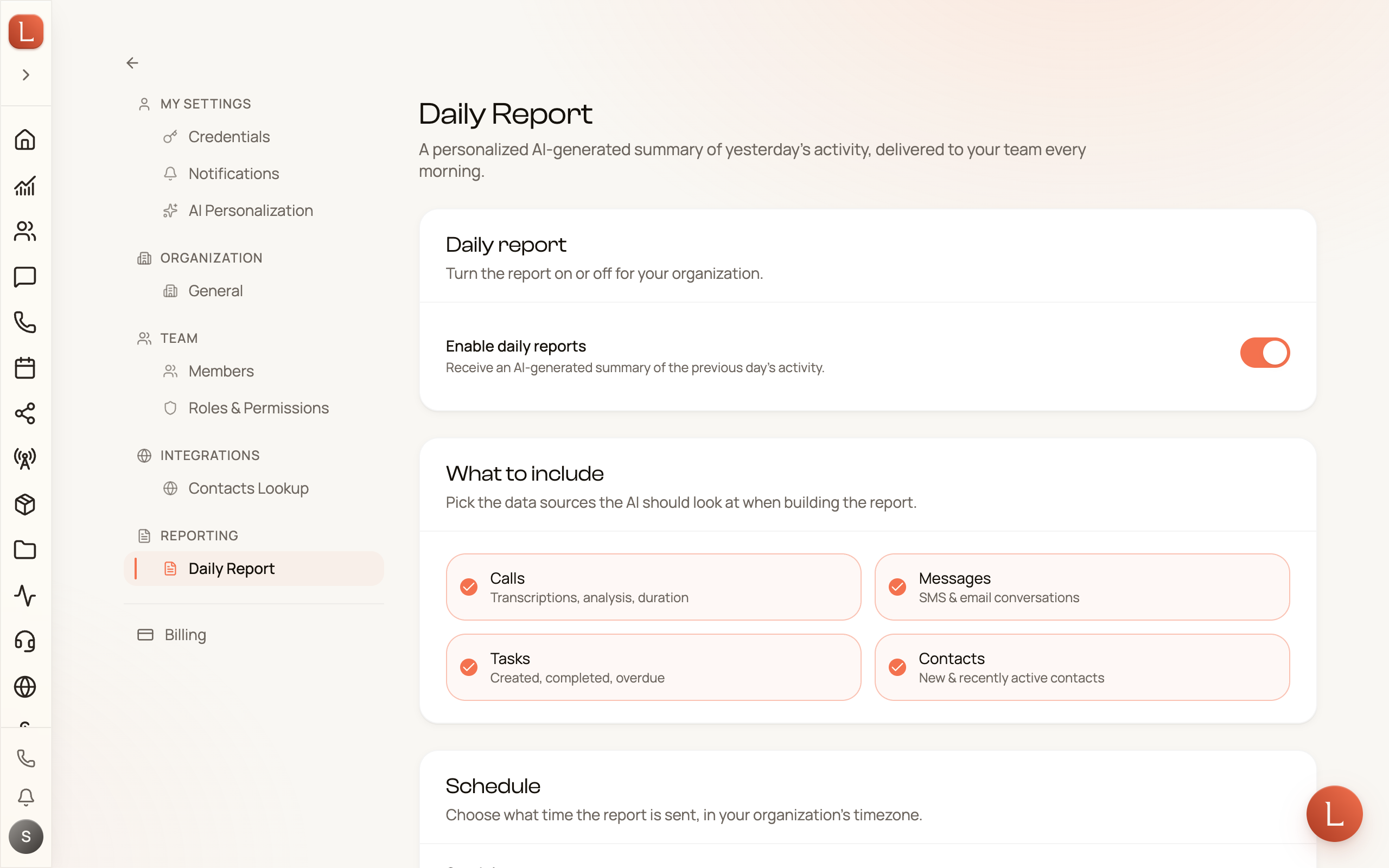
Section titled “Turn on daily reports”Open My Settings → Daily Report (a “No reports yet” screen on the Reports tab links you straight there with an Open Settings button).
-
Enable daily reports. Flip the Enable daily reports switch on to start receiving the morning summary.
-
Pick what to include. Under What to include, toggle the data your teammate should look at: Calls, Messages, Tasks, and Contacts. Leave off anything you don’t want in the write-up.
-
Choose a send time. Under Schedule, set the Send time — the hour it goes out, in your organization’s timezone.
-
Choose who gets it. Under Recipients, tick the people on your team who should receive the report each morning.
-
Save. Tap Save settings.
Make it sound like you
Section titled “Make it sound like you”The Customize the report box lets you shape the summary in plain language — no settings to hunt through. Describe what you care about (“Highlight callers who need a follow-up, skip the trivial stuff”) and your teammate writes to that. Leave it empty and it uses a sensible default.
Read past reports in the app
Section titled “Read past reports in the app”Every report your team sends is also kept in the app. Open Activity → Reports for the full list, newest first, and tap any one to read it.
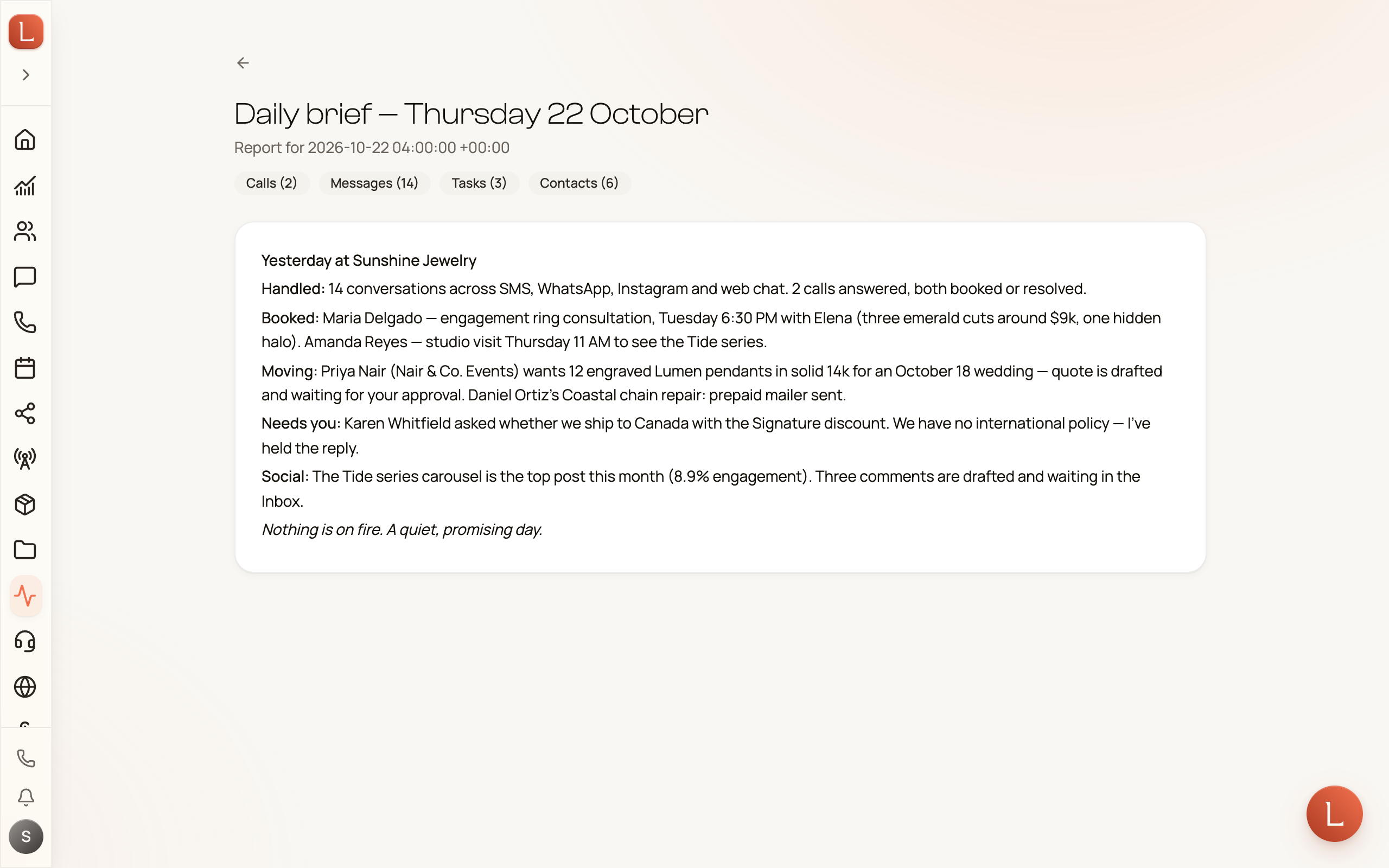
A report opens with the date it covers and a row of badges — Calls, Messages, Tasks, Contacts — each showing how many of that item fed the summary, so you can see at a glance what kind of day it was before you read a word.
New to the daily rhythm? Your Home page and daily brief is the live, in-app version of the same idea, and Insights is the longer-range view of how business is trending.