
Tasks and follow-ups
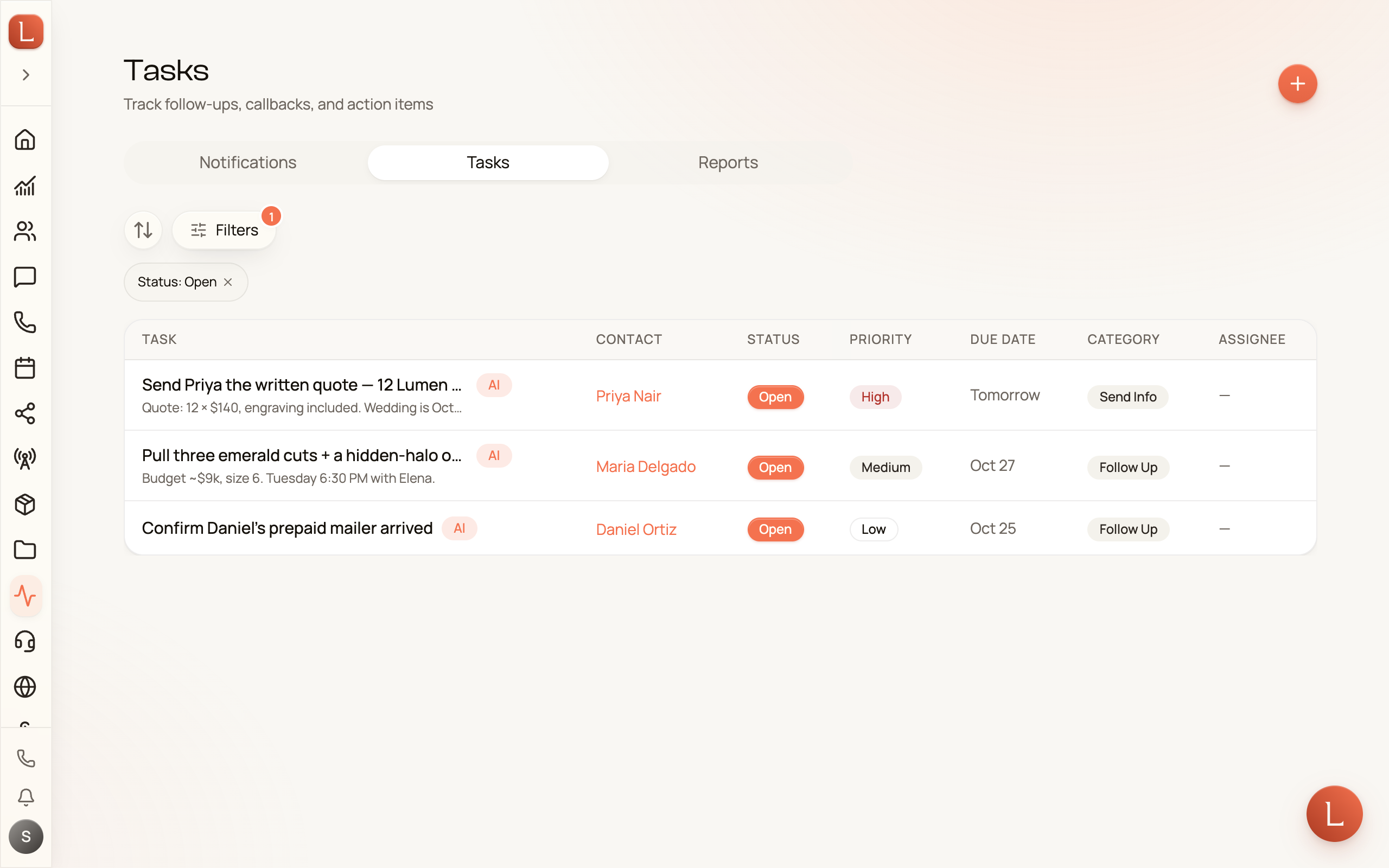
Tasks are the follow-ups that keep things from slipping — call Dana back, send Marcus the quote, check in after the open house. It’s one shared list for two kinds of to-dos: the ones you add yourself, and the ones your AI teammate raises for you after a call. Nothing lives only in someone’s head.
Open Activity → Tasks in the sidebar to see the list.
Add a task
Section titled “Add a task”Tap New Task in the top-right and give it a title, a Contact, and whatever else fits — a category, a priority, a due date, and who it’s for. It drops onto the shared list right away.
Tasks your team raises for you
Section titled “Tasks your team raises for you”Here’s the part that saves you: after a call, your teammate can spot the follow-up and add the task itself. Those show up on the same list, marked with a small AI badge so you know where they came from — and many link straight back to the call that prompted them, so the context is one tap away.
Filter down to what matters
Section titled “Filter down to what matters”The filter row above the list narrows it fast. Tap Filter and set any of:
- Status — Open, Done, or Dismissed (the list opens on Open).
- Category — Follow Up, Callback, Send Info, Meeting, or General.
- Source — Manual (added by a person) or AI (raised by your team).
- Due Date — a time window for what’s coming up.
You can also sort by Newest First or by Due Date. On a phone, swipe a task to mark it done or clear it without opening it.
Open a task
Section titled “Open a task”Tap any task to see the whole picture and act on it.
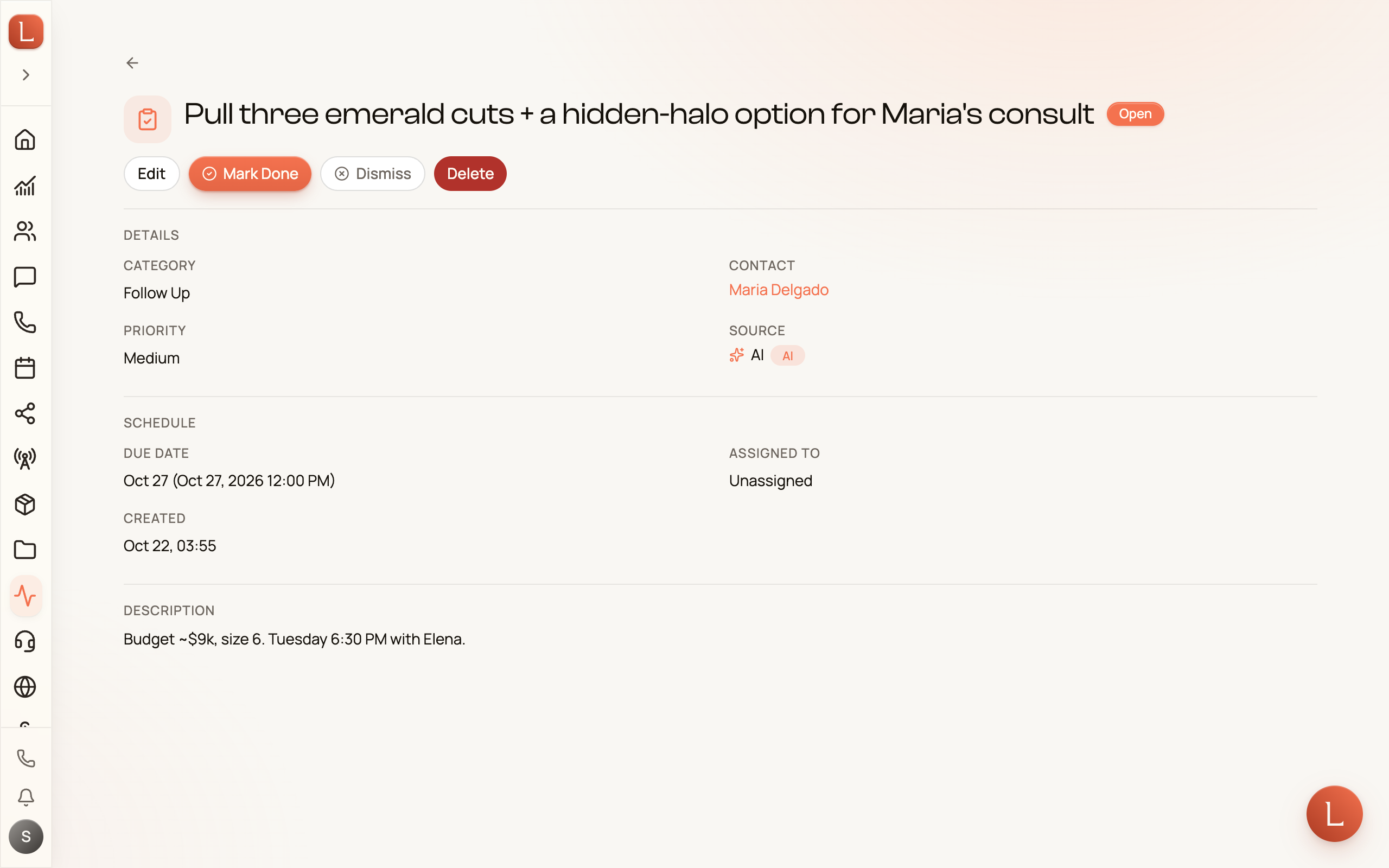
The detail lays out everything at a glance — the Contact it’s tied to (tap through to their profile), the Category and Priority, whether it’s Manual or AI, and, for team-raised tasks, a View Call link to the conversation behind it. A Schedule section shows the Due Date, who it’s Assigned To, and when it was created.
Across the top you’ll find the actions:
- Mark Done when it’s handled.
- Dismiss to clear one that no longer needs doing.
- Reopen to bring a closed task back.
- Edit to change any detail, or Delete to remove it entirely.
Because tasks tie back to a Contact, they show up in that person’s history too — read how records connect in Contacts, conversations, and channels. And when your teammate needs a decision rather than a to-do, that arrives as an escalation — see drafts, approvals, and escalations.