
Your inbox
Open Messaging from the sidebar and you’re looking at your inbox — one list of every Contact you’re talking to. New texts, emails, web chats, and social messages all land here, so this is the screen to open when you want to know who’s waiting. Your AI teammate handles the first reply; this is where you review and stay in the loop.
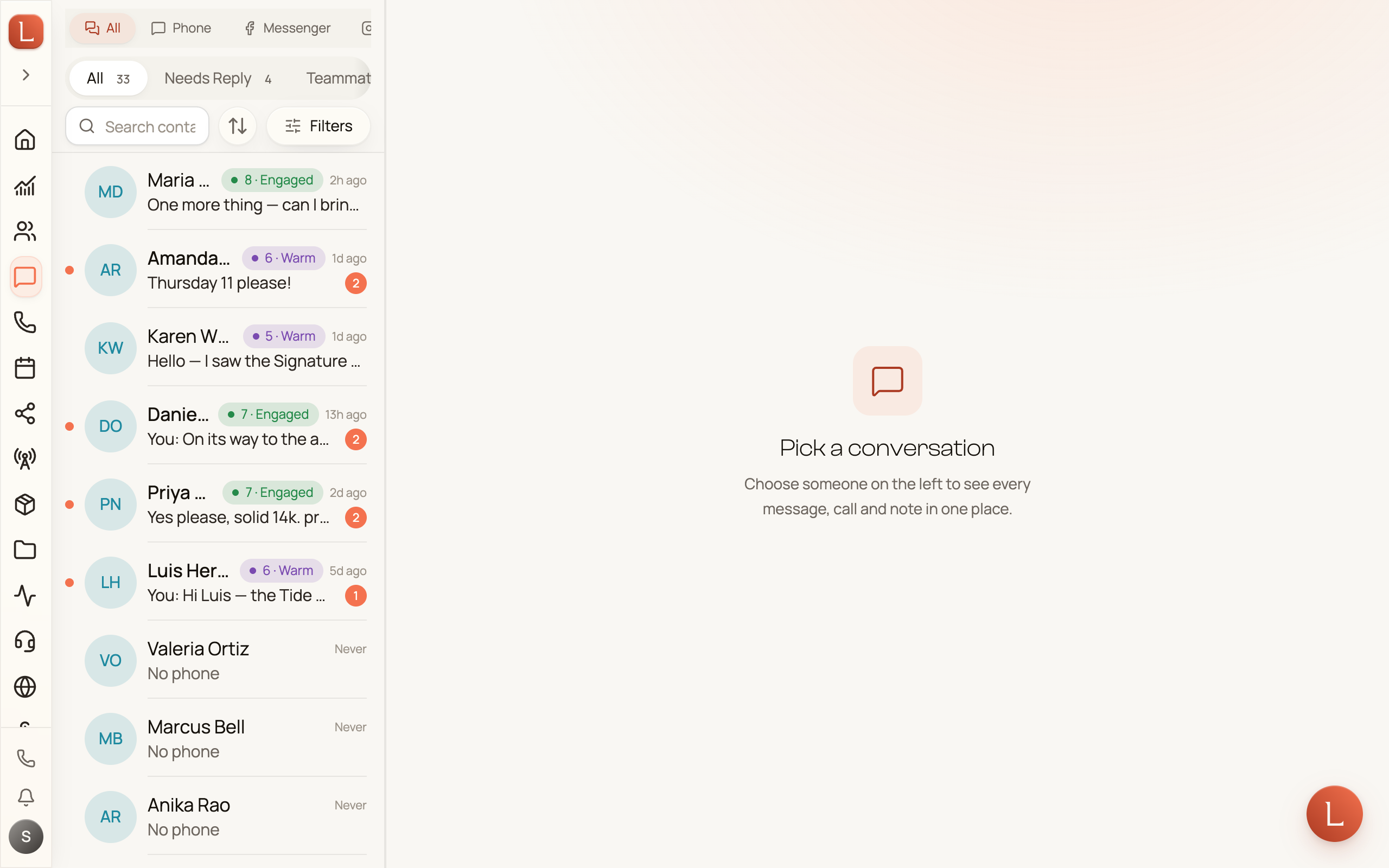
Choose a channel
Section titled “Choose a channel”The row at the top is your quickest inbox lens: All, Phone, WhatsApp, Messenger, Instagram, Email, and Web Chat. Loquent shows only the channels your business has connected, and hides the row when there is only one connected channel.
Choose a channel and the whole inbox follows it — the Contact list, the tab counts, and the message preview on each row. The choice stays in the page address, so opening a conversation carries the same lens into that Contact’s thread.
Phone brings calls and texts together. If you have permission to filter by an individual business number, choose Phone first; the phone-line filter then lets you narrow that lens to one line. Moving back to All or another channel clears the line automatically.
The four tabs
Section titled “The four tabs”Across the top of the list sit four tabs that sort the same conversations by what they need from you:
- All — every Contact you have a thread with, newest activity first. The number beside the label is your total.
- Needs Reply — a Contact wrote to you and no one has answered yet. This is your “who’s waiting on me” list.
- Teammate replied — your AI teammate answered and nobody on your team has looked at it yet.
- Follow-up — a person on your team sent the last message and the Contact hasn’t answered.
The difference between the last two is who sent that last message: your teammate’s replies land in Teammate replied, yours in Follow-up.
Each tab shows a small count so you can see at a glance how much is outstanding. When Needs Reply is empty you’ll see All caught up! — No messages need a reply.
Unread at a glance
Section titled “Unread at a glance”A conversation with new messages carries a coral dot on the left and a count badge on the right. Each row also shows the last line of the thread — with You: in front when the last message went out from your side — plus how long ago it happened. When the newest activity in a thread is a Contact’s reaction to your message, the preview reads Reacted 👍 to your message (or the emoji they sent). Open a conversation and it’s marked read automatically; the dot clears.
On a phone you can also swipe a row to reveal a Read action, so you can clear an unread without opening it.
Search and filter
Section titled “Search and filter”A Search contacts… box and a Filters button sit just under the tabs, so you can narrow the list without leaving the inbox. It’s the same panel the Contacts list uses, and it opens the same way: a General container first, then one collapsible container for each of your field groups that owns custom fields.
General holds the everyday filters — Status, Tags, Pulse, and Last Contacted — plus two more that are especially handy for a busy inbox:
- Assigned to — see only the Contacts assigned to a particular person on your team.
- Phone line — inside the Phone lens, show only the conversations on one business number. This keeps a shop line and a support line from blurring together.
Each container carries a small badge: muted, counting the filters available inside it, or coral once something is applied, counting what’s applied. Loquent remembers which containers you left open, and Reset all clears everything at once. The same panel is covered in more detail on browse and filter Contacts.
The tab you’re on and any filter you set are both remembered in the page address, so a bookmark or a shared link reopens the exact same view.
Opening a conversation
Section titled “Opening a conversation”Tap any row to open that Contact’s full thread. On desktop the list stays pinned on the left and the conversation opens beside it; on a phone the list hands off to the full-screen conversation, with a back chevron to return.
If you haven’t messaged anyone yet, the list reads No conversations — Send a message to a contact to start a thread.
Next: see how everything for one Contact comes together in one thread per Contact, or how your team’s drafts, approvals, and escalations reach you.