
Create a new teammate
Adding a new AI teammate to your business doesn’t mean filling out a settings form. You describe the job — the way you’d brief a new hire — and your Loquent Assistant builds it for you. It’s the same conversation-first way you direct the rest of your team, applied to growing it.
Find your Loquent Assistant
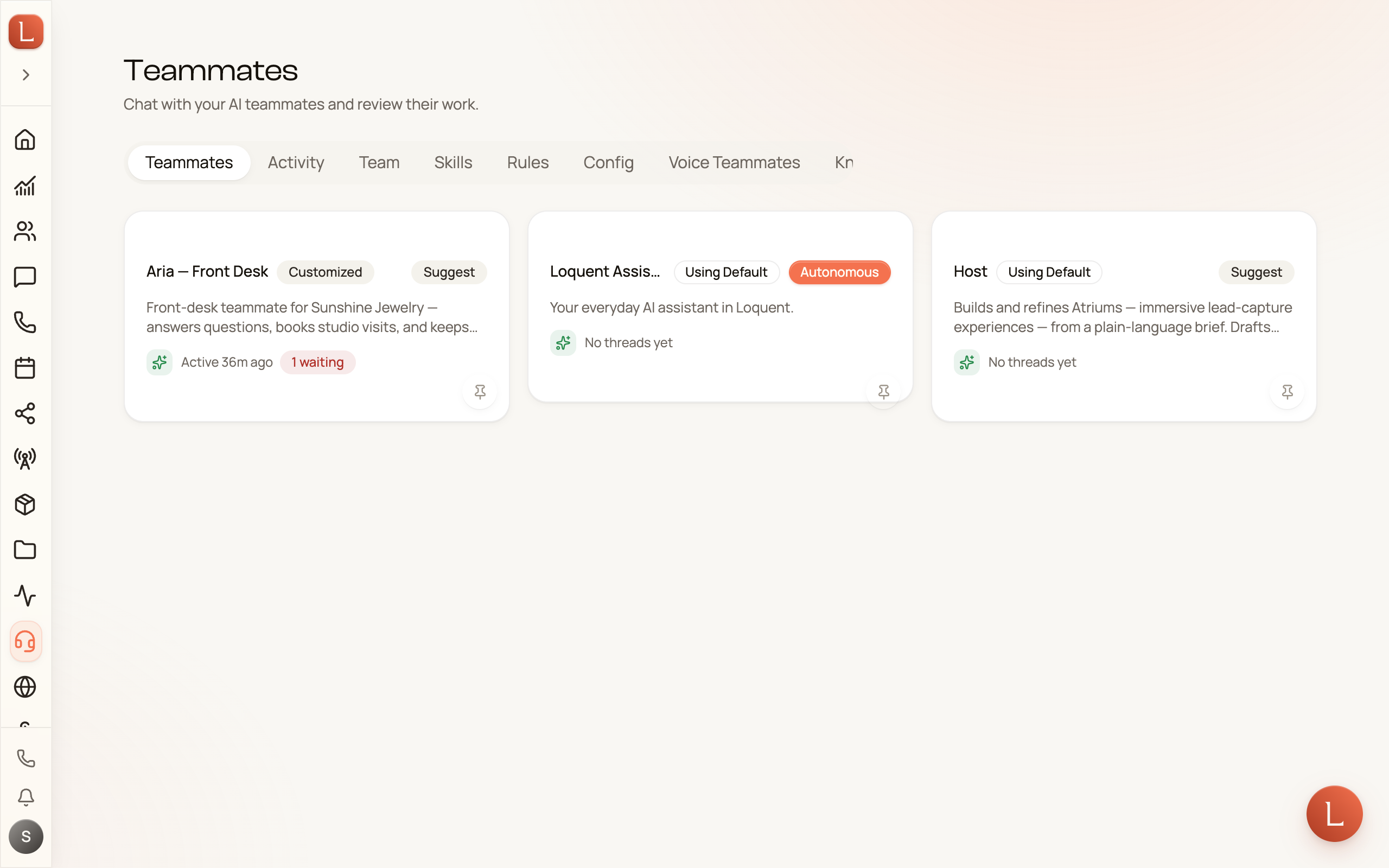
Section titled “Find your Loquent Assistant”Open Teammates from the sidebar — the page reads Chat with your AI teammates and review their work. Among the cards on your roster is the Loquent Assistant, Your everyday AI assistant in Loquent. It’s the same assistant that opens when you press Ask Loquent (see Ask for anything, anywhere), and it’s the teammate that creates and shapes your other teammates. It’s yours alone: each person who signs in to your account gets their own.
Describe the job
Section titled “Describe the job”Tap the Loquent Assistant’s card, start a New Thread, and tell it what you need — in plain words, no fields to fill. Ask Loquent works just as well, from any screen.
-
Say who you want. “I need a teammate to handle appointment reminders and reschedules” or “Create a teammate that follows up on quotes we’ve sent.”
-
Answer its questions. Your assistant asks what it needs to get the character right — the tone, the goal, who it talks to — and you answer in the same conversation. It checks the name, persona, and goals with you before it builds anything. No guessing on its part.
-
Let it build. It creates the teammate, gives it a persona and goals drawn from what you described, and tells you it’s ready.
Because you’re just talking, you can be as loose or as specific as you like. “Make it warm and never pushy” is a perfectly good instruction — your assistant turns your words into the teammate’s persona and goals.
Review what it built
Section titled “Review what it built”A new teammate arrives on Suggest — Loquent’s safe default. It drafts replies for you to approve and send; nothing reaches a Contact on its own until you decide to trust it further. So there’s no rush: you can look the new teammate over before it does a thing.
Open it and you’ll land on its home page — its control room — where a short setup checklist shows what’s left to get it fully ready, from its persona to which channel it answers. Read the persona and goals your assistant wrote, and if anything’s off, you fix it the same way you created it: chat with the teammate and tell it what to change.
Find it on your roster
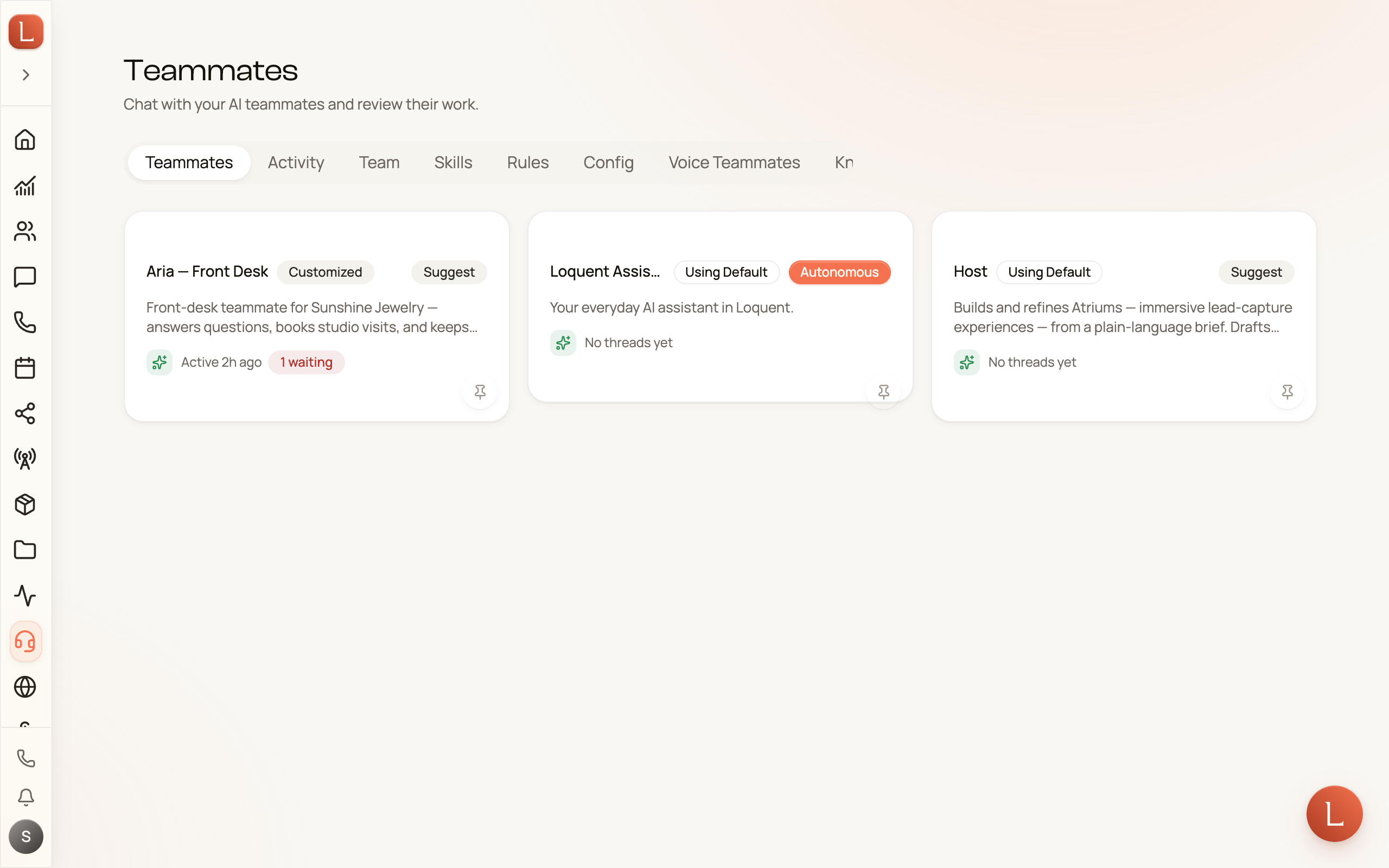
Section titled “Find it on your roster”The moment it’s created, the new teammate appears as its own card back on the Teammates page, alongside the rest of your team. It updates live — you don’t need to refresh to see it show up.
New to how your team fits together? Start with your team and your teammates, then come back and ask your assistant for your next hire.