
Create a Knowledge Base
Open Knowledge Bases
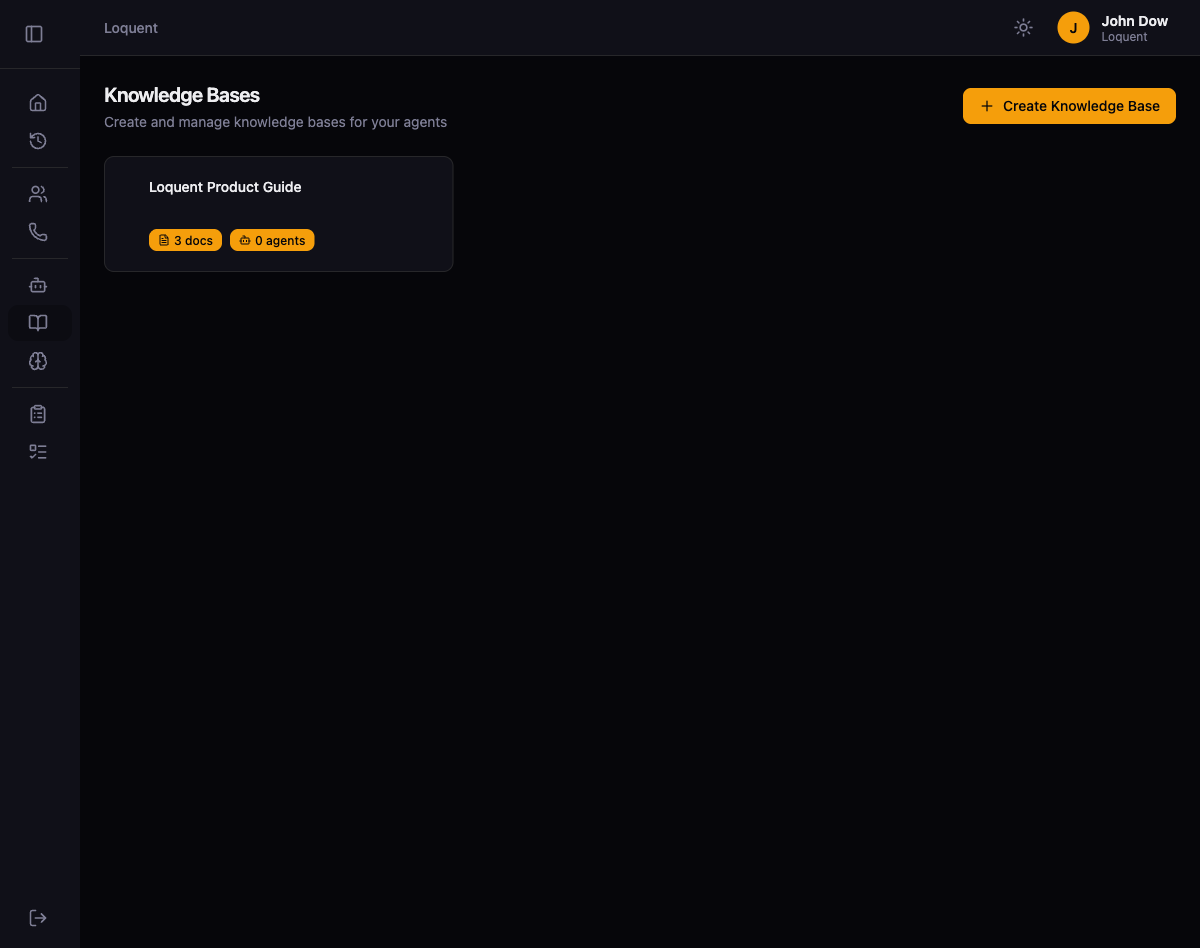
Section titled “Open Knowledge Bases”Click Knowledge in the sidebar. The Knowledge Bases page lists all knowledge bases in your organization. Each card shows the knowledge base name, the number of documents it contains, and how many agents are assigned to it.
Create a knowledge base
Section titled “Create a knowledge base”Click + Create Knowledge Base to open the creation form. Enter a descriptive title for your knowledge base — this is how you identify it when assigning it to agents later.
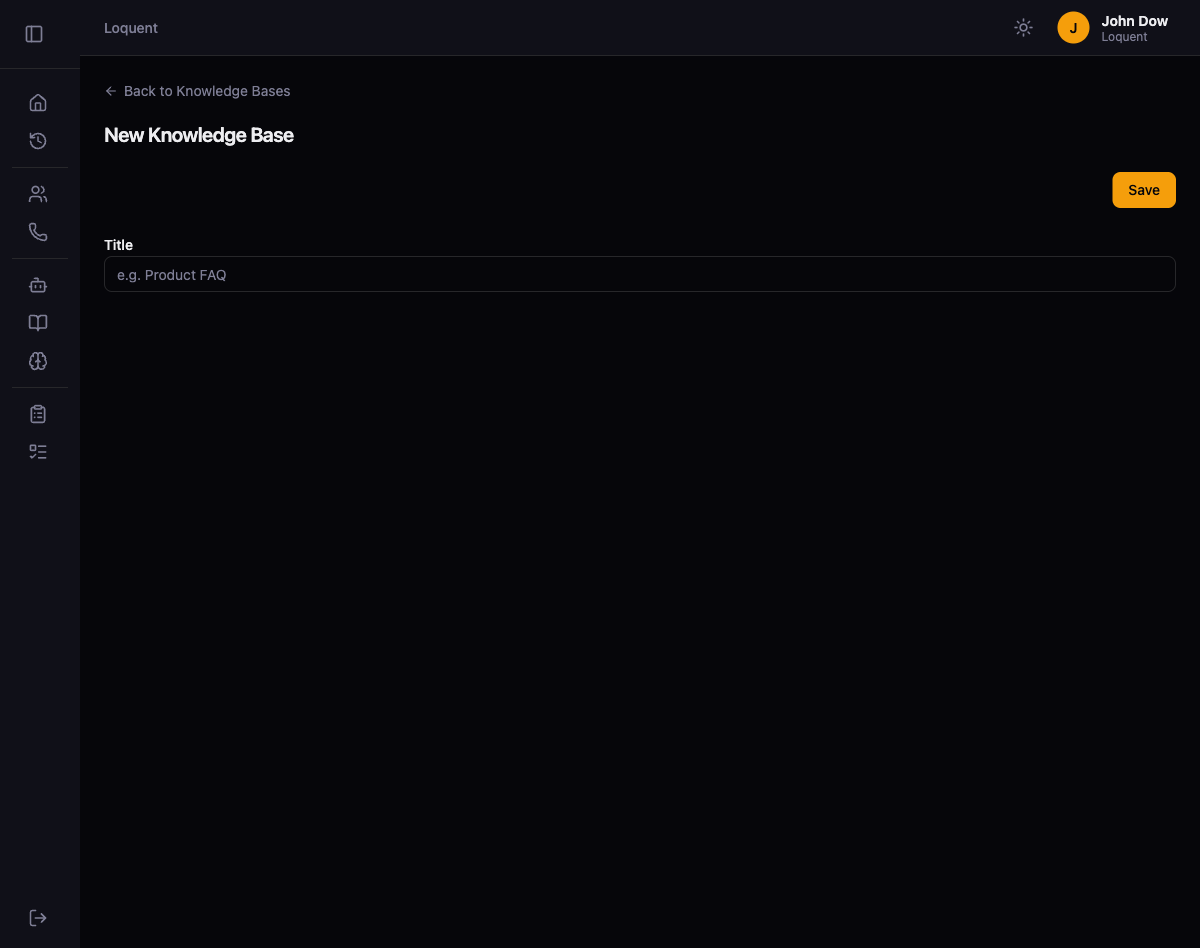
Click Save. Loquent creates the knowledge base and redirects you to the detail page where you can add documents.
Add documents
Section titled “Add documents”The Knowledge Base Details page shows the title, a list of documents, and the assigned agents section. Click + Add Document to open the document form.
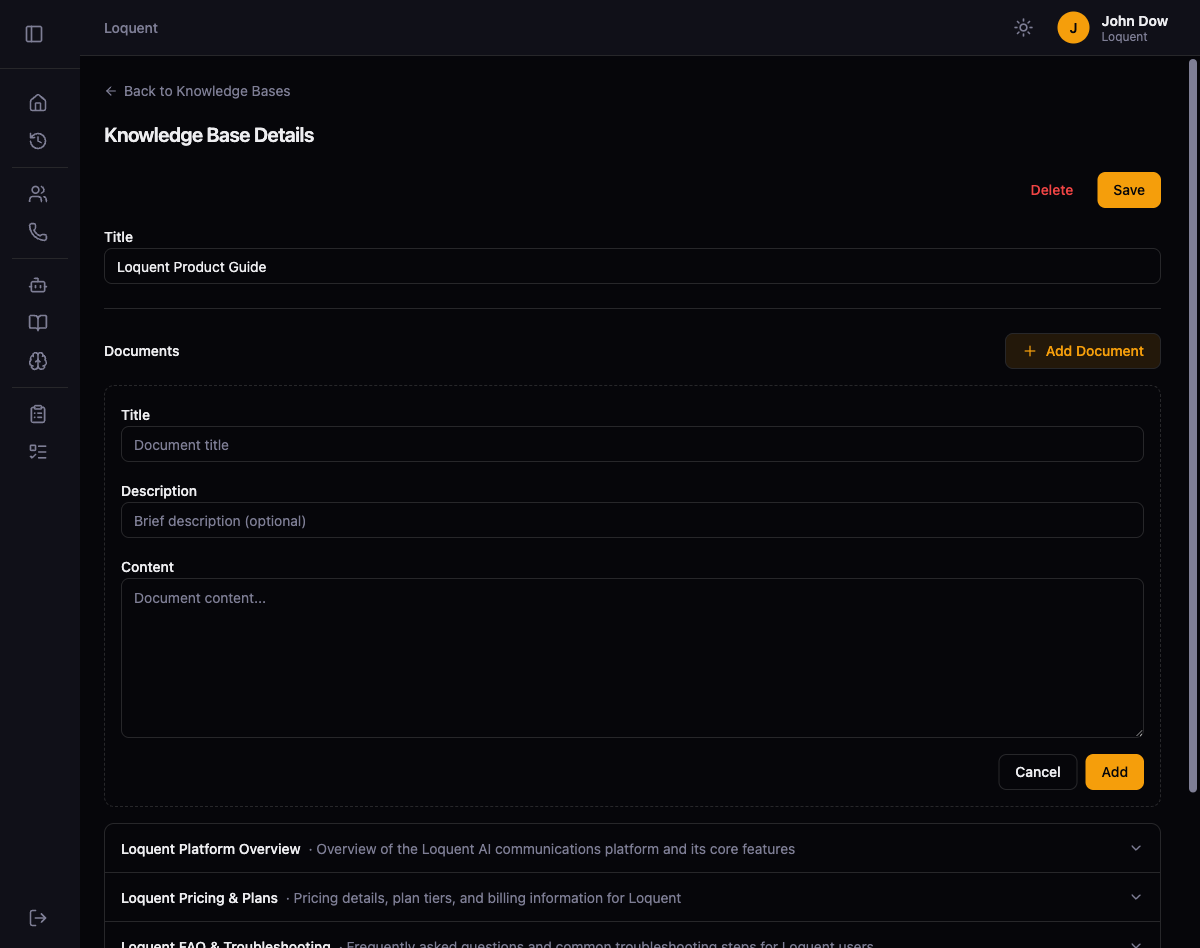
Fill in the document fields:
| Field | Required | Description |
|---|---|---|
| Title | Yes | A name that identifies this document in the list |
| Description | No | A short summary of what the document covers |
| Content | Yes | The full text your agent can search during calls |
Click Add to save the document. Repeat this process for each document you want to include. There is no limit on the number of documents per knowledge base.
Review your knowledge base
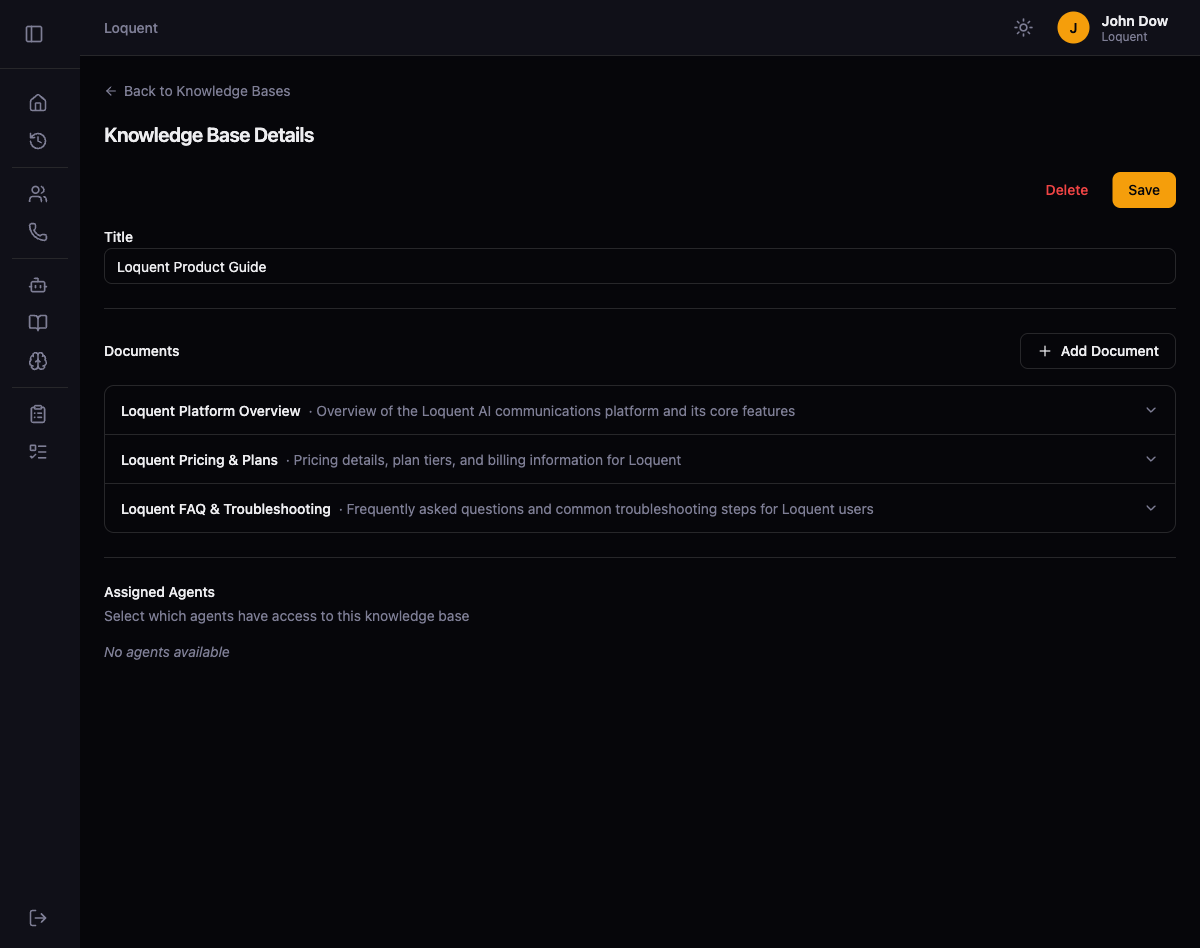
Section titled “Review your knowledge base”After adding documents, the detail page shows all documents with their titles and descriptions. You can expand any document to view or edit its content, or click the chevron to collapse it.
Assign to an agent
Section titled “Assign to an agent”The Assigned Agents section at the bottom of the detail page lets you select which agents have access to this knowledge base. Agents with an assigned knowledge base can search its documents during live calls to provide accurate, context-aware responses.