
Contact Tags
Tags are color-coded labels you create for your organization and assign to any contact. Use them to segment your contacts, filter the Contacts list, and help the AI categorize callers automatically.
Create a tag
Section titled “Create a tag”Tags are managed at the organization level. To create a new tag:
- Go to Settings → General (or the Tags section if available).
- Enter a tag name and choose a color.
- Click Save. The tag is now available to assign to any contact.
Assign a tag to a contact
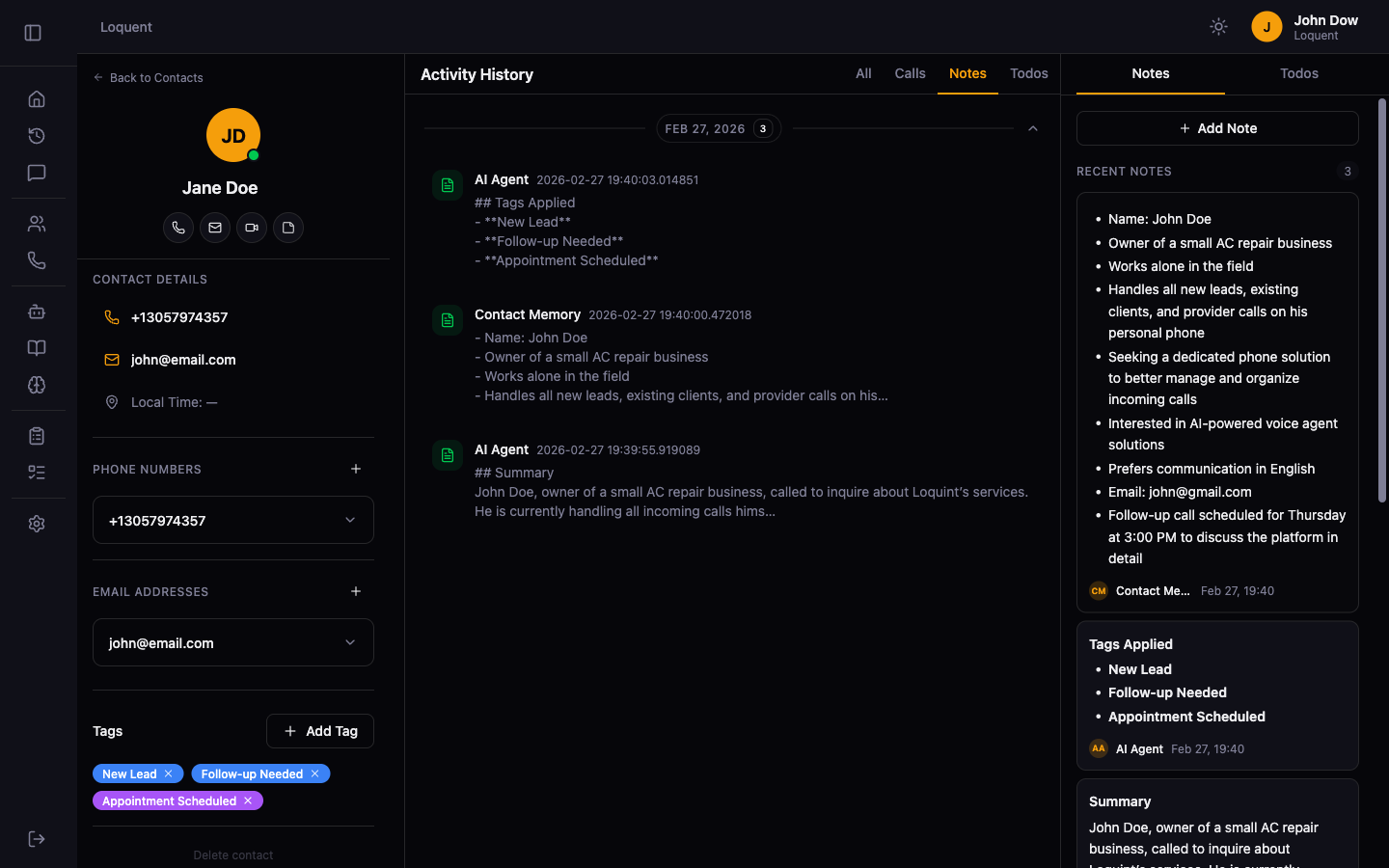
Section titled “Assign a tag to a contact”Open a contact’s details page. In the left sidebar, click + Add Tag and select a tag from the list.
Remove a tag from a contact
Section titled “Remove a tag from a contact”Click the × next to the tag in the left sidebar to remove it.
Filter contacts by tag
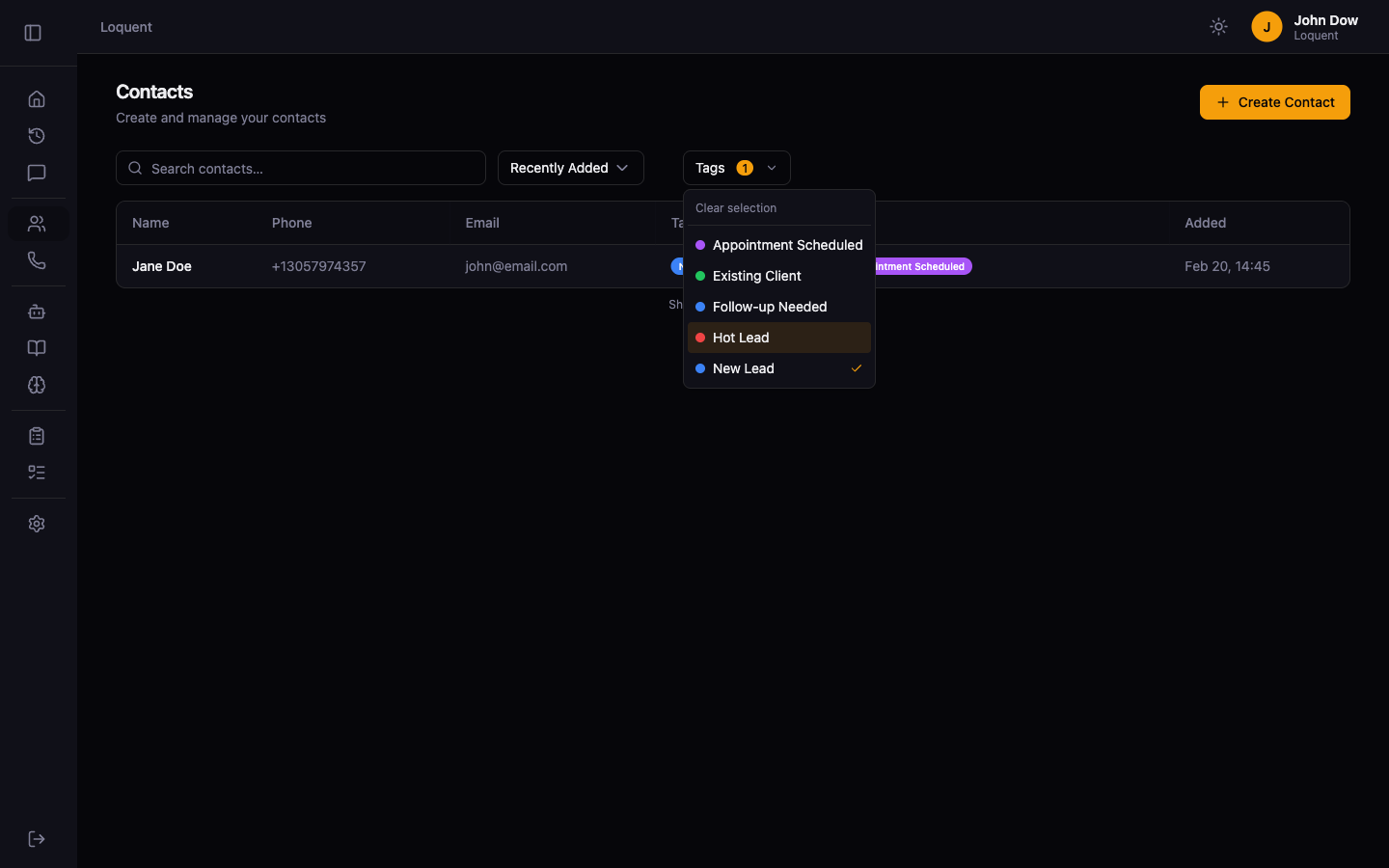
Section titled “Filter contacts by tag”On the Contacts list, click Tags and select a tag to show only contacts with that label.
AI auto-tagging
Section titled “AI auto-tagging”After each call, Loquent analyzes the conversation and automatically applies relevant tags to the contact. A note labeled AI Agent appears in the timeline listing which tags were applied.
Related pages
Section titled “Related pages”- Contact Details — view and manage a contact’s full profile
- Contact Memory — how agents build context about each contact