
Create an Agent
Open the Agents page
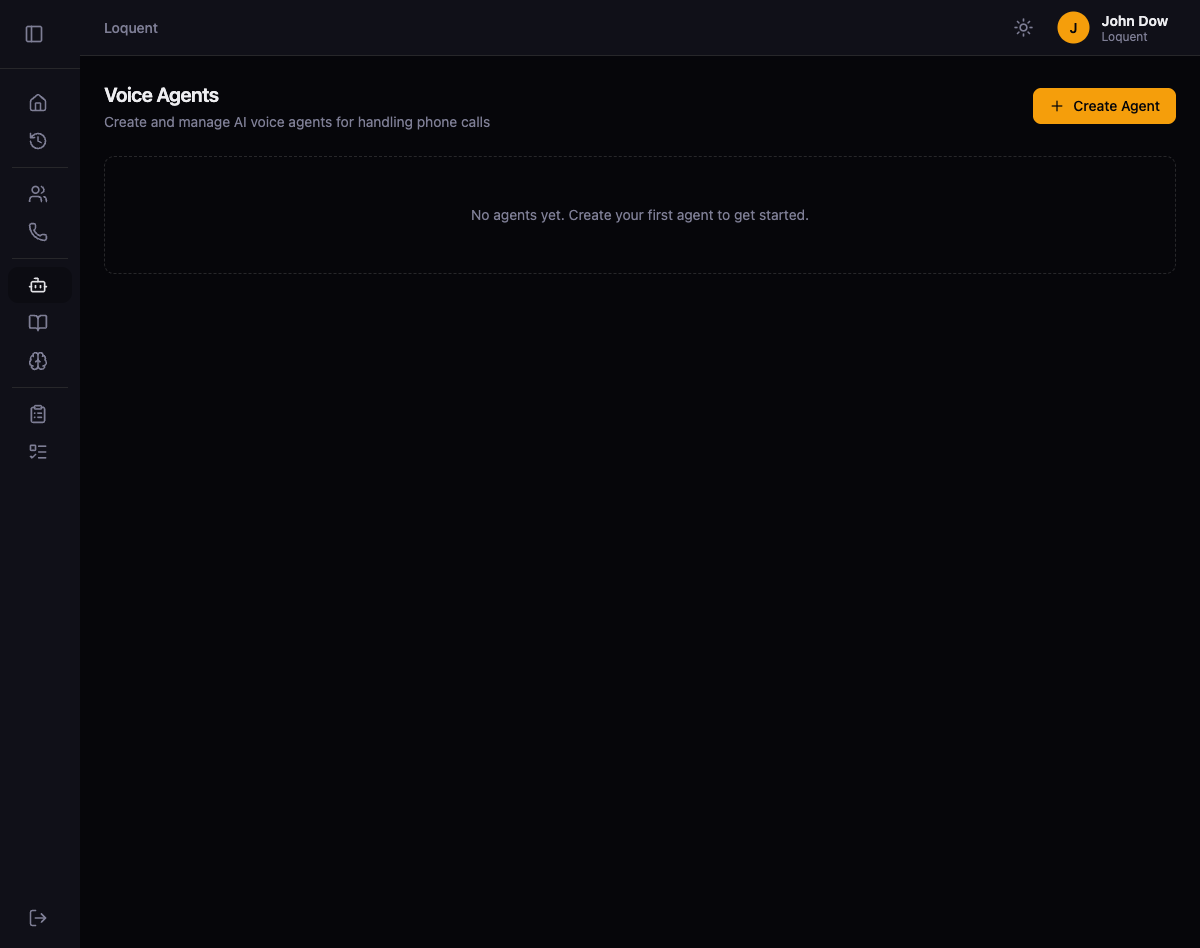
Section titled “Open the Agents page”Click Agents in the sidebar. The Voice Agents page lists all agents in your organization.
Create a new agent
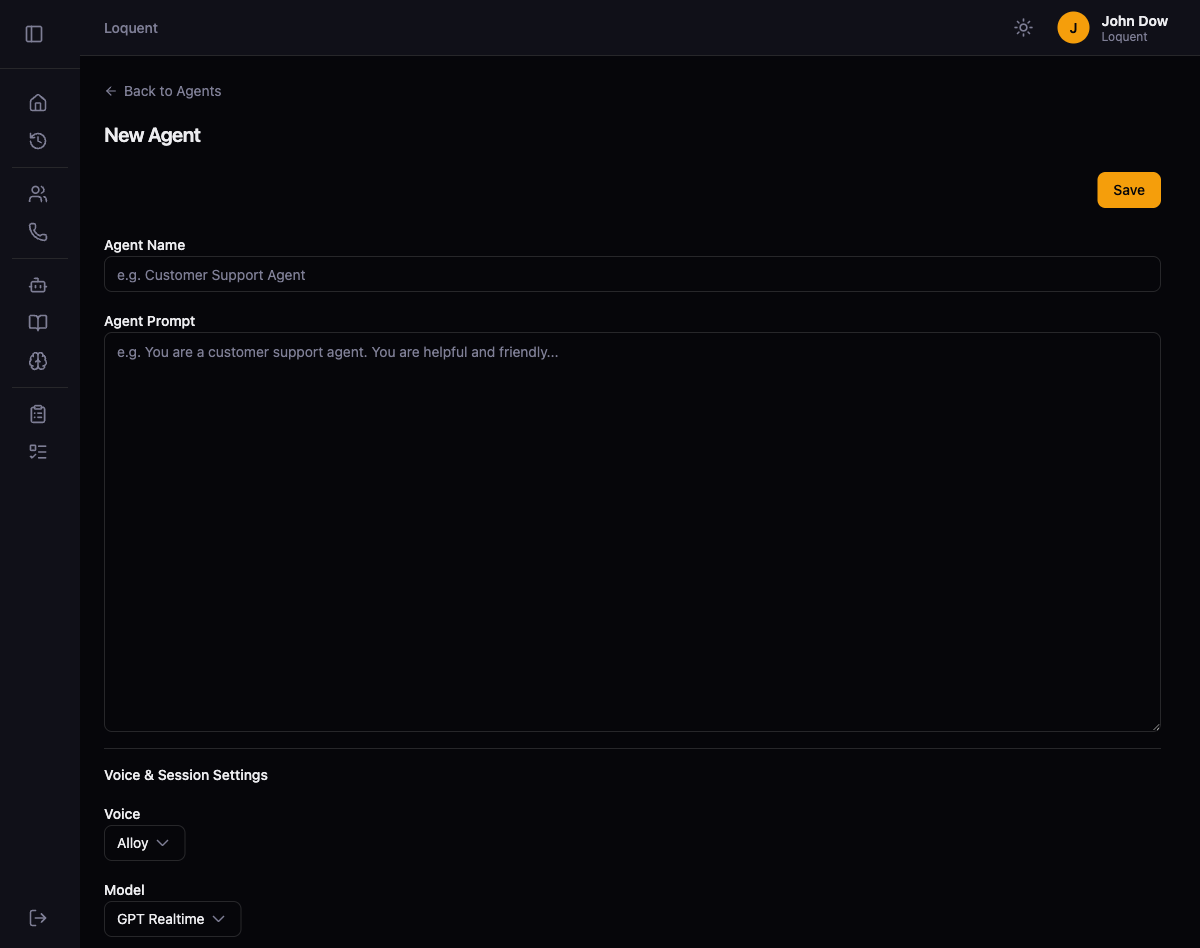
Section titled “Create a new agent”Click + Create Agent. The New Agent form opens with an Agent Name field and an Agent Instructions section.
Write your agent instructions
Section titled “Write your agent instructions”Loquent gives you two ways to create instructions:
Generate with AI
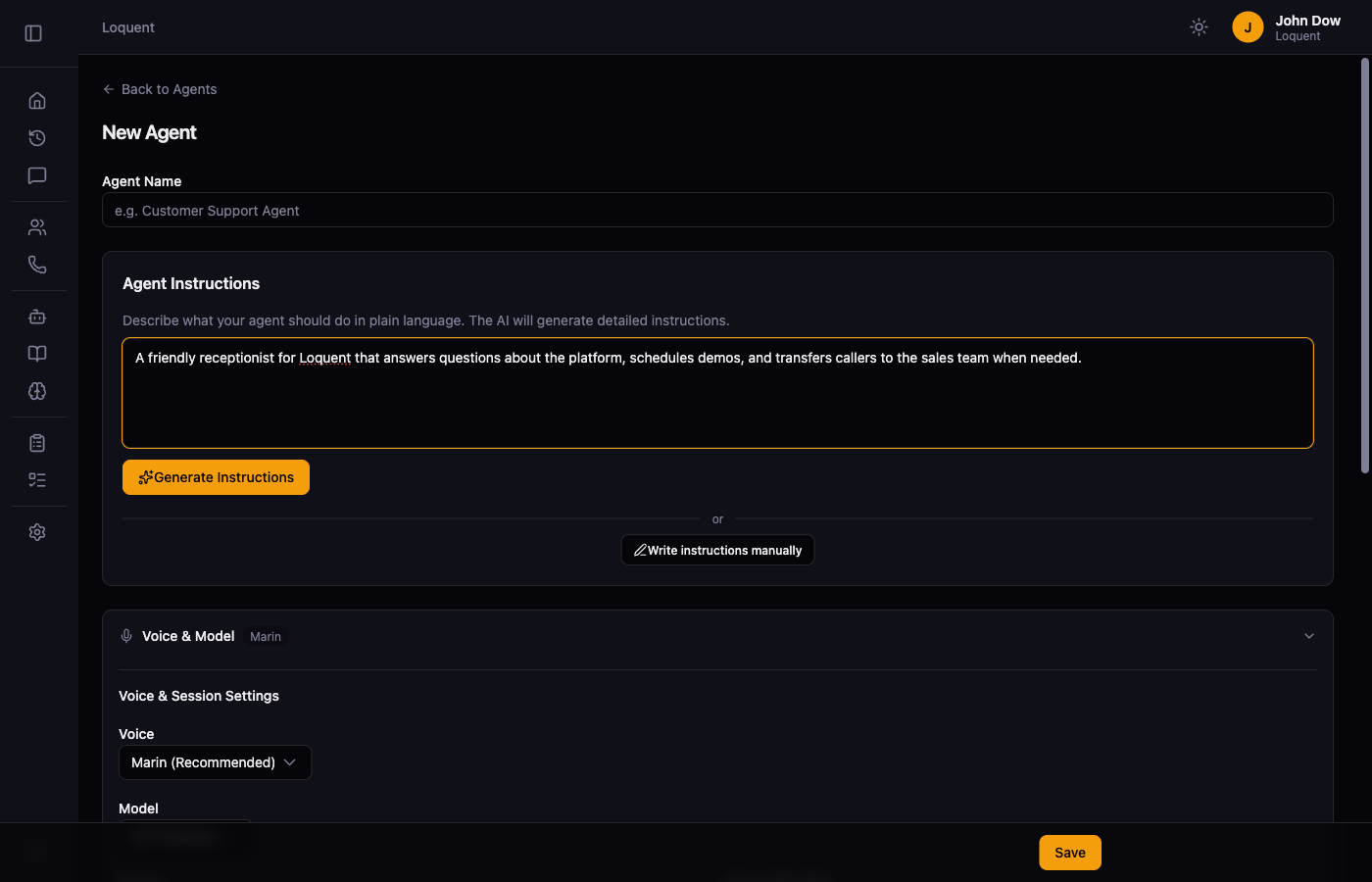
Section titled “Generate with AI”Describe your agent in plain language — what it does, how it should sound, and what it should avoid. Click Generate Instructions and Loquent’s AI writes a complete set of instructions for you.
Write manually
Section titled “Write manually”Click Write instructions manually to open a raw text editor and write the prompt yourself.
Configure voice and session settings
Section titled “Configure voice and session settings”Scroll down to the Voice & Model section. These settings control how the agent sounds and processes speech during calls.
| Setting | Default | Description |
|---|---|---|
| Voice | Marin | The text-to-speech voice the agent uses on calls |
| Model | GPT Realtime | The AI model that powers the agent’s responses |
| Speed | 1 | Speech rate multiplier. Higher values produce faster speech |
| Noise Reduction | Near Field | Filters background noise from the caller’s audio |
| Voice Activity Detection | Semantic VAD | Determines when the caller has finished speaking |
| Eagerness | Medium | Controls how quickly the agent responds after the caller stops talking |
Save the agent
Section titled “Save the agent”Click Save. Loquent redirects you to the Agents list where your new agent appears.