
Contact Details
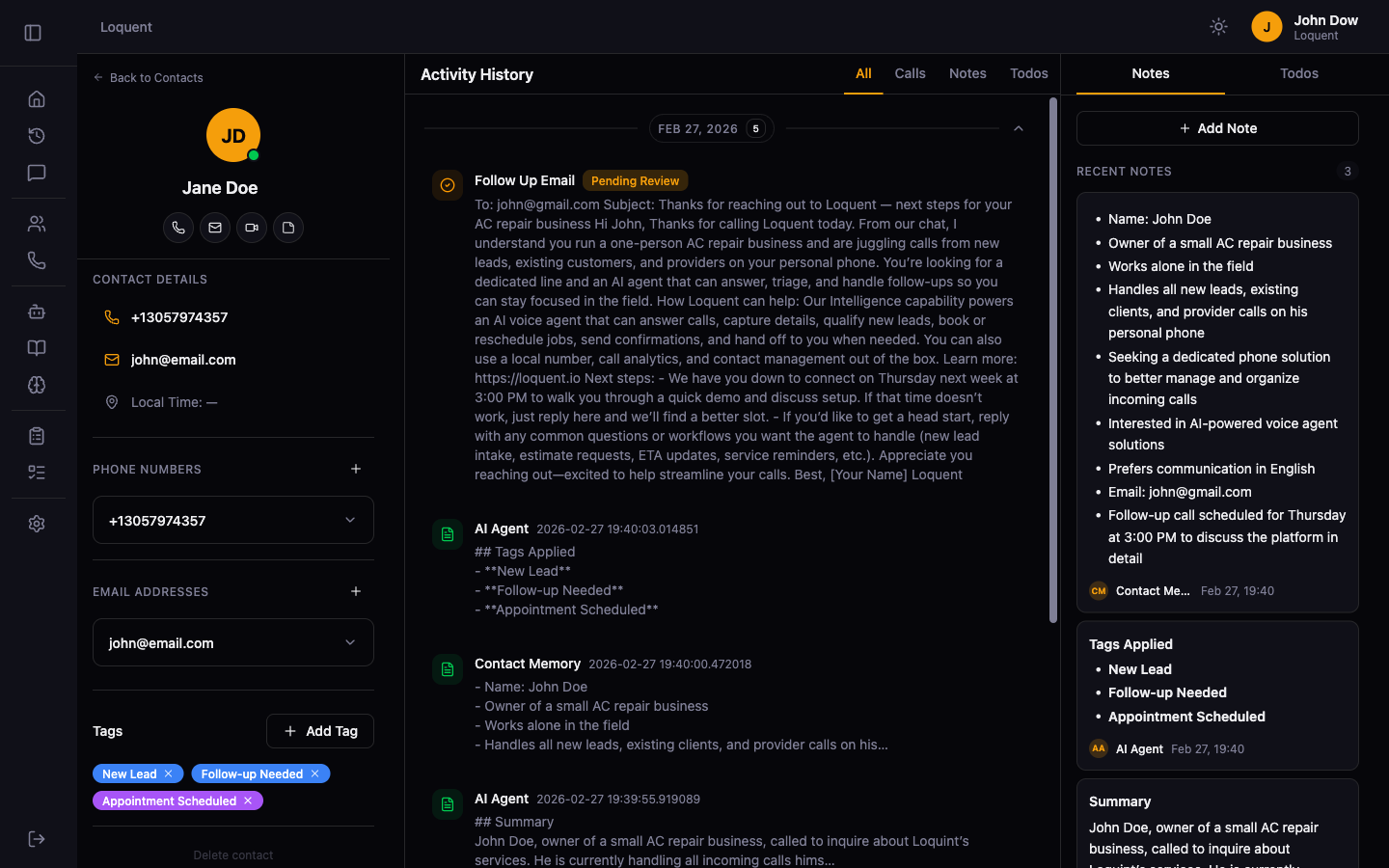
Click any contact in the Contacts list to open their details. The Contact Details page uses a three-column layout: a profile sidebar on the left, an activity timeline in the center, and panels for notes and to-dos on the right.
Left sidebar
Section titled “Left sidebar”The sidebar shows the contact’s avatar, name, and quick-action buttons for calling or messaging. Below that:
- Tags — labels assigned to this contact. Click a tag to edit or remove it, or click + Add Tag to assign a new one. See Contact Tags.
- Phone Numbers — all numbers linked to this contact. Click + to add another.
- Email Addresses — all emails linked to this contact. Click + to add another.
Activity timeline
Section titled “Activity timeline”The center column shows a chronological feed of all activity for this contact: calls, notes, and to-dos grouped by date.
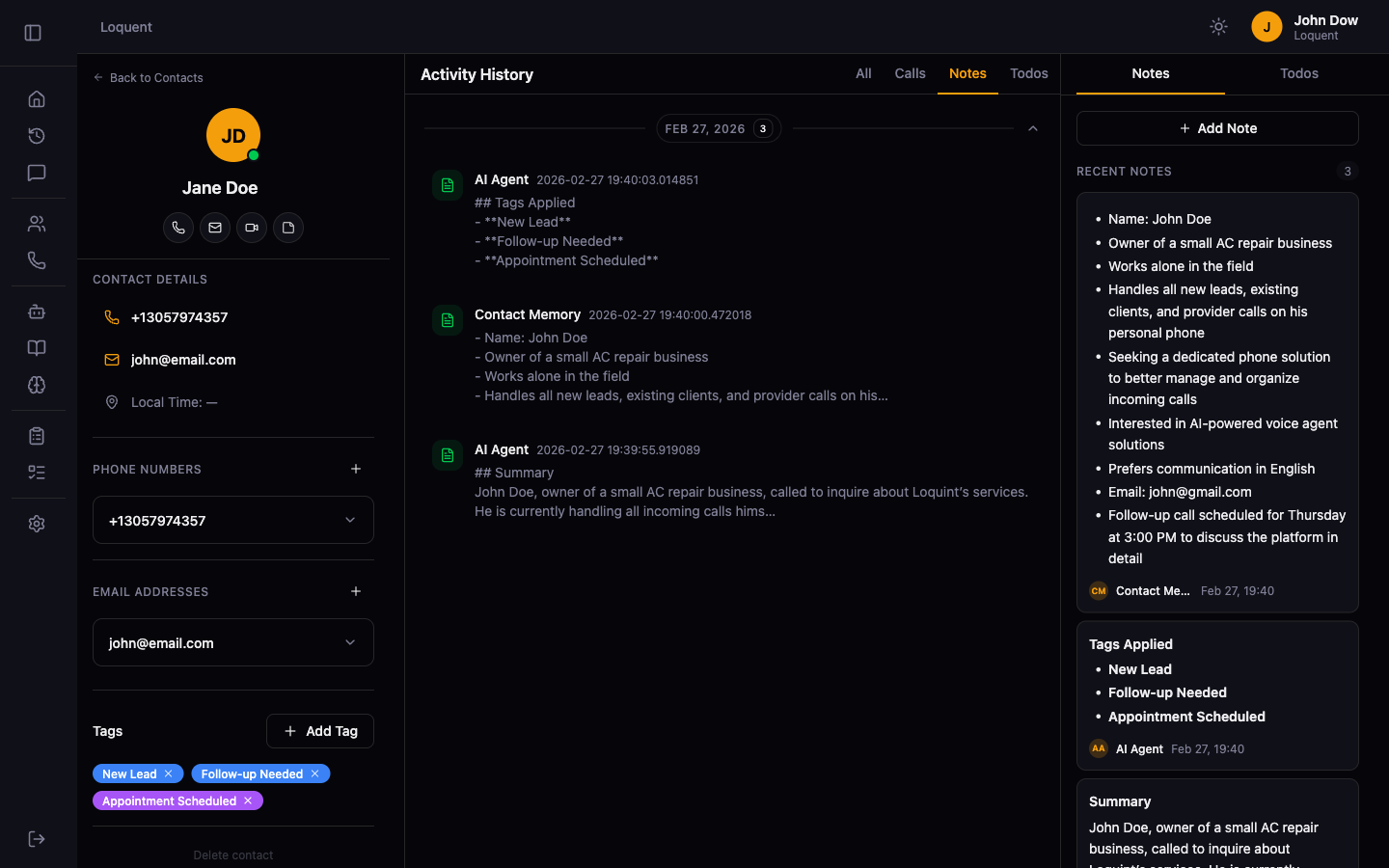
Use the filter bar to focus on a specific type:
| Filter | Shows |
|---|---|
| All | Calls, notes, and to-dos together |
| Calls | Call cards only |
| Notes | Notes only (manual and AI-generated) |
| Todos | To-do items only |
Right panel
Section titled “Right panel”The right panel provides quick access to the contact’s notes and to-dos without scrolling the timeline.
Edit a contact’s name
Section titled “Edit a contact’s name”Click the First Name or Last Name fields in the sidebar to edit them inline. Changes save automatically.
Delete a contact
Section titled “Delete a contact”Scroll to the bottom of the left sidebar and click Delete contact. This permanently removes the contact and all linked phone numbers and email addresses.
Related pages
Section titled “Related pages”- Contact Notes — add and view notes on this contact
- Contact Tags — assign tags for filtering and AI auto-tagging
- Contact Memory — how agents remember this contact across calls
- Add a Phone Number — link a phone number for caller identification
- Add an Email Address — link an email for automated messages