
Contact Notes
Notes let you record information about a contact that persists across calls and sessions. Open a contact’s details, then find the Notes section in the right panel or the activity timeline.
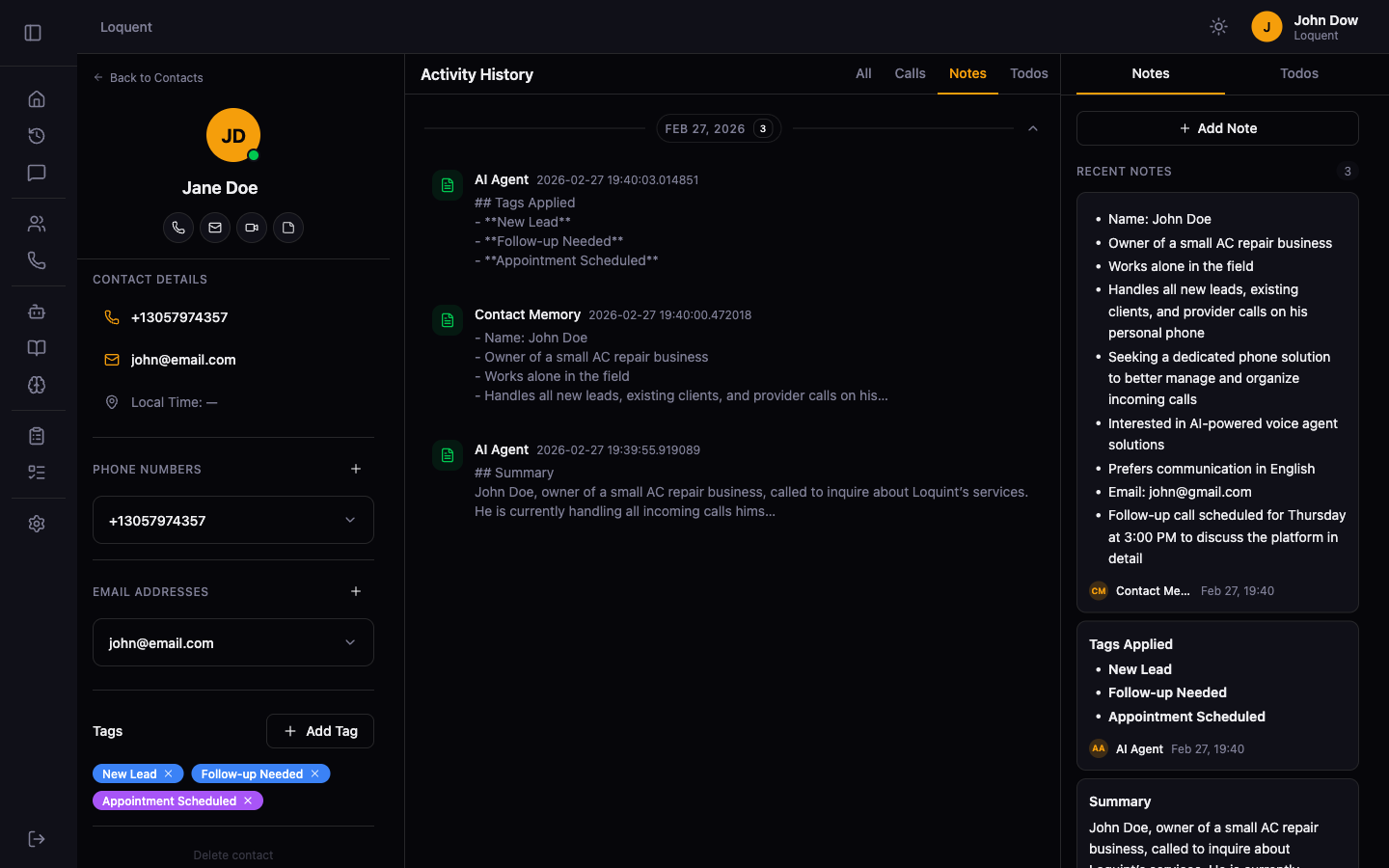
Add a note
Section titled “Add a note”Click + Add Note in the right panel, type your note, and click Save. Notes support full Markdown — use **bold**, - bullet lists, or ```code blocks```.
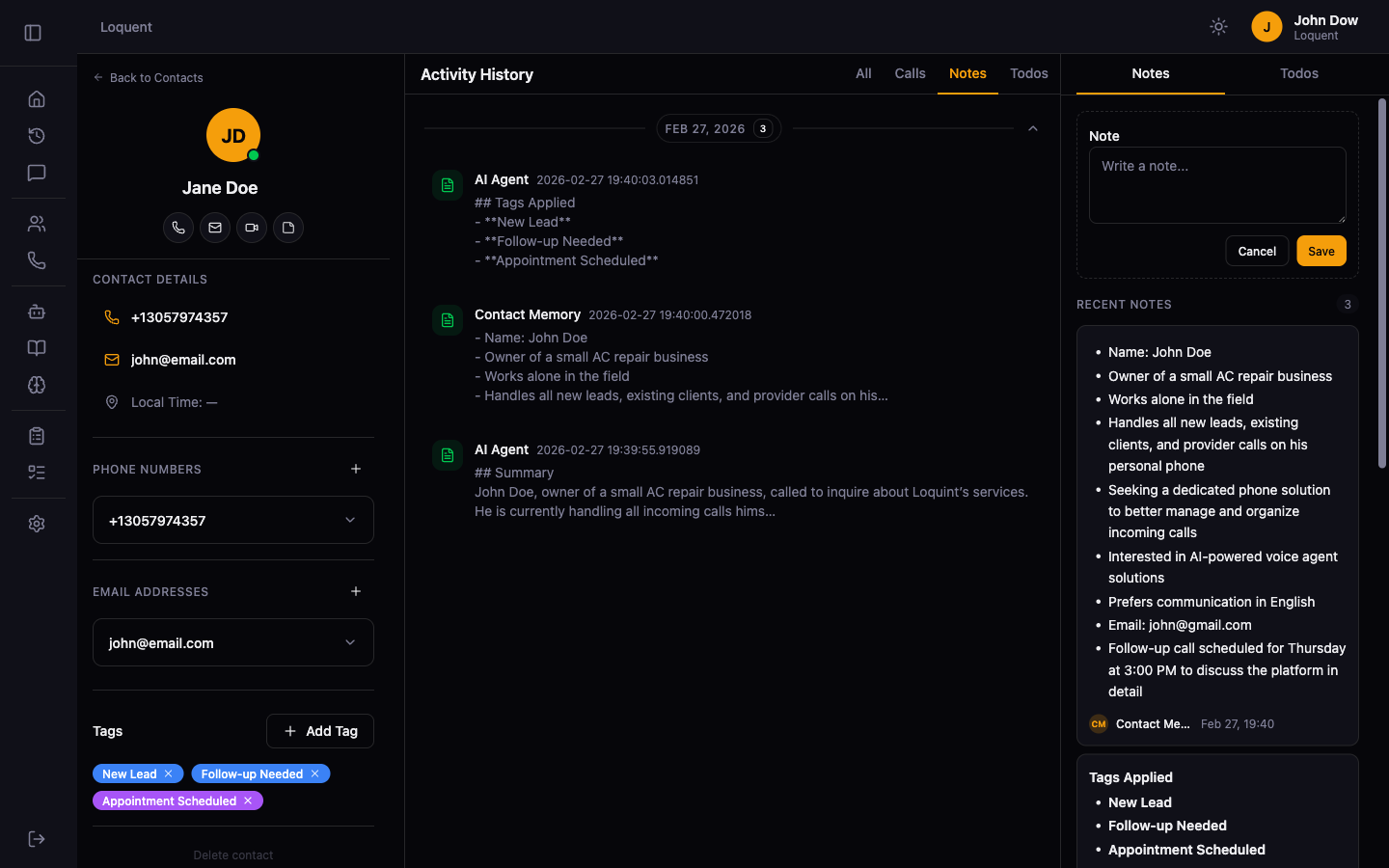
Edit a note
Section titled “Edit a note”Click the edit icon on any note you authored. Make your changes and click Save.
Delete a note
Section titled “Delete a note”Click the delete icon on any note you authored. This cannot be undone.
AI-generated notes
Section titled “AI-generated notes”After each call, Loquent automatically creates a note labeled AI Agent with a structured summary:
- Summary — what the call was about
- Key Points — important details mentioned
- Next Steps — any follow-up actions identified
These notes appear in the timeline and in the right panel. They cannot be edited or deleted.
Related pages
Section titled “Related pages”- Contact Details — the full contact profile and activity timeline
- Contact Memory — how the AI builds a memory of this contact over time