
Add a Phone Number
Adding a phone number to a contact lets Loquent identify the caller automatically. When a call comes in from a linked number, the agent greets the caller by name and has access to their contact history.
Add a phone number
Section titled “Add a phone number”Open a contact’s details page and click + Add Phone.
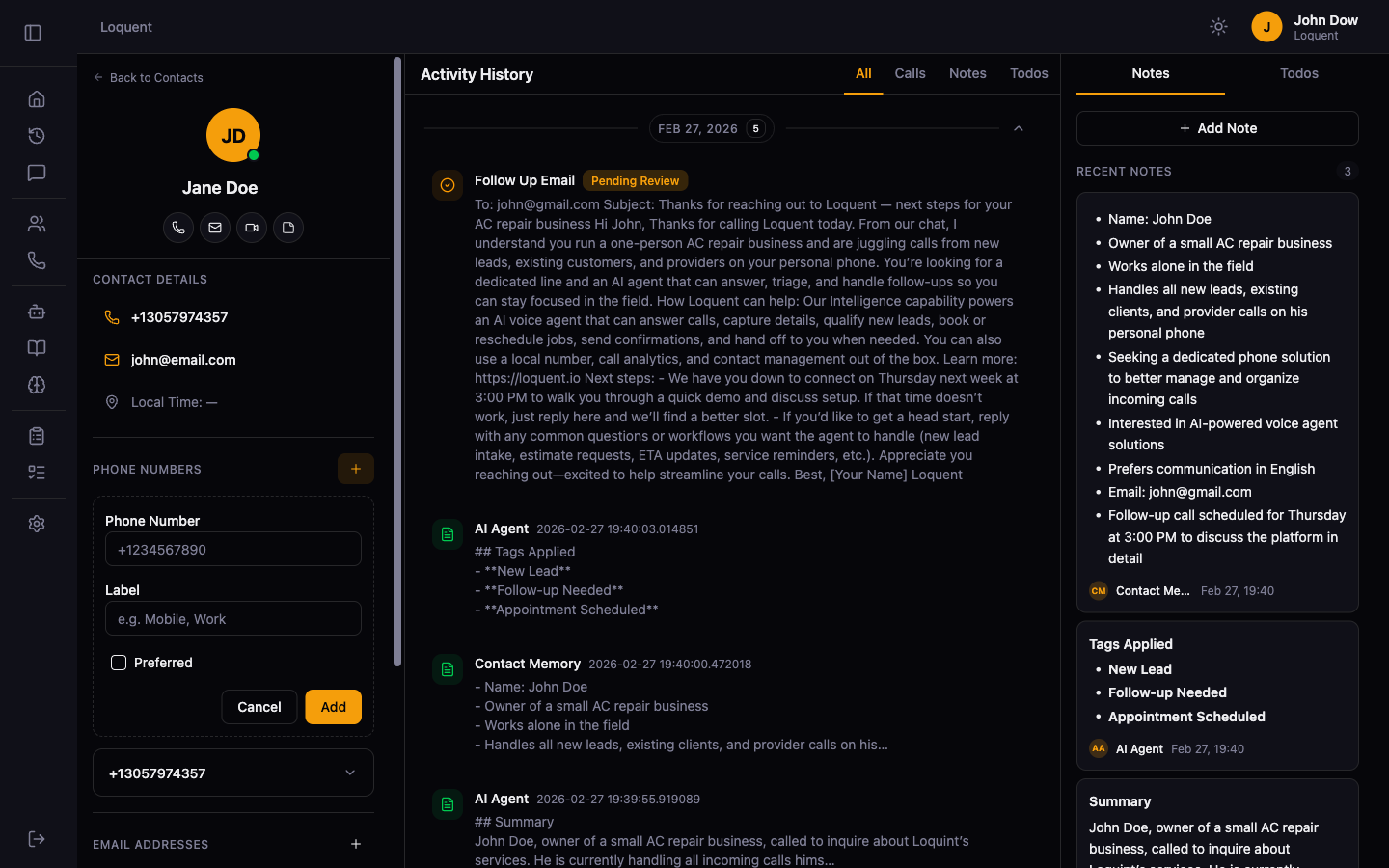
Fill in the form:
| Field | Required | Description |
|---|---|---|
| Phone Number | Yes | E.164 format — include the country code (e.g. +12125550100) |
| Label | No | A label to identify the number, e.g. Mobile, Work, Home |
| Preferred | No | Mark this as the primary number for this contact |
Click Add to save the number.
Preferred number
Section titled “Preferred number”A contact can have multiple phone numbers. The Preferred checkbox marks one as the primary number. When Loquent needs to reference the contact’s number (for example in call logs), it uses the preferred one.
Remove a phone number
Section titled “Remove a phone number”On the Contact Details page, expand the phone number row and click Remove.
Related pages
Section titled “Related pages”- Contact Details — view and edit all contact information
- Add an Email Address — link an email for automated messages