
Add an Email Address
Adding an email address to a contact enables automated to-do actions like Send Email to Caller. When Loquent executes a follow-up email task, it uses the contact’s preferred email address as the recipient.
Add an email address
Section titled “Add an email address”Open a contact’s details page and click + Add Email.
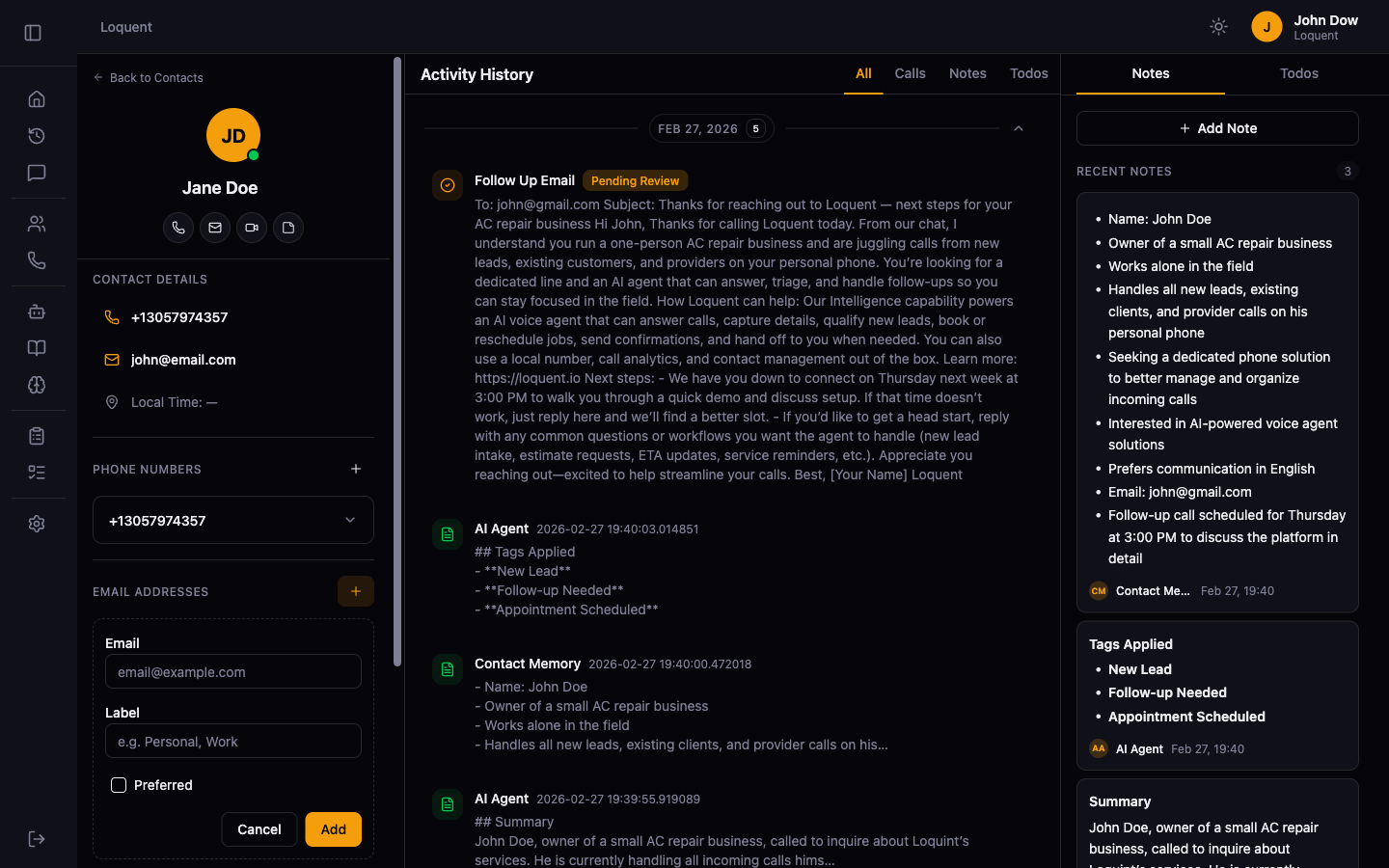
Enter the email address and click Add to save it.
Preferred email address
Section titled “Preferred email address”A contact can have multiple email addresses. Loquent always sends automated emails to the preferred address. If no address is marked as preferred, Loquent uses the first one on file.
Remove an email address
Section titled “Remove an email address”On the Contact Details page, expand the email address row and click Remove.
Related pages
Section titled “Related pages”- Contact Details — view and edit all contact information
- Add a Phone Number — link a phone number for caller identification
- To-Do Types — configure automated actions that send emails