
Buy a Phone Number
Open Phone Numbers
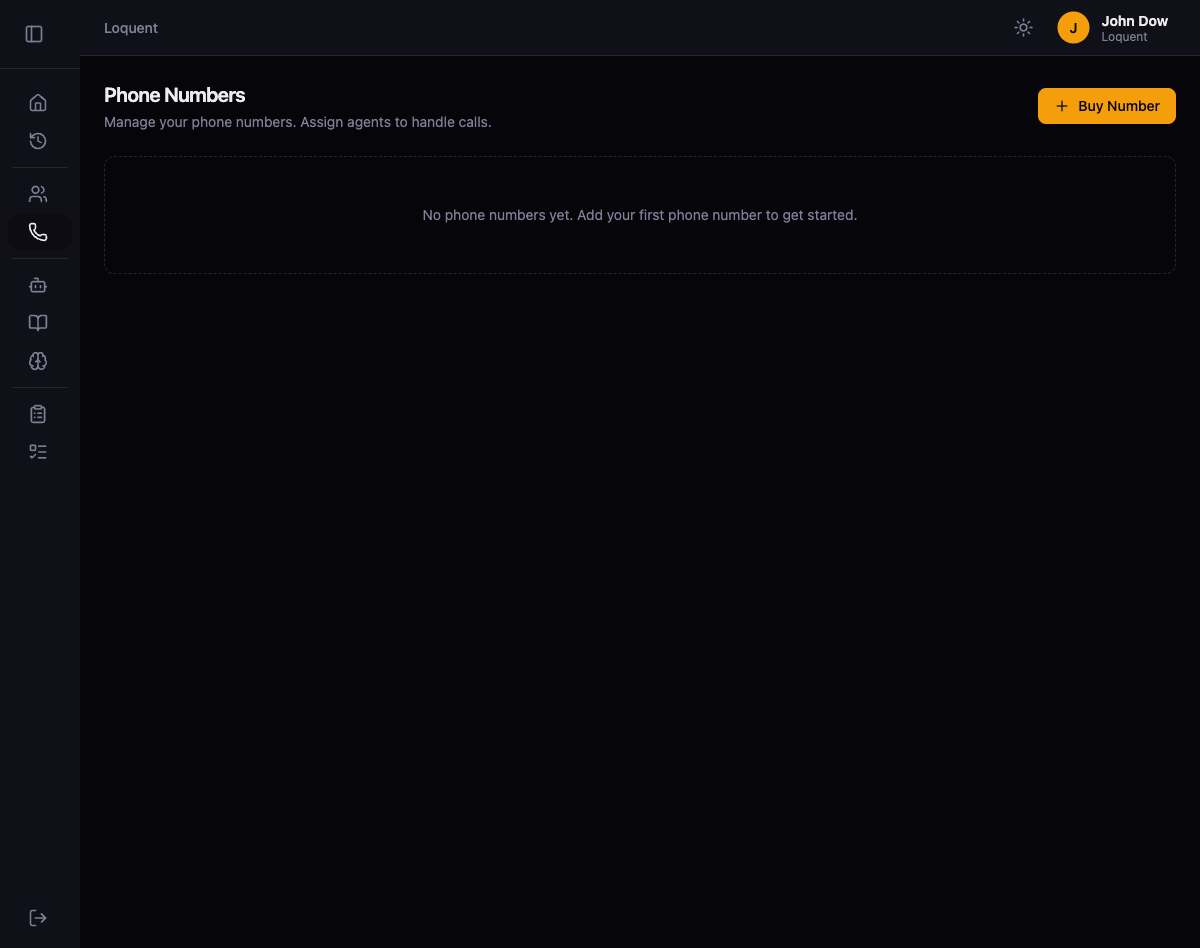
Section titled “Open Phone Numbers”Click Phones in the sidebar. The Phone Numbers page lists all numbers in your organization.
Search for a number
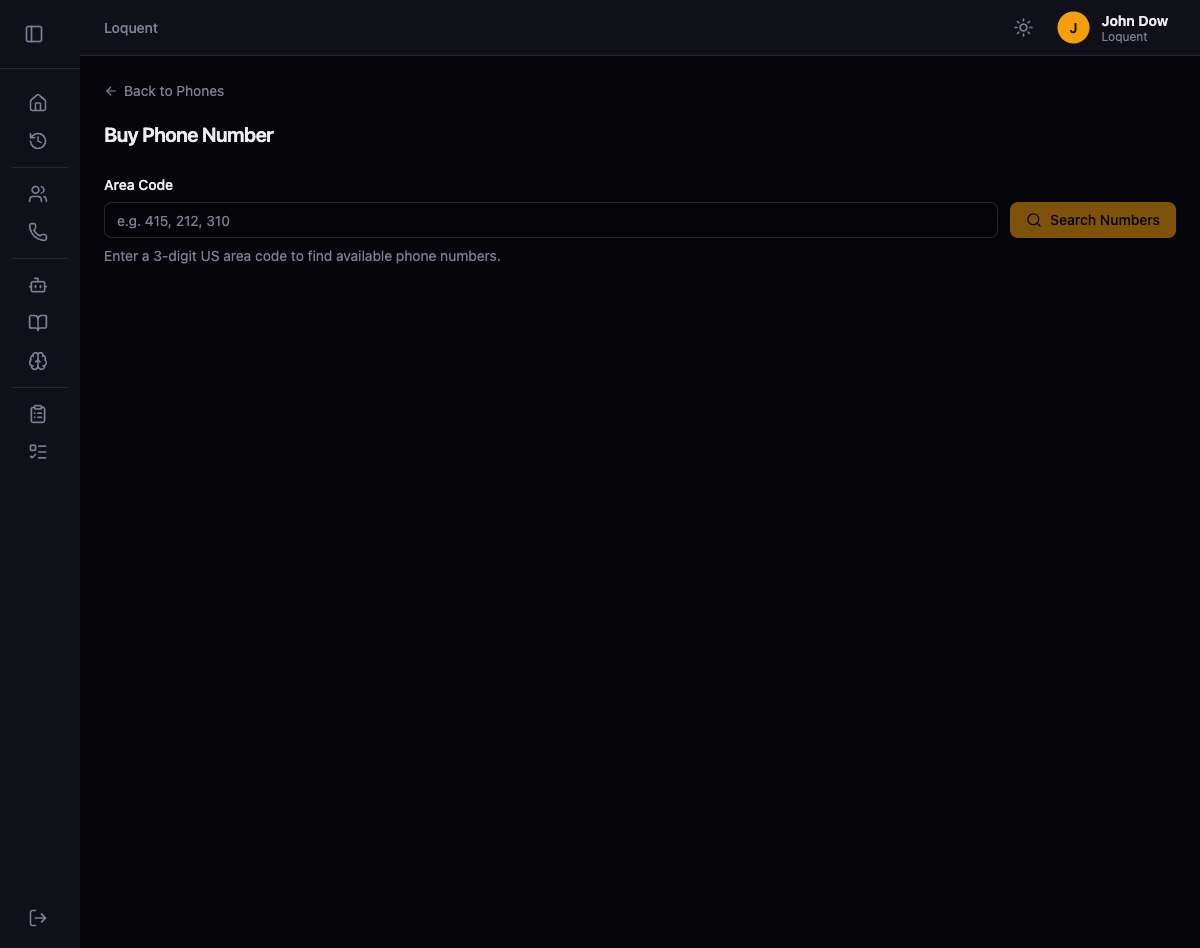
Section titled “Search for a number”- Click + Buy Number to open the search page.
- Enter a 3-digit US area code in the Area Code field (for example,
561,212, or310). - Click Search Numbers.
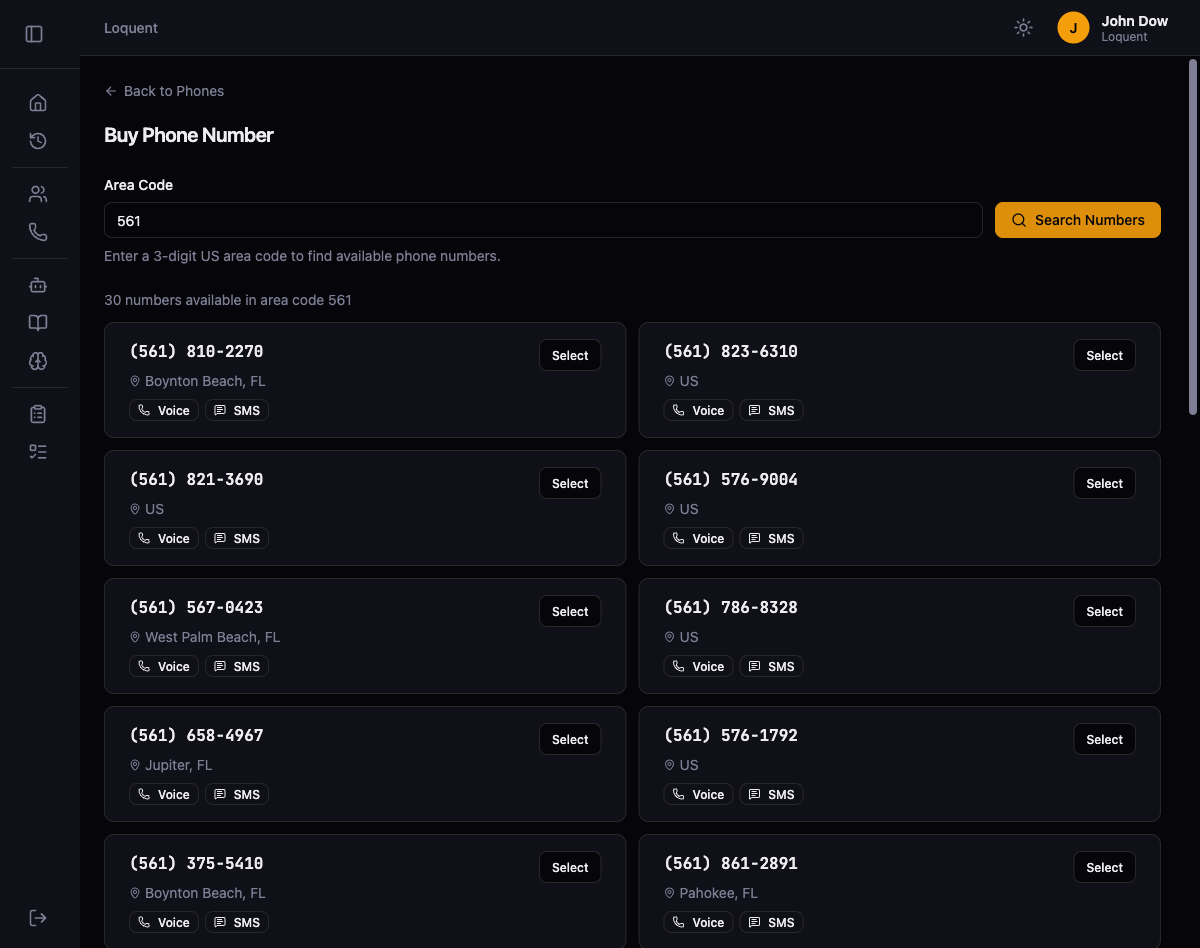
A grid of available numbers appears. Each card shows the phone number, location, and supported capabilities (Voice, SMS).
Buy the number
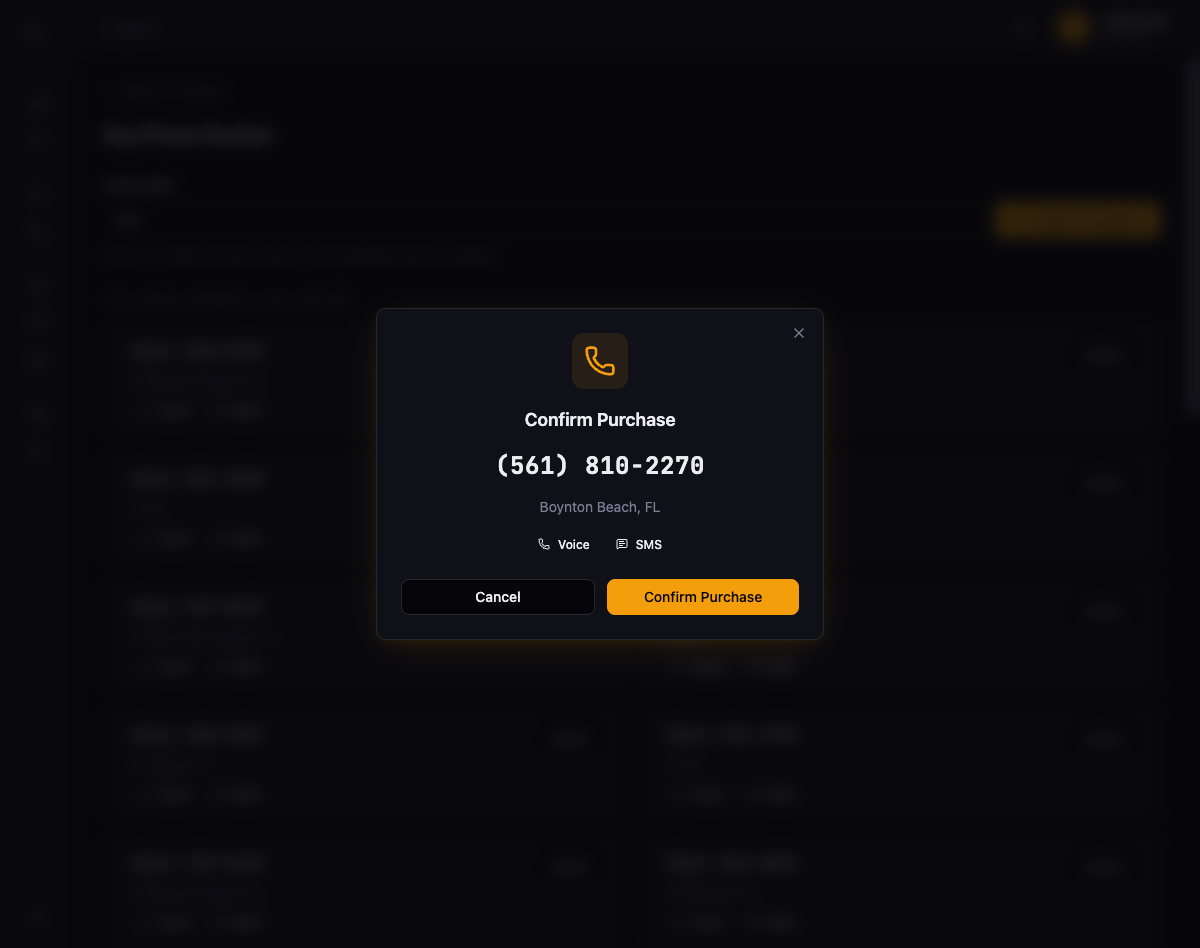
Section titled “Buy the number”Click Select on the number you want. A confirmation dialog appears showing the number, location, and capabilities. Click Confirm Purchase to complete the purchase.
Assign an agent
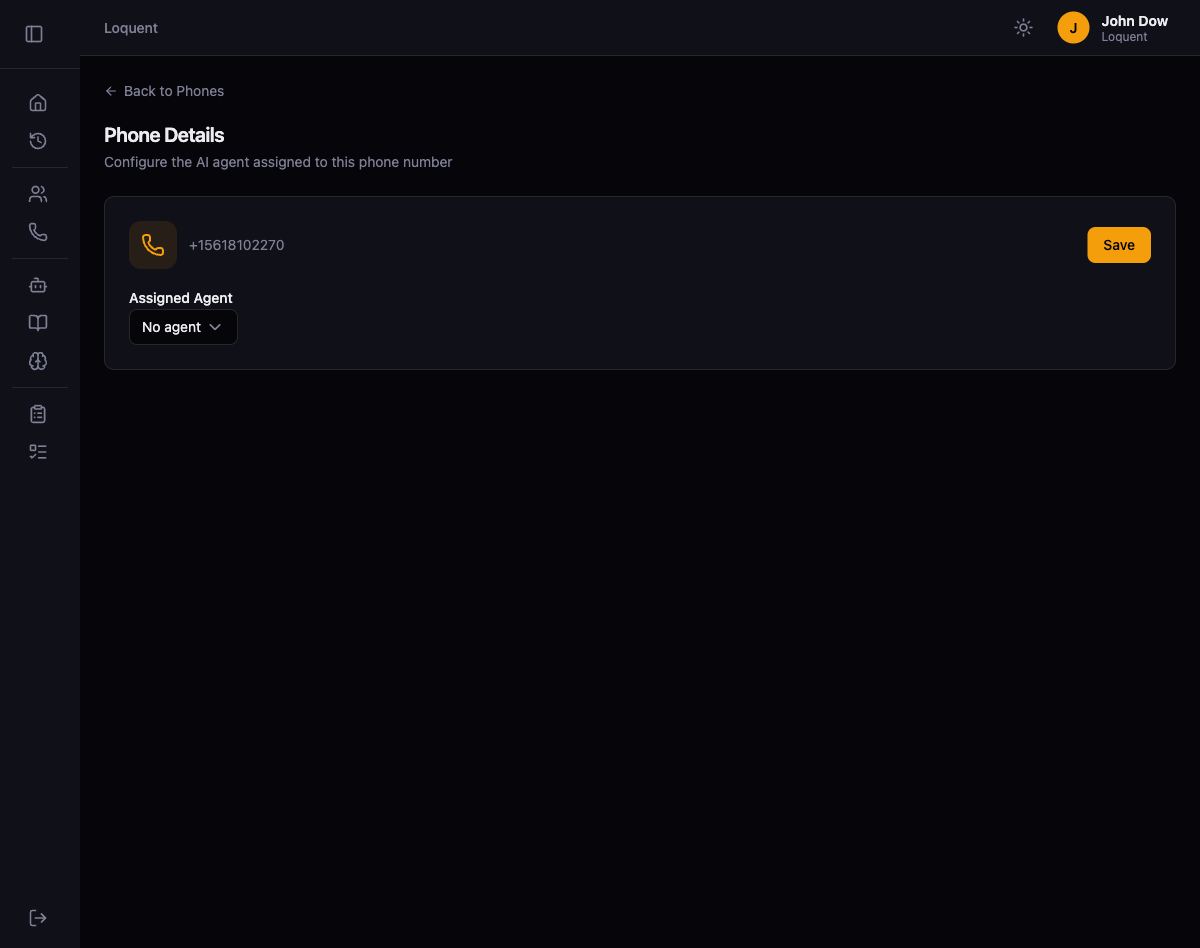
Section titled “Assign an agent”After purchase, Loquent redirects you to the Phone Numbers list. Click on your new number to open the Phone Details page.
Select your agent from the Assigned Agent dropdown and click Save. All inbound calls to this number now route to the assigned agent.
Make a test call
Section titled “Make a test call”Dial your new number from any phone. The assigned agent answers and responds based on the prompt you configured. Speak naturally and verify the agent behaves as expected.
If the agent does not respond correctly, return to the Create an Agent page and adjust the Agent Prompt.